> For the complete documentation index, see [llms.txt](https://help.timebook.ai/hc/llms.txt). Markdown versions of documentation pages are available by appending `.md` to page URLs; this page is available as [Markdown](https://help.timebook.ai/hc/get-started/delivery/releases.md).
# Releases
{% hint style="success" %}
This tutorial helps understand how Timebook handles the concept or Releases in product delivery.
{% endhint %}
In Timebook, releases combine the traditional definition of software release cycle with a wider strategic approach to product delivery. Depending if you're a Team Leader or a Product Manager, you could treat them as a final collection of items released in a development cycle, or a roadmap of features and user stories leading to a designated goal.
## Configuring releases
In order to use the sprints you must first activate them in your team settings under **Planning** → **Releases**.
## Working with releases
{% hint style="info" %}
In their assumptions, releases are similar to [sprints](/hc/get-started/delivery/sprints.md). If you have worked with sprints before, you should be comfortable with releases right from the start.
{% endhint %}
Contrary to Sprints which usually contain smaller-scale work items, Releases are thought as a broader container for larger objects. This might include features assigned to a specific goal, or a collection of items delivered in a sprint from several different teams.
For example, you can create a release that will include sprints from a back-end team, and a front-end team.
### Creating a release
{% stepper %}
{% step %}
Go to **Planning** → **Releases** and click 'Create first release'.
{% endstep %}
{% step %}
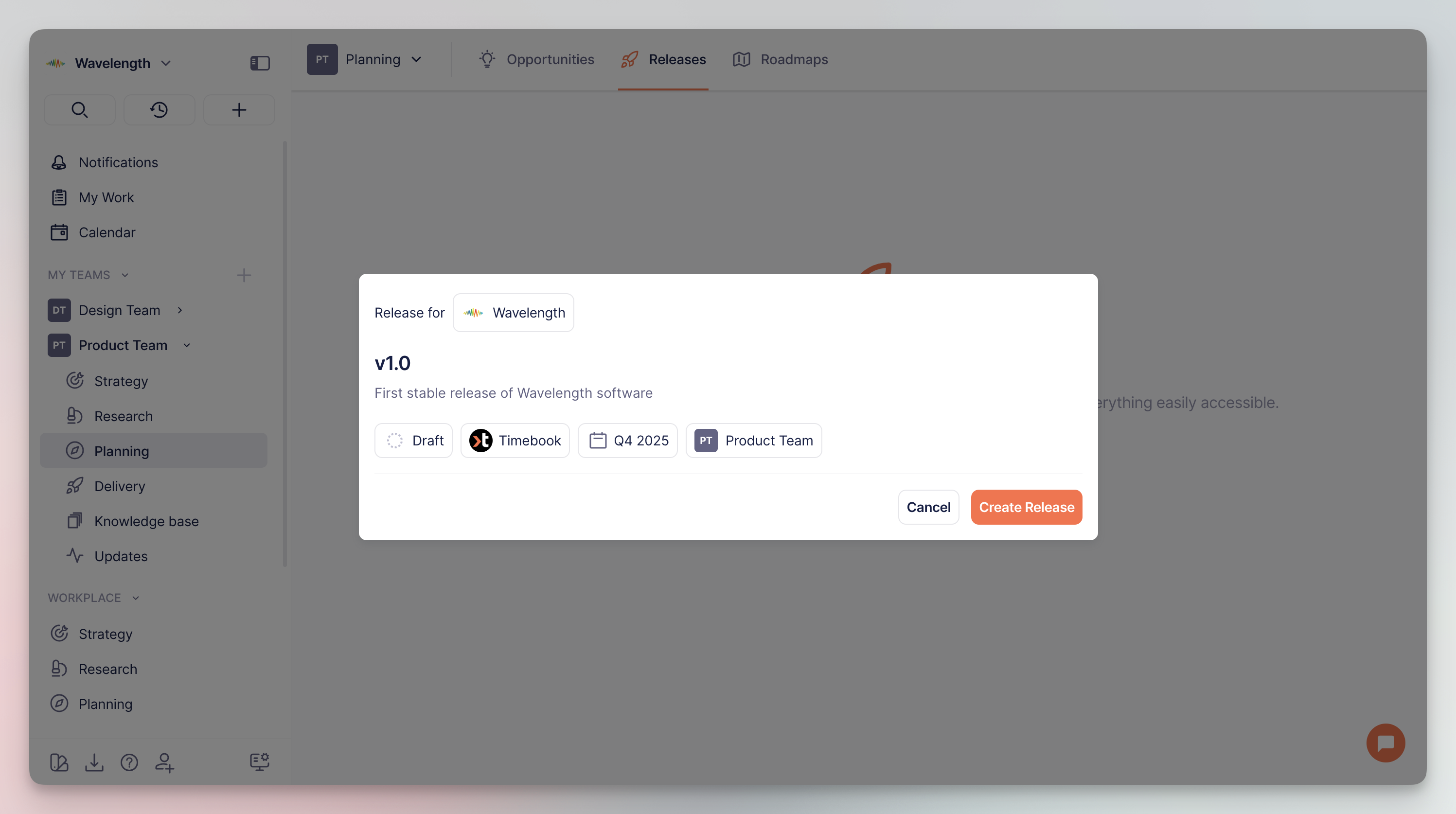
Enter the details of the Release: name, description, date range in which the release should be ready, team responsible, and the product it refers to:
New release configuration
{% endstep %}
{% step %}
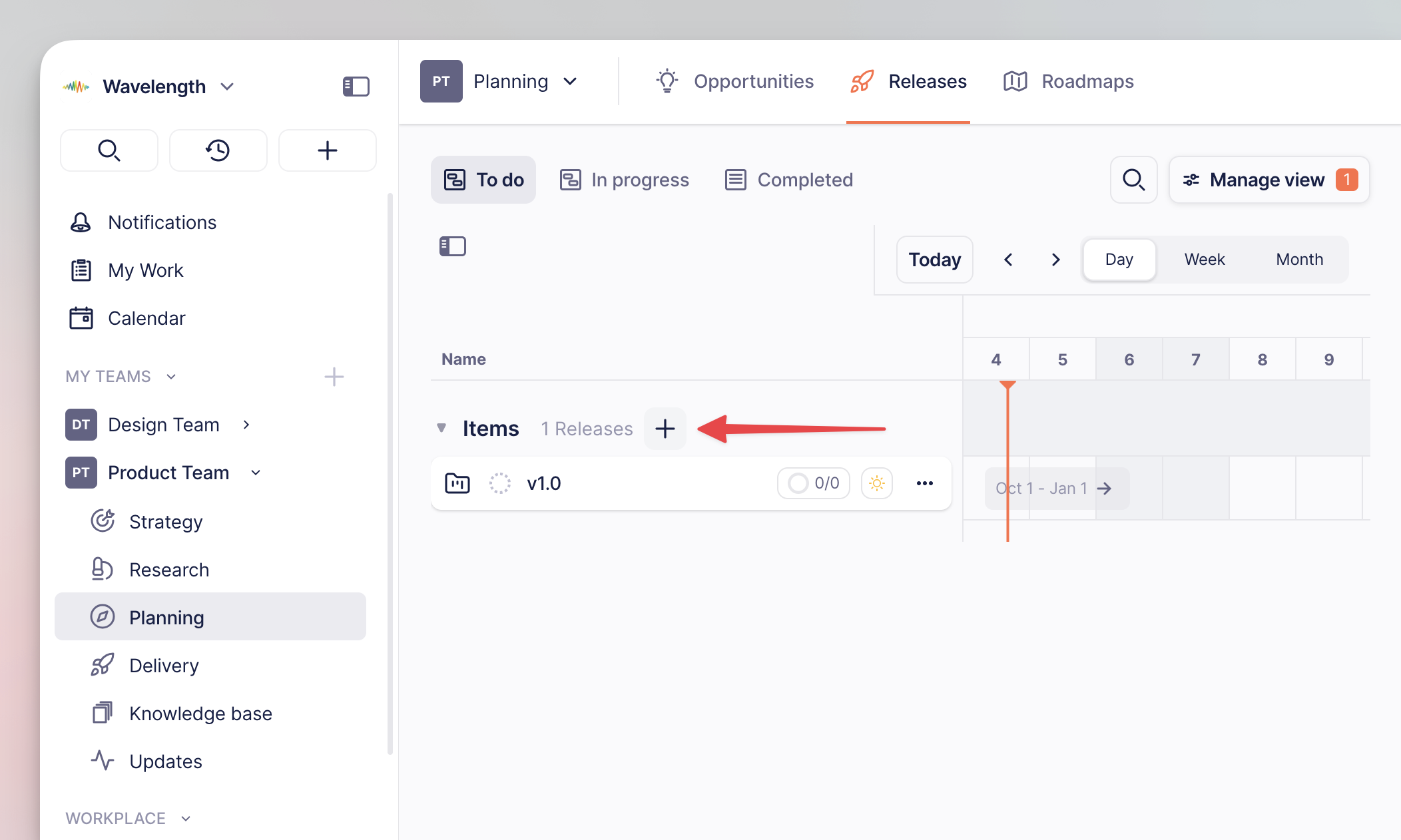
You can add more releases using the `+` button on the Releases overview tab:
Add button location for new sprints
{% endstep %}
{% endstepper %}
### Adding items to releases
#### Method 1: Property
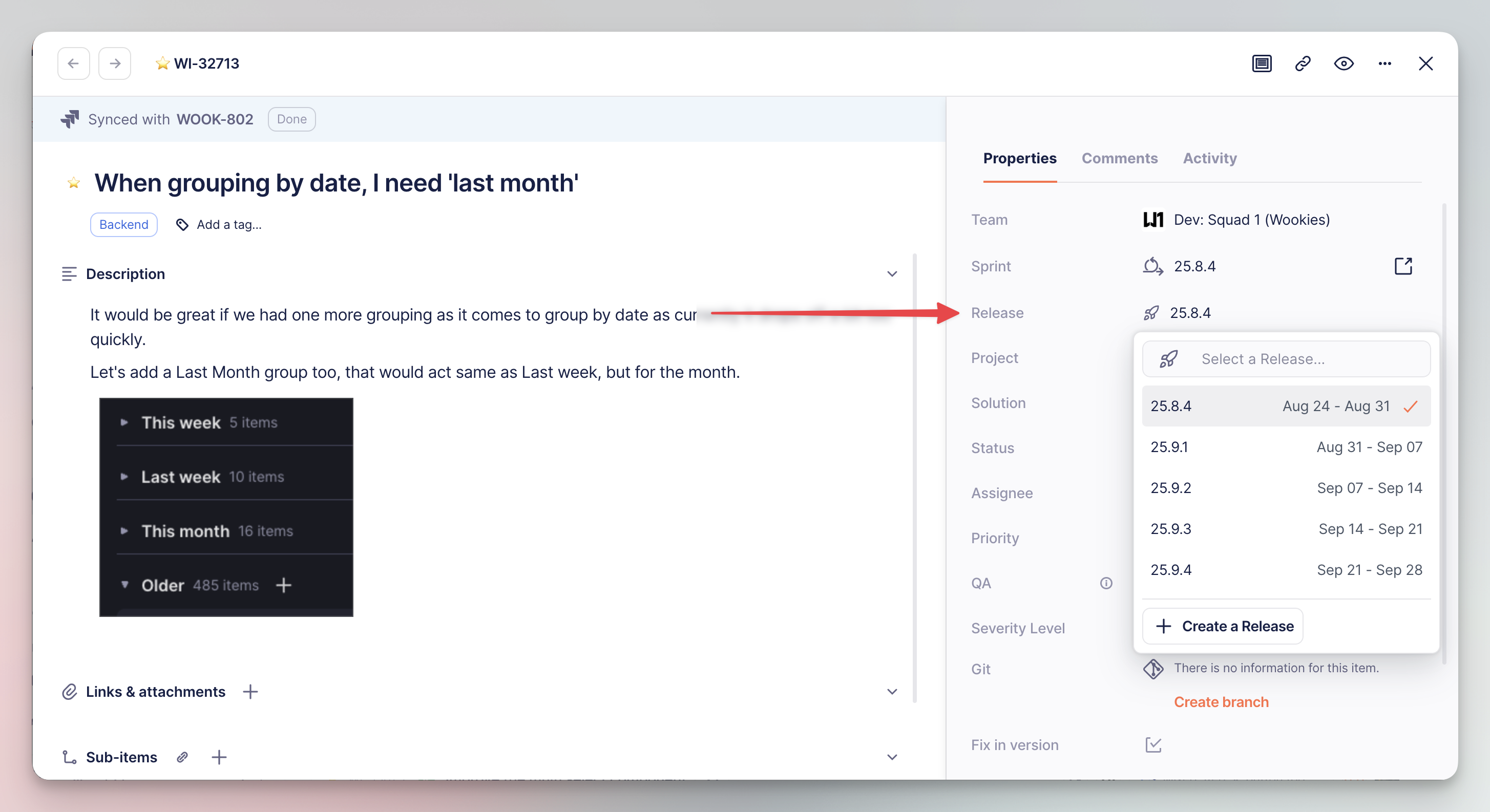
The most straightforward way to add an item to a release is by using the dedicated property in the right panel:
Adding items to releases with properties
#### Method 2: Drag and drop
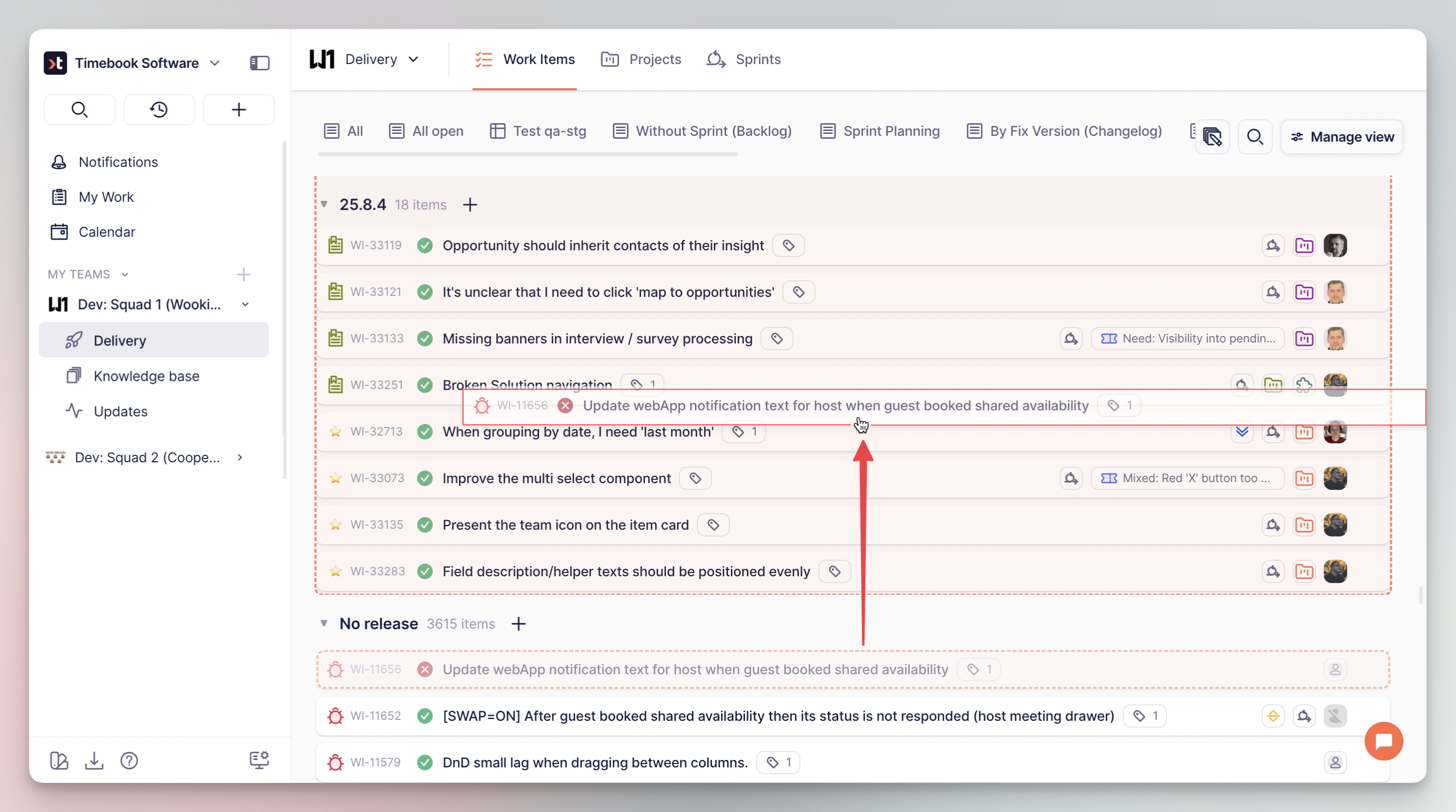
Once your workload in Timebook grows, you can assign items simply by dragging and dropping them across lists of tasks grouped by the 'Release' property.
{% hint style="success" %}
This method is applicable to any selected property across the whole system.
{% endhint %}
{% stepper %}
{% step %}
First, you need to properly group work items on the list. Go to **Delivery** → **Work items** and click 'Manage view'.
{% endstep %}
{% step %}
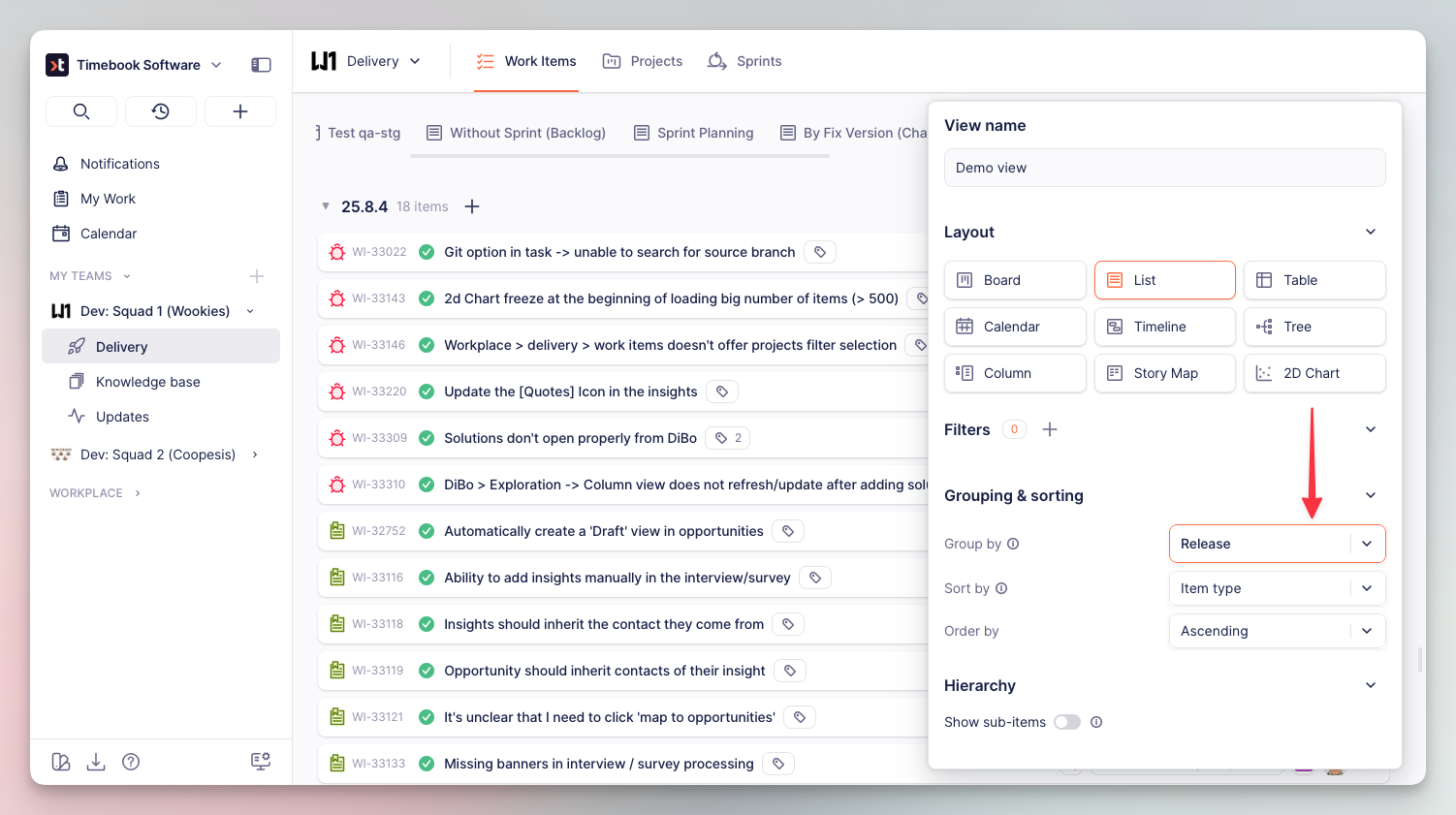
Set grouping to **Release** and apply filtering and sorting as desired. On the example below, you can see items sorted by [item type](/hc/get-started/delivery/work-items.md#types-of-work-items) (bugs & user stories):
Grouping work items by releases
{% endstep %}
{% step %}
Now you can grab tasks and drag them over to the desired release:
Dragging items across releases
{% endstep %}
{% endstepper %}
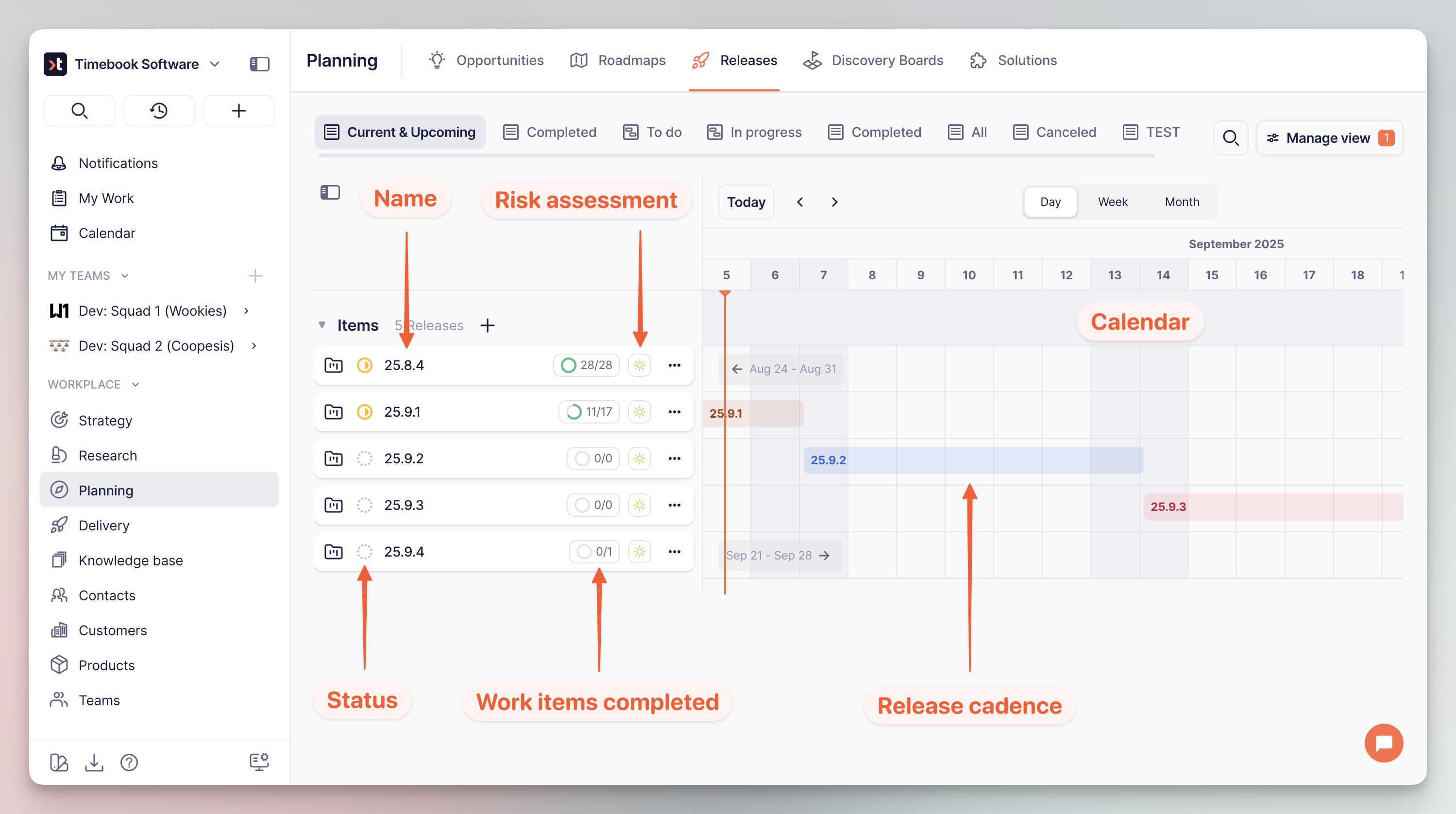
### Releases overview
The default view of Releases is timeline. It provides key information on the progress and items contained, together with a visual representation of the release cadence in the selected time frame.