> For the complete documentation index, see [llms.txt](https://help.timebook.ai/hc/llms.txt). Markdown versions of documentation pages are available by appending `.md` to page URLs; this page is available as [Markdown](https://help.timebook.ai/hc/get-started/delivery/sprints.md).
# Sprints
{% hint style="success" %}
This article explains how Timebook facilitates Sprints in the Agile methodology.
{% endhint %}
Sprints are short periods of time of fixed length, usually ranging from one to four weeks, during which developers agree on completing a specific set of tasks.
Each sprint starts with planning, during which the team decides which [work items](broken://pages/6RUP8zJsu6qz8kT2UTWz) should be included, and is followed by a daily stand-up for reporting progress. When the sprint ends, the team assesses what they managed to deliver, and discusses how the process can be improved.
Timebook provides the tools to conduct, assess, and refine sprints according to the Scrum methodology that your company has been following.
## Configuring sprints
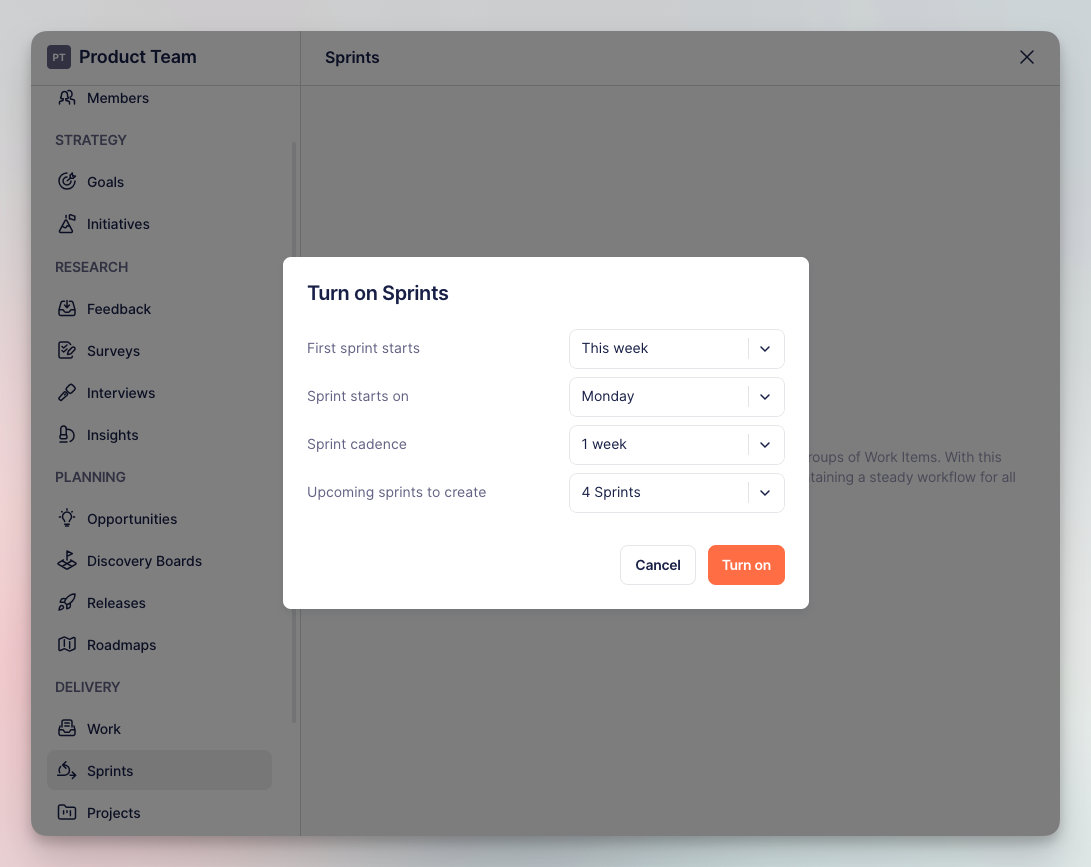
In order to use the sprints you must first activate them in your team settings under **Delivery** → **Sprints**.
Here you define the sprints details: **first run**, **cadence**, **weekday** the sprint starts, and the **number of sprints** to create in advance.
Sprints configuration in team settings
## Working with sprints
### Adding items to sprints
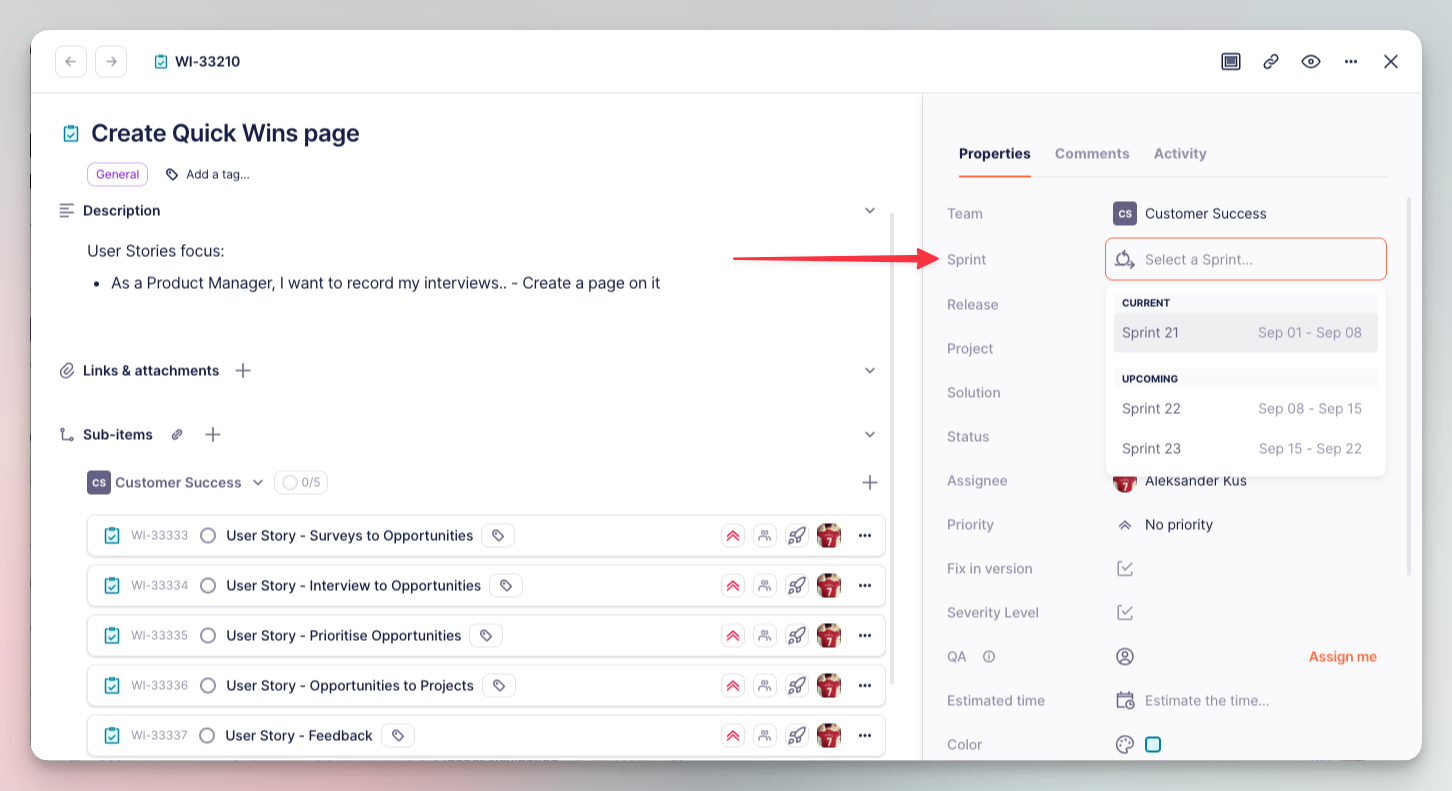
To add an item to a sprint, click the 'Sprint' property and select the desired time period:
Adding items to sprints with properties
### Browsing & refinement
You can browse current, upcoming and completed sprints in the **Sprints** tab of the **Delivery** module. Clicking `►` brings up a visualization of how the sprint has progressed so far, allowing for quick evaluation and future refinement:
Example sprint with expanded details
There are three graphs to follow:
* **In scope** – total number of work items assigned to the sprint
* **In progress** – work items with an 'In progress' type of status assigned to the sprint
* **Done** – work items finished within the duration of the sprint
The **summary tiles** below can be especially useful to Scrum Masters, representing the difference between the total number of items in the current sprint vs the previous sprint:
Sprint summary tiles
### Adjusting view
You can adjust which sprints to display in the 'Manage view' button. This way you can create a view that will, for example, cover completed sprints within a give time frame:
View management settings
{% hint style="success" %}
What you need to know
* Sprints are created automatically in accordance to the team's settings.
* You can assign items to sprints in their [properties](/hc/get-started/delivery/work-items.md#properties).
* You can rename the sprint by clicking on its name on the sprint list.
* When the sprint finishes, unfinished tasks and work items are automatically reassigned to the next sprint (i.e. items with status other than Done/Canceled).
{% endhint %}