> For the complete documentation index, see [llms.txt](https://help.timebook.ai/hc/llms.txt). Markdown versions of documentation pages are available by appending `.md` to page URLs; this page is available as [Markdown](https://help.timebook.ai/hc/get-started/discovery/insights.md).

# Insights

## Introduction to Insights

{% hint style="success" %}
In this tutorial you will learn how to generate and qualify insights from customer feedback.
{% endhint %}

Insights are **key observations** and **finding** distilled from customer feedback such as [interviews](/hc/get-started/discovery/interviews.md). Instead of analyzing the feedback manually which can be very time-consuming, Timebook equips you with a powerful AI engine which captures and prints the key points in just a couple of minutes.

## Data entry points

Timebook provides three entry points for customer feedback:

1. [Interviews](/hc/get-started/discovery/interviews.md)
2. [Email tickets](/hc/get-started/discovery/feedback.md#email-inbox)
3. [Surveys](/hc/get-started/discovery/surveys.md)

Each item is available from the top navigation bar of a team:

<div align="left"><figure><img src="/files/2WxC8zMpGfYS1n7qmkra" alt="" width="563"><figcaption><p>Customer feedback tabs in selected team</p></figcaption></figure></div>

{% hint style="warning" %}
If you don't see the tabs in your team, it means they need to be activated by the workplace administrator in the **team settings** ⚙️.
{% endhint %}

## Generating insights

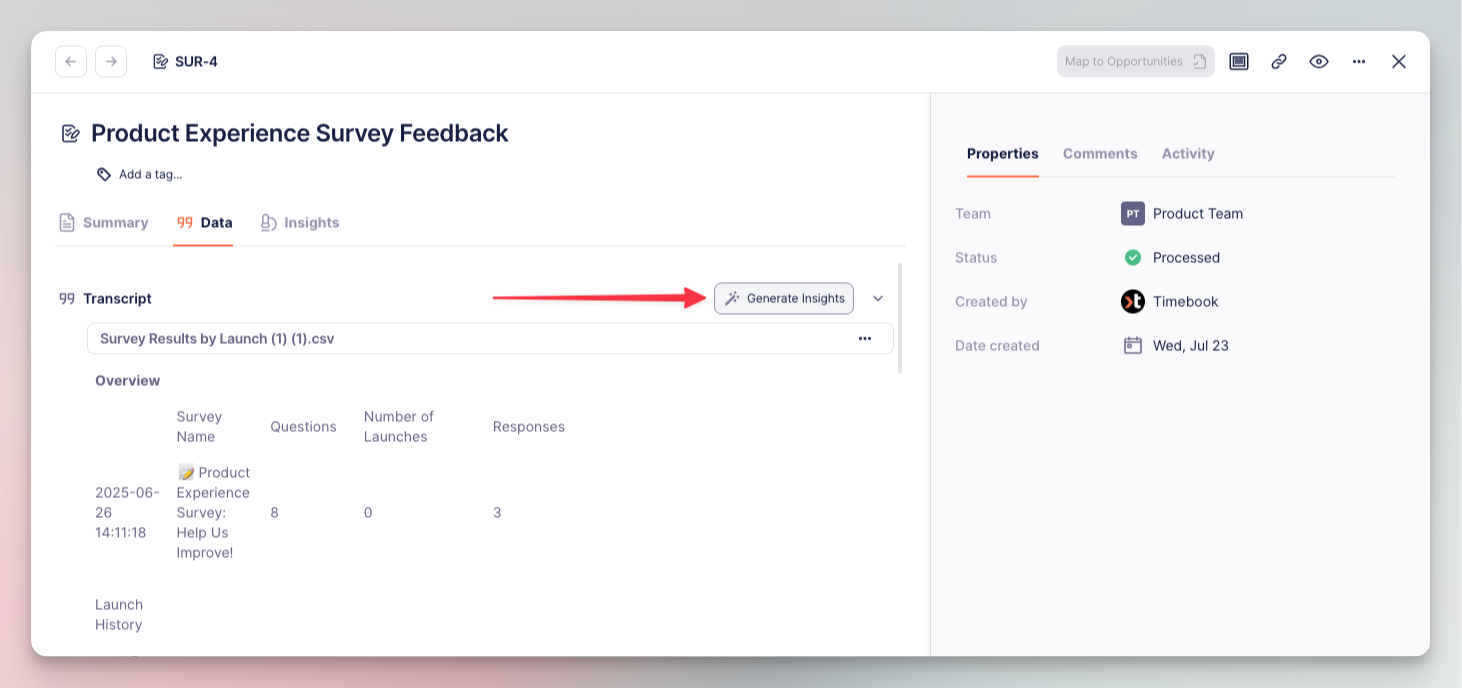
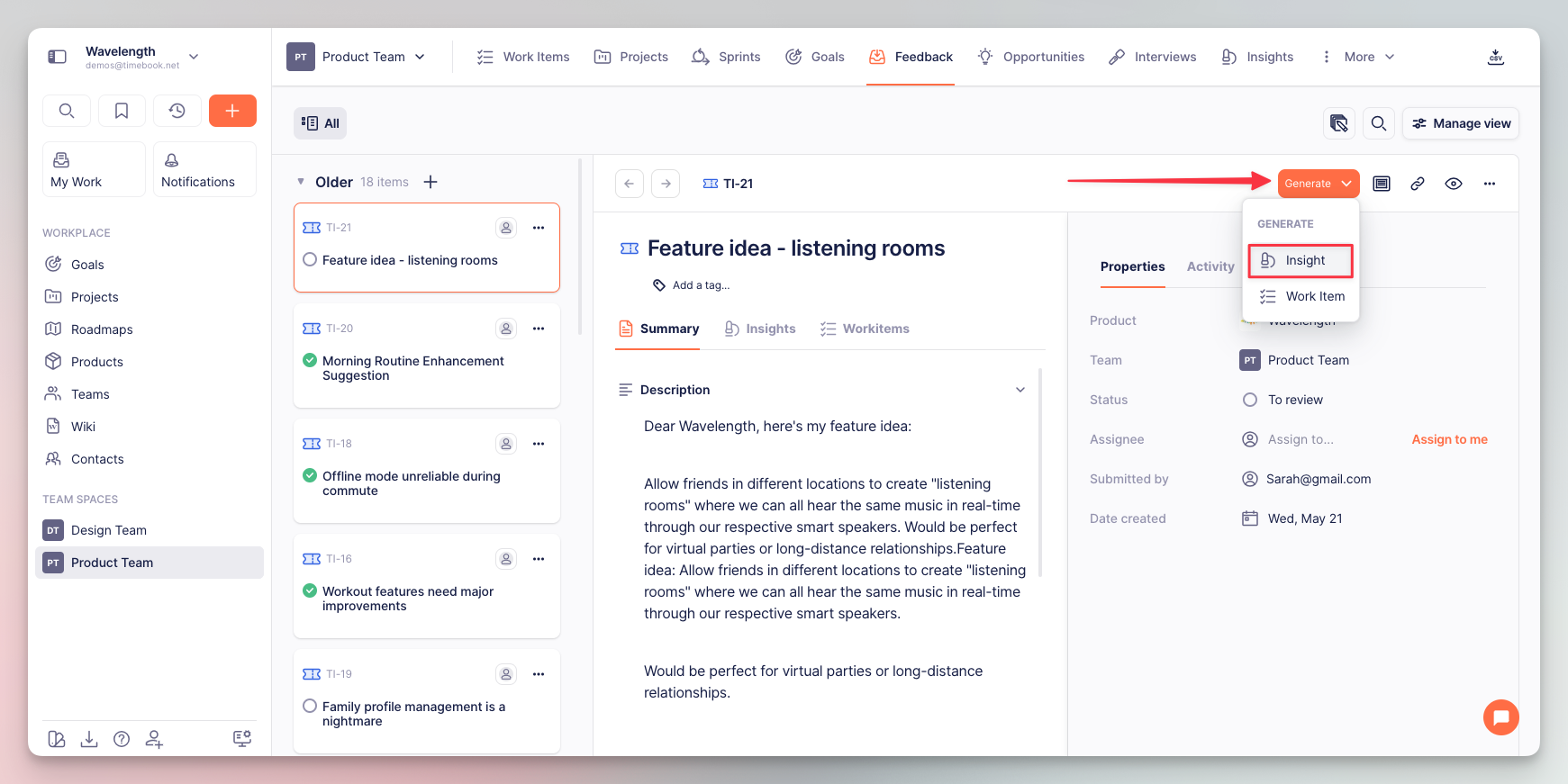
Insights are generated with from feedback items with a designated button. Below you can find the location for each type of feedback data.

{% tabs %}
{% tab title="Interview" %}

<div align="left"><figure><img src="/files/xqZINO0DW3Q86F5khnzX" alt="" width="563"><figcaption><p>Location: Transcript &#x26; Recording tab</p></figcaption></figure></div>
{% endtab %}

{% tab title="Survey" %}

<div align="left"><figure><img src="/files/LZnZzshZwr0H9AMonUkh" alt="" width="563"><figcaption><p>Location: Data tab</p></figcaption></figure></div>
{% endtab %}

{% tab title="Feedback ticket" %}

<div align="left"><figure><img src="/files/fDtSisZ3reC5cfYsFPbM" alt="" width="563"><figcaption><p>Location: 'Generate' button, top-right</p></figcaption></figure></div>
{% endtab %}
{% endtabs %}

Once you click the generation button, Timebook will need a minute or two to analyze the data and compose the insight list. You can close the window and continue to work in other areas of Timebook – you'll receive a notification when everything's ready.

<div align="left"><figure><img src="/files/RoRVkMTUYzG3qhdJftfi" alt="" width="563"><figcaption><p>Interview details during insight generation</p></figcaption></figure></div>

## Browsing insights

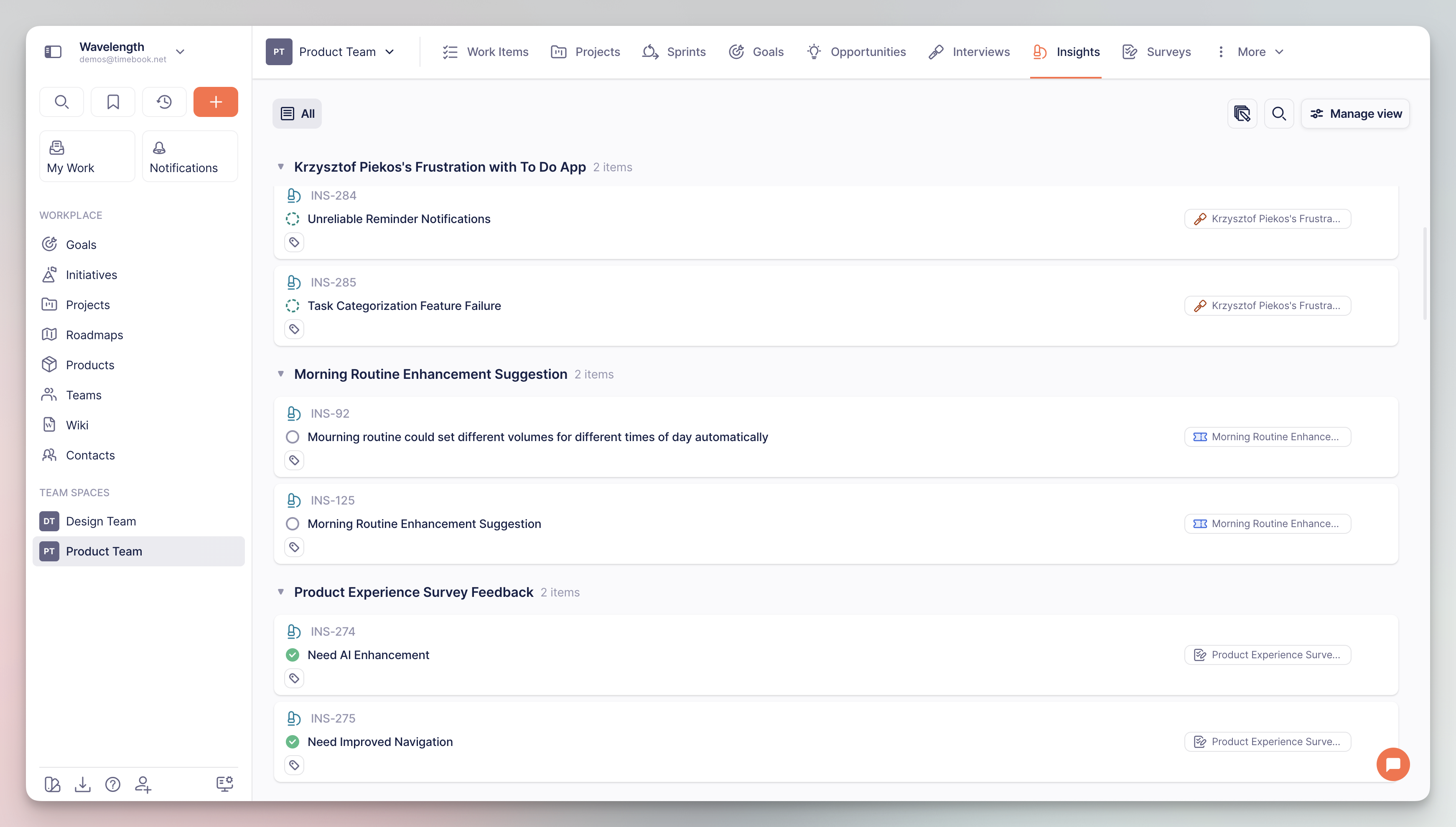
All generated insights can be browsed from the **Insights** tab of your team.

{% hint style="success" %}
You can use the 'Manage view' tab to group and filter insights to your liking. For example, grouping by **source** will split them to blocks depending on the type of feedback they were created from (interviews, tickets, surveys, unassigned).
{% endhint %}

<div align="left"><figure><img src="/files/QD2OwZ0tD6N5BAWl8txQ" alt="" width="563"><figcaption><p>List of approved insights</p></figcaption></figure></div>

## Qualifying insights

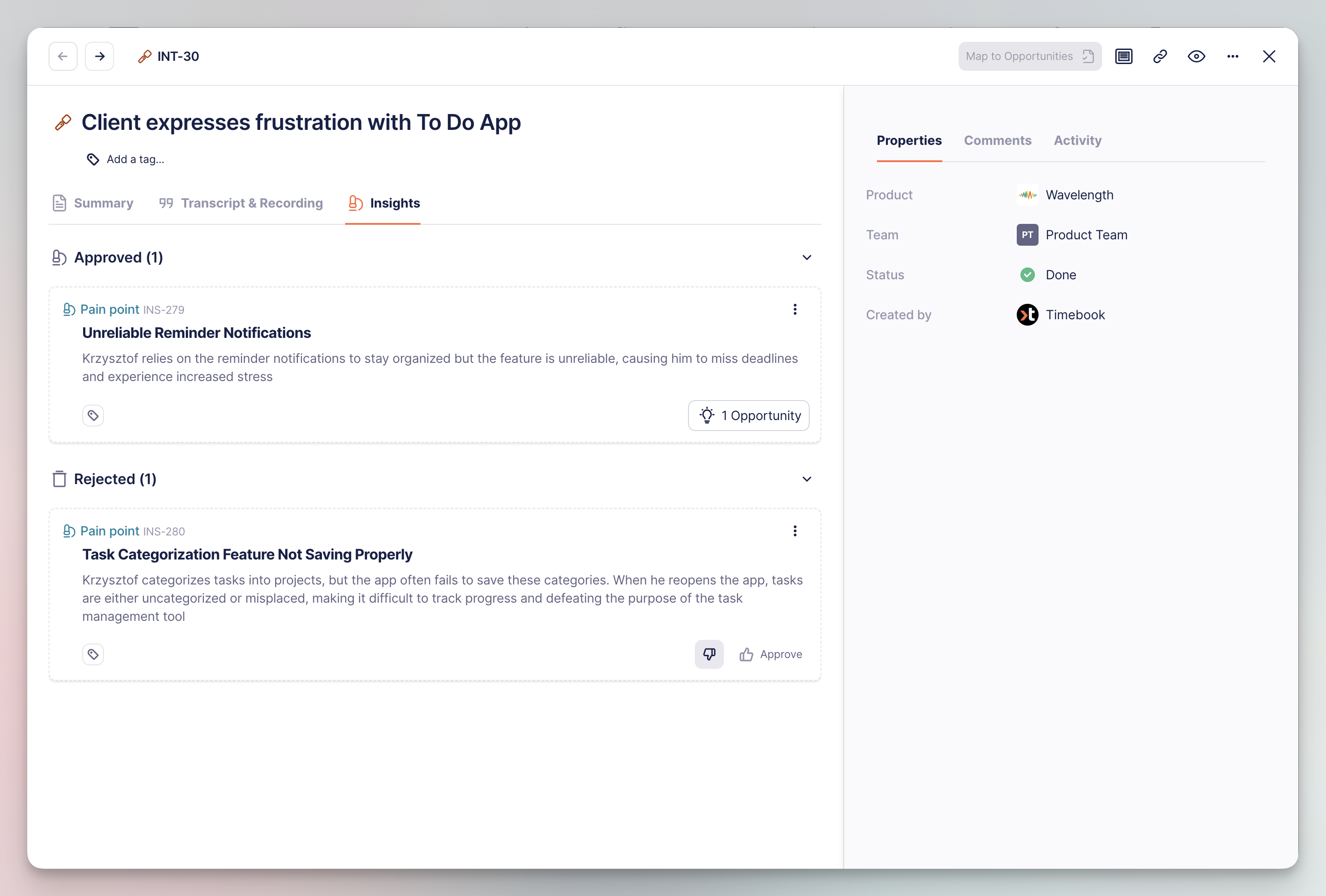
Each insight needs to be manually qualified as valid or invalid before you can further work on it.

* accepted (👍) insights can be transformed into opportunities, dedicated objects designed to highlight areas for improvement and innovation
* rejected (👎) insights stay on the list in case you'd like to pick them up later on

In the example below, you can see one accepted and one rejected insight

<div align="left"><figure><img src="/files/TBXY3N56hIjxyoIUNpHx" alt="" width="563"><figcaption><p>Insight details with qualification options</p></figcaption></figure></div>

{% hint style="info" %}
In the [next tutorial](/hc/get-started/discovery/opportunities.md), you'll learn how to map insights onto opportunities and carry on with your Product Discovery journey.
{% endhint %}