> For the complete documentation index, see [llms.txt](https://help.timebook.ai/hc/llms.txt). Markdown versions of documentation pages are available by appending `.md` to page URLs; this page is available as [Markdown](https://help.timebook.ai/hc/get-started/discovery/interviews.md).
# Interviews
## About
{% hint style="success" %}
The following tutorial will show you how to use Timebook to schedule an interview with your client and receive a transcript from which you can generate valuable insights.
{% endhint %}
Interviews in Product Discovery refer to conversations with current or potential users or buyers of your product. They are aimed at uncovering customer **needs**, **pain points**, and **goals**, as opposed to closing sales or testing existing.
The physical result of a customer interview is a transcript file, from which Timebook can automatically extracts key insights.
## Creating interviews
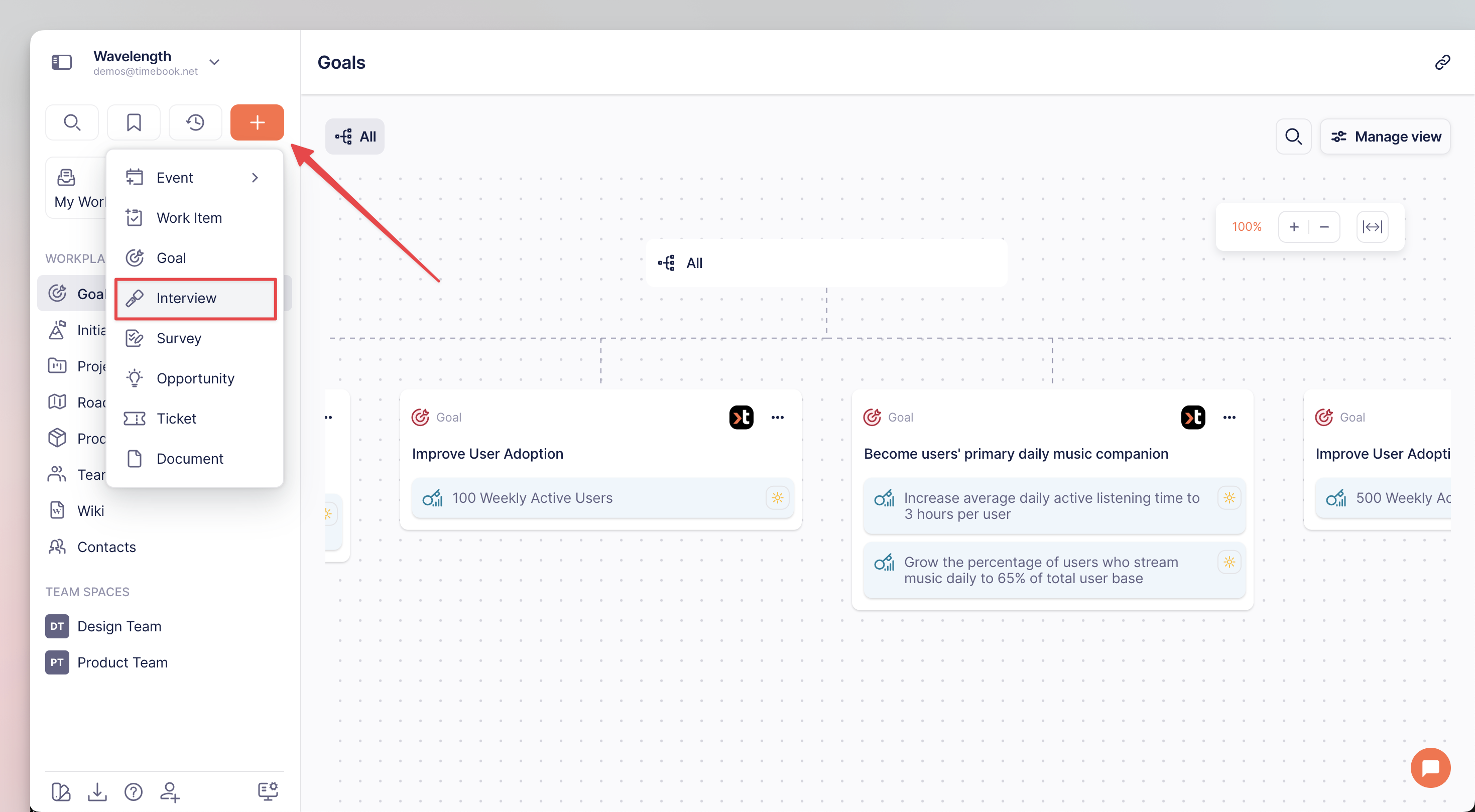
1. To add a new interview, click the **+** icon and select **Interview** from the list:
Adding new interview
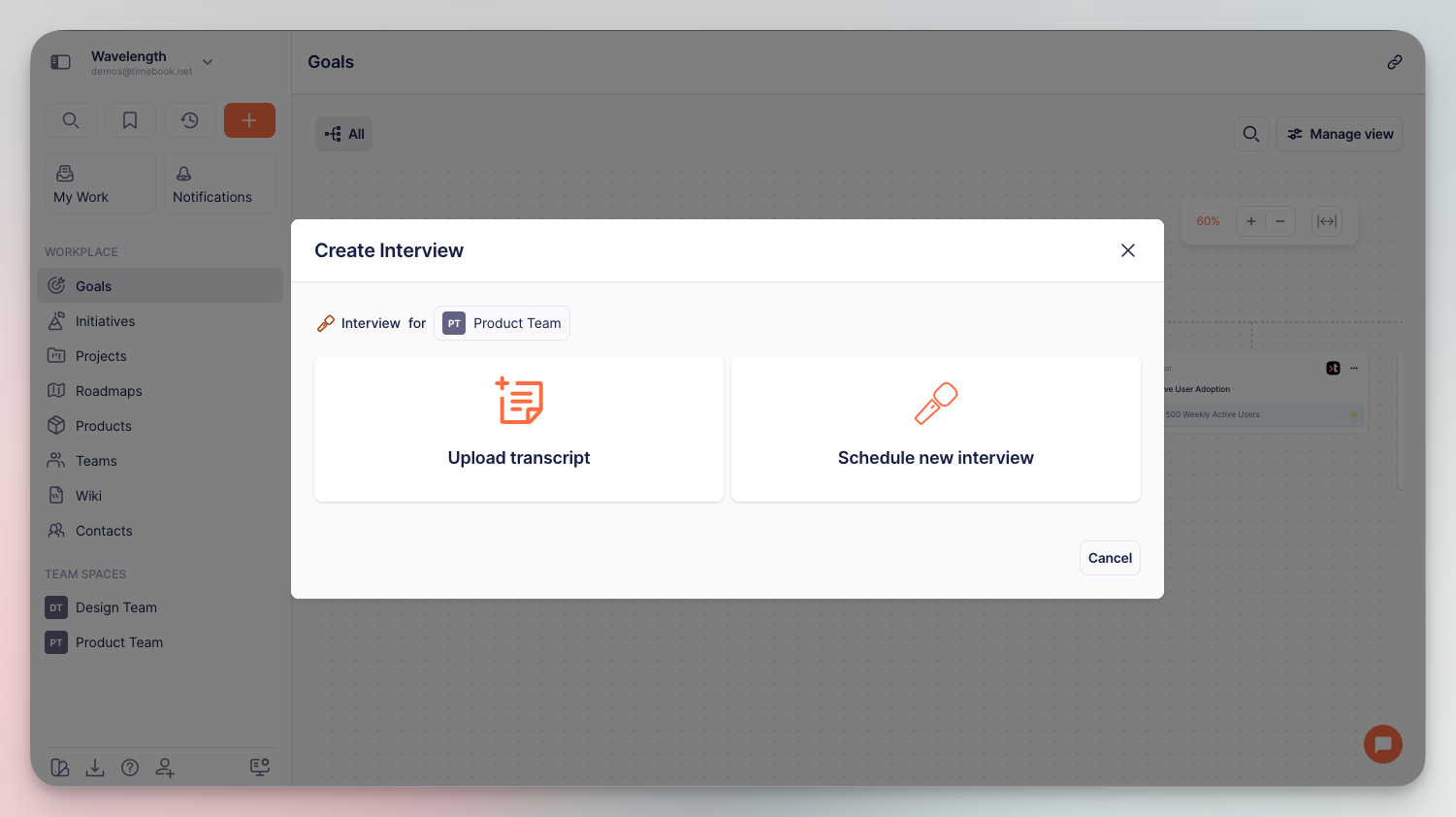
2. Select whether you want to upload your file with transcript, or schedule a new interview from scratch:
Transcript upload vs Interview schedule selection screen
### Uploading from file
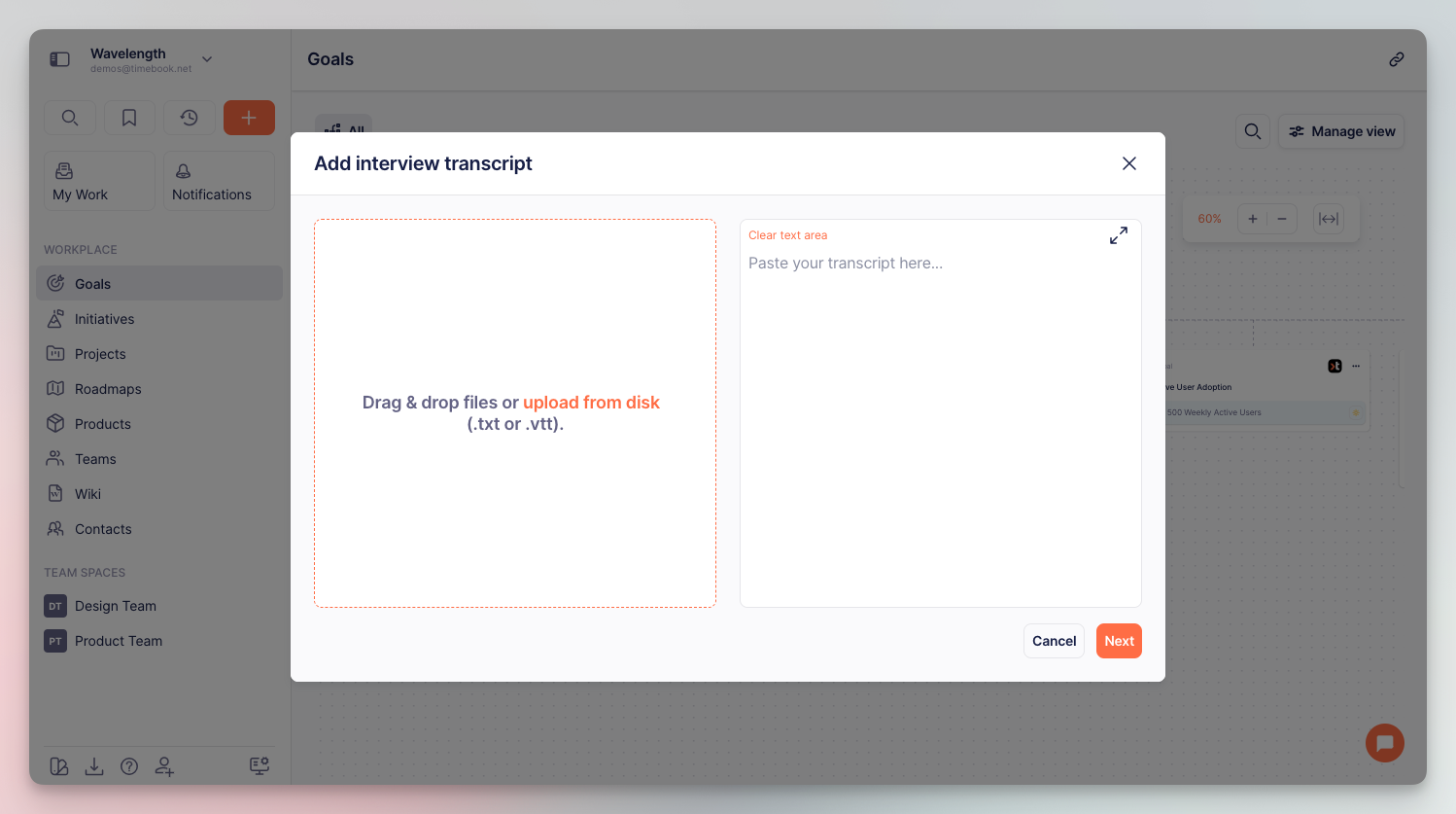
At the moment, Timebook supports `.txt` and Zoom's `.vtt` format. You can also paste the text directly to the text area:
Transcript upload screen
Once uploaded, Timebook needs a minute or two to process the data and generate the insights.
{% hint style="info" %}
You can upload multiple files with transcripts if you already have customer feedback in your database.
{% endhint %}
### Scheduling new interview
Selecting the schedule option opens the interview creation flow with 5 steps:
1. **General**: define the interview name, product it relates to, and team that will analyze the interview data.
2. **Event type**: depending on how busy you are, you can either schedule a meeting for a specific time yourself, or share an availability slot for your customer. In this tutorial, we'll go with the first option.
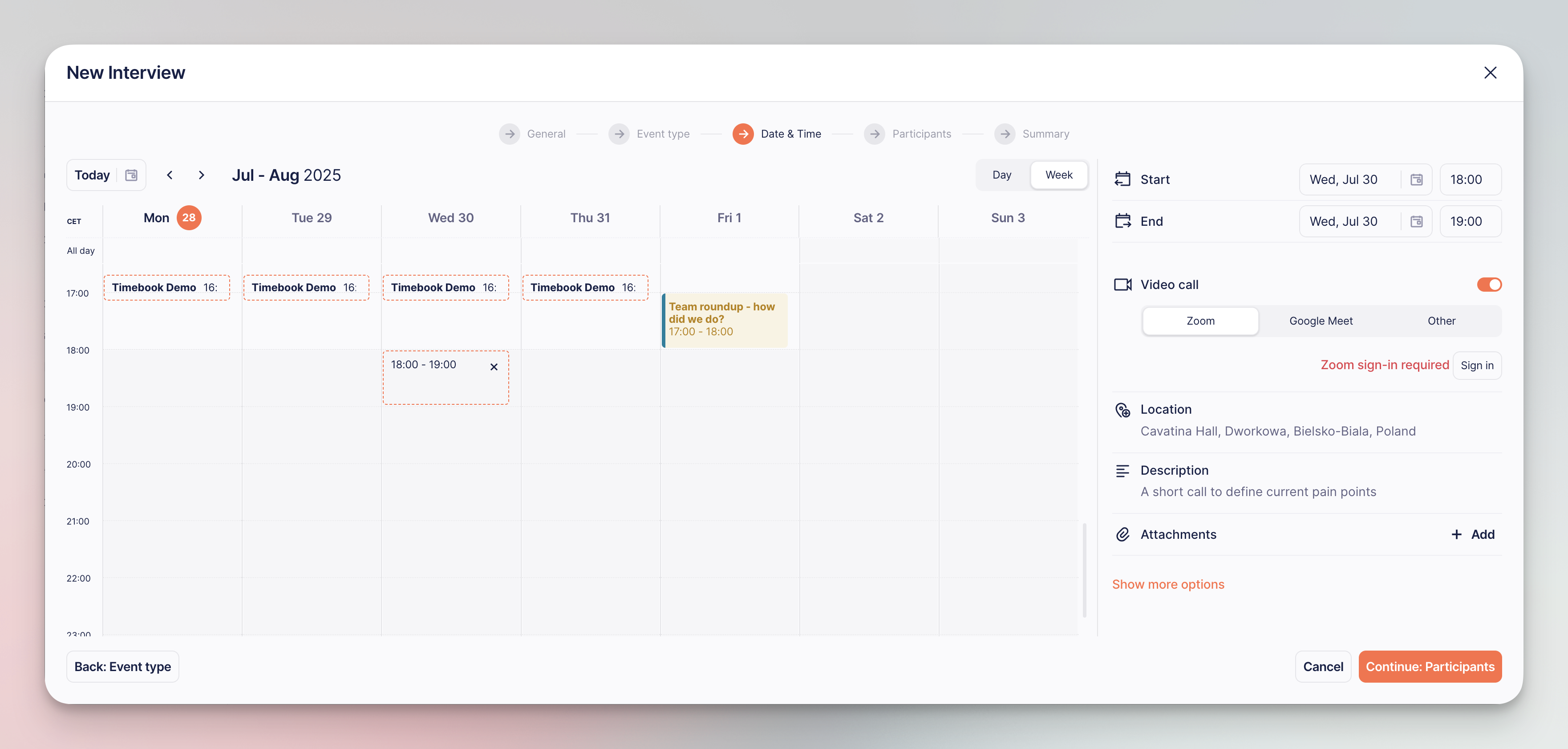
3. **Date & Time**: select the time slot, define video call software, and add details for more context.
New interview schedule configuration
{% hint style="info" %}
Click 'More details' to customize time zone and visibility.
{% endhint %}
{% hint style="success" %}
What you need to know:
* Once created, the meeting will be added to your Timebook calendar
* Integrating Timebook with Zoom or Google will produce an access link that you can share with your customer
* You will get a notification 15 minutes before the meeting starts
{% endhint %}
4. **Participants**: enter the email or emails of the people that you want to invite.
5. **Summary**: check if everything is correct before sending the invitation link.