# Opportunities

## Introduction to Opportunities

{% hint style="success" %}
In this tutorial you will learn how to create and work with opportunities.
{% endhint %}

Opportunities are objects that help capture and evaluate potential areas for product development. They can be created manually by the user, or generated from feedback [insights](/hc/get-started/discovery/insights.md).

## Generating opportunities

### Generating from Insights

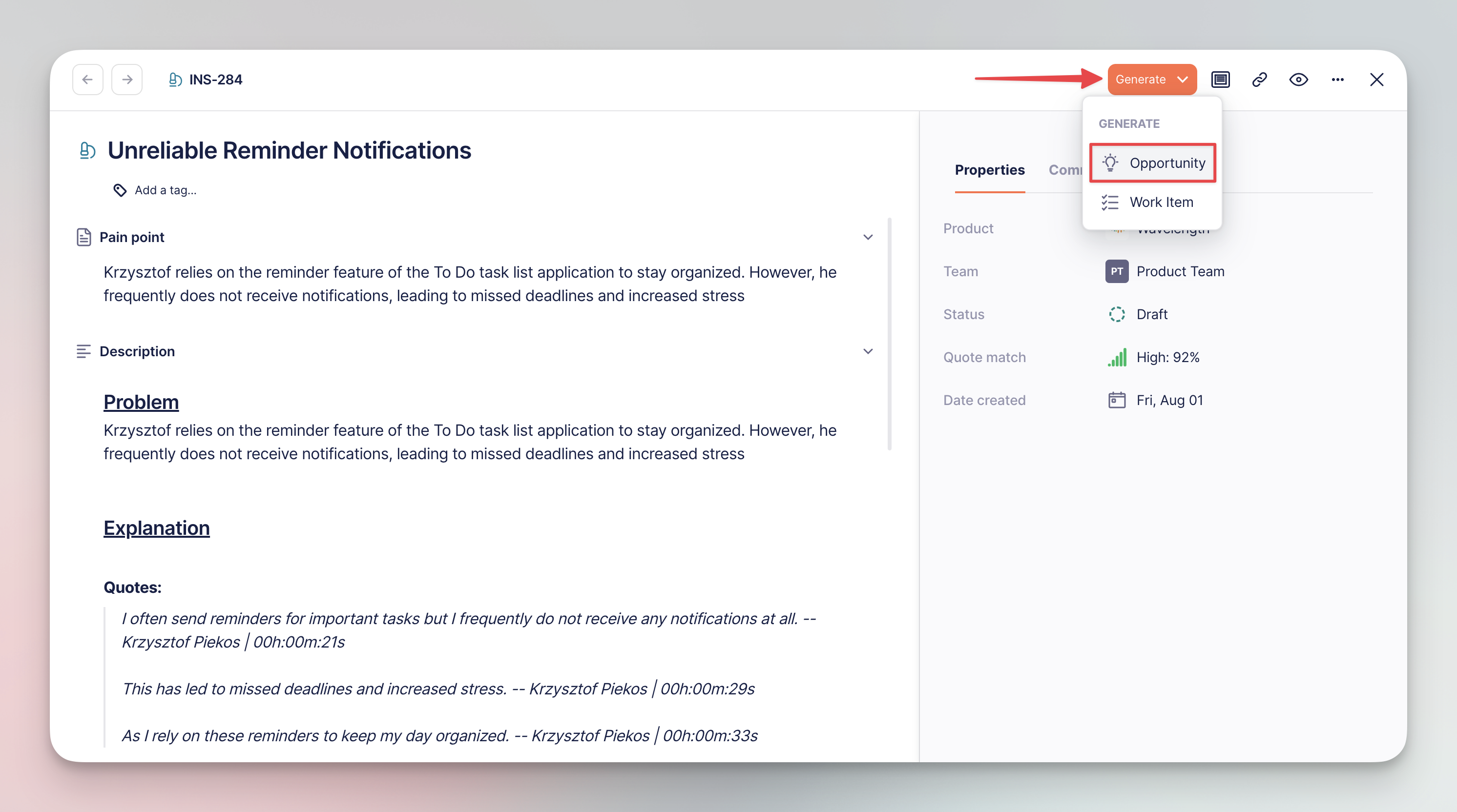
[Insights](/hc/get-started/discovery/insights.md) from feedback items can be escalated to opportunities with the 'Generate' > 'Opportunity' button.

<div align="left"><figure><img src="/files/UaA0t0a709DtAIyUR0fj" alt="" width="563"><figcaption><p>Generating from insight</p></figcaption></figure></div>

The insight will transform into a new opportunity (described in detail below).

### Generating manually

To create an opportunity manually, click the `+` button and select **Opportunity** from the list:

<div align="left"><figure><img src="/files/89O4j74iTZfF02CMfkLU" alt="" width="563"><figcaption><p>Generating from <code>+</code> button</p></figcaption></figure></div>

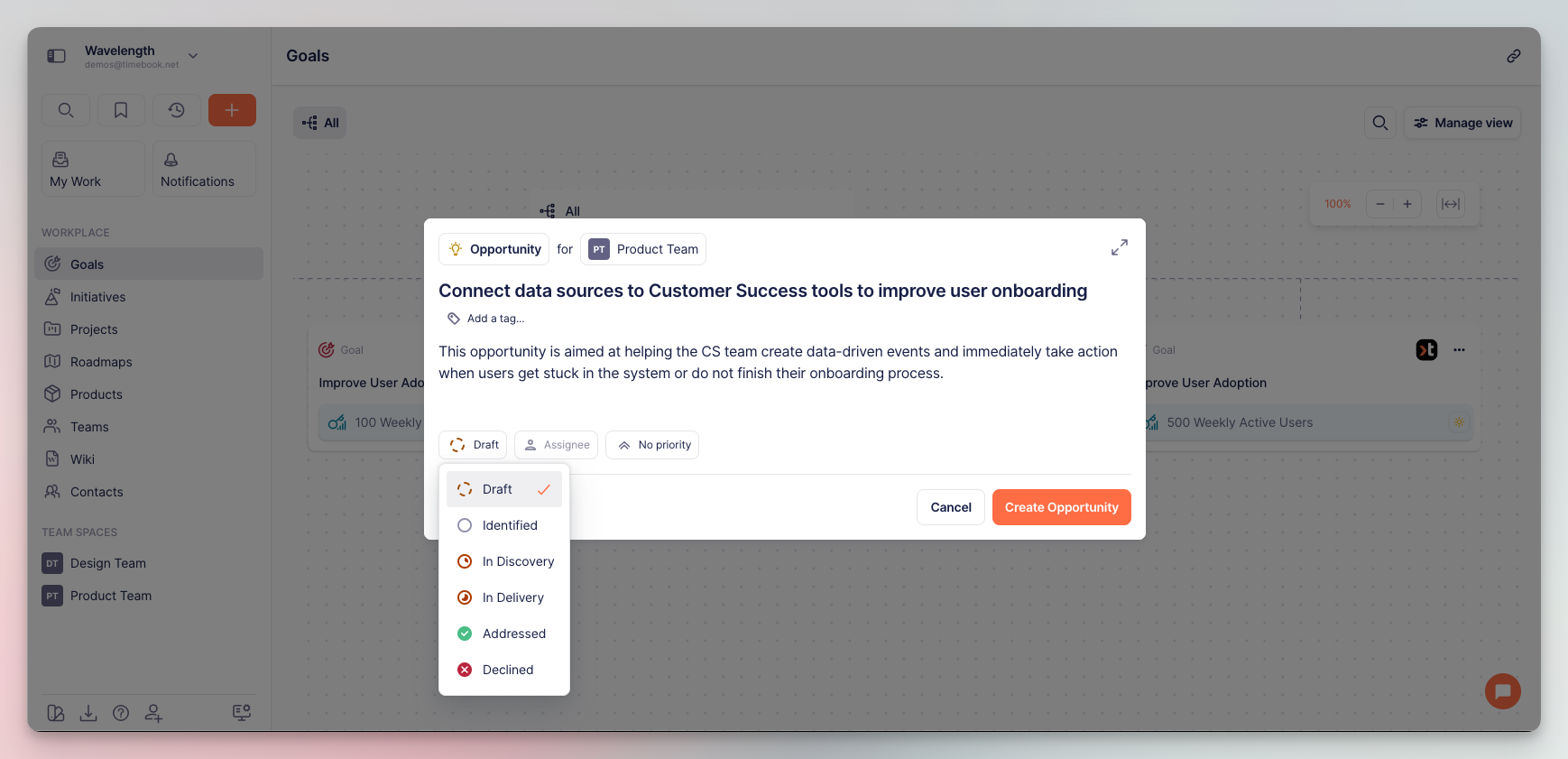
Assign the opportunity to your team and click the creation button to proceed:

<div align="left"><figure><img src="/files/SvCDFbYCKxYHUbeybNZp" alt="" width="563"><figcaption><p>Opportunity generation screen</p></figcaption></figure></div>

## Working with opportunities

### Qualification properties

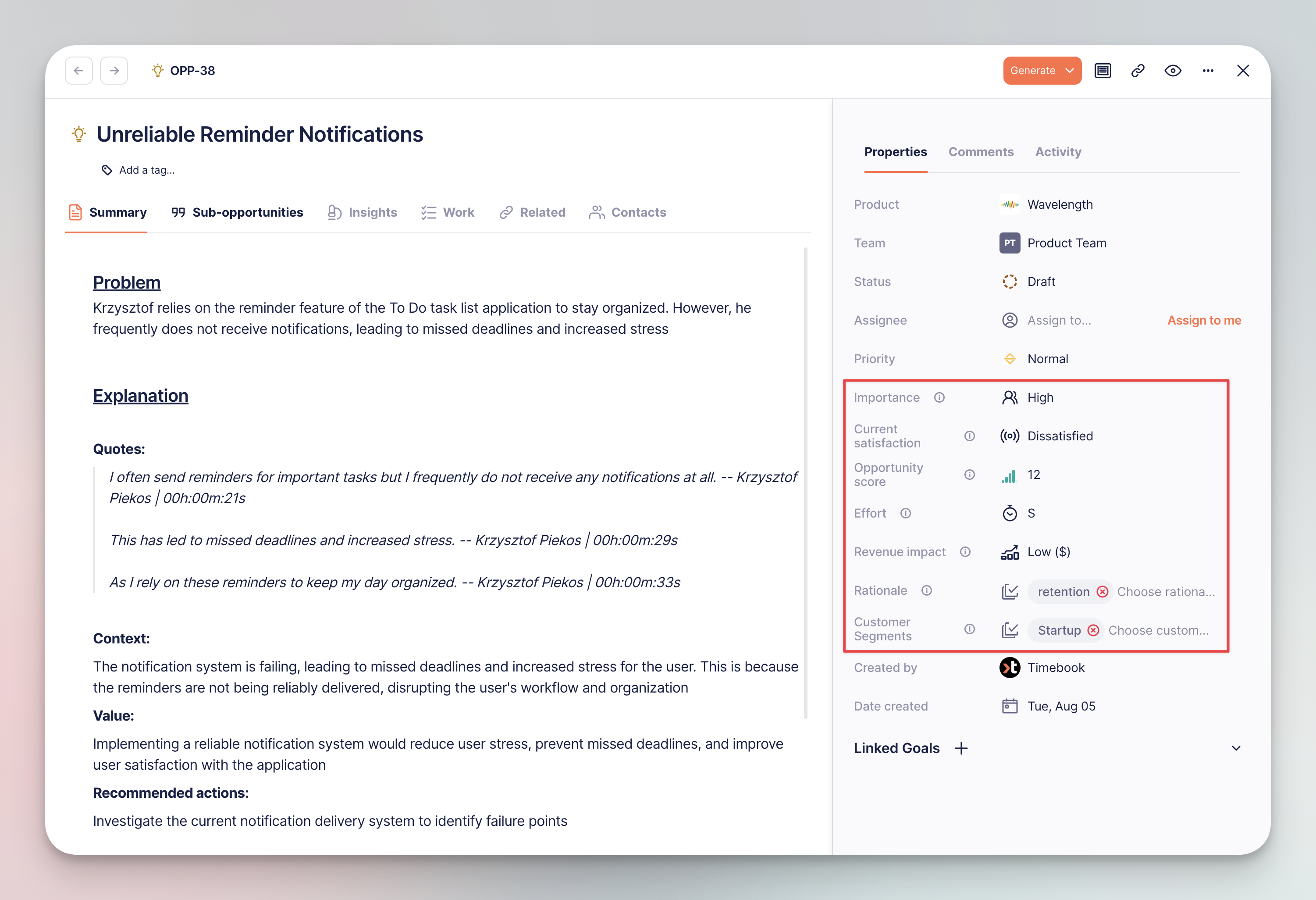
Each opportunity has a unique set of properties, allowing you to qualify it on the opportunity map and decide whether it's worth working on immediately, or should it wait for a better time.

<div align="left"><figure><img src="/files/bxreUg1219fs5Ffn2LnC" alt="" width="563"><figcaption><p>Opportunity qualification properties</p></figcaption></figure></div>

<table><thead><tr><th width="199.6544189453125">Property</th><th>Description</th></tr></thead><tbody><tr><td>👤 <strong>Importance</strong></td><td>How crucial is this for the customer?</td></tr><tr><td>🔘 <strong>Current satisfaction</strong></td><td>How happy is the customer with what they have now?</td></tr><tr><td>📊 <strong>Opportunity score</strong></td><td>Calculated from Importance vs Satisfaction on 0-20 scale. The higher the score, the better the chance for valuable improvement.</td></tr><tr><td>🕙 <strong>Effort</strong></td><td>How much time and money can this cost?</td></tr><tr><td>📈 <strong>Revenue impact</strong></td><td>How much money the solution will yield / help save?</td></tr><tr><td>☑️ <strong>Rationale</strong></td><td>Why are we doing this from business perspective?</td></tr><tr><td>🗂 Customer segments</td><td>What market segment does the customer occupy?</td></tr></tbody></table>

{% hint style="info" %}
You can read more about rationale, effort and revenue impact in our [blog post](https://help.timebook.ai/rn/2025/july/issue-38-july-31-2025).
{% endhint %}

### Browsing and mapping

Once your opportunity list grows, the next step is to determine which one will be the most beneficial to you and your client. You can do this on the opportunity list view.

Timebook lets you display and arrange opportunities

{% tabs %}
{% tab title="2D chart" %}
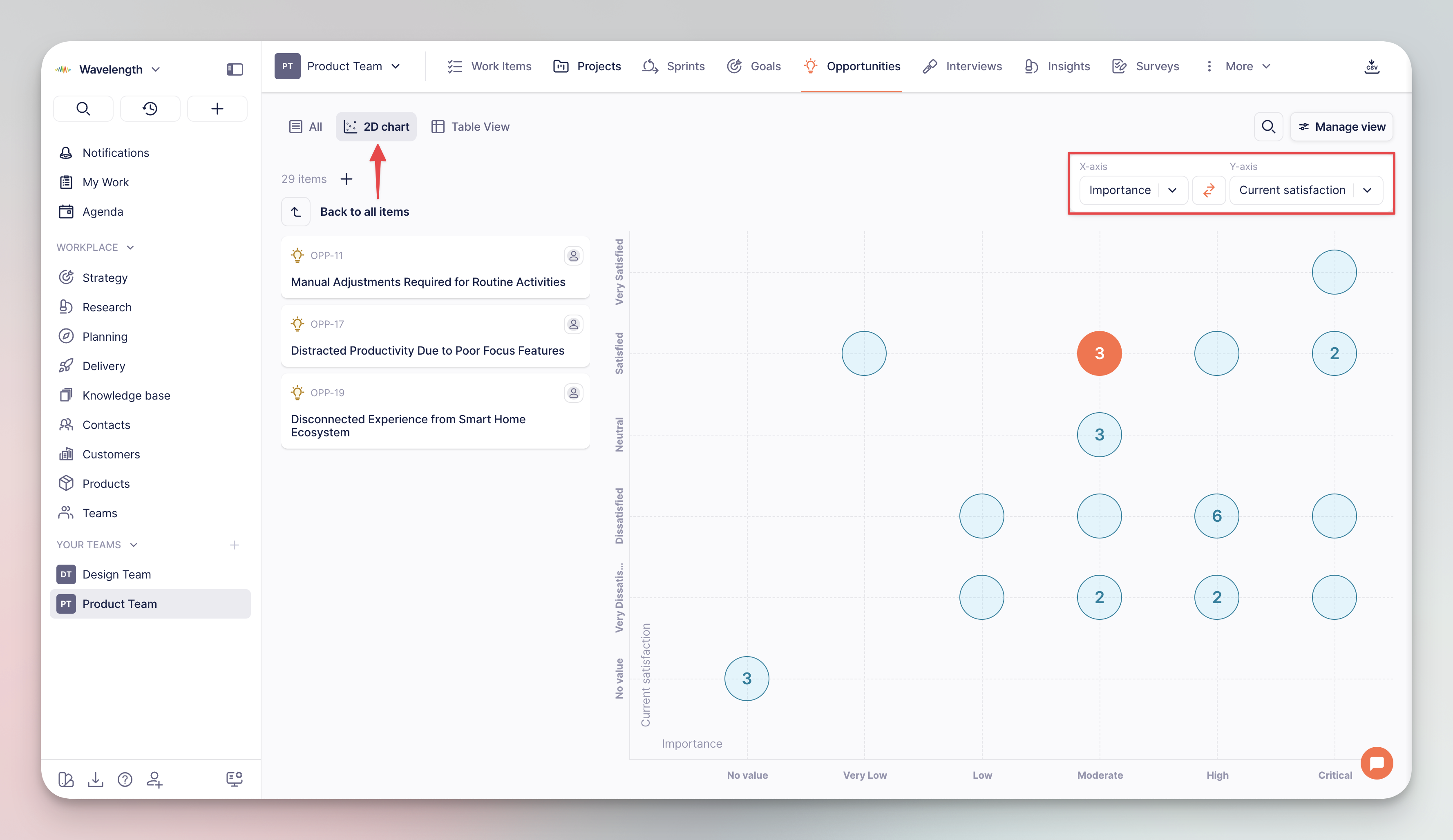
The 2D chart is the most visual of the basic views.

* Opportunities are arranged on X\&Y axes
* Each circle represents an opportunity; circles with digits represent their total number
* The default setting is Importance (X) vs Satisfaction (Y). In this case, **the most valuable opportunities** are located in the top-right part of the chart.
* You can drag the opportunities across the board to change their qualification value.

<div align="left"><figure><img src="/files/ZR5Ui8lGb69rfVTBXcB9" alt=""><figcaption><p>Opportunity assessment: 2D chart</p></figcaption></figure></div>
{% endtab %}

{% tab title="Table view" %}
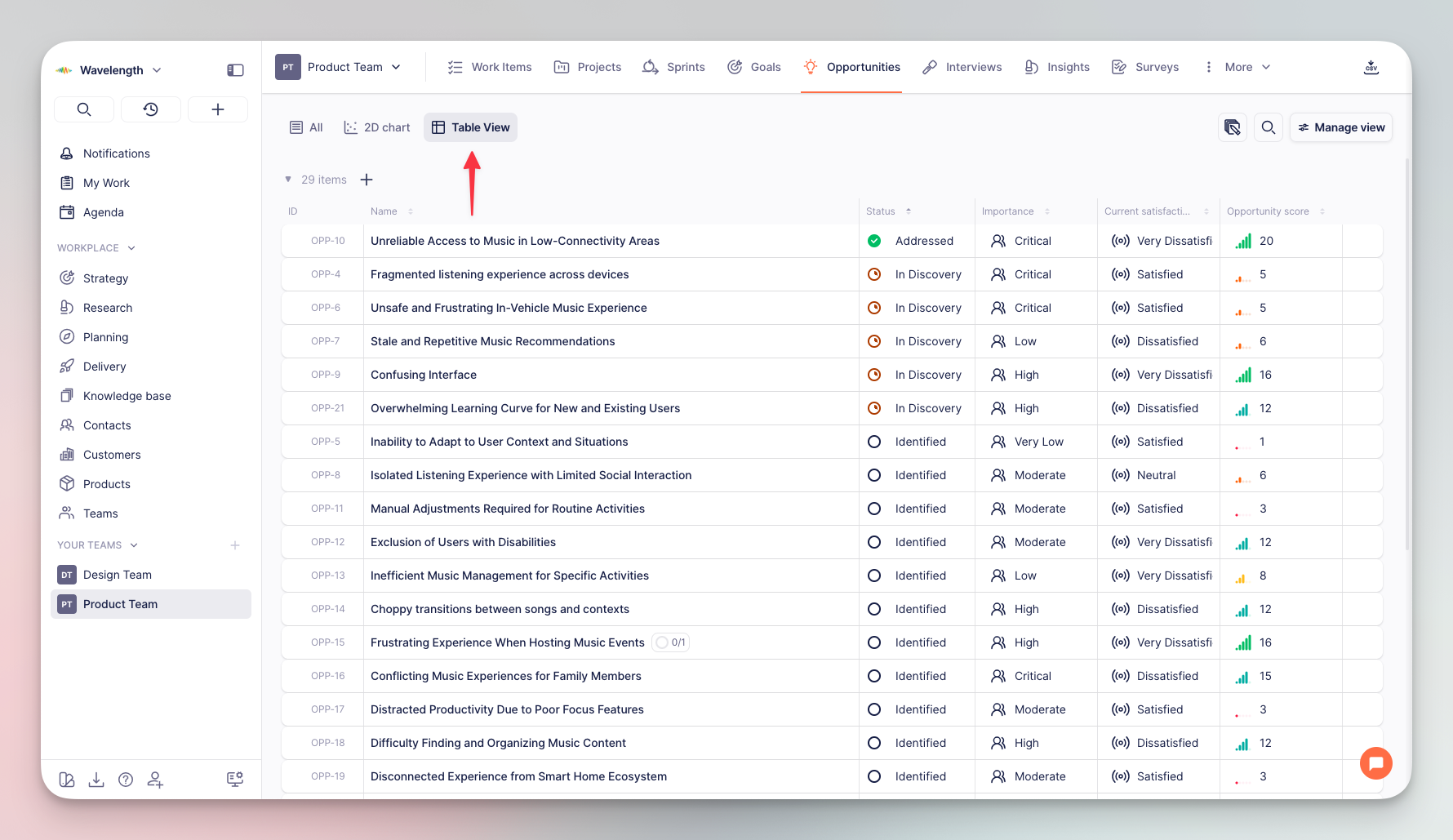
The table view is the most flexible, allowing you to display or hide specific fields with the 'Manage view' settings.

<div align="left"><figure><img src="/files/MyMyQk21ljPFWL12WrCl" alt=""><figcaption><p>Opportunity assessment: Table view</p></figcaption></figure></div>
{% endtab %}

{% tab title="List view" %}
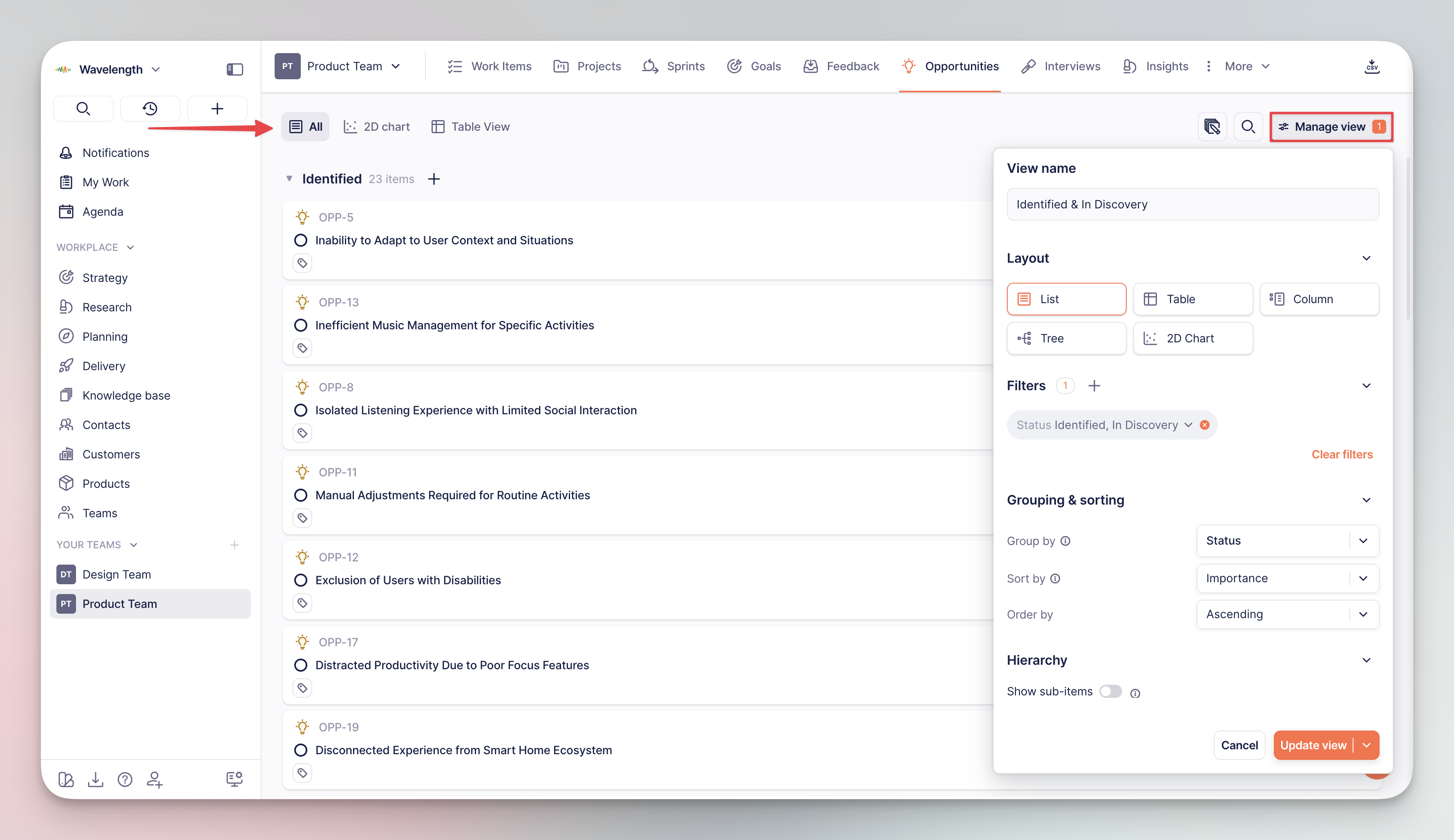
This is the default view in which data is filtered, grouped, and sorted on a list of items.

<div align="left"><figure><img src="/files/qa7sJS2br8CePJ1qYK3S" alt=""><figcaption><p>Opportunity assessment: List view</p></figcaption></figure></div>
{% endtab %}
{% endtabs %}

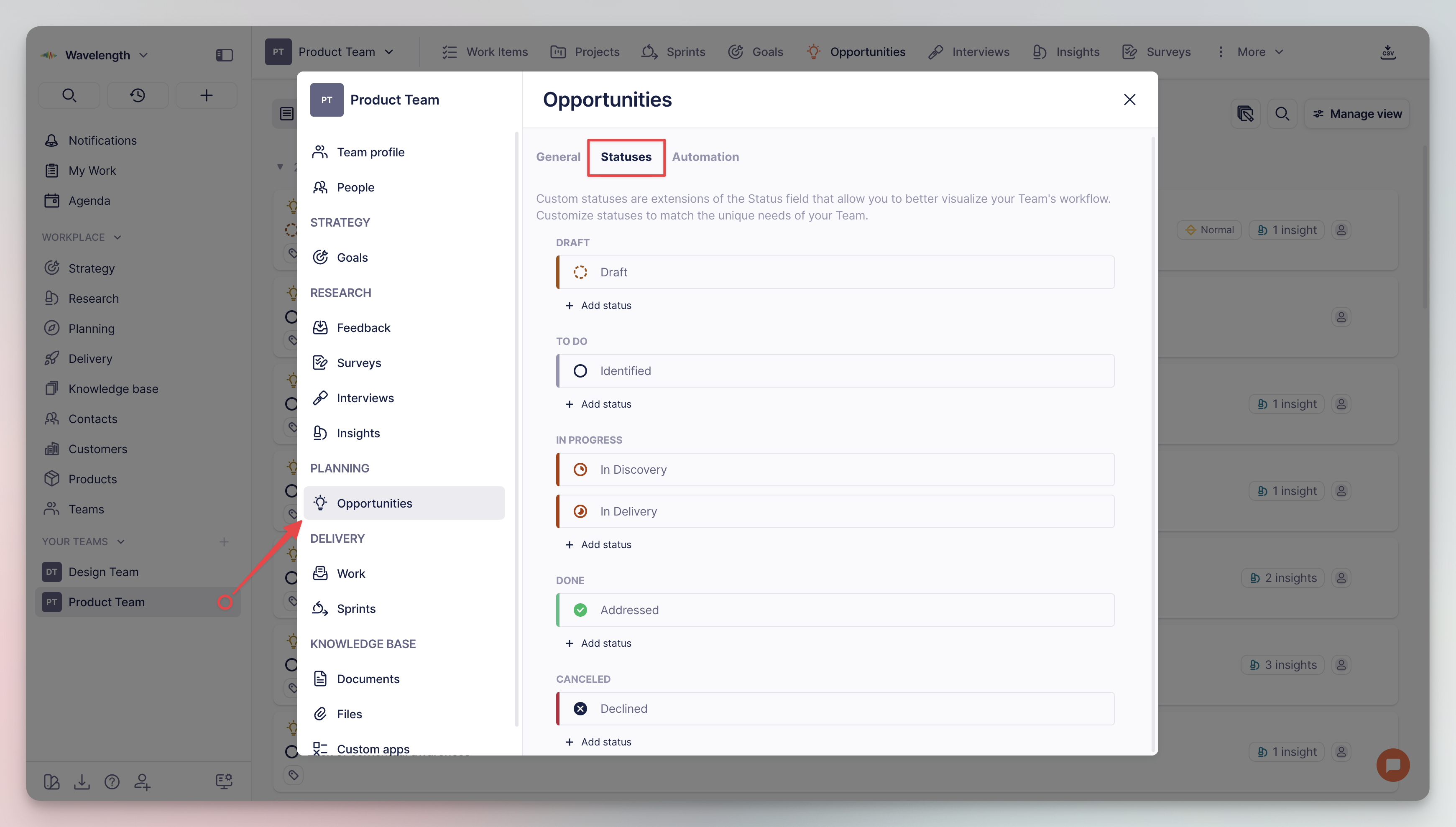
The status of an opportunity field helps define its current state according to the Product Discovery workflow:

1. **Draft** – the opportunity has just been generated and/or no one has started working on it yet
2. **Identified** – the opportunity has been qualified and is waiting for its turn (does not match current goals / priority is too low)
3. **In discovery** – the team is working on the solution to the opportunity
4. **In delivery** – the team is introducing the solution to the opportunity (usually as a dedicated work project)
5. **Addressed** – the solution has been introduced and the problem succesfully resolved
6. **Declined** – the team has decided not to work on this opportunity

{% hint style="success" %}
You can view and edit the statuses in your **team settings**. ⚙️
{% endhint %}

<div align="left"><figure><img src="/files/u1DMm7JCeacODbaNid2h" alt="" width="563"><figcaption><p>Statuses configuration in team settings</p></figcaption></figure></div>


---

# Agent Instructions: Querying This Documentation

If you need additional information that is not directly available in this page, you can query the documentation dynamically by asking a question.

Perform an HTTP GET request on the current page URL with the `ask` query parameter:

```
GET https://help.timebook.ai/hc/get-started/discovery/opportunities.md?ask=<question>
```

The question should be specific, self-contained, and written in natural language.
The response will contain a direct answer to the question and relevant excerpts and sources from the documentation.

Use this mechanism when the answer is not explicitly present in the current page, you need clarification or additional context, or you want to retrieve related documentation sections.