> For the complete documentation index, see [llms.txt](https://help.timebook.ai/hc/llms.txt). Markdown versions of documentation pages are available by appending `.md` to page URLs; this page is available as [Markdown](https://help.timebook.ai/hc/get-started/discovery/surveys.md).
# Surveys
## About
{% hint style="success" %}
The following tutorial explains the concept of surveys in Product Discovery and shows how to draw and qualify data from survey files for further analysis.
{% endhint %}
Surveys are structured questionaries used to validate assumptions and gather quantitive feedback from product users. They are usually employed at the beginning of the discovery process to indicate the needs and pain points in order to crystalize the basis for product development, but can also be used on regular basis – for example to measure customer satisfaction.
Timebook allows you to extract [insights](#qualifying-survey-insights) from survey files without the need of manual analysis, drastically saving on time and human resources required.
## Configuring surveys
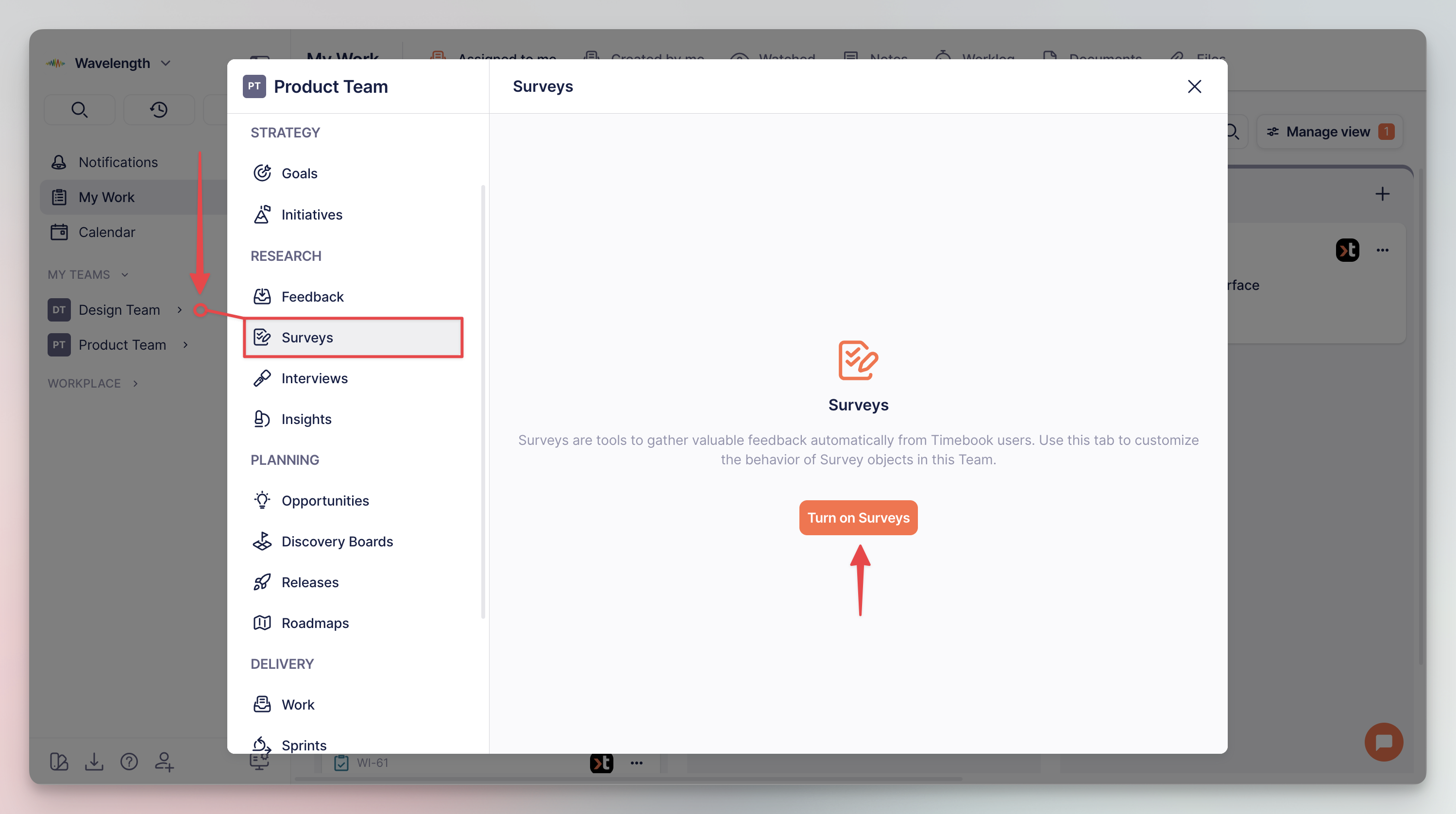
To use the feature, you must first activate it in your team settings:
Surveys configuration in team settings
### Format requirements
{% hint style="success" %}
Surveys must commit to the following rules to be properly processed:
* file must be in `.csv` format
* data must be logically arranged in rows and columns
* headers should be clear and telling
* information must be actionable enough for the AI engine to perform analysis or generate problem statements
{% endhint %}
## Working with surveys
### Uploading surveys
{% stepper %}
{% step %}
Go to **Research** → **Surveys** module and click 'Create first Survey'.
{% endstep %}
{% step %}
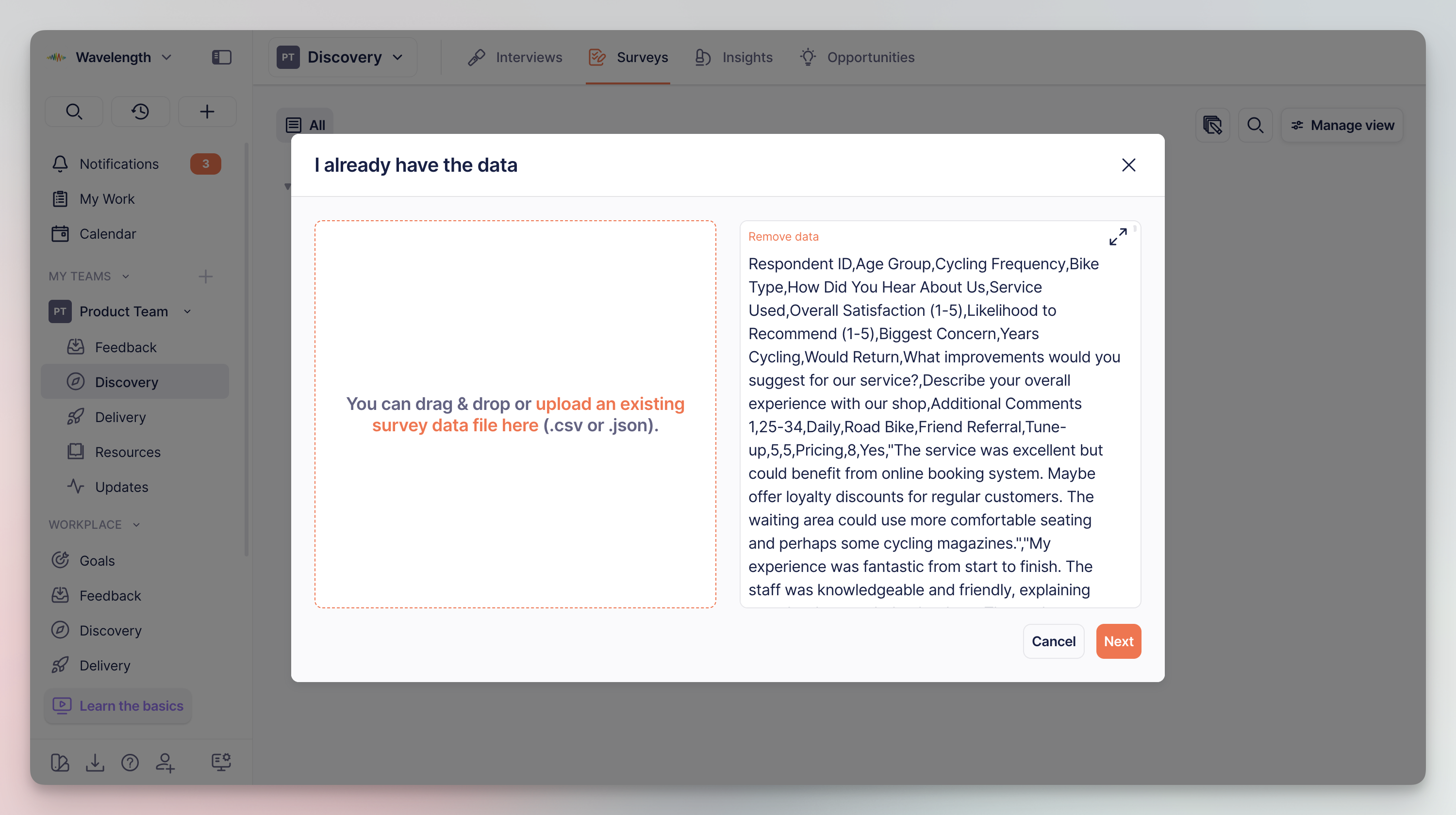
Select the file to upload from your disk or paste the responses to the field.
{% hint style="warning" %}
Make sure the responses you are pasting are properly formatted as `.csv`.
{% endhint %}
Survey upload screen
{% endstep %}
{% step %}
Timebook will need a while to analyze the data. You can close the window and continue working elsewhere until notified.
{% endstep %}
{% step %}
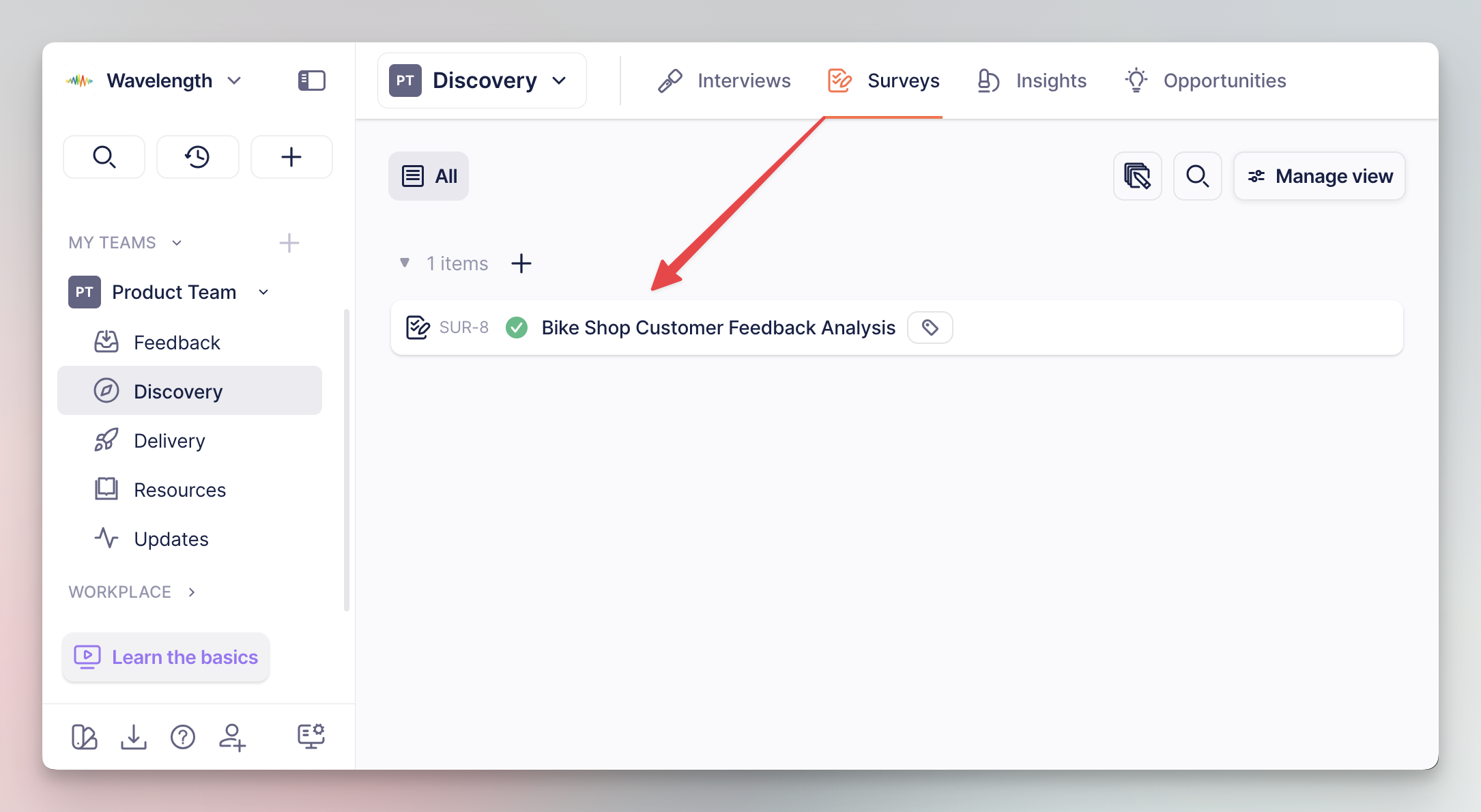
Once the process has finished, the survey will appear as an item on the list.
Surveys list overview
{% endstep %}
{% endstepper %}
### Survey overview
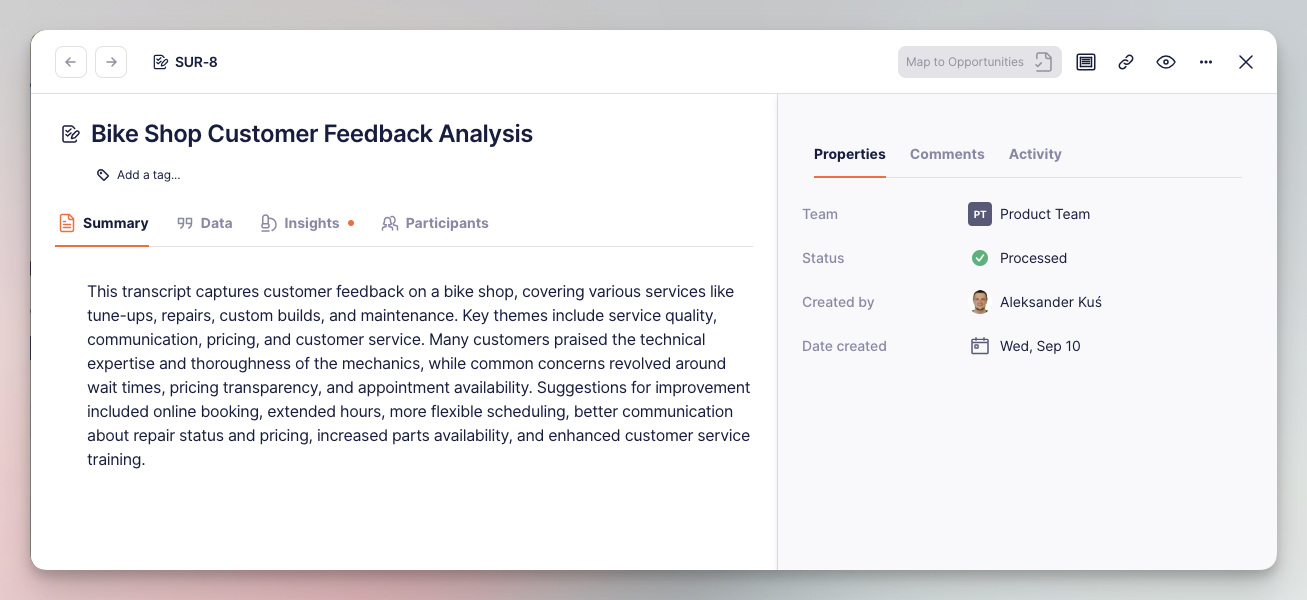
Clicking on a survey opens the results of the analysis:
* **Summary** – a synopsis with essential conclusions drawn from the survey results
* **Data** – the actual survey data uploaded to the system
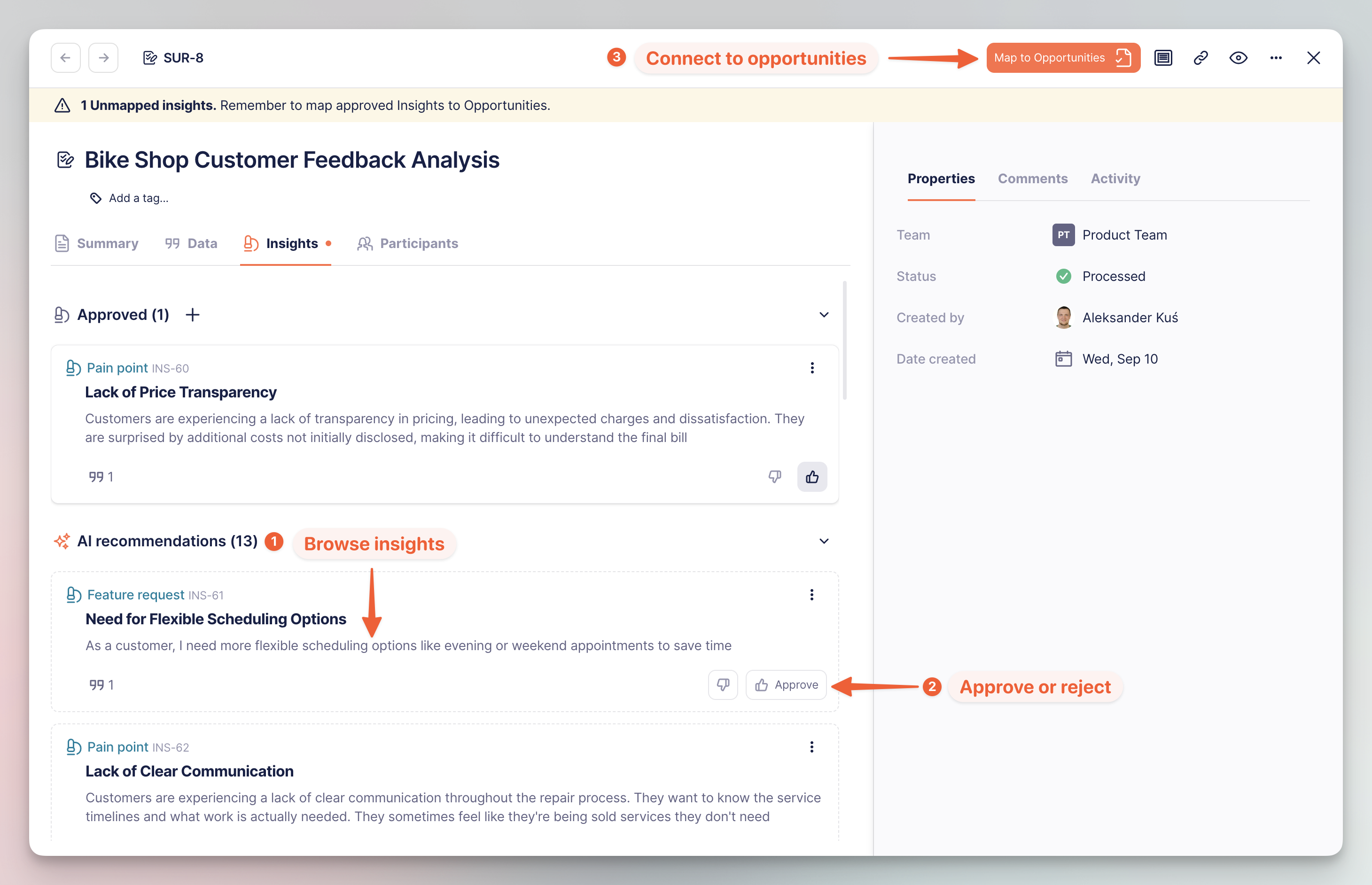
* **Insights** – the insights generated by Timebook. The basis on which further Product Discovery work can be performed.
* **Participants** – the contact related to the survey. Can be used for grouping and sorting the survey list.
Summary tab in survey details
### Qualifying survey insights
The most important part of survey analysis are insights – key observations distilled from the uploaded data. Timebook automatically generates a series of insights that can be further mapped to opportunities, the potential areas for product development.
You can browse the list of insights and decide which are worth working on, and which can be rejected or parked waiting for their turn. Once you qualify the list, clicking 'Map to opportunities' will either map them to an existing opportunity, or create a brand new one.
{% hint style="info" %}
The workflow is further explained in [insights](/hc/get-started/discovery/insights.md) and [opportunities](/hc/get-started/discovery/opportunities.md) articles.
{% endhint %}