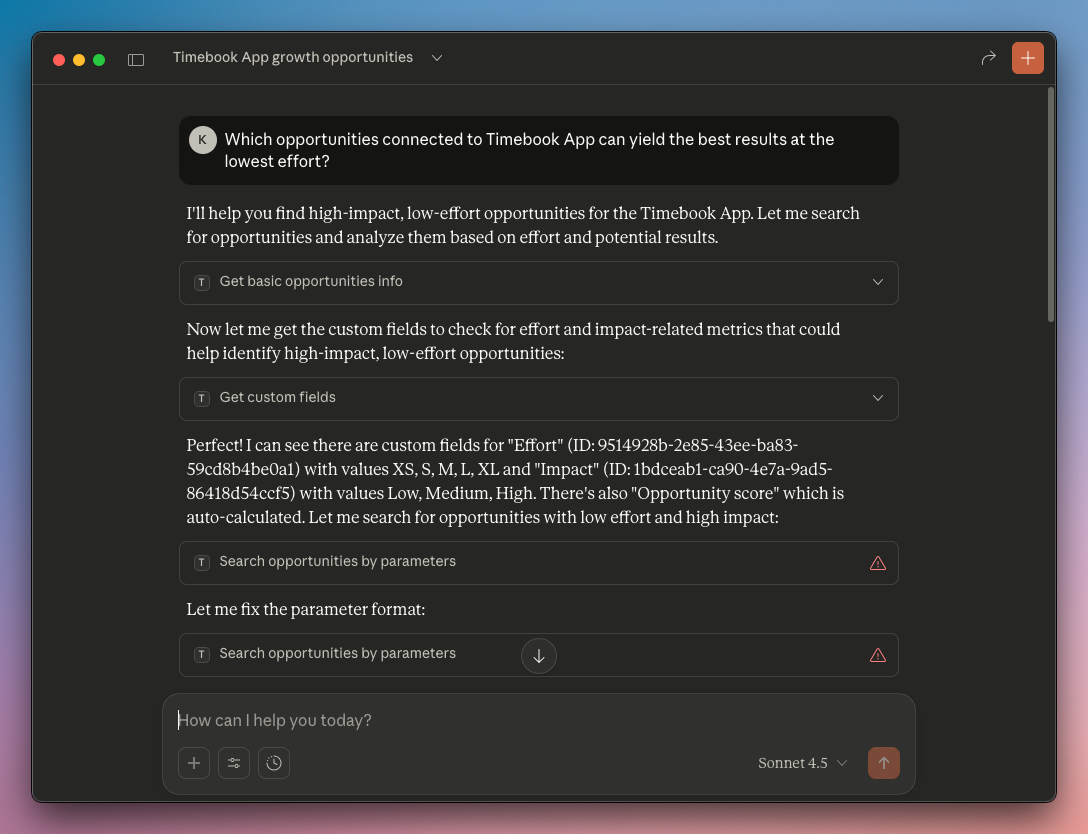
A conversation in Claude based on Timebook data
A conversation in Claude based on Timebook data
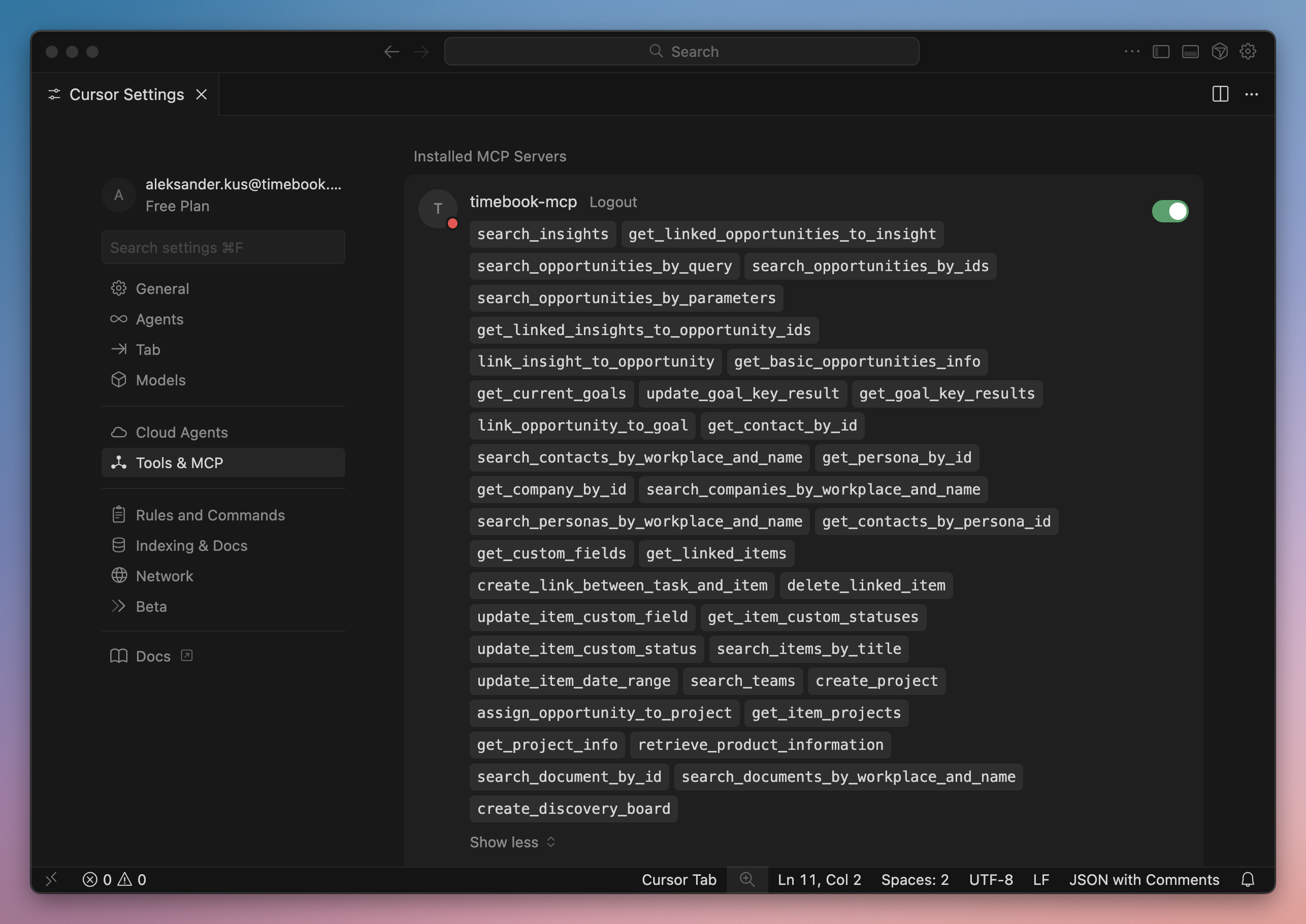
List of supported Timebook tools in the Cursor IDE

A Copilot agent test screen with connected Timebook.
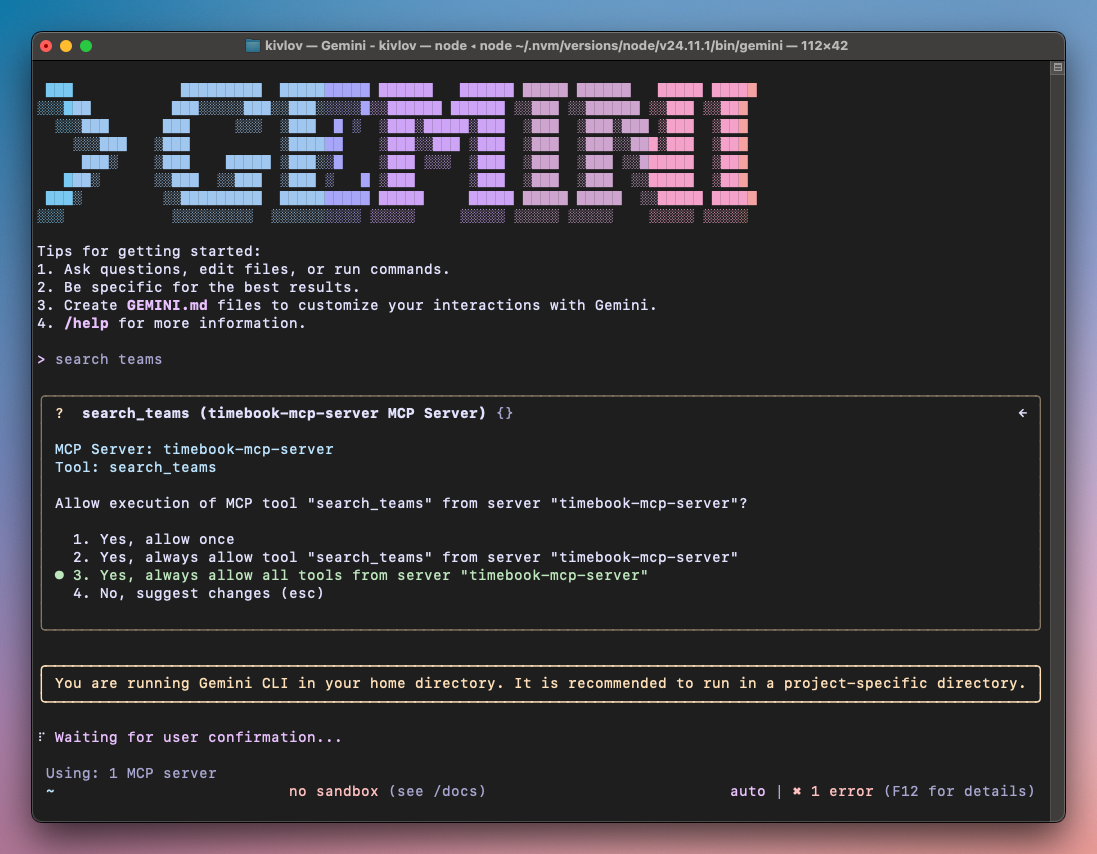
A prompt from in the Gemini CLI regarding Timebook MCP server connection
 {% endhint %}
## Claude
{% hint style="info" %}
This method is available in **paid instances** of Claude only.
{% endhint %}
{% stepper %}
{% step %}
Go to Settings → Connectors and click 'Add custom connector':
{% endhint %}
## Claude
{% hint style="info" %}
This method is available in **paid instances** of Claude only.
{% endhint %}
{% stepper %}
{% step %}
Go to Settings → Connectors and click 'Add custom connector':

Location of custom connector button in Claude settings

Custom connector configuration in Claude

Timebook OAuth access screen

Claude connectors with configured Timebook MCP
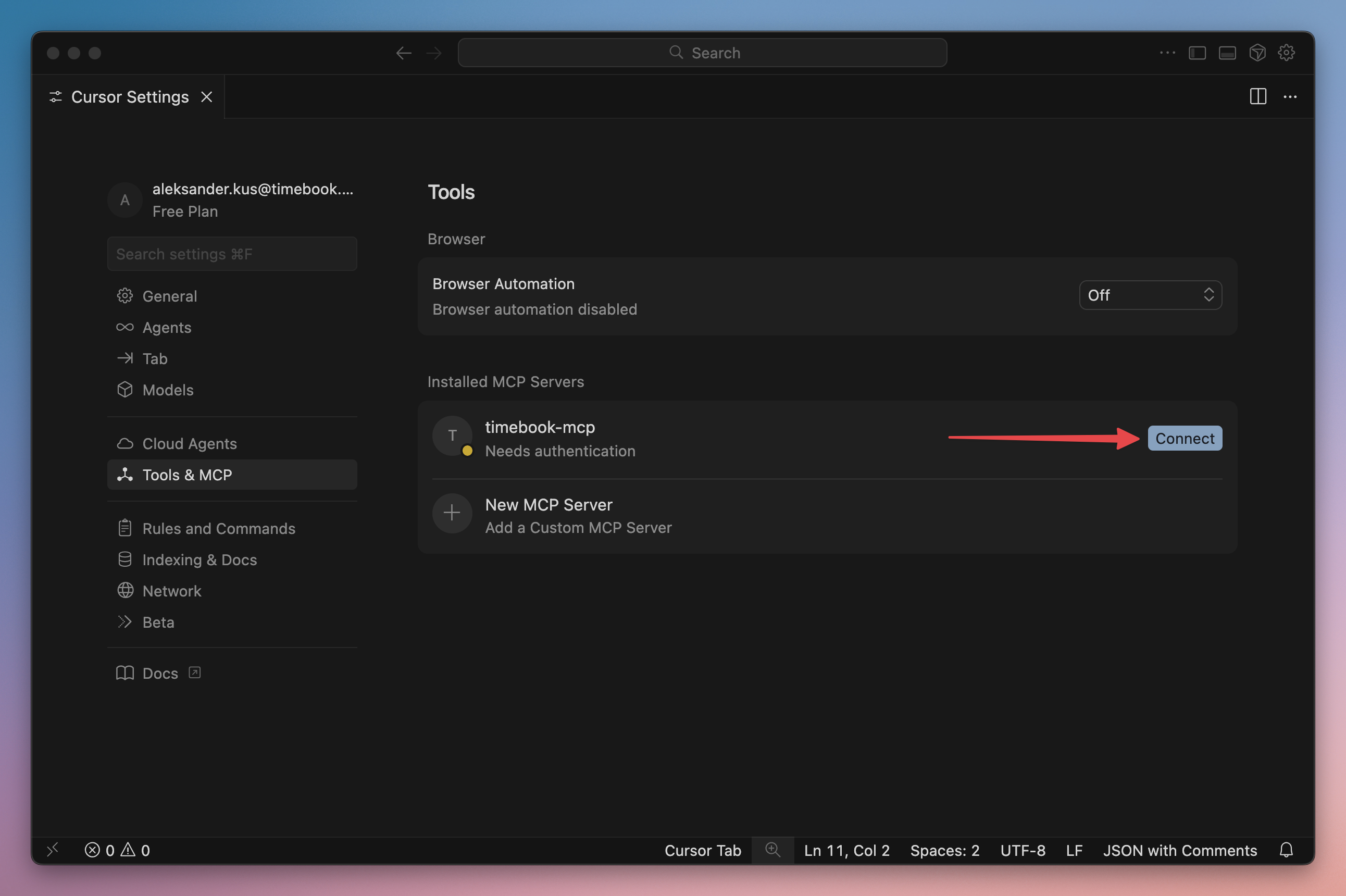
A list of connected MCP servers in Cursor
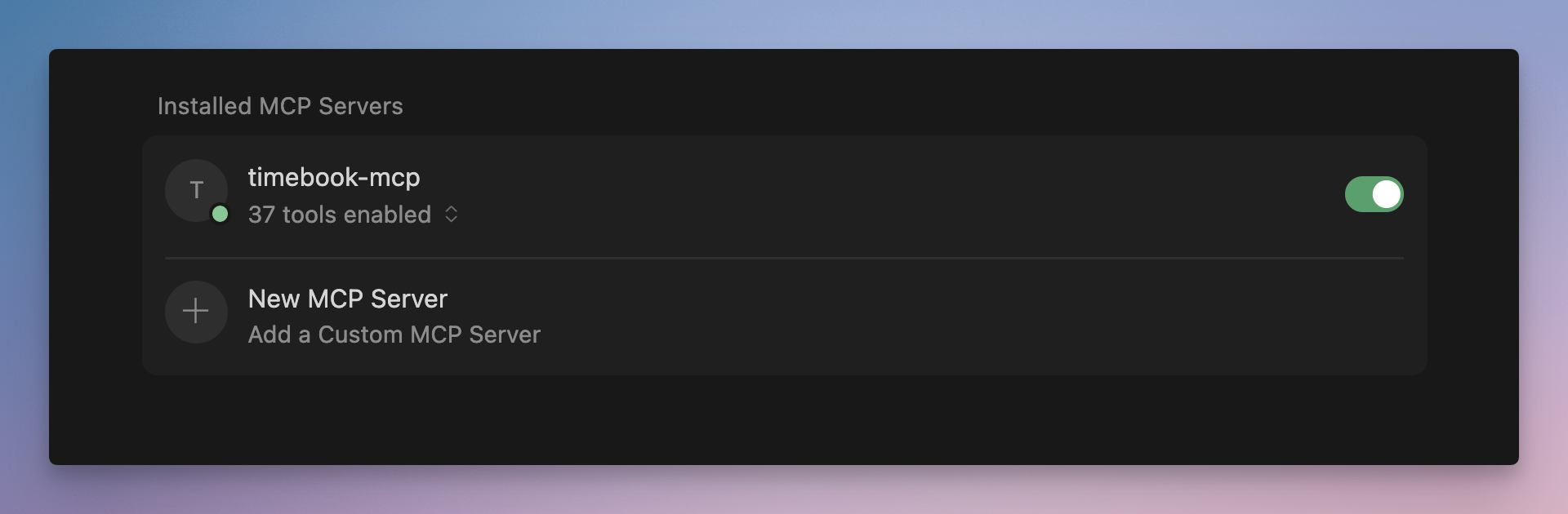
Timebook MCP enabled in Cursor

Copilot agent creation screen

Agent configuration details

Copilot tool creation screen

Timebook MCP configuration details

Creating new connectoon to Timebook MCP

Copilot access request to Timebook

Timebook MCP on Copilot agent's tools list
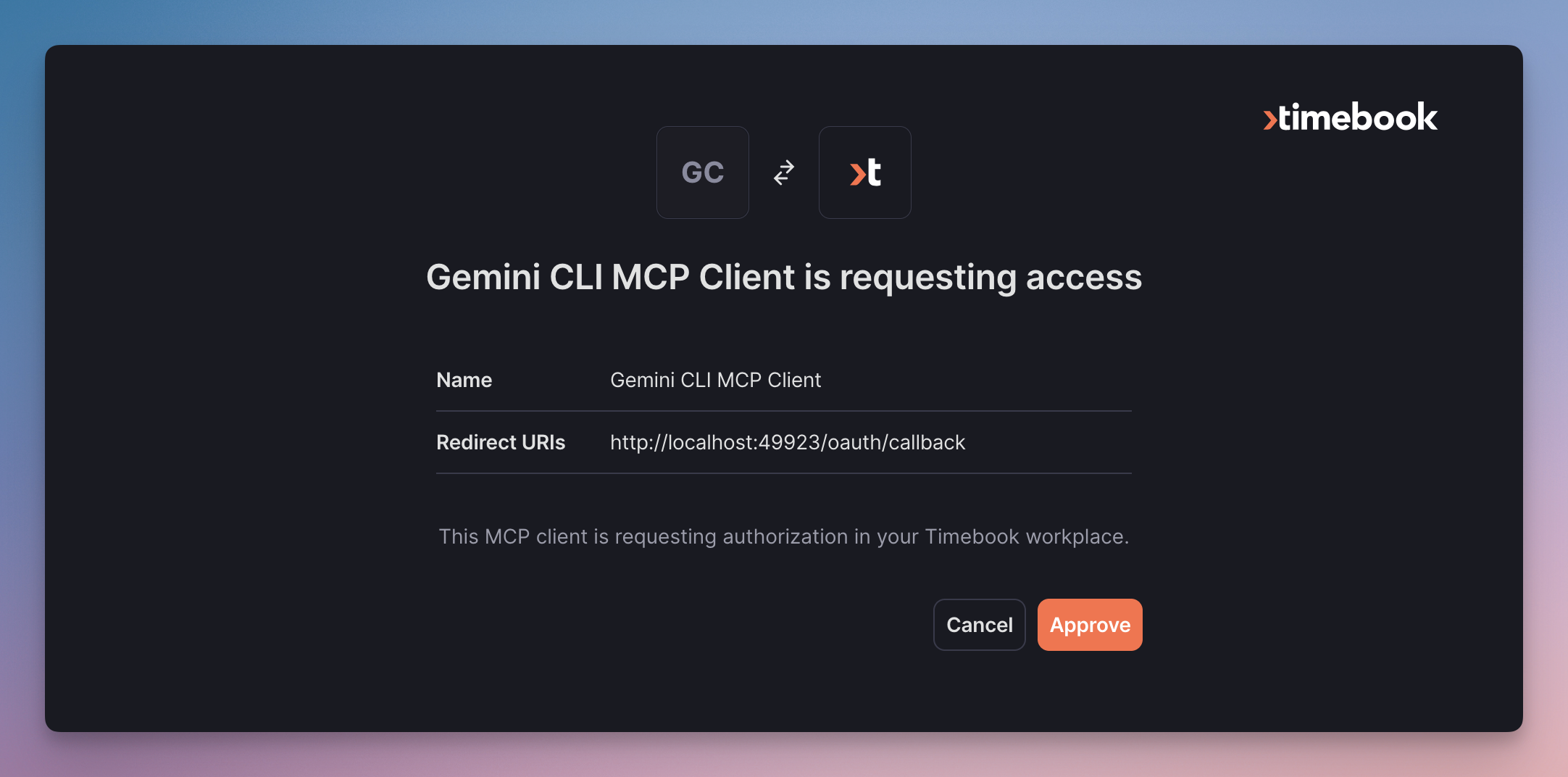
Gemini CLI access request to Timebook
| # | Name | Friendly name | Description |
|---|---|---|---|
| 1 | create_contact | Create contact | Creates a new contact with specified name, role, email address, and associated persona. |
| 2 | create_initiative | Create initiative | Creates a new initiative with specified ID, name, and status. |
| 3 | create_insight | Create insight | Creates a new insight with specified title, item type, learning, quotes, and contacts. |
| 4 | create_link_between_task_and_item | Link existing items | Creates a link between an existing work item and an object (opportunity, insight, goal or work item). |
| 5 | create_opportunity | Create opportunity | Creates a new opportunity with specified title and (optional) problem statement. |
| 6 | create_project | Create project | Creates a new project in the specified workplace. |
| 7 | create_solution | Create solution | Creates a new solution in the workplace with specified ID, name, description/theme, and status. |
| 8 | create_workitem | Create work item | Creates a new work item with specified title, item type (task, bug, story, feature), and optional fields in the selected workplace. |
| 9 | get_basic_insights_info | Get insights | Retrieves a list of insights with object ID, title, and description. |
| 10 | get_basic_opportunities_info | Get opportunities | Retrieves all active opportunities together with their ID, title, and description. |
| 11 | get_company_by_id | Get company info | Retrieves the company matching the selected company ID together with business details, contact information and description. |
| 12 | get_competitors_by_ids | Get competitors by ID | Retrieves the competitor matching the selected competitor ID together with steregnths, evidence, company facts, and description. |
| 13 | get_contact_by_id | Get contact info | Retrieves detailed information (personal details, company associations, personas, description) for the specified contact ID. |
| 14 | get_contacts_by_persona_id | Get contacts by persona ID | Retrieves all contacts associated with the specified persona ID. |
| 15 | get_current_goals | Get current goals | Retrieves all active goals with attached key results. |
| 16 | get_custom_fields | Get custom fields | Retrieves all custom fields for the specified workplace. |
| 17 | get_goal_key_results | Get key results for goal | Retrieves all key results for the specified goals together with their progress. |
| 18 | get_interview_transcript | Get interview transcript | Retrieves the contents of the transcript of the specified interview. |
| 19 | get_item_custom_statuses | Get custom statuses | Retrieves all custom statuses for the specified object (opportunity, work item, or goal). |
| 20 | get_item_projects | Get projects of item | Retrieves all projects associated with the specified object (opportunity, task, goal, or insight) together with project details (name, status, theme, and summary). |
| 21 | get_item_solutions | Get solutions of item | Retrieves all solutions associated with the specified object (opportunity, task, goal, or insight) together with solution details (name, status, theme, and theme). |
| 22 | get_item_types_for_application NEW | Get item types for application | Retrieves all item types associated with the specified application (module). |
| 23 | get_linked_insights_to_opportunity_ids | Get insights linked to opportunity | Retrieves all insights linked to the provided opportunity ID. |
| 24 | get_linked_items | Get items linked to object | Retrieves all items linked to the selected object (opportunity, insight, goal, or work item). |
| 25 | get_linked_opportunities_to_insight | Get opportunities linked to insight | Retrieves all opportunities generated from or related to the given insight. |
| 26 | get_opportunities_in_initiative | Get opportunities linked to initiative | Retrieves all opportunities linked to the selected initiative. |
| 27 | get_persona_by_id | Get persona by ID | Finds the persona matching the provided persona ID together with name, description, and associated metadata. |
| 28 | get_products | Get products | Retrieves all products in the workplace together with details (name, description, context, owner, and creation/update dates). |
| 29 | get_solution_info | Get solution info | Retrieves the details of the selected solution, |
| 30 | get_project_info | Get project info | Retrieves the details of the selected project (name, status, theme, summary). |
| 31 | get_sprint_info | Get sprint info | Retrieve the details of the selected sprint (title, status, start and end dates, team ID, summary). |
| 32 | get_sprint_work_items | Get work items of sprint | Retrieves all work items assigned to the selected sprint together with full details for every item. |
| 33 | get_work_items_by_friendly_id | Get work item by ID | Retrieves the specified work item in the selected workplace by its ID (e.g. TB-123). |
| 34 | get_work_items_in_project_or_solution | Get work items of project or solution | Retrieves all work items belonging to the selected project or solution together with full details for every item. |
| 35 | link_insight_to_opportunity | Link insight with opportunity | Creates a link between the insight and the selected opportunity. |
| 36 | link_opportunity_to_goal | Link opportunity with goal | Creates a link between the opportunity and the selected key result of the goal. |
| 37 | manage_goals_to_initiative_link | Link or unlink key results of goal and initiative | Creates or removes a link between the specified key results of the goal and the initiative. |
| 38 | manage_opportunities_to_solution_links | Link or unlink opportunities and solution | Creates or removes a link between the specified opportunities and the solution. |
| 39 | manage_opps_to_initiative | Link or unlink opportunities to product initiative | Creates or removes a link between the selected opportunities and the product initiative. |
| 40 | manage_report | Approve, publish, or delete report | Approves, publishes, or deletes the specified report. |
| 41 | manage_report_edition | Create, update, duplicate, or delete report edition | Creates, updates, duplicates, or deletes the specified report editions. |
| 42 | manage_report_type | Create, update, or delete report type | Creates, updates, duplicates, or deletes the specified report type. |
| 43 | manage_workitems_to_solution_links | Link or unlink work items and solution | Creates or removes a link between the specified work items and the solution. |
| 44 | remove_link_between_items | Remove link between objects | Removes the link between the specified objects (opportunities, insights, goals, or work items). |
| 45 | retrieve_product_information | Get product info | Retrieves the details of the selected product (name, description, context, owner, and creation/update dates). |
| 46 | run_report | Generate or preview report | Generates or previews the selected report. |
| 47 | search_companies_by_workplace_and_name | Find companies | Finds the companies in the selected workplace filtered by company name. |
| 48 | search_competitors_by_product_ids | Find competitors by products | Find the competitors in the selected product space(s). |
| 49 | search_contacts_by_workplace_and_name | Find contacts | Finds the contacts in the selected workplace filtered by first or last name. |
| 50 | search_document_by_id | Find documents by ID | Finds the document matching the specified document ID together with all pages and content. |
| 51 | search_documents_by_workplace_and_name | Find documents by name | Finds the documents in the selected workplace filtered by name and retrieves all pages and content for each matching document. |
| 52 | search_items_by_application_type | Find items by type | Finds feedback tickets, work items, surveys, and insights. |
| 53 | search_insights | Find insights | Finds the insights matching, similar, or related to the concept of the query. |
| 54 | search_interviews_by_parameters | Find interviews by parameters | Finds the interviews filtered by date, product, contact, or company. |
| 55 | search_items_by_title | Find items by title | Finds all objects (opportunities, interviews, tasks, goals, and items) matching the provided name. |
| 56 | search_opportunities_by_ids | Find opportunities by ID | Finds all opportunities matching the provided opportunity ID. |
| 57 | search_opportunities_by_parameters | Find opportunities by parameters | Finds the opportunities filtered by contact ID, company ID, status, priority, assignee, or custom fields. |
| 58 | search_opportunities_by_query | Find opportunities by query | Finds the opportunities matching, similar, or related to the concept of the query. |
| 59 | search_reports | Find generated reports | Finds the generated reports matching the provided ID. |
| 60 | search_personas_by_workplace_and_name | Find personas by workplace and name | Finds all personas in the selected workplace filtered by the persona name. |
| 61 | search_report_catalog | Find report templates | Finds all report templates in the selected workplace. |
| 62 | search_report_types | Find report types | Finds all report types in the selected workplace. |
| 63 | search_sprints | Find sprints | Finds all sprints belonging to one or more teams together with sprint details (ID, title, status, start and end dates). |
| 64 | search_swimlanes | Find projects, releases, solutions, and initiatives | Finds solutions in the selected workplace filtered by chosen parameter together with their details (ID, name, status, and theme). |
| 65 | search_teams | Find active teams | Retrieves all active teams in the selected workplace. |
| 66 | set_item_parent | Add object to opportunity or goal | Adds an object to the selected opportunity or goal. |
| 67 | set_project_description | Add description to project | Adds a description in the Markdown format to the specified project. Does not overwrite existing descriptions. |
| 68 | set_solution_description | Add description to solution | Adds a description in the Markdown format to the specified solution. Does not overwrite existing descriptions. |
| 69 | set_sprint_description | Add description to sprint | Adds a description in the Markdown format to the specified sprint. Does not overwrite existing descriptions. |
| 70 | update_goal_key_result | Update key result of goal | Updates the key result of the specified goal. Can be restricted to specific fields. |
| 71 | update_initiative | Update initiative | Updates the name and/or overview of an initiative. |
| 72 | update_item | Update detail of item | Updates the title, description, priority, problem, and/or desired outcome of the specified object of any type in the workplace. |
| 73 | update_item_custom_field | Update custom field of item | Updates the specified custom field of an opportunity or a work item (e.g. importance, satisfaction, importance score). |
| 74 | update_item_custom_status | Update custom status of item | Updates the custom status of an object (opportunity, goal, or work item). |
| 75 | update_item_date_range | Update date range of item | Sets the start date and due date of an object (opportunity, goal, insight, or work item) |