# What is Timebook?

{% hint style="success" %}
Want to jump right into action? Start with our tutorials and get time to value *fast. 👇*
{% endhint %}

<table data-view="cards"><thead><tr><th></th><th></th><th data-hidden data-type="content-ref"></th><th data-hidden data-card-target data-type="content-ref"></th></tr></thead><tbody><tr><td>🔎 <strong>Product Discovery</strong></td><td>Analyze customer feedback. Use hard data to plan what to build.</td><td><a href="/hc/get-started/discovery">Discovery</a></td><td><a href="/hc/get-started/discovery">Discovery</a></td></tr><tr><td>🚚 <strong>Product Delivery</strong></td><td>Ship features and solutions to the needs of your customers.</td><td><a href="/hc/get-started/delivery">Delivery</a></td><td><a href="/hc/get-started/delivery">Delivery</a></td></tr></tbody></table>

***

{% embed url="<https://youtu.be/2QLItegn3Zo>" fullWidth="false" %}

<mark style="color:orange;">Timebook</mark> is an AI-assisted product discovery and management platform designed to help product teams efficiently identify and build the right solutions by accelerating the discovery phase up to 10x. It serves as a **centralized collaboration hub** that unifies teams, tasks, and communication in one place, allowing for optimized resources, streamlined workflows, and improved team coordination—all while keeping customer needs at the heart of every decision.

With Timebook, product teams can:

* leverage AI to analyze user feedback
* remove bias and make evidence-based decisions
* ensure every feature ties back to concrete user value and company goals.

This approach helps teams focus on building **features that create the highest value for customers**, accelerating growth and maximizing the impact of product-led strategies.

<figure><img src="https://3284049081-files.gitbook.io/~/files/v0/b/gitbook-x-prod.appspot.com/o/spaces%2FvCMXgzPoiE4UXP4jn6B8%2Fuploads%2Fgit-blob-46d24ef7079a49f87e5080b1780ac9afa8a48638%2Fintroduction.png?alt=media" alt=""><figcaption></figcaption></figure>

{% hint style="success" %}
You don't have to switch between the apps to get things done. Timebook brings multiple modules together on one platform, so you can manage your work without losing focus or purpose.
{% endhint %}

## Features

The platform provides a series of product-oriented features that help:

* centralize insights
* streamline decision-making
* enable cross-functional collaboration
* capture user insights and discover what to build
* communicate plans and manage delivery

## Integrations

Timebook integrates multiple modules and supports external tools like Slack, email, Jira, Zoom, Figma, and GitHub, eliminating the need to switch between apps and ensuring your work flows smoothly and purposefully.

If you haven't tried managing your work with Timebook yet, here’s the only link you’ll need:

{% embed url="<https://app.timebook.net>" %}


# Discovery

**Product** **Discovery** is the process of uncovering and understanding the needs and pain points of customers in order to identify and validate opportunities viable to your business. By making the customer in the centre of decision-making, it helps teams make data-driven actions and avoid wasting time and resources on useless features and functionalities.

{% hint style="success" %}
Timebook provides you with all tools required to analyze customer data, extract insights, and map them onto priorities for product development.
{% endhint %}

## Research

To begin your journey with Product Discovery, you need to provide Timebook with data. Currently Timebook support the following inputs:

<table data-view="cards"><thead><tr><th></th><th></th><th data-hidden data-type="content-ref"></th><th data-hidden data-card-target data-type="content-ref"></th></tr></thead><tbody><tr><td>🎤 I<strong>nterviews</strong></td><td>Run and analyze customer interviews.</td><td><a href="/hc/get-started/discovery/interviews">Interviews</a></td><td><a href="/hc/get-started/discovery/interviews">Interviews</a></td></tr><tr><td>📋 <strong>Surveys</strong></td><td>Upload and analyze customer surveys.</td><td><a href="/hc/get-started/discovery/surveys">Surveys</a></td><td><a href="/hc/get-started/discovery/surveys">Surveys</a></td></tr><tr><td>📥 <strong>Feedback tickets</strong></td><td>Capture feedback from emails and messages.</td><td><a href="/hc/get-started/discovery/feedback">Feedback tickets</a></td><td><a href="/hc/get-started/discovery/feedback">Feedback tickets</a></td></tr></tbody></table>

## Planning

Once you have the data uploaded, you can focus on qualifying insights and mapping them to opportunities:

<table data-view="cards"><thead><tr><th></th><th></th><th data-hidden data-type="content-ref"></th><th data-hidden data-card-target data-type="content-ref"></th></tr></thead><tbody><tr><td>🔬 <strong>Insights</strong></td><td>Browse and qualify insights.</td><td><a href="/hc/get-started/discovery/insights">Insights</a></td><td><a href="/hc/get-started/discovery/insights">Insights</a></td></tr><tr><td>💡 <strong>Opportunities</strong></td><td>Organize and prioritize opportunities.</td><td><a href="/hc/get-started/discovery/opportunities">Opportunities</a></td><td><a href="/hc/get-started/discovery/opportunities">Opportunities</a></td></tr></tbody></table>


# Interviews

## About

{% hint style="success" %}
The following tutorial will show you how to use Timebook to schedule an interview with your client and receive a transcript from which you can generate valuable insights.
{% endhint %}

Interviews in Product Discovery refer to conversations with current or potential users or buyers of your product. They are aimed at uncovering customer **needs**, **pain points**, and **goals**, as opposed to closing sales or testing existing.

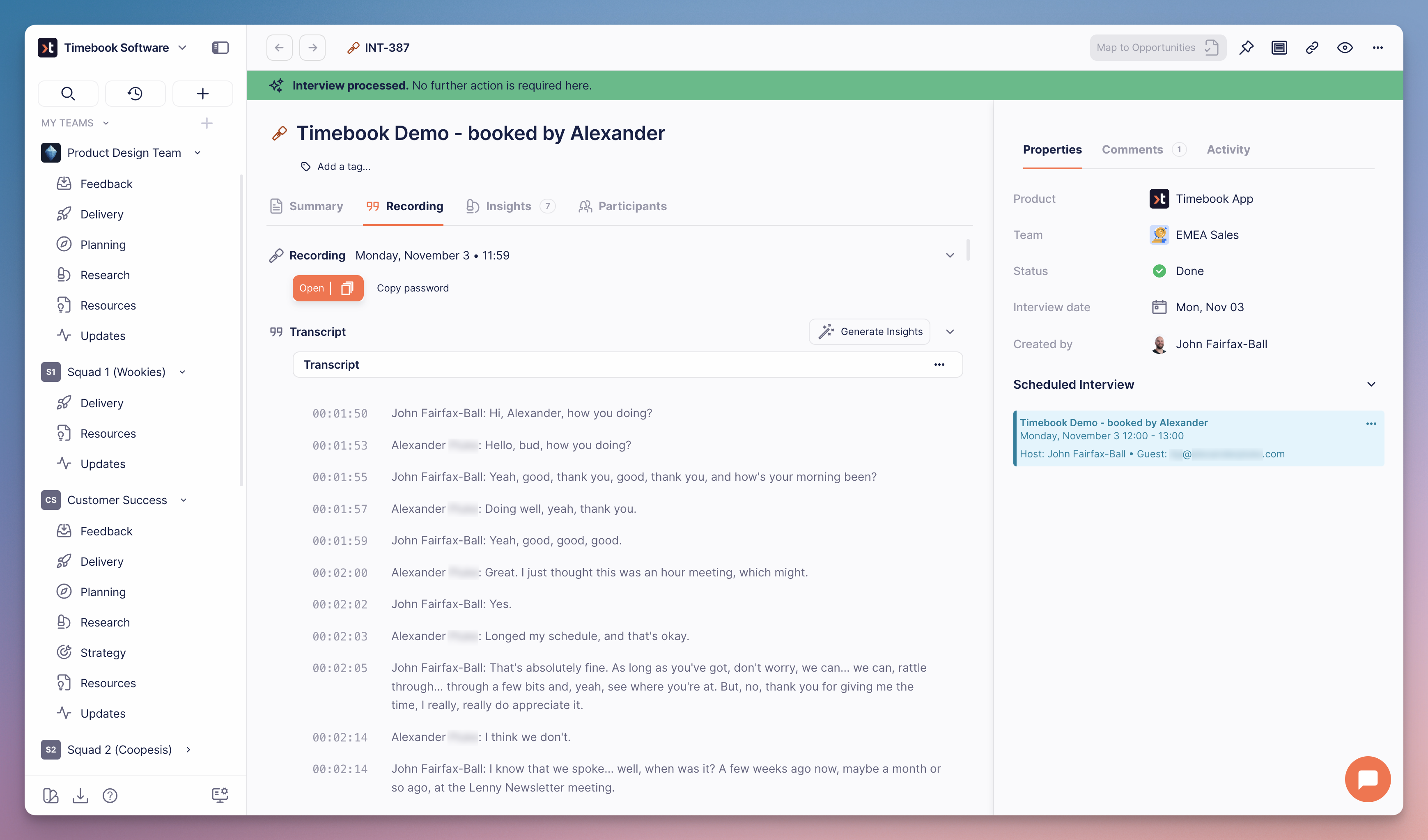
The physical result of a customer interview is a transcript file, from which Timebook can automatically extracts key insights.

## Creating interviews

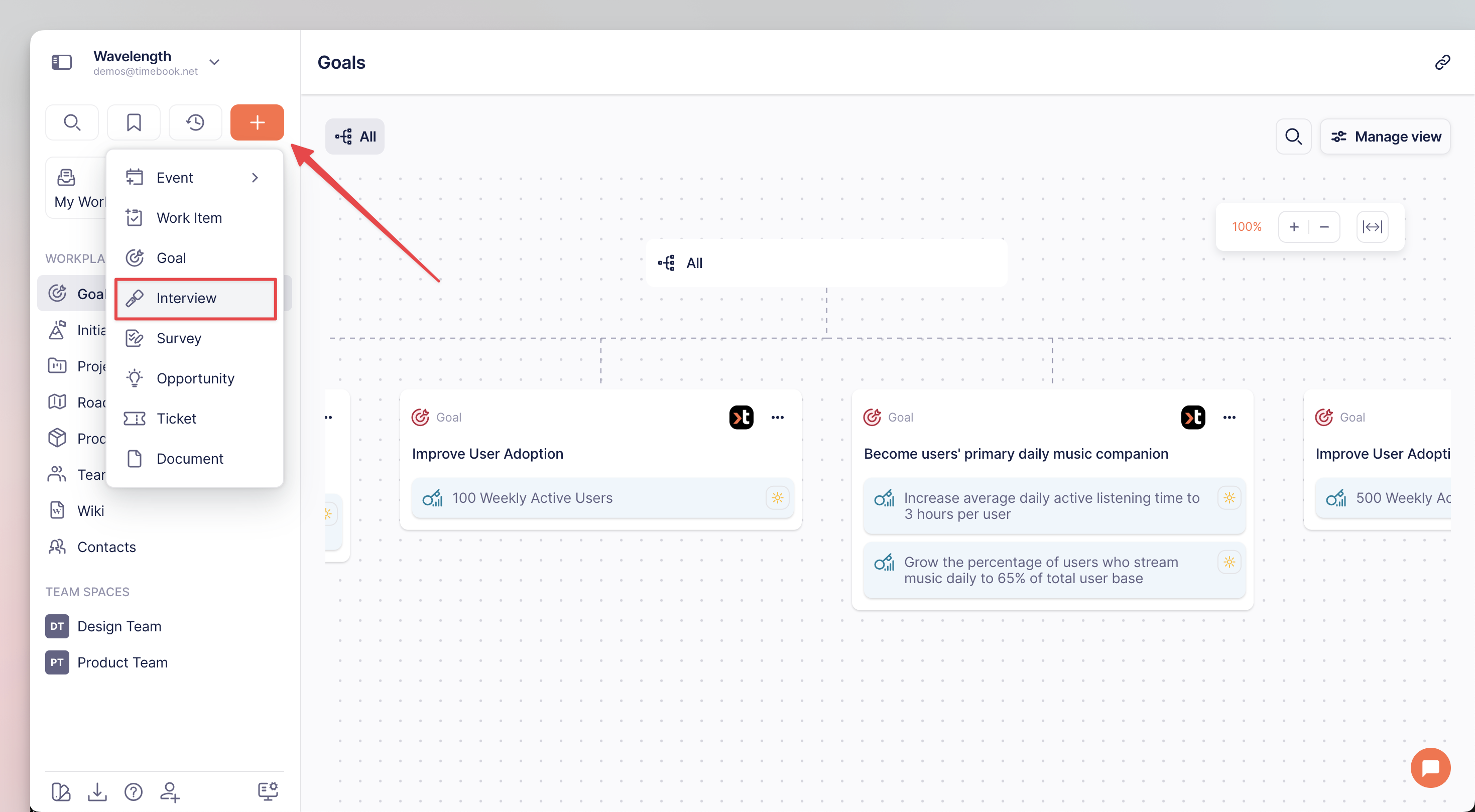
1. To add a new interview, click the **+** icon and select **Interview** from the list:

<div align="left"><figure><img src="https://3284049081-files.gitbook.io/~/files/v0/b/gitbook-x-prod.appspot.com/o/spaces%2FvCMXgzPoiE4UXP4jn6B8%2Fuploads%2Fgit-blob-c38cf71777078aa5db9ef0860100cbc555eeb48f%2Finterviews-1.png?alt=media" alt="" width="563"><figcaption><p>Adding new interview</p></figcaption></figure></div>

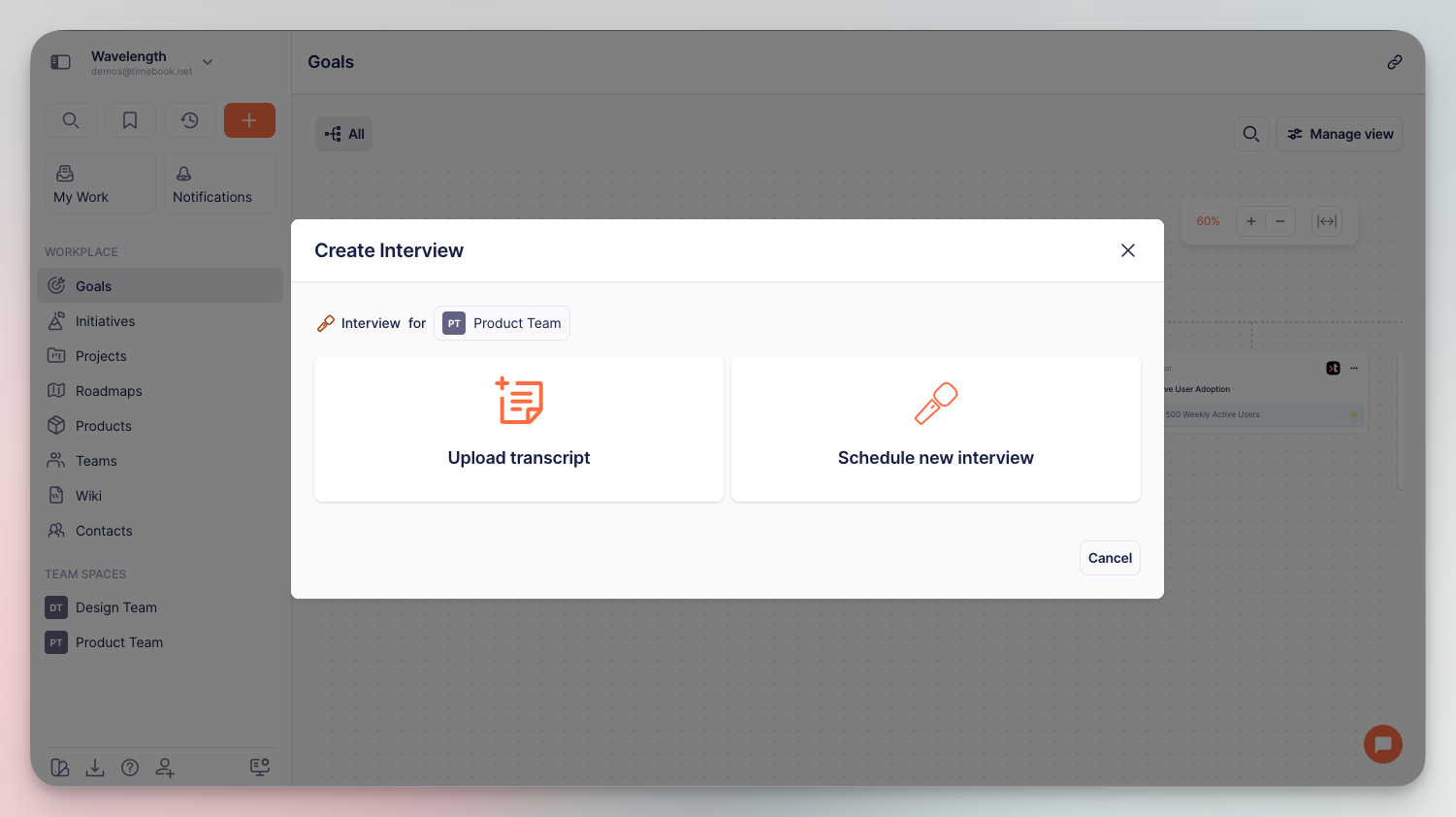
2. Select whether you want to upload your file with transcript, or schedule a new interview from scratch:

<div align="left"><figure><img src="https://3284049081-files.gitbook.io/~/files/v0/b/gitbook-x-prod.appspot.com/o/spaces%2FvCMXgzPoiE4UXP4jn6B8%2Fuploads%2Fgit-blob-07aef6e8c3580bf8f8f98ebec4cbf1e658bf5af1%2Finterviews-2.png?alt=media" alt="" width="563"><figcaption><p>Transcript upload vs Interview schedule selection screen</p></figcaption></figure></div>

### Uploading from file

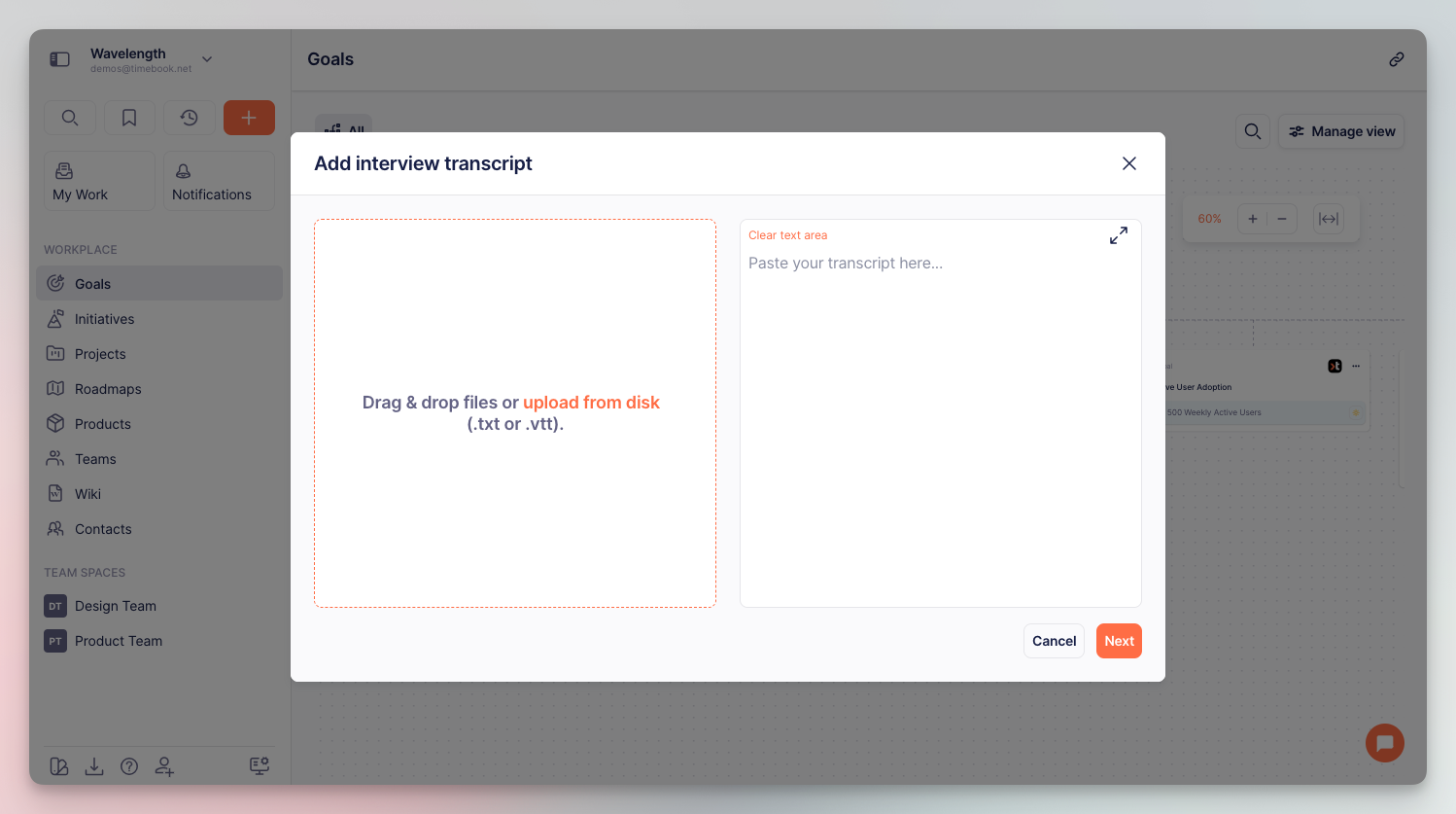
At the moment, Timebook supports `.txt` and Zoom's `.vtt` format. You can also paste the text directly to the text area:

<div align="left"><figure><img src="https://3284049081-files.gitbook.io/~/files/v0/b/gitbook-x-prod.appspot.com/o/spaces%2FvCMXgzPoiE4UXP4jn6B8%2Fuploads%2Fgit-blob-529fbd0cff671c206fc352fe1b00eeeaa2481e02%2Finterviews-3.png?alt=media" alt="" width="563"><figcaption><p>Transcript upload screen</p></figcaption></figure></div>

Once uploaded, Timebook needs a minute or two to process the data and generate the insights.

{% hint style="info" %}
You can upload multiple files with transcripts if you already have customer feedback in your database.
{% endhint %}

### Scheduling new interview

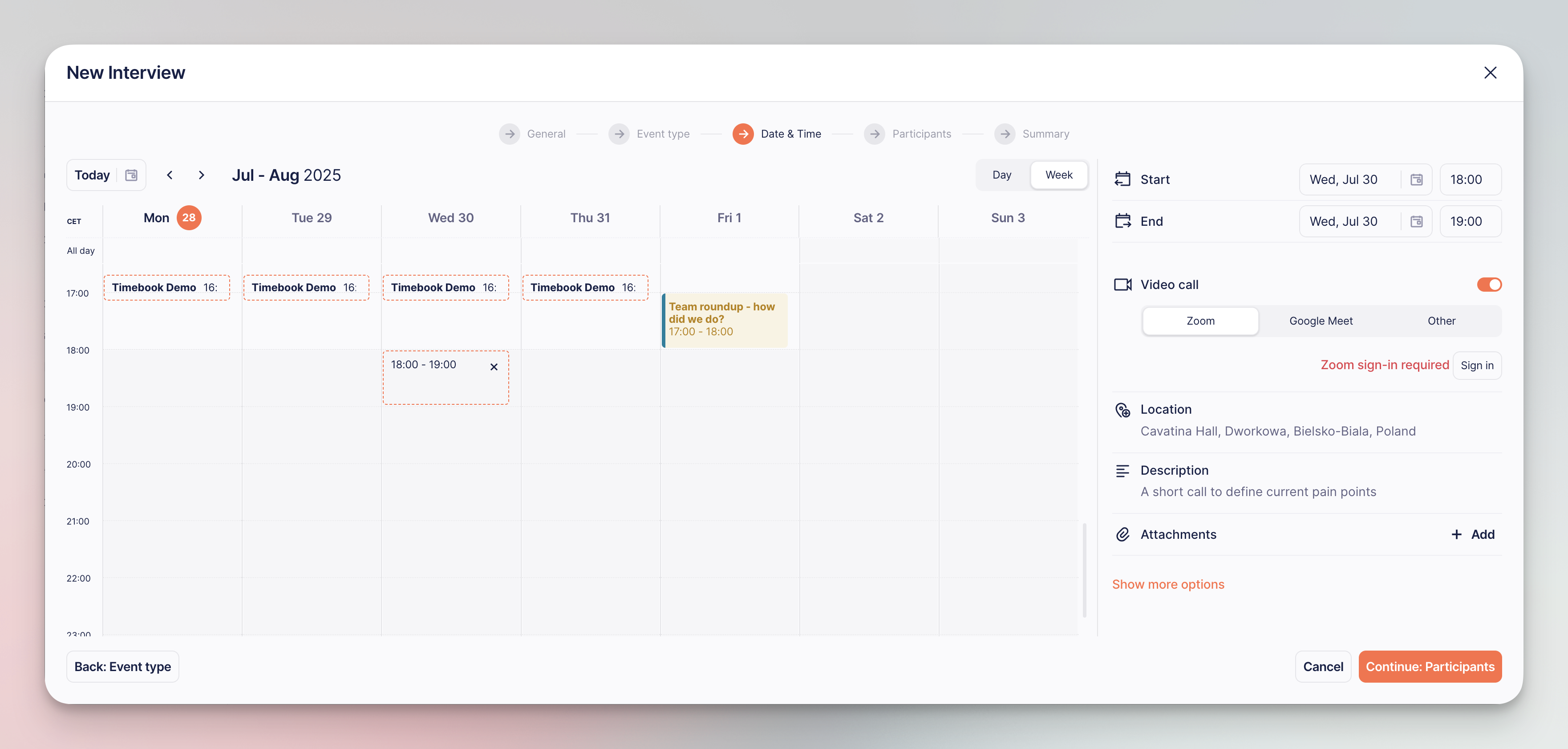
Selecting the schedule option opens the interview creation flow with 5 steps:

1. **General**: define the interview name, product it relates to, and team that will analyze the interview data.
2. **Event type**: depending on how busy you are, you can either schedule a meeting for a specific time yourself, or share an availability slot for your customer. In this tutorial, we'll go with the first option.
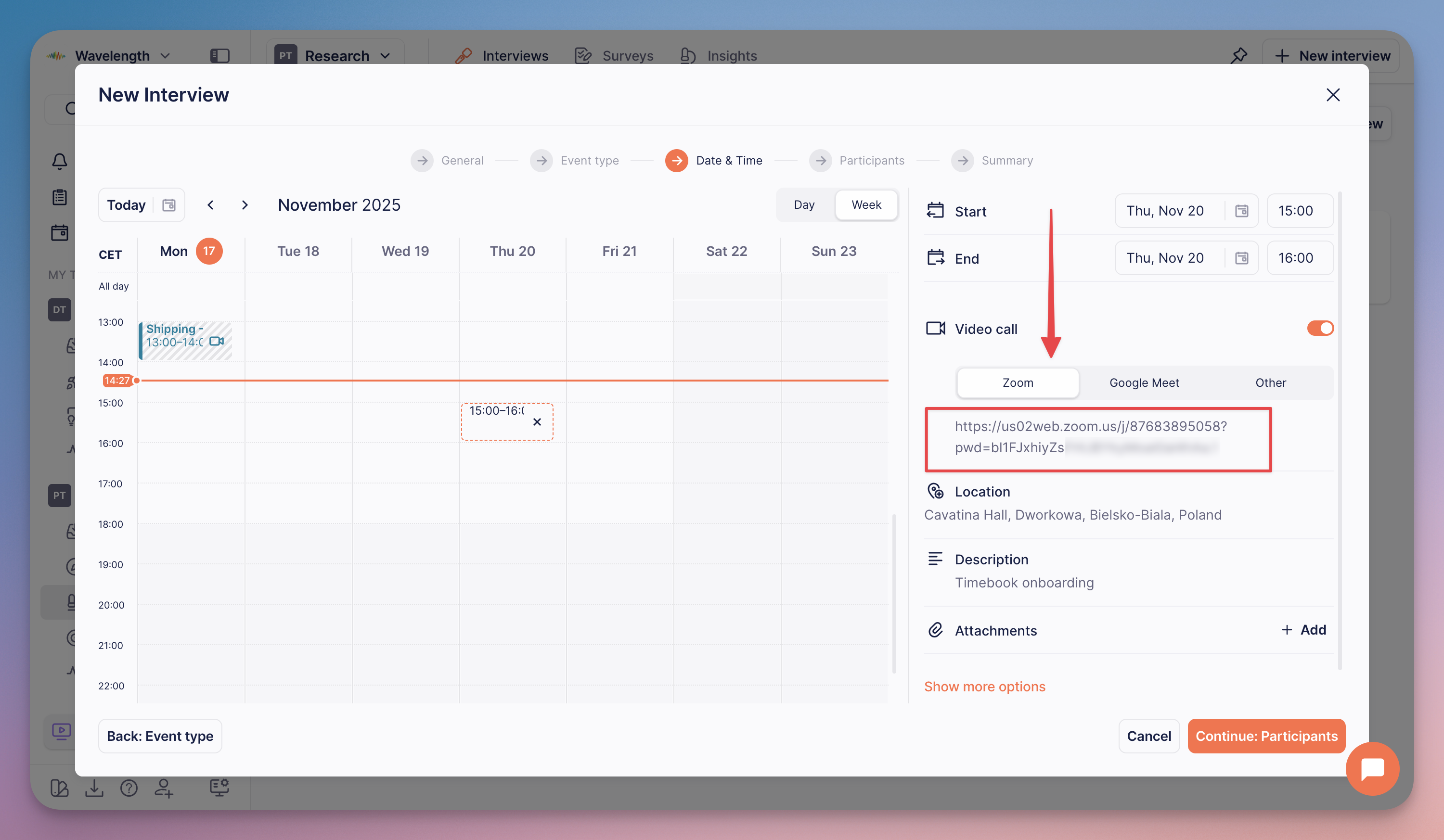
3. **Date & Time**: select the time slot, define video call software, and add details for more context.

<div align="left"><figure><img src="https://3284049081-files.gitbook.io/~/files/v0/b/gitbook-x-prod.appspot.com/o/spaces%2FvCMXgzPoiE4UXP4jn6B8%2Fuploads%2Fgit-blob-7b51a06067168425bb71dd29eb57e5f6aeb85149%2Finterviews-4.png?alt=media" alt="" width="563"><figcaption><p>New interview schedule configuration</p></figcaption></figure></div>

{% hint style="info" %}
Click 'More details' to customize time zone and visibility.
{% endhint %}

{% hint style="success" %}
What you need to know:

* Once created, the meeting will be added to your Timebook calendar
* Integrating Timebook with Zoom or Google will produce an access link that you can share with your customer
* You will get a notification 15 minutes before the meeting starts
  {% endhint %}

4. **Participants**: enter the email or emails of the people that you want to invite.
5. **Summary**: check if everything is correct before sending the invitation link.


# Feedback tickets

## About

{% hint style="success" %}
This tutorial explains how to configure an inbox that will collect feedback from email tickets and Slack messages.
{% endhint %}

Support tickets are the most straightforward way of collecting user feedback. Usually, they indicate pain points that should be addressed, but are also used to share improvement ideas or request new features.

The **Feedback** module in Timebook lets you collect information from three sources:

1. [Email](#email-inbox)
2. [Form](#feedback-form)
3. [Slack](#slack-integration)

Forwarded emails and messages are automatically labeled and transformed into **tickets**, from which you can generate [insights](/hc/get-started/discovery/insights), and then achievable [opportunities](/hc/get-started/discovery/opportunities).

{% hint style="warning" %}
To start collecting customer data, you must first configure the data source in your product settings ⚙️.
{% endhint %}

<div align="left"><figure><img src="https://3284049081-files.gitbook.io/~/files/v0/b/gitbook-x-prod.appspot.com/o/spaces%2FvCMXgzPoiE4UXP4jn6B8%2Fuploads%2FpxSyZaAHK6Jnw8PmMNF0%2Ffeedback-1.png?alt=media&amp;token=5c2daac7-5e9e-4dce-a5f9-1b16d84617fb" alt="" width="563"><figcaption><p>Feedback inbox overview</p></figcaption></figure></div>

## Data sources

### Source 1: Email inbox

The email inbox provides an email address to which you can forward messages. The emails are then automatically converted into feedback tickets.

#### Configuration

{% stepper %}
{% step %}
Go to the **Feedback** tab in your product settings and click **Email** to start configuration.
{% endstep %}

{% step %}
Flip the switch to enable the feature and display the inbox URL.
{% endstep %}

{% step %}
Complete the mailbox name as you see fit. For example: `feedback.mycompany.inbox@myinbox.timebook.net`

<div align="left"><figure><img src="https://3284049081-files.gitbook.io/~/files/v0/b/gitbook-x-prod.appspot.com/o/spaces%2FvCMXgzPoiE4UXP4jn6B8%2Fuploads%2FKw5Qhp4ewpFCAwM4TPTp%2Ffeedback-email-1.png?alt=media&amp;token=85f6e755-fa1a-4575-911d-903042100ca8" alt="" width="563"><figcaption><p>Configuring inbox email address</p></figcaption></figure></div>
{% endstep %}

{% step %}
The last part is adding the address to the forwarding settings in your email client.

{% hint style="success" %}
Check the resources below to learn how to set up automatic forwarding:

* [Gmail](https://support.google.com/mail/answer/10957)
* [Yahoo](https://help.yahoo.com/kb/SLN29133.html)
* [Outlook Mail](https://support.microsoft.com/en-us/office/turn-on-automatic-forwarding-in-outlook-7f2670a1-7fff-4475-8a3c-5822d63b0c8e)
  {% endhint %}
  {% endstep %}
  {% endstepper %}

### Source 2: Feedback form

Timebook also offers a pre-built form that you can either embed in your workplace or post to your customers as an external link. Every form submitted will be recreated as a ticket in Timebook.

#### Configuration

{% stepper %}
{% step %}
Go to the **Feedback** tab in your product settings and click **Form** to start configuration.
{% endstep %}

{% step %}
Flip the switch to enable the feature and display the form preview.
{% endstep %}

{% step %}
The upper part of the preview lets you configure the visual layout of your form. All headers and placeholders are fully editable:

<div align="left"><figure><img src="https://3284049081-files.gitbook.io/~/files/v0/b/gitbook-x-prod.appspot.com/o/spaces%2FvCMXgzPoiE4UXP4jn6B8%2Fuploads%2F4G8ZKzIjCrbpPGsewJnm%2Ffeedback-form-1.png?alt=media&amp;token=99ed7ae2-0d8d-4eae-9285-9354cc085e22" alt="" width="563"><figcaption><p>Feedback form config modal (upper part)</p></figcaption></figure></div>

The lower part of the modal lets you configure some technical settings:

* **Allow file attachments** – users will be able to attach files to the form. The contents of the uploade files will be automatically scanned during AI triaging.
* **Form address** – the URL address under which the form will be available. You can use it to preview the form before sending.
* **Generate embed code** – use it to embed the form on your website

<div align="left"><figure><img src="https://3284049081-files.gitbook.io/~/files/v0/b/gitbook-x-prod.appspot.com/o/spaces%2FvCMXgzPoiE4UXP4jn6B8%2Fuploads%2FY0A2DaJN1DU98uAccjYP%2Ffeedback-form-2.png?alt=media&amp;token=12986e8a-f263-4620-bd8f-de2cab14bb7f" alt="" width="563"><figcaption><p>Feedback form config modal (lower part)</p></figcaption></figure></div>
{% endstep %}
{% endstepper %}

### Source 3: Slack messages

Attaching Slack as a data source requires configuring an integration on the workplace level. Read our [Slack integration guide](/hc/integrations/slack) for details.

## Working with tickets

Once you have your data channels configured, each email forwarded to your Timebook inbox or sent to the selected Slack channel will create a new ticket in the **Feedback** module of your product.

{% hint style="info" %}
Depending on the nature of the feedback, Timebook will automatically create a telling title for each ticket.
{% endhint %}

The ticket is then automatically triaged by Timebook's AI, which scans the contents of the message and attached files. The review contains:

* summary
* impact & urgency
* patterns & themes
* recommended follow-up items: [insight](/hc/get-started/discovery/insights) or [work item](/hc/get-started/delivery/work-items)

<div align="left"><figure><img src="https://3284049081-files.gitbook.io/~/files/v0/b/gitbook-x-prod.appspot.com/o/spaces%2FvCMXgzPoiE4UXP4jn6B8%2Fuploads%2FUAIERZDqhpjVKO46G4hQ%2Ffeedback-ticket-overview.png?alt=media&amp;token=a7de4695-1530-4c5c-af0c-be139a1598df" alt="" width="563"><figcaption></figcaption></figure></div>

Clicking a suggested item will open its details. This is where you decide whether you want to promote it to an actual issue and start working on it, or keep it in the backlog as information.

<div align="left"><figure><img src="https://3284049081-files.gitbook.io/~/files/v0/b/gitbook-x-prod.appspot.com/o/spaces%2FvCMXgzPoiE4UXP4jn6B8%2Fuploads%2FHxTLcAkyOHHuHQZRtILn%2Ffeedback-ticket-2.png?alt=media&amp;token=f2b8db62-20ff-4e52-964f-1cefc6d7311f" alt="" width="563"><figcaption></figcaption></figure></div>

{% hint style="info" %}
In the [next tutorial](/hc/get-started/discovery/insights), you'll learn how to generate meaningful insights from the feedback collected from your customers.
{% endhint %}


# Surveys

## About

{% hint style="success" %}
The following tutorial explains the concept of surveys in Product Discovery and shows how to draw and qualify data from survey files for further analysis.
{% endhint %}

Surveys are structured questionaries used to validate assumptions and gather quantitive feedback from product users. They are usually employed at the beginning of the discovery process to indicate the needs and pain points in order to crystalize the basis for product development, but can also be used on regular basis – for example to measure customer satisfaction.

Timebook allows you to extract [insights](#qualifying-survey-insights) from survey files without the need of manual analysis, drastically saving on time and human resources required.

## Configuring surveys

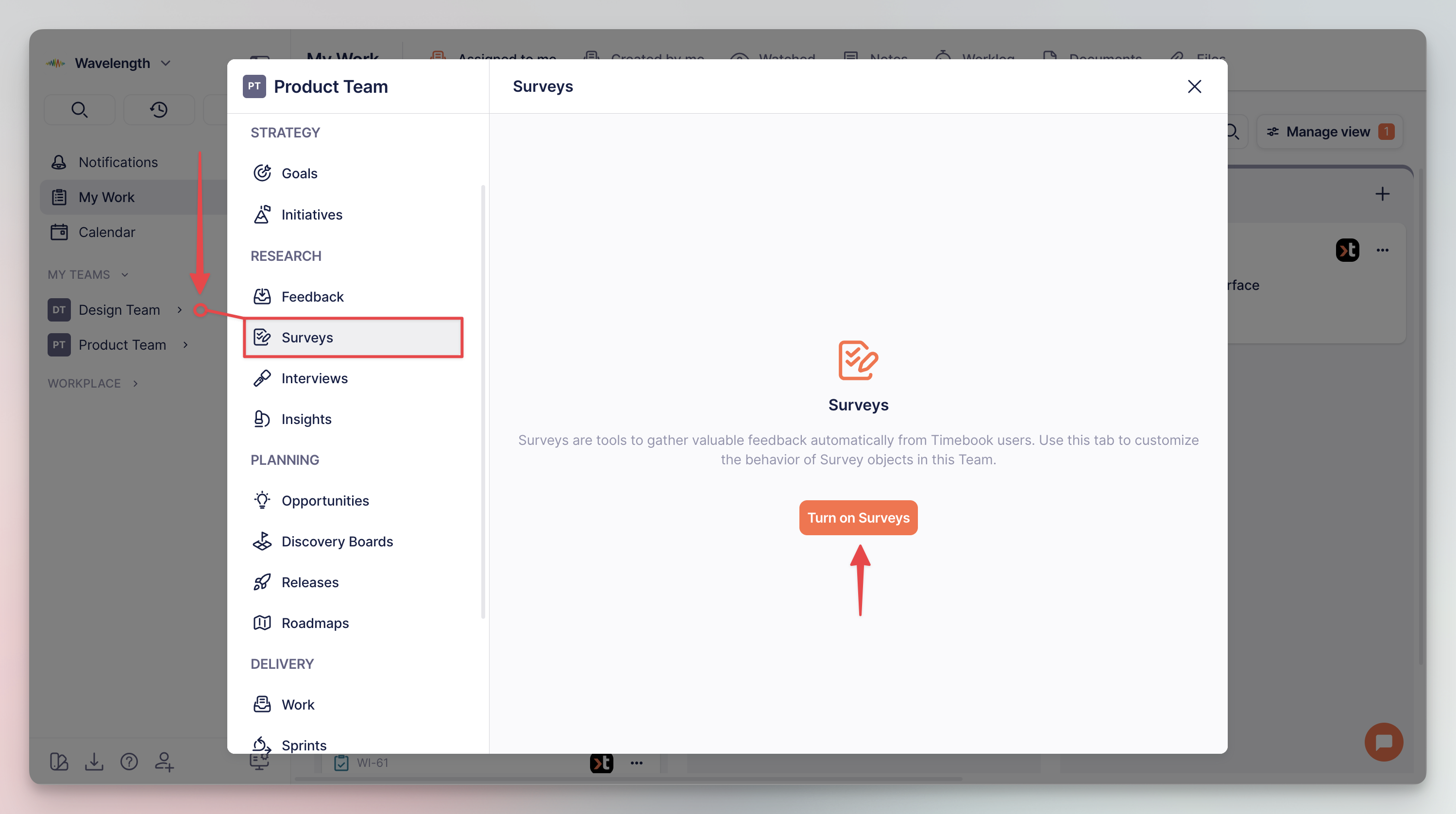
To use the feature, you must first activate it in your team settings:

<figure><img src="https://3284049081-files.gitbook.io/~/files/v0/b/gitbook-x-prod.appspot.com/o/spaces%2FvCMXgzPoiE4UXP4jn6B8%2Fuploads%2Fgit-blob-8543044fb16518687baf348e2ec80a4fb86b5768%2FCleanShot%202025-09-10%20at%2011.37.17%402x.png?alt=media" alt="" width="563"><figcaption><p>Surveys configuration in team settings</p></figcaption></figure>

### Format requirements

{% hint style="success" %}
Surveys must commit to the following rules to be properly processed:

* file must be in `.csv` format
* data must be logically arranged in rows and columns
* headers should be clear and telling
* information must be actionable enough for the AI engine to perform analysis or generate problem statements
  {% endhint %}

## Working with surveys

### Uploading surveys

{% stepper %}
{% step %}
Go to **Research** → **Surveys** module and click 'Create first Survey'.
{% endstep %}

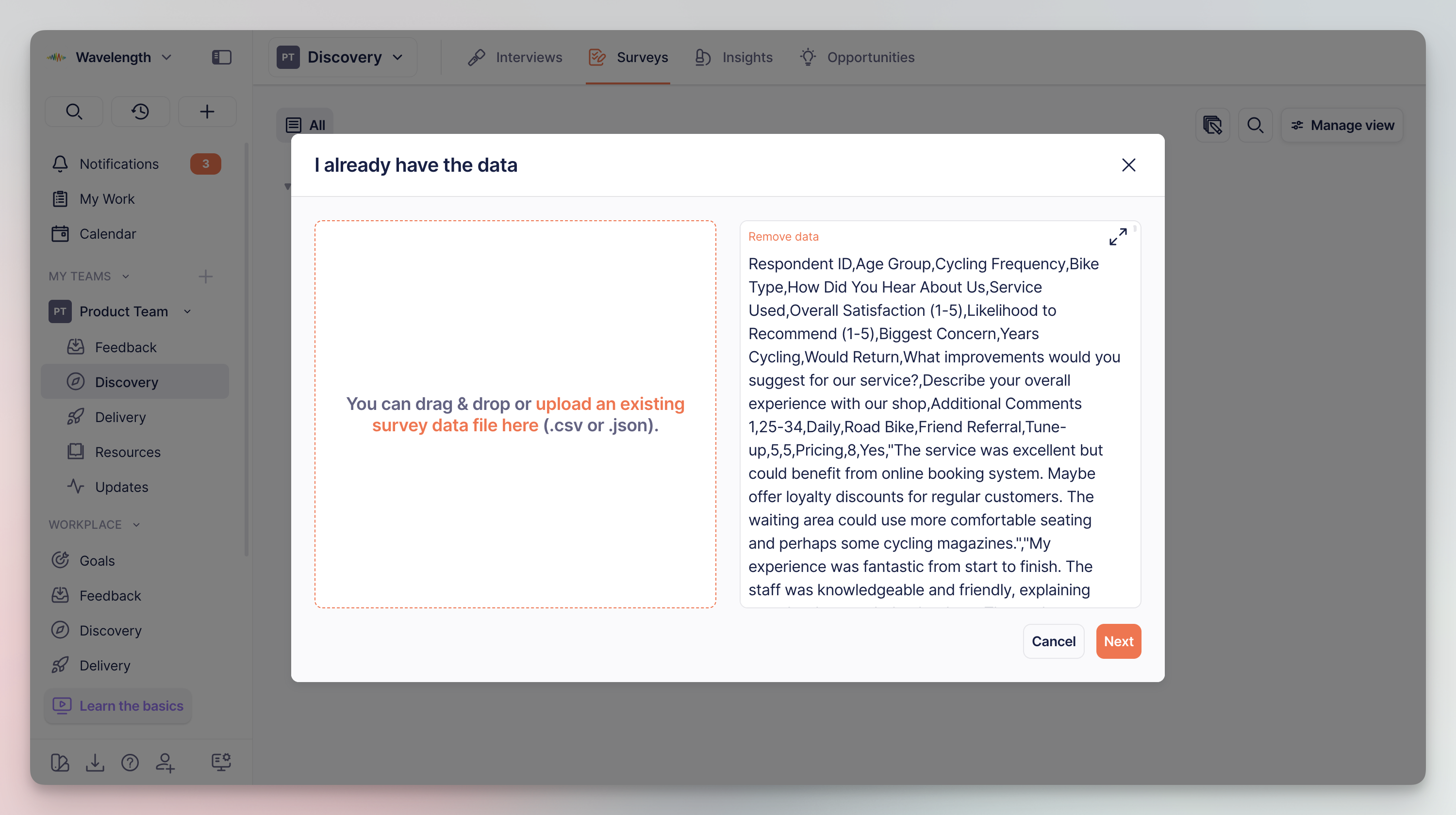
{% step %}
Select the file to upload from your disk or paste the responses to the field.

{% hint style="warning" %}
Make sure the responses you are pasting are properly formatted as `.csv`.
{% endhint %}

<div align="left"><figure><img src="https://3284049081-files.gitbook.io/~/files/v0/b/gitbook-x-prod.appspot.com/o/spaces%2FvCMXgzPoiE4UXP4jn6B8%2Fuploads%2Fgit-blob-1938fd17944d1ec94492c4333caf373e25154c99%2FCleanShot%202025-09-10%20at%2016.55.17%402x.png?alt=media" alt="" width="563"><figcaption><p>Survey upload screen</p></figcaption></figure></div>
{% endstep %}

{% step %}
Timebook will need a while to analyze the data. You can close the window and continue working elsewhere until notified.
{% endstep %}

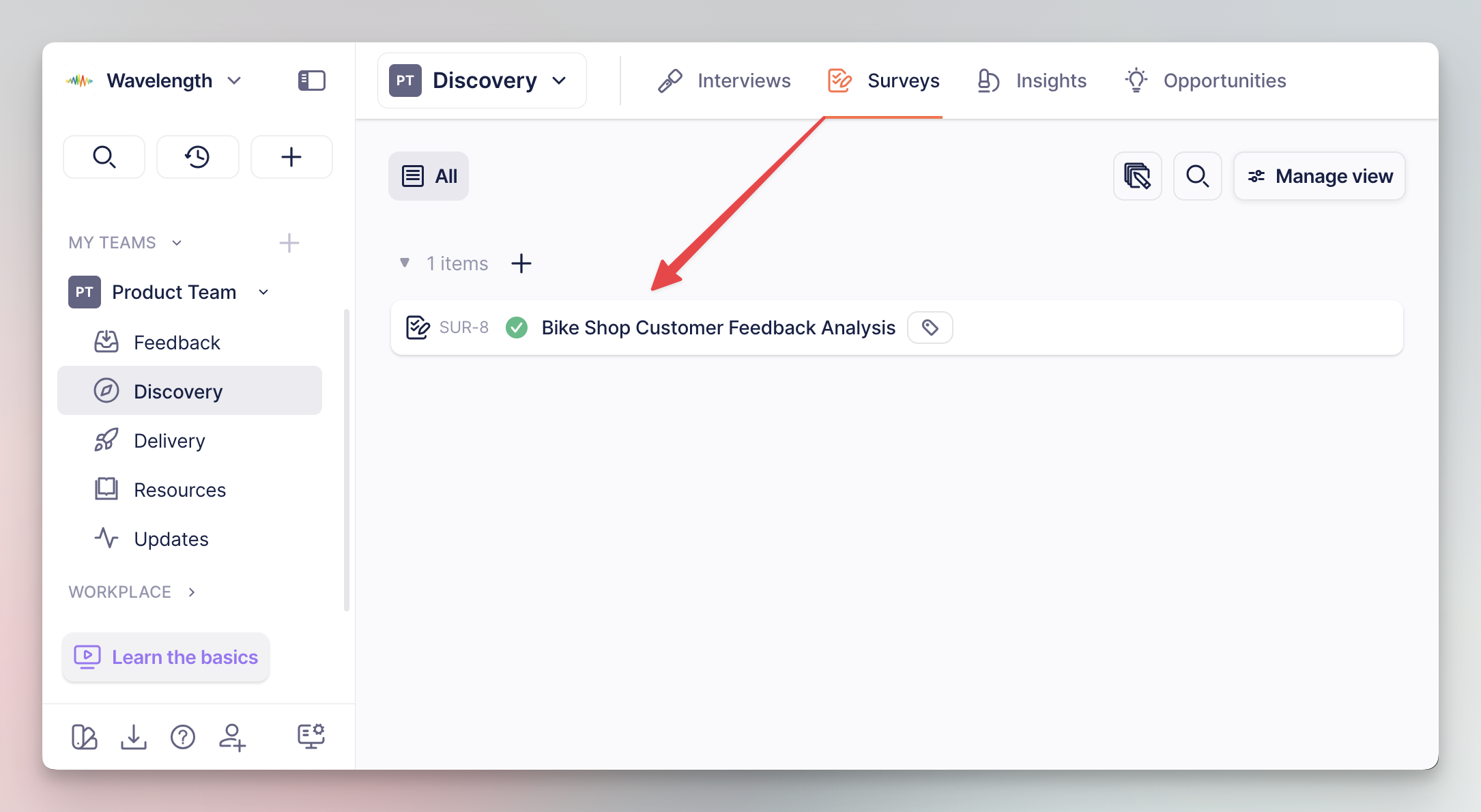
{% step %}
Once the process has finished, the survey will appear as an item on the list.

<div align="left"><figure><img src="https://3284049081-files.gitbook.io/~/files/v0/b/gitbook-x-prod.appspot.com/o/spaces%2FvCMXgzPoiE4UXP4jn6B8%2Fuploads%2Fgit-blob-4857819b32710eb1dc0eef4c357bd00ce303e4e8%2FCleanShot%202025-09-10%20at%2017.22.22%402x.png?alt=media" alt="" width="563"><figcaption><p>Surveys list overview</p></figcaption></figure></div>
{% endstep %}
{% endstepper %}

### Survey overview

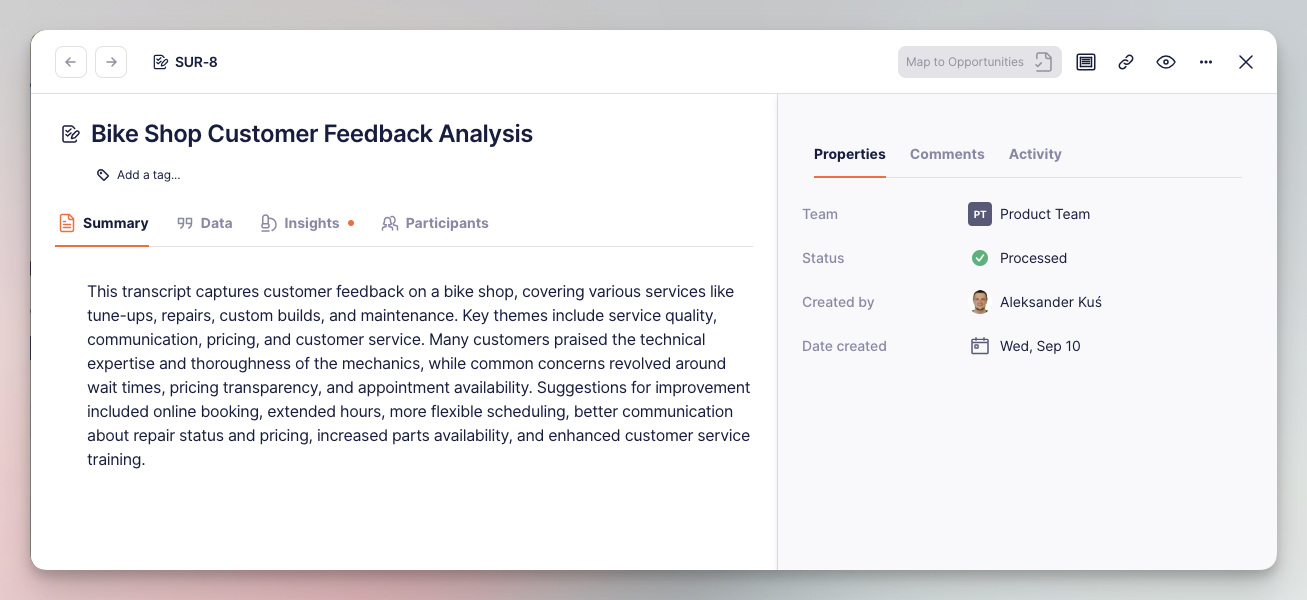
Clicking on a survey opens the results of the analysis:

* **Summary** – a synopsis with essential conclusions drawn from the survey results
* **Data** – the actual survey data uploaded to the system
* **Insights** – the insights generated by Timebook. The basis on which further Product Discovery work can be performed.
* **Participants** – the contact related to the survey. Can be used for grouping and sorting the survey list.

<div align="left"><figure><img src="https://3284049081-files.gitbook.io/~/files/v0/b/gitbook-x-prod.appspot.com/o/spaces%2FvCMXgzPoiE4UXP4jn6B8%2Fuploads%2Fgit-blob-99fcf4b5aa2116cc0001788f746c8d8bb0012861%2FCleanShot%202025-09-11%20at%2015.30.25.png?alt=media" alt="" width="563"><figcaption><p>Summary tab in survey details</p></figcaption></figure></div>

### Qualifying survey insights

The most important part of survey analysis are insights – key observations distilled from the uploaded data. Timebook automatically generates a series of insights that can be further mapped to opportunities, the potential areas for product development.

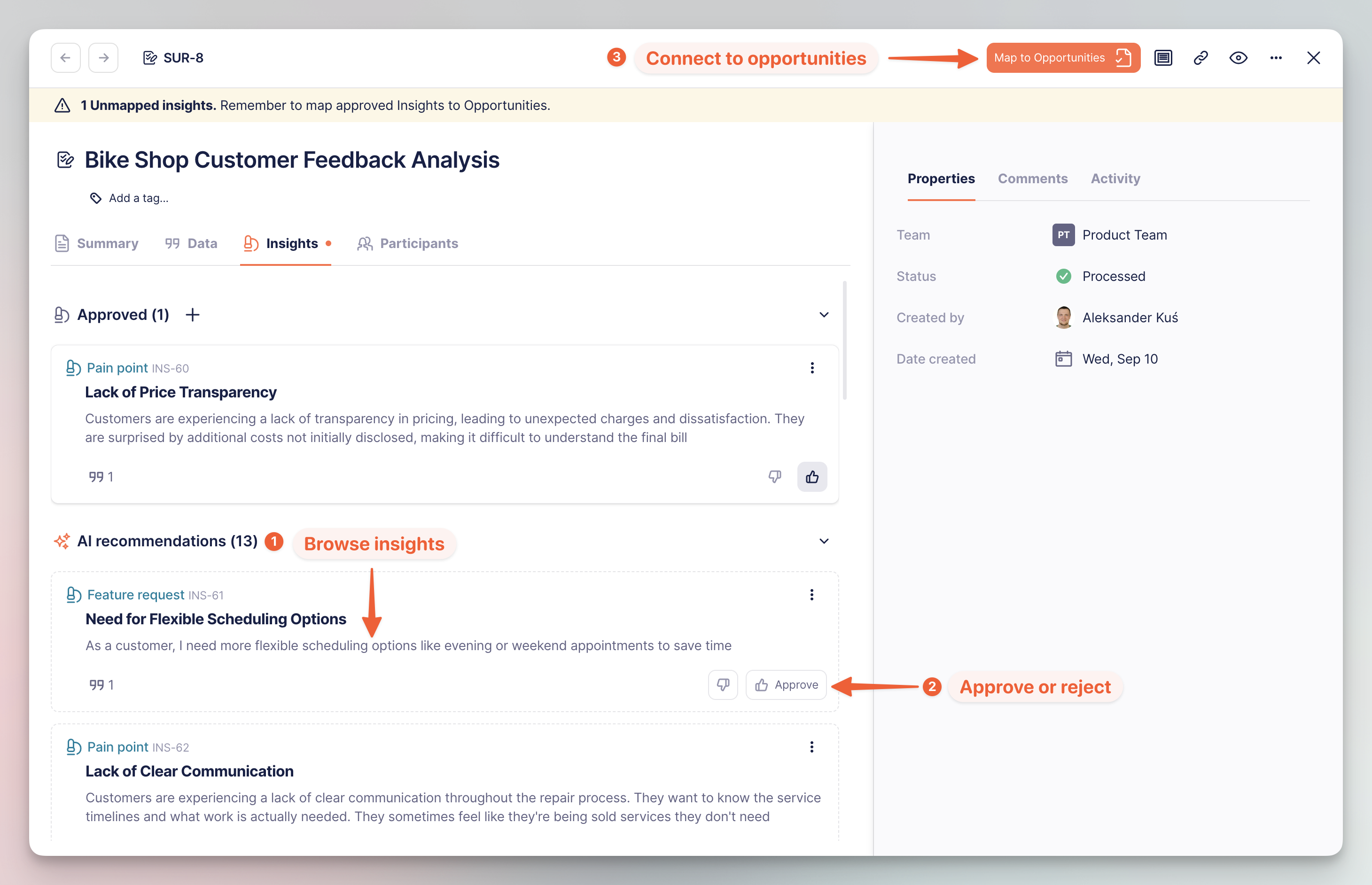
You can browse the list of insights and decide which are worth working on, and which can be rejected or parked waiting for their turn. Once you qualify the list, clicking 'Map to opportunities' will either map them to an existing opportunity, or create a brand new one.

{% hint style="info" %}
The workflow is further explained in [insights](/hc/get-started/discovery/insights) and [opportunities](/hc/get-started/discovery/opportunities) articles.
{% endhint %}

<div align="left"><figure><img src="https://3284049081-files.gitbook.io/~/files/v0/b/gitbook-x-prod.appspot.com/o/spaces%2FvCMXgzPoiE4UXP4jn6B8%2Fuploads%2Fgit-blob-5ec6d70eee8d1899c5767d5ab16dd74b934312eb%2FCleanShot%202025-09-12%20at%2011.42.08%402x.png?alt=media" alt="" width="563"><figcaption><p>Qualifying insights and generating opportunities</p></figcaption></figure></div>


# Insights

## About

{% hint style="success" %}
In this tutorial you will learn how to generate and qualify insights from customer feedback.
{% endhint %}

Insights are **high-level observations** distilled from customer feedback—findings that describe issues or experiences and may call for more profound investigation.

Instead of analyzing the feedback manually, which is tiresome and time-consuming, Timebook equips you with a powerful AI engine that captures and prints the key points for you.

## Structure

### Types of insights

Insights can be classified into five types:

* **Pain** – a problem or frustration the customer faces today
* **Need** – a functional requirement which should be resolved
* **Desire** – a nice-to-have, albeit not essential thing
* **Quote** – a customer statement worth preserving
* **Idea** – a possible solution or suggestion worth investigating

{% hint style="info" %}
Insight types are not just descriptive: they provide context for AI, allowing for more accurate results.
{% endhint %}

### Card layout

The insight card consists of several sections:

1. **Learnings** – the key takeaway from the source material.
2. **Importance Score** – a rating how critical the insight is.
3. **Quotes** – the verbatim evidence backing the statement.
4. **Source** – the raw signal from which the learning was pulled from.

<div align="left"><figure><img src="https://3284049081-files.gitbook.io/~/files/v0/b/gitbook-x-prod.appspot.com/o/spaces%2FvCMXgzPoiE4UXP4jn6B8%2Fuploads%2FwAxlE8VIhD41s5JUhiAq%2Finsights-structure.png?alt=media&amp;token=1a1d9773-e933-4110-b02e-59f256fcd783" alt="" width="563"><figcaption><p>Expanded insight card</p></figcaption></figure></div>

## Generating insights

{% hint style="warning" %}
Features marked with `*` are restricted to higher plans.
{% endhint %}

To generate insights, you must first provide raw signal to analyze. Timebook has several entry points for customer data:

1. [Feedback tickets](/hc/get-started/discovery/feedback#email-inbox) – customer feedback created from emails and Slack messages.
2. [Interviews](/hc/get-started/discovery/interviews) – conversations with customers aimed at understanding their needs and pain points.
3. [Surveys](/hc/get-started/discovery/surveys)\* – uploadable questionarries with data in structured form.

### Feedback tickets

Whenever new feedback comes in, Timebook automatically scans the content, creates a summary, and suggests follow-up items: insights, [work items](/hc/get-started/delivery/work-items)\*, or both.

* **Insights** are high-level objects that can be escalated into [opportunities](/hc/get-started/discovery/opportunities). This may include feature requests, suggestions, and usability pain points to address.
* **Work items**\* are low-level objects that can be immediately picked by the team to work on, e.g. bug reports or accessibility violations.

<div align="left"><figure><img src="https://3284049081-files.gitbook.io/~/files/v0/b/gitbook-x-prod.appspot.com/o/spaces%2FvCMXgzPoiE4UXP4jn6B8%2Fuploads%2Fp1F8CMpY0Vqty8HCQQD9%2Finsights-feedback.png?alt=media&amp;token=8c0b6548-2f8a-4826-9bb1-5834e2ca2a67" alt="" width="563"><figcaption><p>Reviewed feedback ticket with insight proposition</p></figcaption></figure></div>

### Interviews & surveys

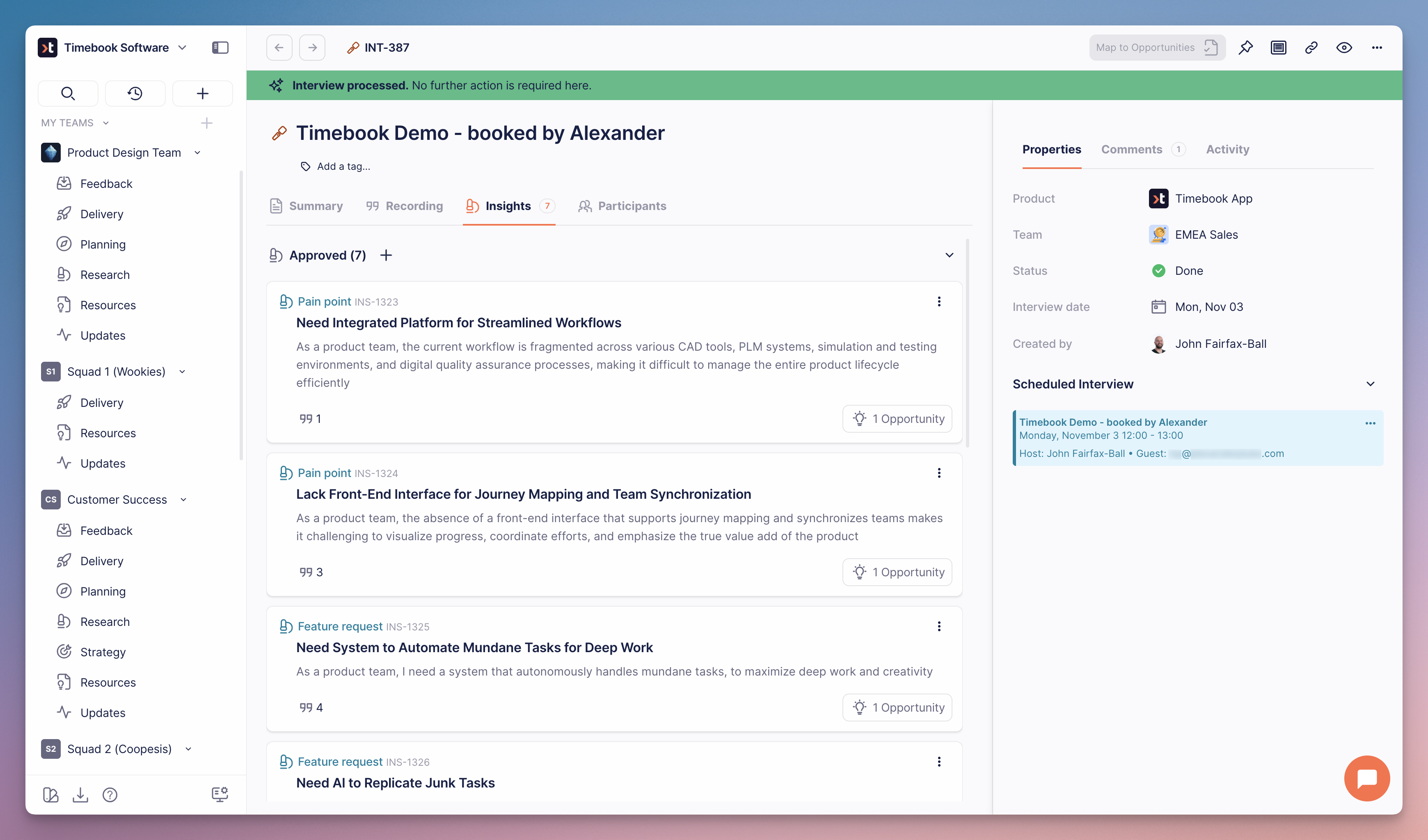
With interviews and surveys, Timebook skips AI triaging and restricts the outcome exclusively to insights. The process of [qualifying](#qualification) remains the same.

<div align="left"><figure><img src="https://3284049081-files.gitbook.io/~/files/v0/b/gitbook-x-prod.appspot.com/o/spaces%2FvCMXgzPoiE4UXP4jn6B8%2Fuploads%2F2TSGrpNumzAGVr2mKAzo%2Finsights-interviews.png?alt=media&amp;token=1dd73331-3be7-4db9-8d55-118946581e9e" alt="" width="563"><figcaption><p>Insights distilled from interview</p></figcaption></figure></div>

### Manual generation

You can also add insights manually using the 'New insight' button. This option is useful for writing down thoughts and quotes that you find worth keeping to work on later.

<div align="left"><figure><img src="https://3284049081-files.gitbook.io/~/files/v0/b/gitbook-x-prod.appspot.com/o/spaces%2FvCMXgzPoiE4UXP4jn6B8%2Fuploads%2FpC43ylyPvcBq1fBSlNmS%2Finsights-manual.png?alt=media&amp;token=ea070a51-5e22-4518-9110-778a45a6bc36" alt="" width="563"><figcaption><p>Manual insight generation</p></figcaption></figure></div>

### Disabling automatic generation

You can turn off automatic triaging and insight generation in the **Feedback** tab of your product space settings:

<div align="left"><figure><img src="https://3284049081-files.gitbook.io/~/files/v0/b/gitbook-x-prod.appspot.com/o/spaces%2FvCMXgzPoiE4UXP4jn6B8%2Fuploads%2FkKuRJwazbFalKSt21HEg%2FCleanShot%202026-08-17%20at%2015.00.30%402x.png?alt=media&amp;token=555c416e-044a-46dc-97b8-2d8d2dd8a333" alt="" width="563"><figcaption><p>Activation switch for automatic feedback AI triage</p></figcaption></figure></div>

## Working with insights

### Qualification

Every insight needs to be manually qualified before one can further work on it.

* **Promoting** an insight will map it to an existing [opportunity](/hc/get-started/discovery/opportunities) (or create an opportunity if none exists)
* **Keeping** the insight **as informational** will change its status to resolved so you can save it to your backlog.
* **Declining** an insight changes its status to canceled.

{% hint style="info" %}
If you want to delete the insight entirely, you need to do it manually.
{% endhint %}

<div align="left"><figure><img src="https://3284049081-files.gitbook.io/~/files/v0/b/gitbook-x-prod.appspot.com/o/spaces%2FvCMXgzPoiE4UXP4jn6B8%2Fuploads%2FftgdG6ZUzI9lW9cbONB0%2Finsights-qualification.png?alt=media&amp;token=22d707be-5f32-4e2b-af5f-5e0747057975" alt="" width="563"><figcaption><p>Insight qualification options</p></figcaption></figure></div>

You can revert qualification actions by changing the status in the insight's properties:

<div align="left"><figure><img src="https://3284049081-files.gitbook.io/~/files/v0/b/gitbook-x-prod.appspot.com/o/spaces%2FvCMXgzPoiE4UXP4jn6B8%2Fuploads%2FloSVOsDK3AyTBOxi7nrs%2Finsights-statues.png?alt=media&amp;token=bdba59f8-2fda-4249-aa3c-1bbb358711de" alt="" width="563"><figcaption><p>Types of statuses in insight properties</p></figcaption></figure></div>

### Management

All insights are collected in the **Insights** tab of your product space, allowing for quick access to any of them.

You can change the layout to board, list, table, or column by clicking 'Manage view'. For example, you can group insights by their status by selecting 'Item type' as the paremeter:

<div align="left"><figure><img src="https://3284049081-files.gitbook.io/~/files/v0/b/gitbook-x-prod.appspot.com/o/spaces%2FvCMXgzPoiE4UXP4jn6B8%2Fuploads%2FeKnSO0CFIMYTcehKW0ze%2Fimage.png?alt=media&amp;token=23933ad7-272a-459c-b3fc-79bdd3ce20dc" alt="" width="563"><figcaption><p>Insights in table view sorted by type (status)</p></figcaption></figure></div>

You can also drag and drop items around, provided the selected grouping parameter allows it:

<div align="left"><figure><img src="https://3284049081-files.gitbook.io/~/files/v0/b/gitbook-x-prod.appspot.com/o/spaces%2FvCMXgzPoiE4UXP4jn6B8%2Fuploads%2FgBW3tdbAdLVpqtZO7OWv%2Finsights-dnd.png?alt=media&amp;token=1fc70315-0eeb-4a27-87cd-8e17b039f7a2" alt="" width="563"><figcaption><p>Dragging insight cards between boards</p></figcaption></figure></div>

{% hint style="info" %}
In the [next tutorial](/hc/get-started/discovery/opportunities), you'll learn how to map insights onto opportunities and carry on with your Product Discovery journey.
{% endhint %}


# Opportunities

## About

{% hint style="success" %}
In this tutorial you will learn how to create and work with opportunities.
{% endhint %}

Opportunities are objects that help capture and evaluate potential areas for product development. They can be created manually by the user, or generated from feedback [insights](/hc/get-started/discovery/insights).

## Generating opportunities

### Generating from Insights

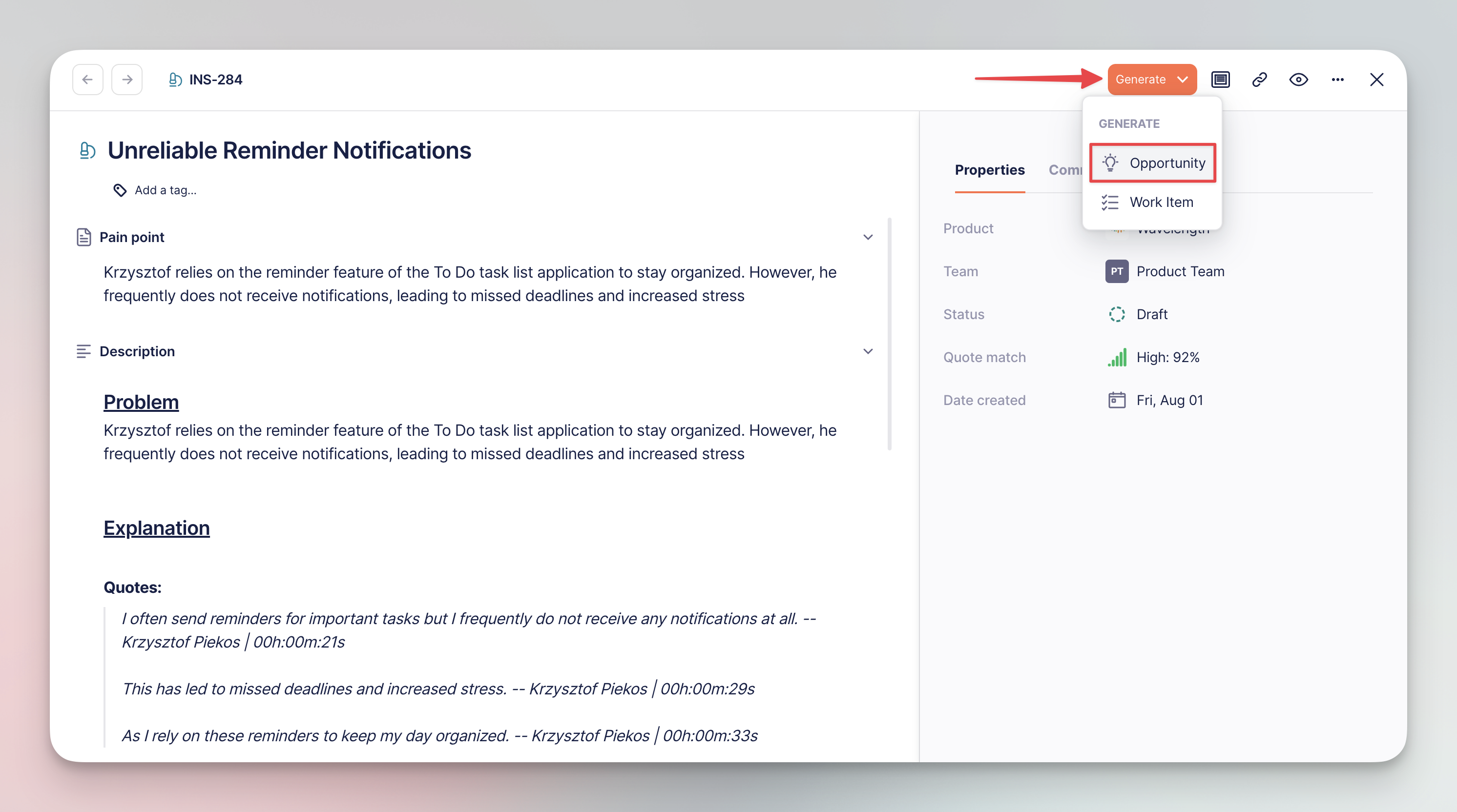
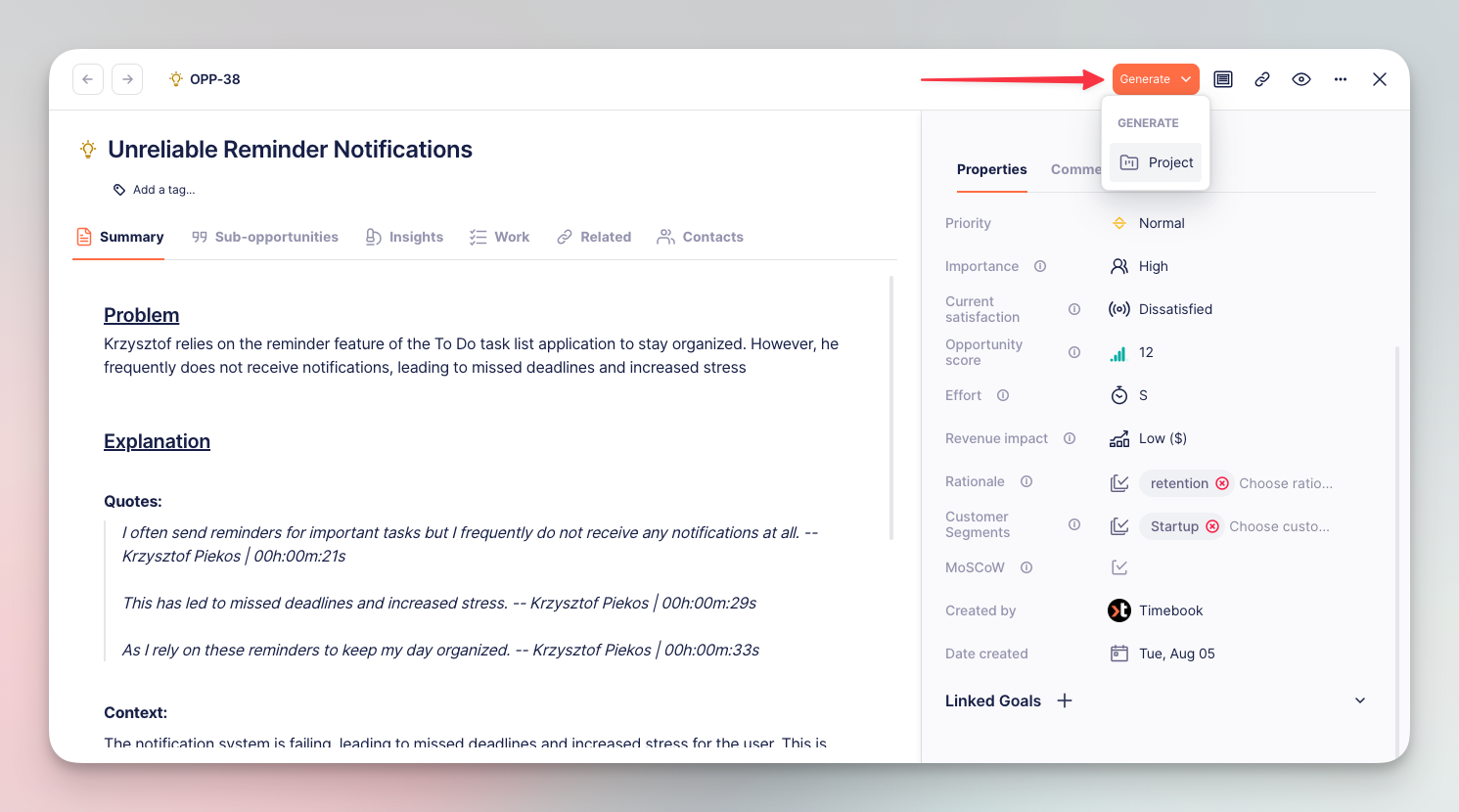
[Insights](/hc/get-started/discovery/insights) from feedback items can be escalated to opportunities with the 'Generate' > 'Opportunity' button.

<div align="left"><figure><img src="https://3284049081-files.gitbook.io/~/files/v0/b/gitbook-x-prod.appspot.com/o/spaces%2FvCMXgzPoiE4UXP4jn6B8%2Fuploads%2Fgit-blob-e1524358f2ad9b859c2b1d31ecc571cdfabadfce%2Fopportunities-3.png?alt=media" alt="" width="563"><figcaption><p>Generating from insight</p></figcaption></figure></div>

The insight will transform into a new opportunity (described in detail below).

### Generating manually

To create an opportunity manually, click the `+` button and select **Opportunity** from the list:

<div align="left"><figure><img src="https://3284049081-files.gitbook.io/~/files/v0/b/gitbook-x-prod.appspot.com/o/spaces%2FvCMXgzPoiE4UXP4jn6B8%2Fuploads%2Fgit-blob-02138b90de84765eed839922d65d6096dfe16dcf%2Fopportunities-1.png?alt=media" alt="" width="563"><figcaption><p>Generating from <code>+</code> button</p></figcaption></figure></div>

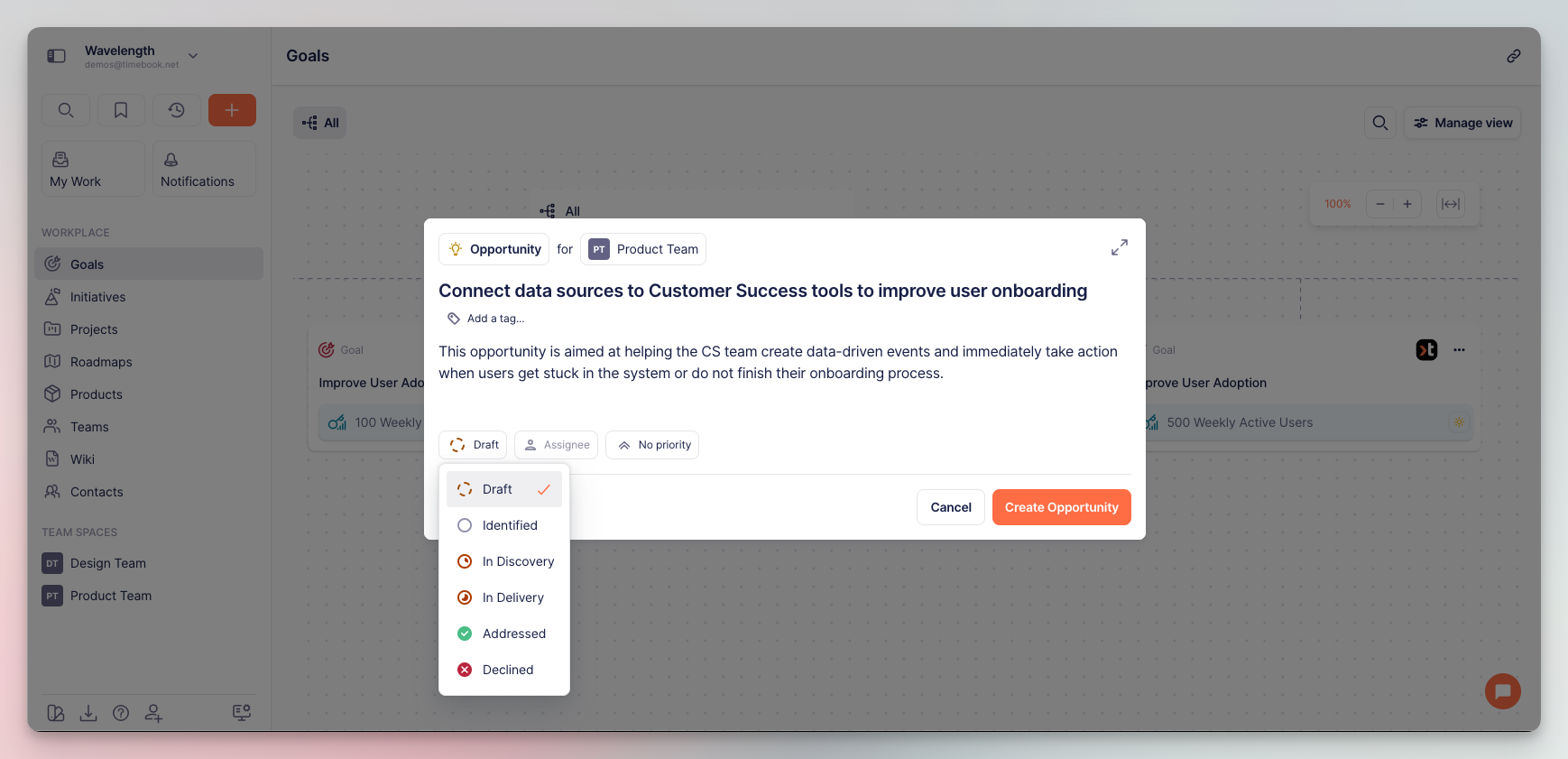
Assign the opportunity to your team and click the creation button to proceed:

<div align="left"><figure><img src="https://3284049081-files.gitbook.io/~/files/v0/b/gitbook-x-prod.appspot.com/o/spaces%2FvCMXgzPoiE4UXP4jn6B8%2Fuploads%2Fgit-blob-6151c0d103acb3347f2380dc083faffee53f97fb%2Fopportunities-2.png?alt=media" alt="" width="563"><figcaption><p>Opportunity generation screen</p></figcaption></figure></div>

## Working with opportunities

### Qualification properties

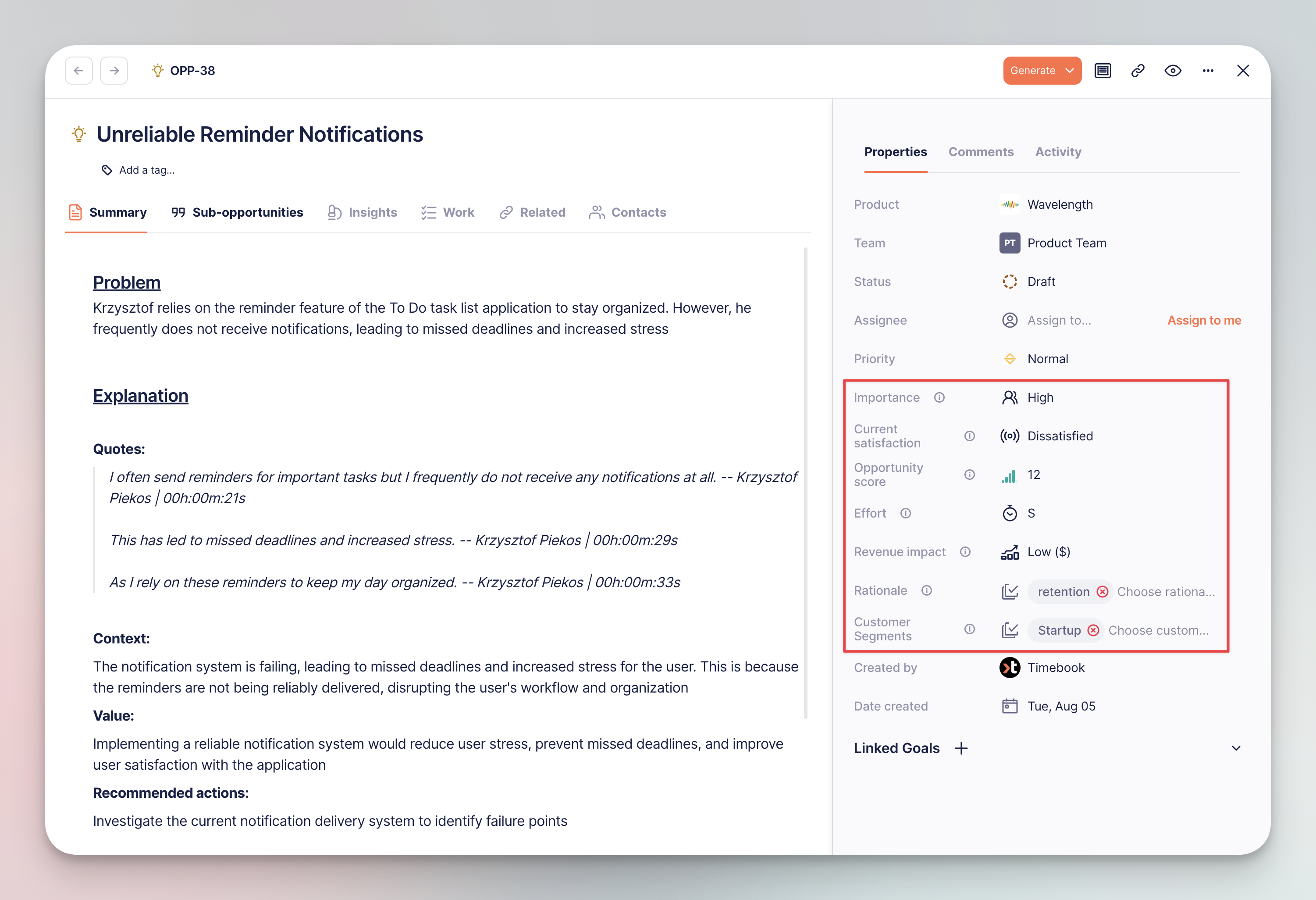
Each opportunity has a unique set of properties, allowing you to qualify it on the opportunity map and decide whether it's worth working on immediately, or should it wait for a better time.

<div align="left"><figure><img src="https://3284049081-files.gitbook.io/~/files/v0/b/gitbook-x-prod.appspot.com/o/spaces%2FvCMXgzPoiE4UXP4jn6B8%2Fuploads%2Fgit-blob-99b39470d422329650c4e1f2adcbe8736fe6f6a0%2Fopportunities-5.png?alt=media" alt="" width="563"><figcaption><p>Opportunity qualification properties</p></figcaption></figure></div>

<table><thead><tr><th width="199.6544189453125">Property</th><th>Description</th></tr></thead><tbody><tr><td>👤 <strong>Importance</strong></td><td>How crucial is this for the customer?</td></tr><tr><td>🔘 <strong>Current satisfaction</strong></td><td>How happy is the customer with what they have now?</td></tr><tr><td>📊 <strong>Opportunity score</strong></td><td>Calculated from Importance vs Satisfaction on 0-20 scale. The higher the score, the better the chance for valuable improvement.</td></tr><tr><td>🕙 <strong>Effort</strong></td><td>How much time and money can this cost?</td></tr><tr><td>📈 <strong>Revenue impact</strong></td><td>How much money the solution will yield / help save?</td></tr><tr><td>☑️ <strong>Rationale</strong></td><td>Why are we doing this from business perspective?</td></tr><tr><td>🗂 Customer segments</td><td>What market segment does the customer occupy?</td></tr></tbody></table>

{% hint style="info" %}
You can read more about rationale, effort and revenue impact in our [blog post](https://help.timebook.ai/rn/2025/july/issue-38-july-31-2025).
{% endhint %}

### Browsing and mapping

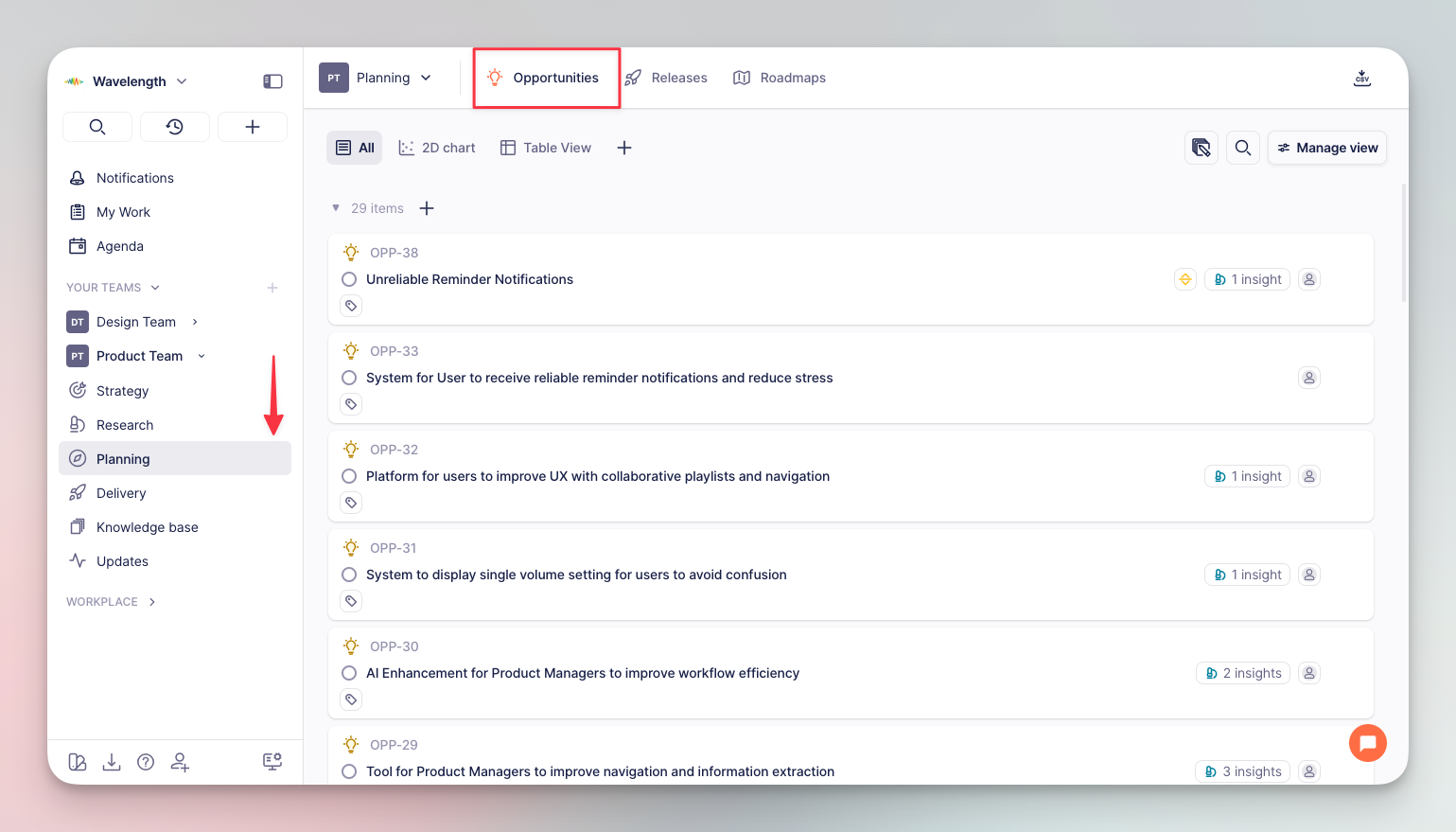
Once your opportunity list grows, the next step is to determine which one will be the most beneficial to you and your client. You can do this on the opportunity list view.

Timebook lets you display and arrange opportunities

{% tabs %}
{% tab title="2D chart" %}
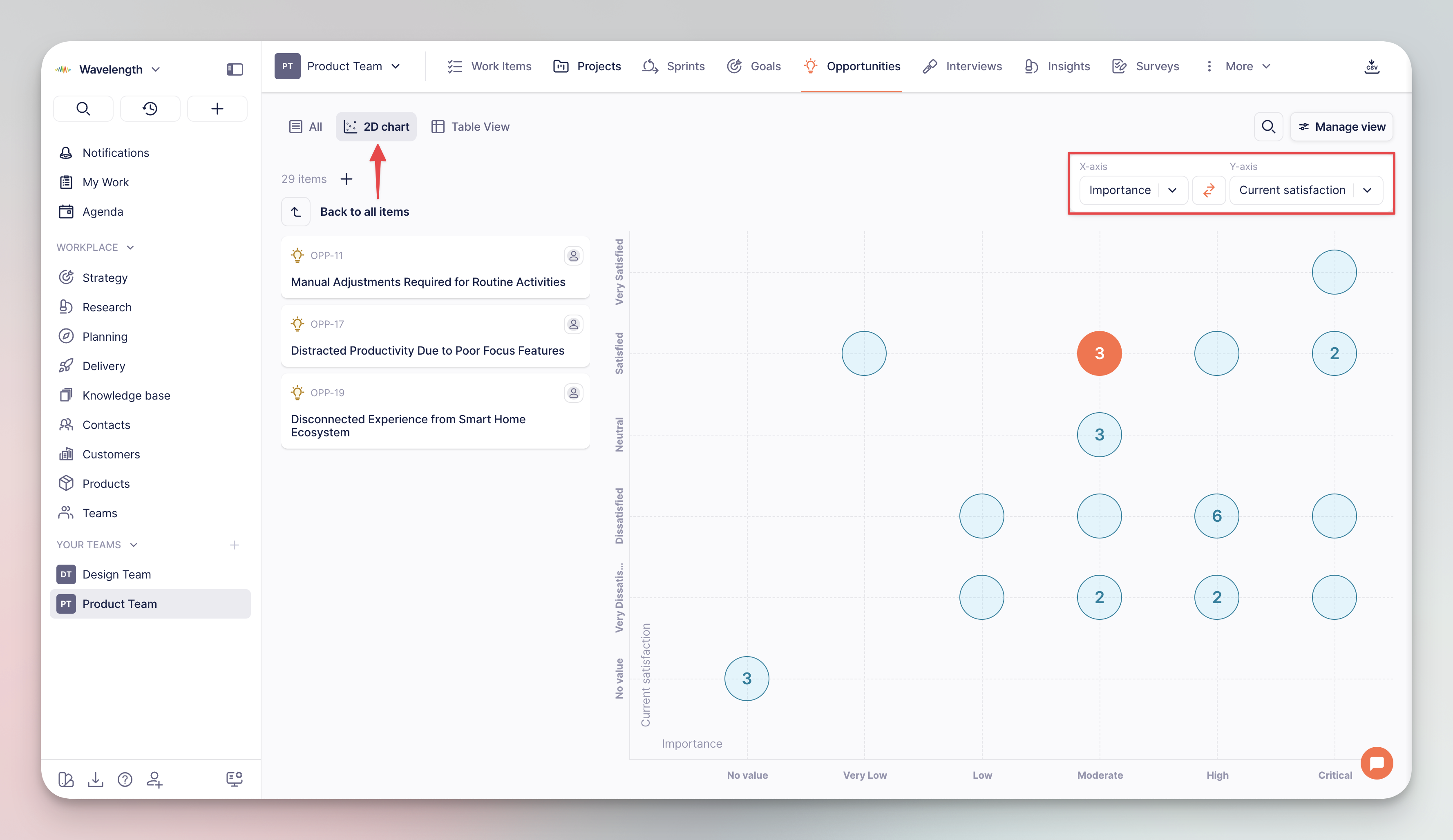
The 2D chart is the most visual of the basic views.

* Opportunities are arranged on X\&Y axes
* Each circle represents an opportunity; circles with digits represent their total number
* The default setting is Importance (X) vs Satisfaction (Y). In this case, **the most valuable opportunities** are located in the top-right part of the chart.
* You can drag the opportunities across the board to change their qualification value.

<div align="left"><figure><img src="https://3284049081-files.gitbook.io/~/files/v0/b/gitbook-x-prod.appspot.com/o/spaces%2FvCMXgzPoiE4UXP4jn6B8%2Fuploads%2Fgit-blob-3832505c999406393acb62307144cf3637c49bee%2Fopportunities-2dchart.png?alt=media" alt=""><figcaption><p>Opportunity assessment: 2D chart</p></figcaption></figure></div>
{% endtab %}

{% tab title="Table view" %}
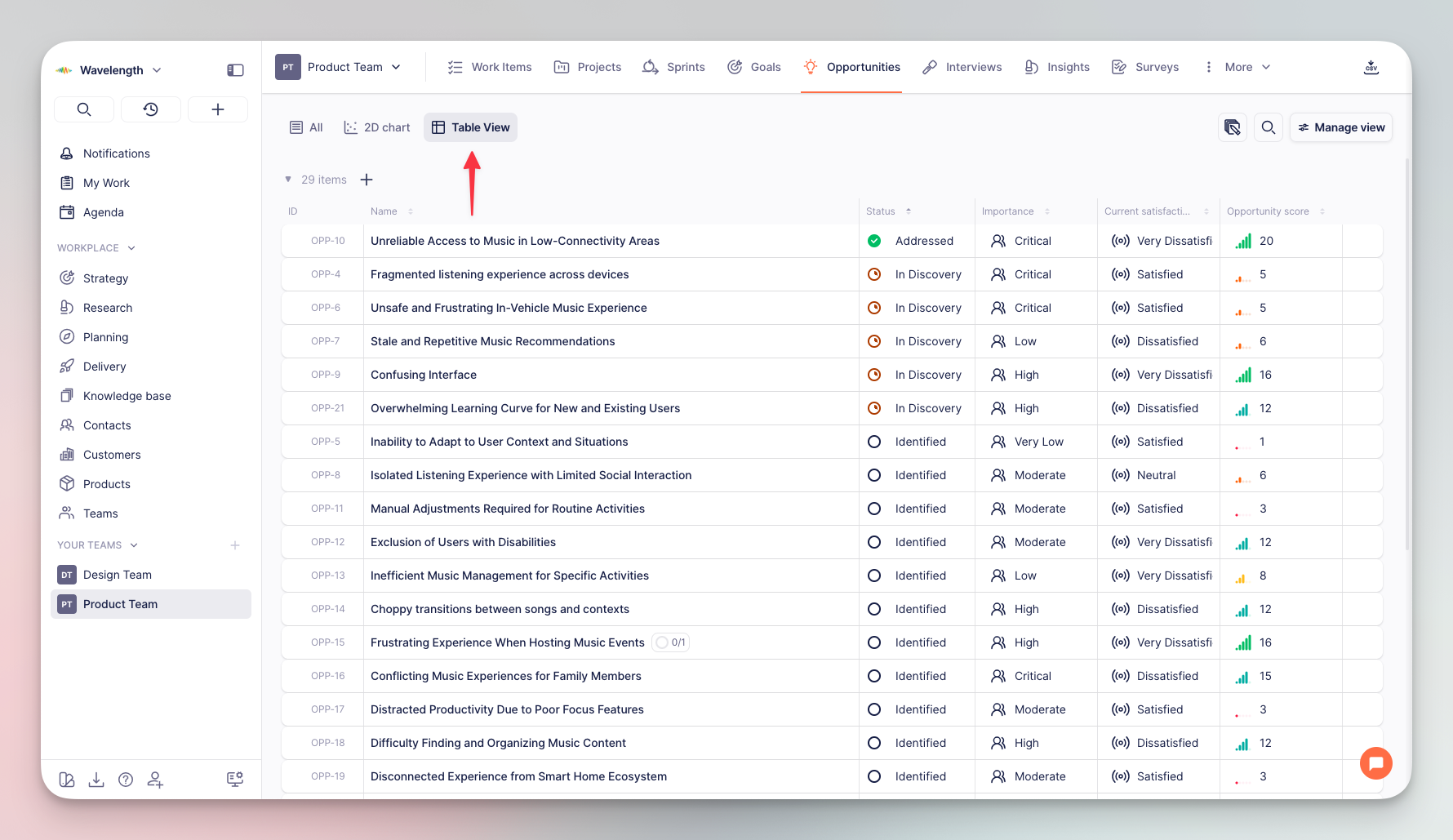
The table view is the most flexible, allowing you to display or hide specific fields with the 'Manage view' settings.

<div align="left"><figure><img src="https://3284049081-files.gitbook.io/~/files/v0/b/gitbook-x-prod.appspot.com/o/spaces%2FvCMXgzPoiE4UXP4jn6B8%2Fuploads%2Fgit-blob-c1550e8846fd65a97e626a87a7faa0b3faa96877%2Fopportunities-tableview.png?alt=media" alt=""><figcaption><p>Opportunity assessment: Table view</p></figcaption></figure></div>
{% endtab %}

{% tab title="List view" %}
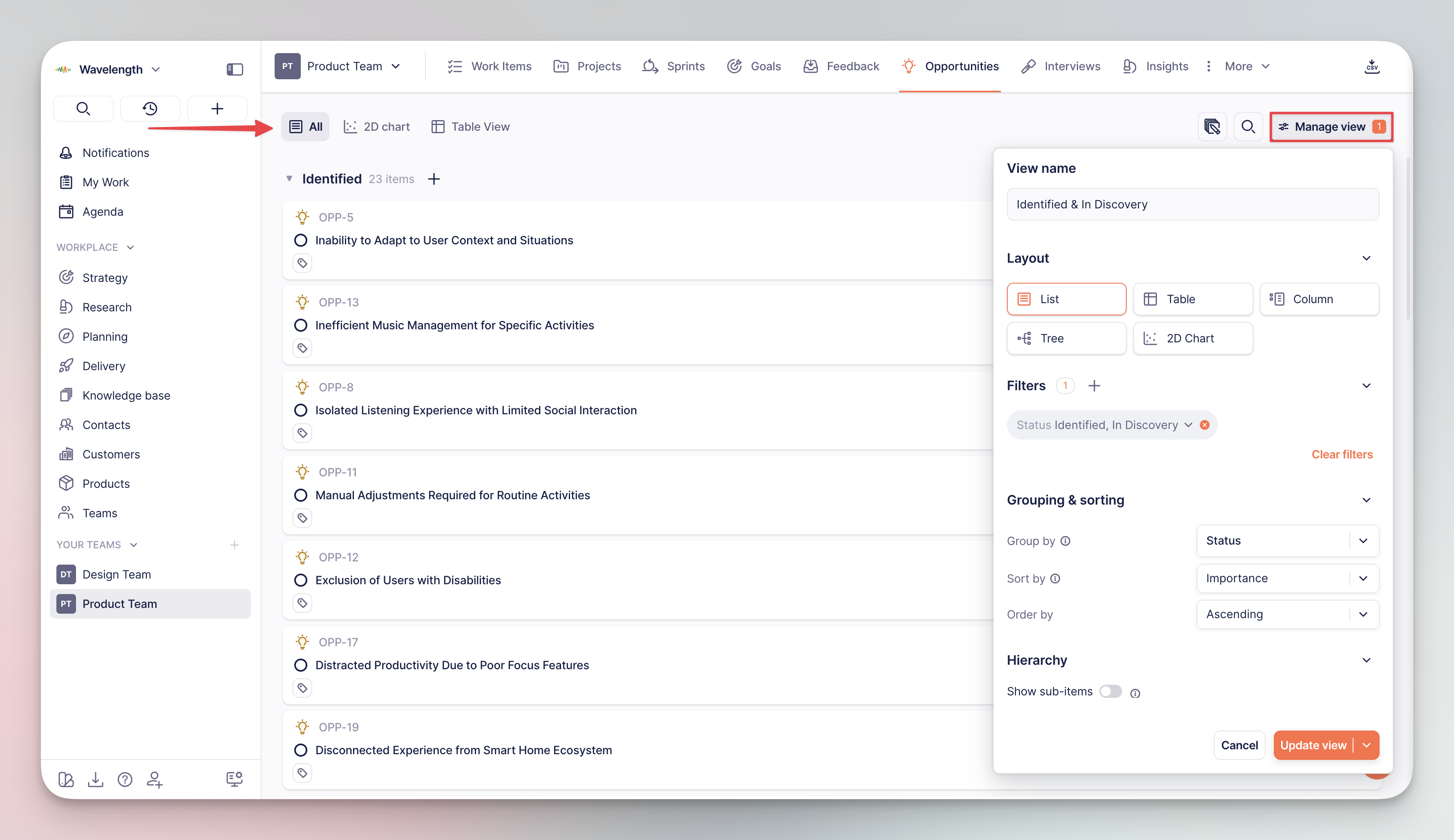
This is the default view in which data is filtered, grouped, and sorted on a list of items.

<div align="left"><figure><img src="https://3284049081-files.gitbook.io/~/files/v0/b/gitbook-x-prod.appspot.com/o/spaces%2FvCMXgzPoiE4UXP4jn6B8%2Fuploads%2Fgit-blob-80185dac0a6b9f7fbb930542cdc0c79a9f936b9e%2Fopportunities-list.png?alt=media" alt=""><figcaption><p>Opportunity assessment: List view</p></figcaption></figure></div>
{% endtab %}
{% endtabs %}

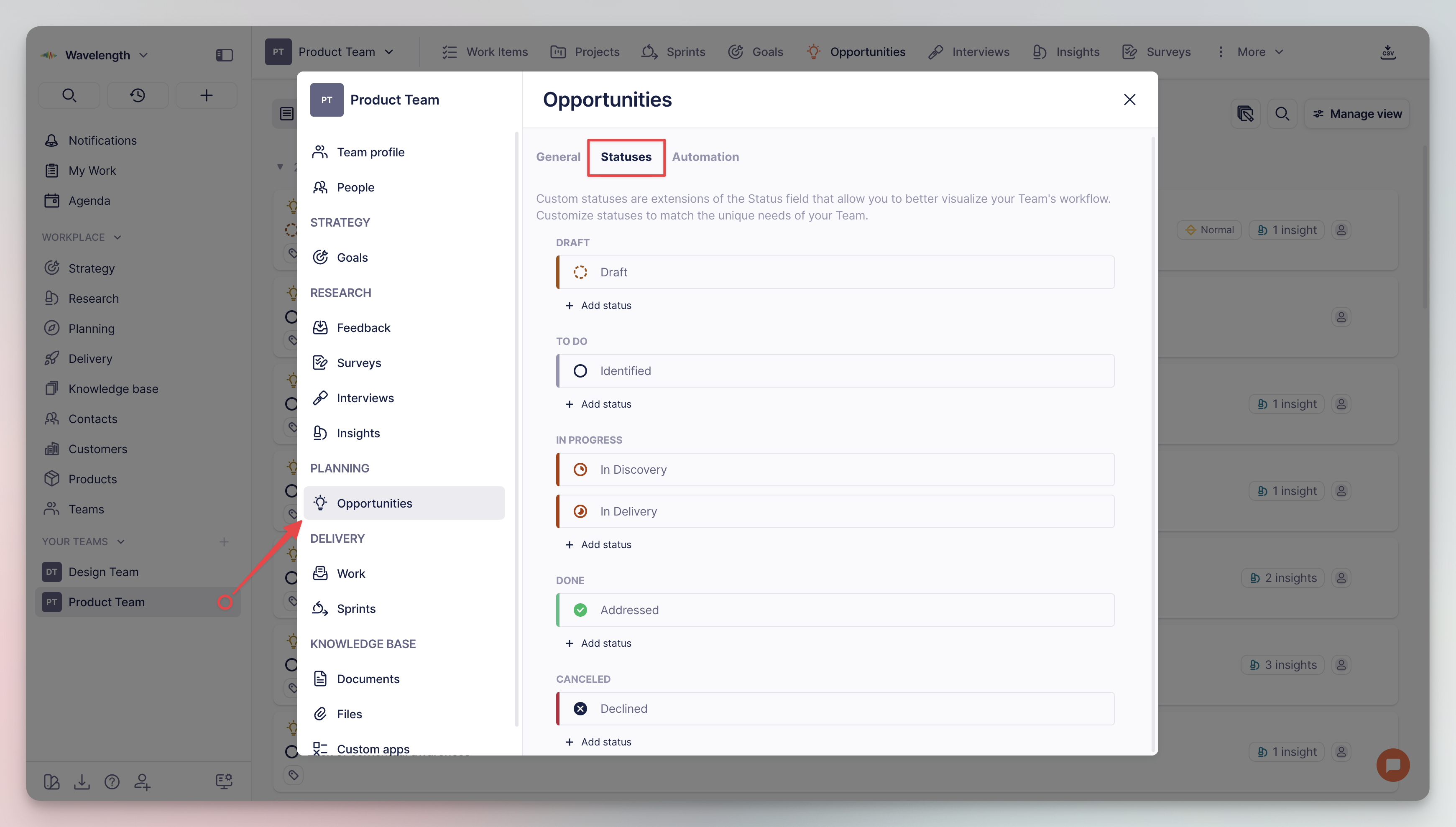
The status of an opportunity field helps define its current state according to the Product Discovery workflow:

1. **Draft** – the opportunity has just been generated and/or no one has started working on it yet
2. **Identified** – the opportunity has been qualified and is waiting for its turn (does not match current goals / priority is too low)
3. **In discovery** – the team is working on the solution to the opportunity
4. **In delivery** – the team is introducing the solution to the opportunity (usually as a dedicated work project)
5. **Addressed** – the solution has been introduced and the problem succesfully resolved
6. **Declined** – the team has decided not to work on this opportunity

{% hint style="success" %}
You can view and edit the statuses in your **team settings**. ⚙️
{% endhint %}

<div align="left"><figure><img src="https://3284049081-files.gitbook.io/~/files/v0/b/gitbook-x-prod.appspot.com/o/spaces%2FvCMXgzPoiE4UXP4jn6B8%2Fuploads%2Fgit-blob-963360d22ee64d3b842c4b0fd241b5f107920645%2Fopportunities-6.png?alt=media" alt="" width="563"><figcaption><p>Statuses configuration in team settings</p></figcaption></figure></div>


# Initiatives

## About

Initiatives are collections of [opportunities](/hc/get-started/discovery/opportunities) and [solutions](/hc/get-started/delivery/solutions) gathered around an achievable outcome. They represent key areas of focus or themes broader in scope which align with your organization’s objectives.

Product Owners and Researchers can think of Initiatives as a centralized space to explore, document, and refine ideas during the discovery phase—an interactive canvas for strategic planning.

{% hint style="success" icon="lightbulb" %}
In terms of software mechanics, the easiest way is to think of Initiatives is as containers for Product Discovery objects (e.g. opportunities, solutions).
{% endhint %}

## Creating initiatives

{% hint style="info" %}
Timebook facilitates decision making with descriptive approach to Product Discovery. In other words, you describe what you want to achieve, and Timebook suggests how to proceed on the basis of available data sources. Alternatively, you can describe everything manually from top to bottom.
{% endhint %}

Initiatives can be found in your product space in the main navigation sidebar. Adding a new initiative opens a prompt with two options:

**🫙 Create empty** – creates a blank initiative to which you can manually add a description and attach opportunities and solutions

**✨ Generate** – automatically generates title and description and attaches matching objects by answering the question *What outcome do you want to achieve?* in the context of the entered prompt.

<div align="left"><figure><img src="https://3284049081-files.gitbook.io/~/files/v0/b/gitbook-x-prod.appspot.com/o/spaces%2FvCMXgzPoiE4UXP4jn6B8%2Fuploads%2FkNPkQrzBsf6wnb3WDBo1%2Finitiatives-1.png?alt=media&amp;token=ead840ea-f9e6-4867-9de1-172cd4744926" alt="" width="563"><figcaption><p>Creating new initiative</p></figcaption></figure></div>

## Structure

Each created initiative is structured into three tabs: **Overview**, **Explore**, and **Roadmap**.

### Overview

The overview tab holds the description of the initiative, problems it tries to address, opportunities to pursue, and example metrics that can be used to measure the initiative's outcome.

<div align="left"><figure><img src="https://3284049081-files.gitbook.io/~/files/v0/b/gitbook-x-prod.appspot.com/o/spaces%2FvCMXgzPoiE4UXP4jn6B8%2Fuploads%2FkjfgfcZu6BniXVvUHJq2%2Finitiatives-2.png?alt=media&amp;token=065f6721-679d-4188-afa0-c6f706649e71" alt="" width="563"><figcaption><p>Overview section of initiative</p></figcaption></figure></div>

### Explore

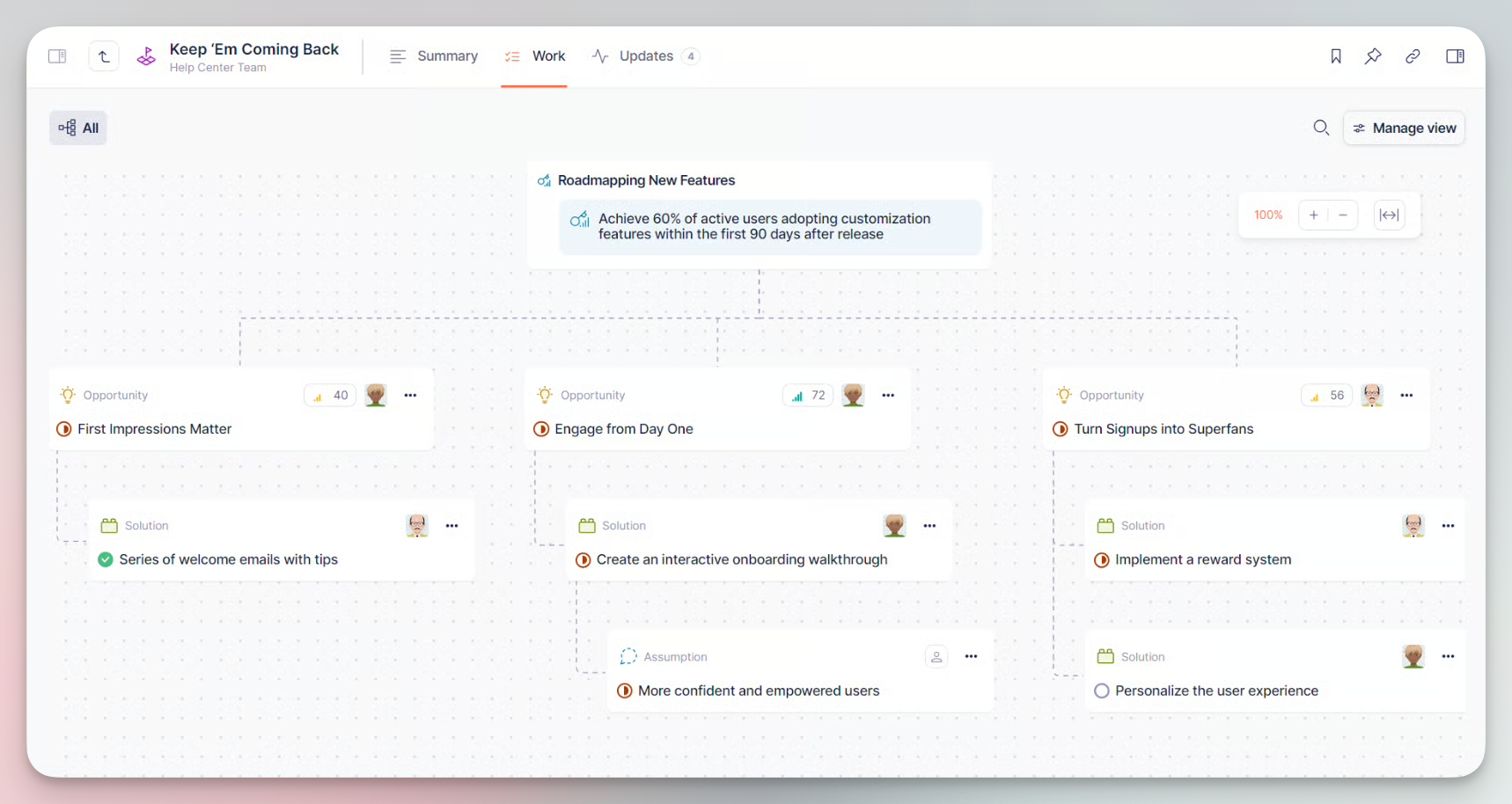
In its default **Canvas** view, this tab provides a graphical visualization of the initiative with all interconnected objects.

{% hint style="info" %}
**What you need to know**

* Clicking an object will open its details
* You can reassign attached objects with drag and drop
* You can add children items directly on the Canvas view by hovering mouse on the parent object and clicking 💡 and 🧩 icons
  {% endhint %}

<div align="left"><figure><img src="https://3284049081-files.gitbook.io/~/files/v0/b/gitbook-x-prod.appspot.com/o/spaces%2FvCMXgzPoiE4UXP4jn6B8%2Fuploads%2FScDn53244nXDpt3aLPZ7%2Finitiatives-3-canvas.png?alt=media&amp;token=4b22130b-cecb-48b2-a946-8e76001be37d" alt="" width="563"><figcaption><p>Explore section in Canvas view</p></figcaption></figure></div>

Changing the view to **List** will display the data in a more concise form, ideal for large-scale initiatives with a lot of attached objects:

<div align="left"><figure><img src="https://3284049081-files.gitbook.io/~/files/v0/b/gitbook-x-prod.appspot.com/o/spaces%2FvCMXgzPoiE4UXP4jn6B8%2Fuploads%2F1aGQmY0JPC0NzuSavo6s%2Finitiatives-3-list.png?alt=media&amp;token=05997095-60d3-4163-b138-5a1571a1ca16" alt="" width="563"><figcaption><p>Explore section in List view</p></figcaption></figure></div>

### Roadmap

The last tab is meant for product and project managers as a means to track progress of solutions in the initiative.

{% hint style="info" %}
Progress in solutions is measured by the rate of closed work items they hold.
{% endhint %}

The roadmap has two views:

**NNL** (Now/Next/Later) – lets you arrange solutions as Kanban cards and move them around depending on priority and availability.

**Timeline** – lets you track start and end dates of solutions on a chronological axis ranging from a single day to a quarter.

<div align="left"><figure><img src="https://3284049081-files.gitbook.io/~/files/v0/b/gitbook-x-prod.appspot.com/o/spaces%2FvCMXgzPoiE4UXP4jn6B8%2Fuploads%2FZy2ChYjuGyfbwTKM6LOF%2FCleanShot%202026-06-15%20at%2017.04.05%402x.png?alt=media&amp;token=2787f7fb-0384-4605-9b85-b1f4b90ddb92" alt="" width="563"><figcaption><p>Roadmap section in Timeline view</p></figcaption></figure></div>

## Tracking metrics

You can add data metrics to initiative outcomes that will help you track the progress to the desired result. To do this, click the 'Add metric' button on the selected outcome:

<div align="left"><figure><img src="https://3284049081-files.gitbook.io/~/files/v0/b/gitbook-x-prod.appspot.com/o/spaces%2FvCMXgzPoiE4UXP4jn6B8%2Fuploads%2FhRyIcmIBK17xnbutC7Jw%2Finitiatives-5-metrics.png?alt=media&amp;token=6f7a4a01-8c0c-48f0-bbcb-63ac6cf5871a" alt="" width="563"><figcaption><p>Adding metrics to initiative's outcome</p></figcaption></figure></div>

The metric can be configured in two ways:

1. **Manually** – you enter the metrics name and desired value, and update the current value by hand.
2. **Synced** – this method requires an integration with an external analytics tool from which Timebook will automatically fetch the selected metric.

<div align="left"><figure><img src="https://3284049081-files.gitbook.io/~/files/v0/b/gitbook-x-prod.appspot.com/o/spaces%2FvCMXgzPoiE4UXP4jn6B8%2Fuploads%2FbgoeqGfqcoxVnvXeT7LX%2Finitiatives-6-metrics-config.png?alt=media&amp;token=28ebdd69-0d0c-49e9-ba58-de32dcd31d33" alt="" width="563"><figcaption><p>Metrics configuration</p></figcaption></figure></div>

Once added, the metrics will remain attached to the outcome card. In this example, we can see tracking for weekly active users (WAUs) and daily active users (DAUs), with the red/greed marking indicating the relation to the desired value.

<div align="left"><figure><img src="https://3284049081-files.gitbook.io/~/files/v0/b/gitbook-x-prod.appspot.com/o/spaces%2FvCMXgzPoiE4UXP4jn6B8%2Fuploads%2Ffxv3JNTCx9HRTJEHRRZT%2FCleanShot%202026-06-15%20at%2017.33.37%402x.png?alt=media&amp;token=cc56f592-9acc-4722-9d9e-7c64007fe607" alt="" width="563"><figcaption><p>Example metrics cards on initiative's outcome</p></figcaption></figure></div>

{% hint style="info" %}
You can also apply metrics to [opportunities](/hc/get-started/discovery/opportunities) in the same way.
{% endhint %}


# Reports

## About

Reports in Timebook provide a summary of events in consistent and predictable form. The context from which they feed data can vary from Timebook workplace to services connected to your profile to information generally available on the internet.

{% hint style="success" %}
The idea behind the reports feature is to provide stakeholders the means to generate a structured data digest delivered on recurrent basis.
{% endhint %}

{% hint style="warning" %}
Please mind that the reports feature is still work in progress and prone to change. If you'd like to help us develop it, drop an email to <support@timebook.net> or use the contact form in the application.
{% endhint %}

<div align="left"><figure><img src="https://3284049081-files.gitbook.io/~/files/v0/b/gitbook-x-prod.appspot.com/o/spaces%2FvCMXgzPoiE4UXP4jn6B8%2Fuploads%2FqehA86NTN0eDdWYzQHU2%2Freports.png?alt=media&amp;token=10854746-831a-41f6-98ea-64bfebe5de2c" alt="" width="563"><figcaption><p>Reports Hub with configured templates</p></figcaption></figure></div>

### Terminology

For the purpose of this guide, we'll use the following naming:

* **Report** – the general name of the feature in Timebook
* **Template** – a reusable configuration that defines the report’s structure, content, and formatting
* **Report instance** – an issue of a report generated from the report template
* **Reports hub** – the dashboard collecting all report templates

## Creating reports

Reports are available in the personal section of the navigation sidebar. Adding a new report launches a modal with templates to select:

1. Custom (title, instructions, sources, and schedule are set by the user)
2. Weekly discovery digest
3. Last week interview synthesis
4. Last week feedback inbox themes
5. Initiative readout
6. Goal & KR evidence brief
7. Competitive landscape
8. Competitive landscape
9. Customer signal report
10. Customer signal report
11. Solution & delivery status
12. Evidence gaps & research plan

<div align="left"><figure><img src="https://3284049081-files.gitbook.io/~/files/v0/b/gitbook-x-prod.appspot.com/o/spaces%2FvCMXgzPoiE4UXP4jn6B8%2Fuploads%2Fi8ExC0AOksRch0O17BdD%2Freports-1.png?alt=media&amp;token=b2b4f711-be7b-4b48-a8cf-940acedbda68" alt="" width="563"><figcaption><p>Templates for report generation</p></figcaption></figure></div>

## Structure & formatting

Once the new report template is created, you will be moved to the configuration screen where you can define and arrange its contents. A template consists of several sections:

**Title & description** – descriptive info displayed on the report's card

**Master instructions** – the prompt from which the report is generated. Check existing templates for how-to examples on how to redact a prompt that will yield the best results.

**Context sources** – the scope of data that the AI will access during report generation. You can restrict it to your Timebook's workplace, MCP connectors (configurable in your [profile settings](/hc/product-guide/profile-settings)), or open to the entire Web over secure protocols.

**Variants** – depending on who the recipient is, Timebook lets you generate different editions of the same report. You can prepare separate versions for product leads, data analysts, and stakeholders, without cluttering the reports hub with separate instances for each position.

You can use the attached presets to change the form and tone of the report:

<div align="left"><figure><img src="https://3284049081-files.gitbook.io/~/files/v0/b/gitbook-x-prod.appspot.com/o/spaces%2FvCMXgzPoiE4UXP4jn6B8%2Fuploads%2F31Ppjszj6UgdY9kM1uL3%2Freports-3.png?alt=media&amp;token=8975e605-c414-4c52-8786-5c4ae4f3dade" alt="" width="563"><figcaption><p>Variant presets in template configuration</p></figcaption></figure></div>

**Schedule** – here you can configure the time your report will be generated and delivered to its subscribers.

**Subscribers** – allows you to define who will receive the report every time a new instance is generated. Reports can be sent to workplace members or [contacts](/hc/product-guide/contacts).

## Working with reports

Once you generate a report, it will appear in the **Pending review** tab so that you can review it before sending.

<div align="left"><figure><img src="https://3284049081-files.gitbook.io/~/files/v0/b/gitbook-x-prod.appspot.com/o/spaces%2FvCMXgzPoiE4UXP4jn6B8%2Fuploads%2FFtgiaaa2VogwRQvENYG9%2Freports-4.png?alt=media&amp;token=42ed3b20-fee7-45e3-bb16-72f6f473ca66" alt="" width="563"><figcaption><p>A report with 'Pending' status</p></figcaption></figure></div>

Click a report will open its preview. Here you can check if everything is fine and edit its contents before sending.

{% hint style="info" %}
If you're unhappy with the results, fine-tune the prompt in the **Settings** tab.
{% endhint %}

When done, click 'Approve and send' to deliver it to the subscribers:

<div align="left"><figure><img src="https://3284049081-files.gitbook.io/~/files/v0/b/gitbook-x-prod.appspot.com/o/spaces%2FvCMXgzPoiE4UXP4jn6B8%2Fuploads%2F4uWFFnOH2Sc1AKHisi8K%2Freports-4.png?alt=media&amp;token=db6dc8cc-c0d2-4d73-985a-e3d0279a328a" alt="" width="563"><figcaption><p>Preview of generated report waiting for approval</p></figcaption></figure></div>

The report will appear in the **History** tab with 'Approved' status:

<div align="left"><figure><img src="https://3284049081-files.gitbook.io/~/files/v0/b/gitbook-x-prod.appspot.com/o/spaces%2FvCMXgzPoiE4UXP4jn6B8%2Fuploads%2FSLnajJEhqfPKBfxyzZ6o%2Freports-6.png?alt=media&amp;token=ae591f41-6f63-4ab6-a741-1bc57d1b4fc7" alt="" width="563"><figcaption><p>History tab with approved report</p></figcaption></figure></div>


# Delivery

**Product delivery** is the process of building, shipping, and maintaining features and solutions agreed upon during the discovery phase.

{% hint style="success" %}
Timebook comes equipped with a robust project management features allowing you to delegate tasks, supervise progress, and adjust it to your methodology.
{% endhint %}

<table data-view="cards"><thead><tr><th></th><th></th><th data-hidden data-type="content-ref"></th><th data-hidden data-card-target data-type="content-ref"></th></tr></thead><tbody><tr><td>☑️ <strong>Work items</strong></td><td>Contribute to project goals with tasks, epics, and stories.</td><td><a href="/hc/get-started/delivery/work-items">Work items</a></td><td><a href="/hc/get-started/delivery/work-items">Work items</a></td></tr><tr><td>📁 <strong>Projects</strong></td><td>Organize work items into containers for easier workload management.</td><td><a href="/hc/get-started/delivery/projects">Projects</a></td><td><a href="/hc/get-started/delivery/projects">Projects</a></td></tr><tr><td>🔄 <strong>Sprints</strong></td><td>Track progress with sprints. Evaluate and optimize if required.</td><td><a href="/hc/get-started/delivery/sprints">Sprints</a></td><td><a href="/hc/get-started/delivery/sprints">Sprints</a></td></tr><tr><td>▶️ <strong>Releases</strong></td><td>Release collections of work items. Arrange your set of features and user stories.</td><td><a href="/hc/get-started/delivery/releases">Releases</a></td><td><a href="/hc/get-started/delivery/releases">Releases</a></td></tr></tbody></table>


# Sprints

{% hint style="success" %}
This article explains how Timebook facilitates Sprints in the Agile methodology.
{% endhint %}

Sprints are short periods of time of fixed length, usually ranging from one to four weeks, during which developers agree on completing a specific set of tasks.

Each sprint starts with planning, during which the team decides which [work items](broken://pages/6RUP8zJsu6qz8kT2UTWz) should be included, and is followed by a daily stand-up for reporting progress. When the sprint ends, the team assesses what they managed to deliver, and discusses how the process can be improved.

Timebook provides the tools to conduct, assess, and refine sprints according to the Scrum methodology that your company has been following.

## Configuring sprints

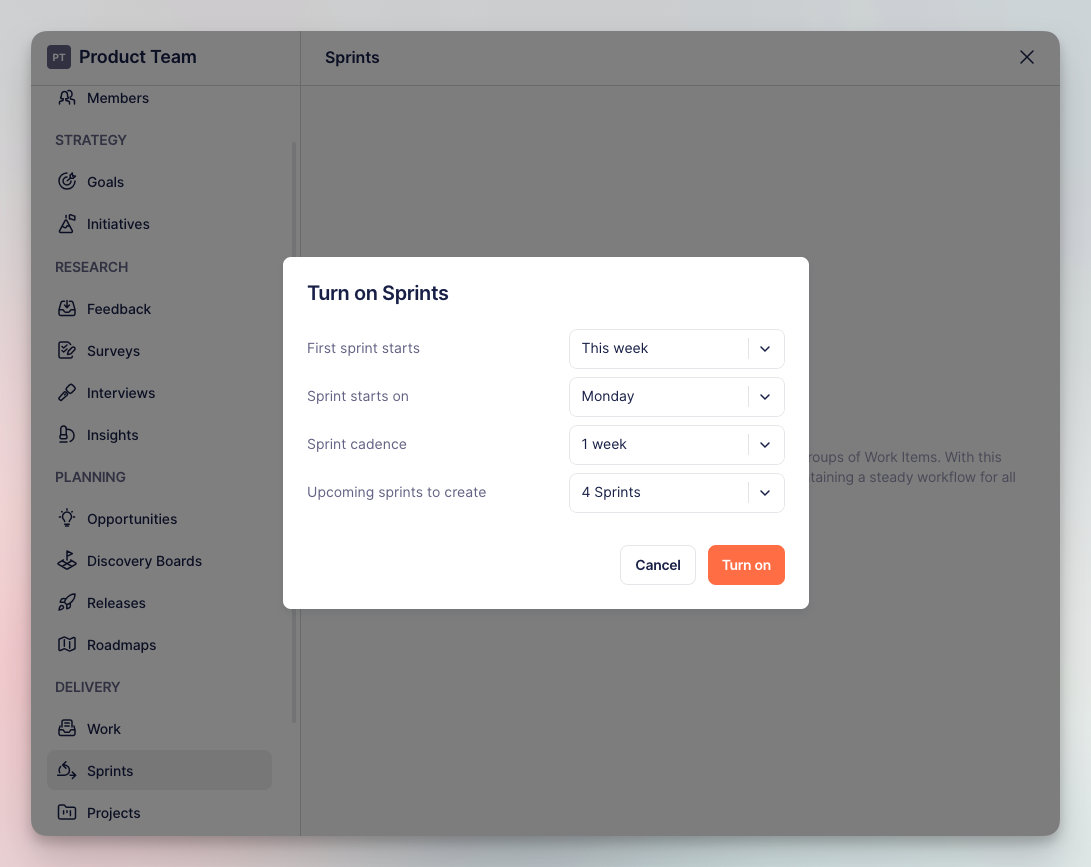
In order to use the sprints you must first activate them in your team settings under **Delivery** → **Sprints**.

Here you define the sprints details: **first run**, **cadence**, **weekday** the sprint starts, and the **number of sprints** to create in advance.

<div align="left"><figure><img src="https://3284049081-files.gitbook.io/~/files/v0/b/gitbook-x-prod.appspot.com/o/spaces%2FvCMXgzPoiE4UXP4jn6B8%2Fuploads%2Fgit-blob-6ba99337b39ccf20b361bab35cd8a6a4262f8ac6%2FCleanShot%202025-09-02%20at%2013.50.27.png?alt=media" alt="" width="563"><figcaption><p>Sprints configuration in team settings</p></figcaption></figure></div>

## Working with sprints

### Adding items to sprints

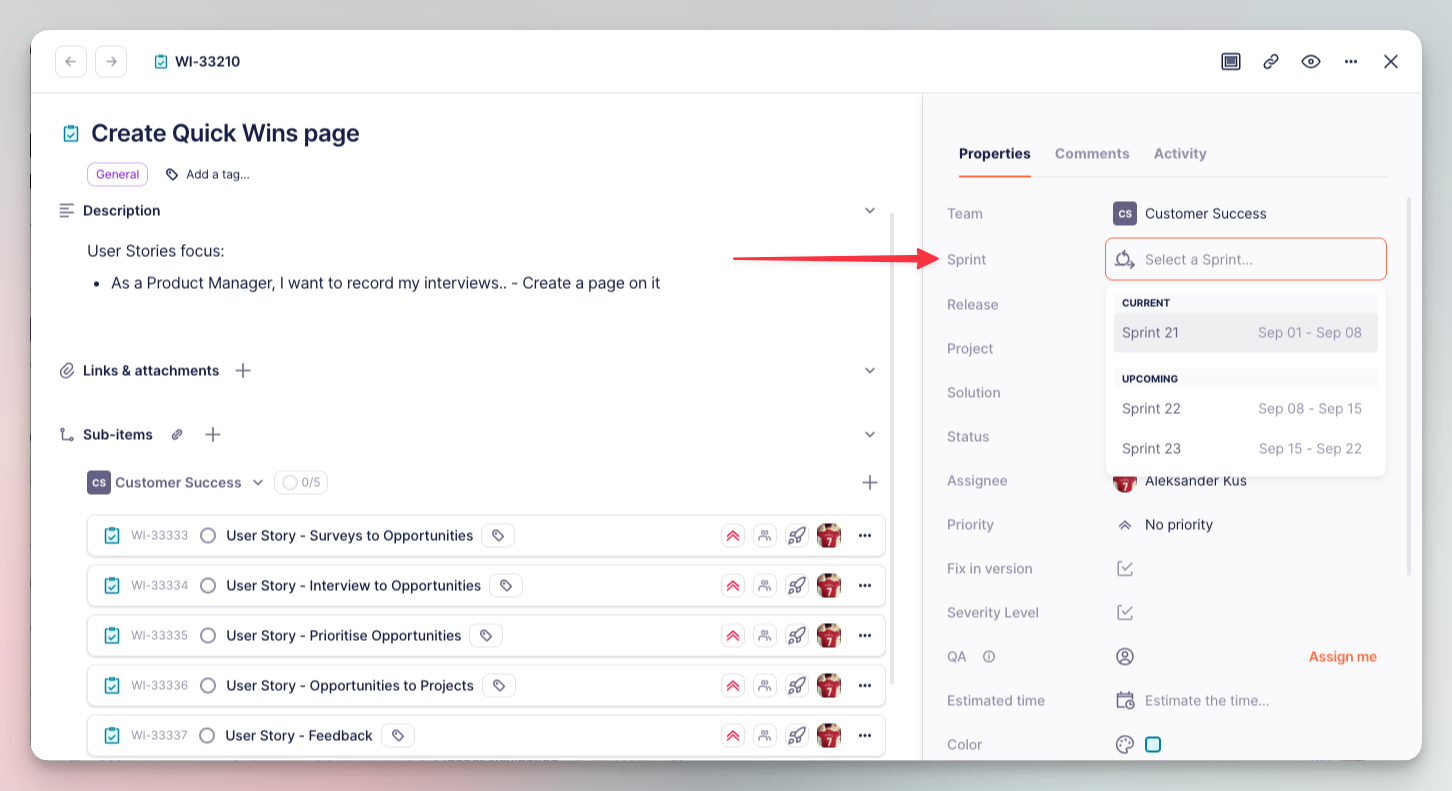
To add an item to a sprint, click the 'Sprint' property and select the desired time period:

<div align="left"><figure><img src="https://3284049081-files.gitbook.io/~/files/v0/b/gitbook-x-prod.appspot.com/o/spaces%2FvCMXgzPoiE4UXP4jn6B8%2Fuploads%2Fgit-blob-17ae5426b4aa7426227f1a854bb41ef275028837%2FCleanShot%202025-09-02%20at%2014.39.02.png?alt=media" alt="" width="563"><figcaption><p>Adding items to sprints with properties</p></figcaption></figure></div>

### Browsing & refinement

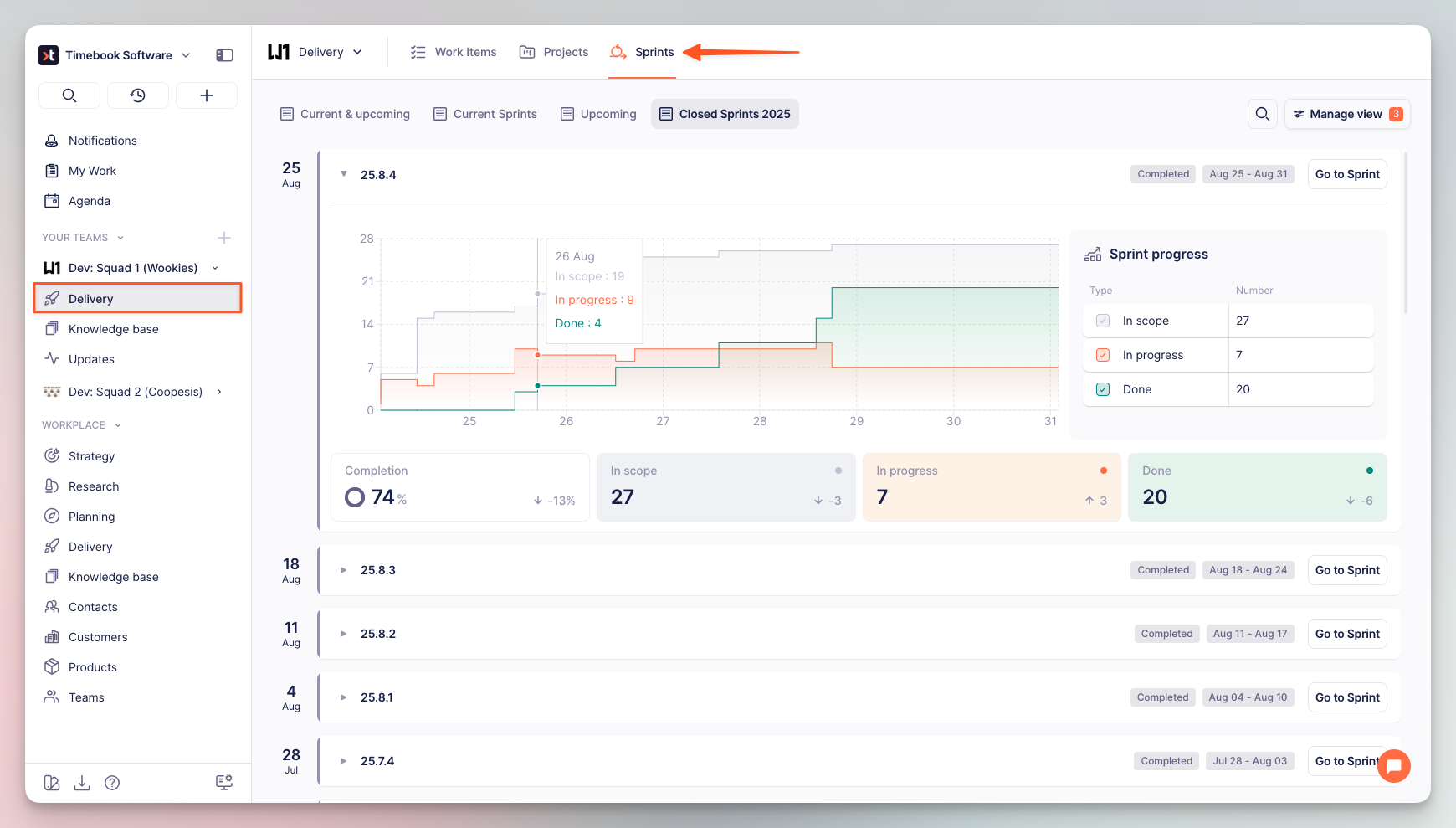
You can browse current, upcoming and completed sprints in the **Sprints** tab of the **Delivery** module. Clicking `►` brings up a visualization of how the sprint has progressed so far, allowing for quick evaluation and future refinement:

<div align="left"><figure><img src="https://3284049081-files.gitbook.io/~/files/v0/b/gitbook-x-prod.appspot.com/o/spaces%2FvCMXgzPoiE4UXP4jn6B8%2Fuploads%2Fgit-blob-f507ca6f949f5499ce31ac6c86a486b7128f977a%2FCleanShot%202025-09-02%20at%2015.20.16.png?alt=media" alt="" width="563"><figcaption><p>Example sprint with expanded details</p></figcaption></figure></div>

There are three graphs to follow:

* **In scope** – total number of work items assigned to the sprint
* **In progress** – work items with an 'In progress' type of status assigned to the sprint
* **Done** – work items finished within the duration of the sprint

The **summary tiles** below can be especially useful to Scrum Masters, representing the difference between the total number of items in the current sprint vs the previous sprint:

<div align="left"><figure><img src="https://3284049081-files.gitbook.io/~/files/v0/b/gitbook-x-prod.appspot.com/o/spaces%2FvCMXgzPoiE4UXP4jn6B8%2Fuploads%2Fgit-blob-fd3e5a41e73c06cb1adce0a579a59e1966fd9b63%2FCleanShot%202025-09-02%20at%2015.53.45.png?alt=media" alt="" width="563"><figcaption><p>Sprint summary tiles</p></figcaption></figure></div>

### Adjusting view

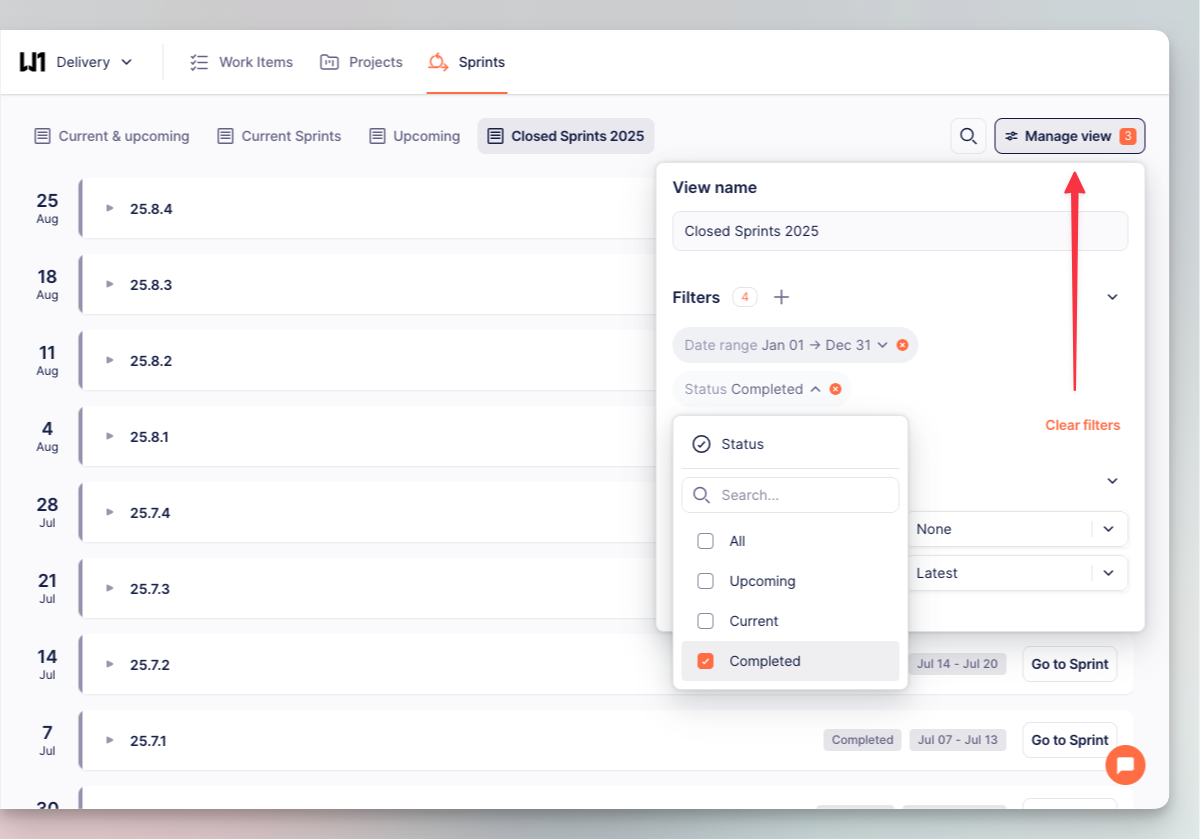
You can adjust which sprints to display in the 'Manage view' button. This way you can create a view that will, for example, cover completed sprints within a give time frame:

<div align="left"><figure><img src="https://3284049081-files.gitbook.io/~/files/v0/b/gitbook-x-prod.appspot.com/o/spaces%2FvCMXgzPoiE4UXP4jn6B8%2Fuploads%2Fgit-blob-bd7122ae3e645579bcf4584d186811fc33148d1d%2FCleanShot%202025-09-02%20at%2017.05.51.png?alt=media" alt="" width="563"><figcaption><p>View management settings</p></figcaption></figure></div>

{% hint style="success" %}
What you need to know

* Sprints are created automatically in accordance to the team's settings.
* You can assign items to sprints in their [properties](/hc/get-started/delivery/work-items#properties).
* You can rename the sprint by clicking on its name on the sprint list.
* When the sprint finishes, unfinished tasks and work items are automatically reassigned to the next sprint (i.e. items with status other than Done/Canceled).
  {% endhint %}


# Releases

{% hint style="success" %}
This tutorial helps understand how Timebook handles the concept or Releases in product delivery.
{% endhint %}

In Timebook, releases combine the traditional definition of software release cycle with a wider strategic approach to product delivery. Depending if you're a Team Leader or a Product Manager, you could treat them as a final collection of items released in a development cycle, or a roadmap of features and user stories leading to a designated goal.

## Configuring releases

In order to use the sprints you must first activate them in your team settings under **Planning** → **Releases**.

## Working with releases

{% hint style="info" %}
In their assumptions, releases are similar to [sprints](/hc/get-started/delivery/sprints). If you have worked with sprints before, you should be comfortable with releases right from the start.
{% endhint %}

Contrary to Sprints which usually contain smaller-scale work items, Releases are thought as a broader container for larger objects. This might include features assigned to a specific goal, or a collection of items delivered in a sprint from several different teams.

For example, you can create a release that will include sprints from a back-end team, and a front-end team.

### Creating a release

{% stepper %}
{% step %}
Go to **Planning** → **Releases** and click 'Create first release'.
{% endstep %}

{% step %}
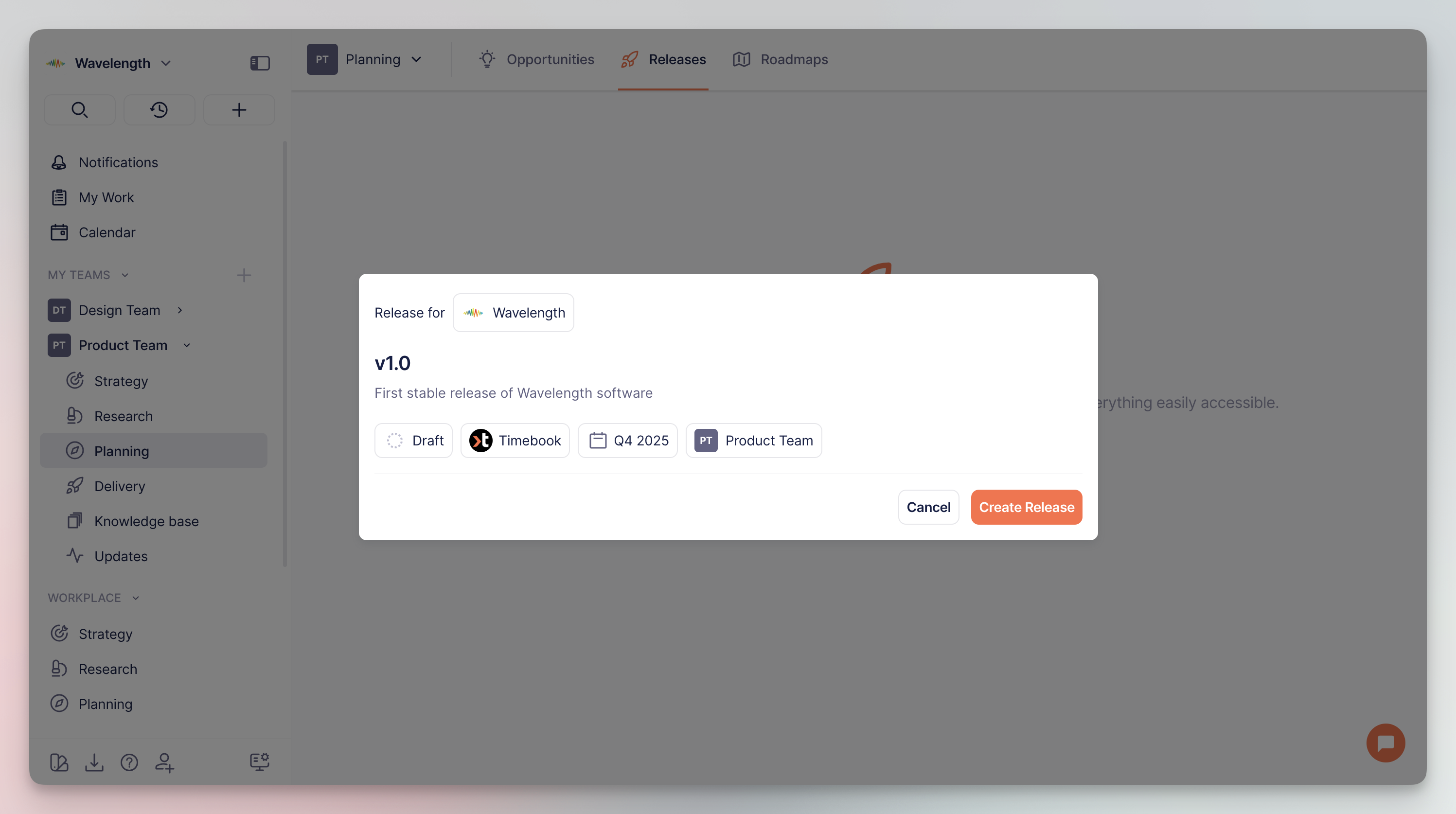
Enter the details of the Release: name, description, date range in which the release should be ready, team responsible, and the product it refers to:

<div align="left"><figure><img src="https://3284049081-files.gitbook.io/~/files/v0/b/gitbook-x-prod.appspot.com/o/spaces%2FvCMXgzPoiE4UXP4jn6B8%2Fuploads%2Fgit-blob-e8e0ba237a58cea8f8f0c031f86df4e5418f4a7a%2FCleanShot%202025-09-04%20at%2015.11.37%402x.png?alt=media" alt="" width="563"><figcaption><p>New release configuration</p></figcaption></figure></div>
{% endstep %}

{% step %}
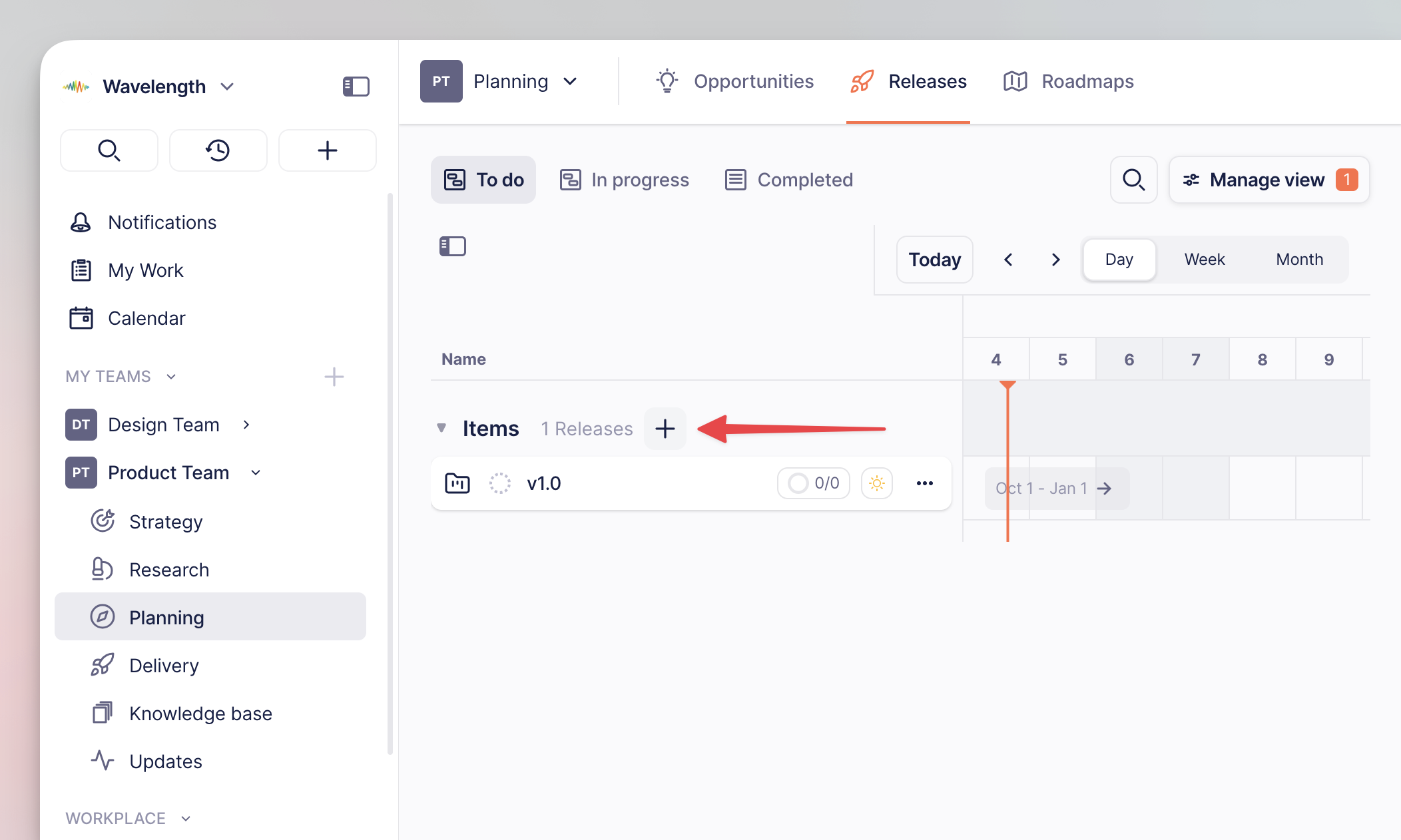
You can add more releases using the `+` button on the Releases overview tab:

<div align="left"><figure><img src="https://3284049081-files.gitbook.io/~/files/v0/b/gitbook-x-prod.appspot.com/o/spaces%2FvCMXgzPoiE4UXP4jn6B8%2Fuploads%2Fgit-blob-5e1e6287a4118e22f50864c001e9eef087ed9c44%2FCleanShot%202025-09-04%20at%2015.29.08%402x.png?alt=media" alt="" width="563"><figcaption><p>Add button location for new sprints</p></figcaption></figure></div>
{% endstep %}
{% endstepper %}

### Adding items to releases

#### Method 1: Property

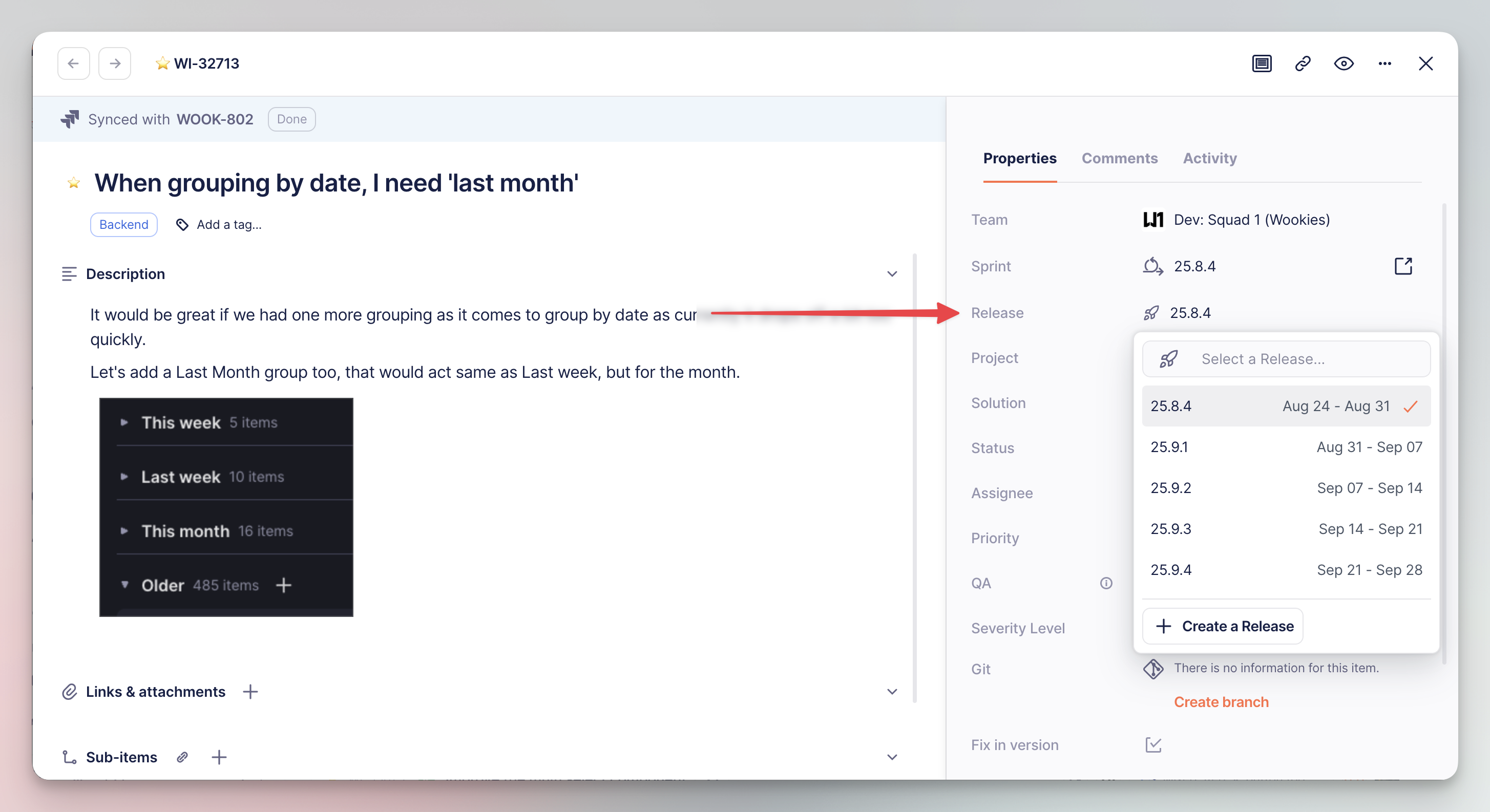
The most straightforward way to add an item to a release is by using the dedicated property in the right panel:

<div align="left"><figure><img src="https://3284049081-files.gitbook.io/~/files/v0/b/gitbook-x-prod.appspot.com/o/spaces%2FvCMXgzPoiE4UXP4jn6B8%2Fuploads%2Fgit-blob-74a2b1ce5eb4217666a20376cc1c06c27e39ea9d%2FCleanShot%202025-09-04%20at%2015.48.40%402x.png?alt=media" alt="" width="563"><figcaption><p>Adding items to releases with properties</p></figcaption></figure></div>

#### Method 2: Drag and drop

Once your workload in Timebook grows, you can assign items simply by dragging and dropping them across lists of tasks grouped by the 'Release' property.

{% hint style="success" %}
This method is applicable to any selected property across the whole system.
{% endhint %}

{% stepper %}
{% step %}
First, you need to properly group work items on the list. Go to **Delivery** → **Work items** and click 'Manage view'.
{% endstep %}

{% step %}
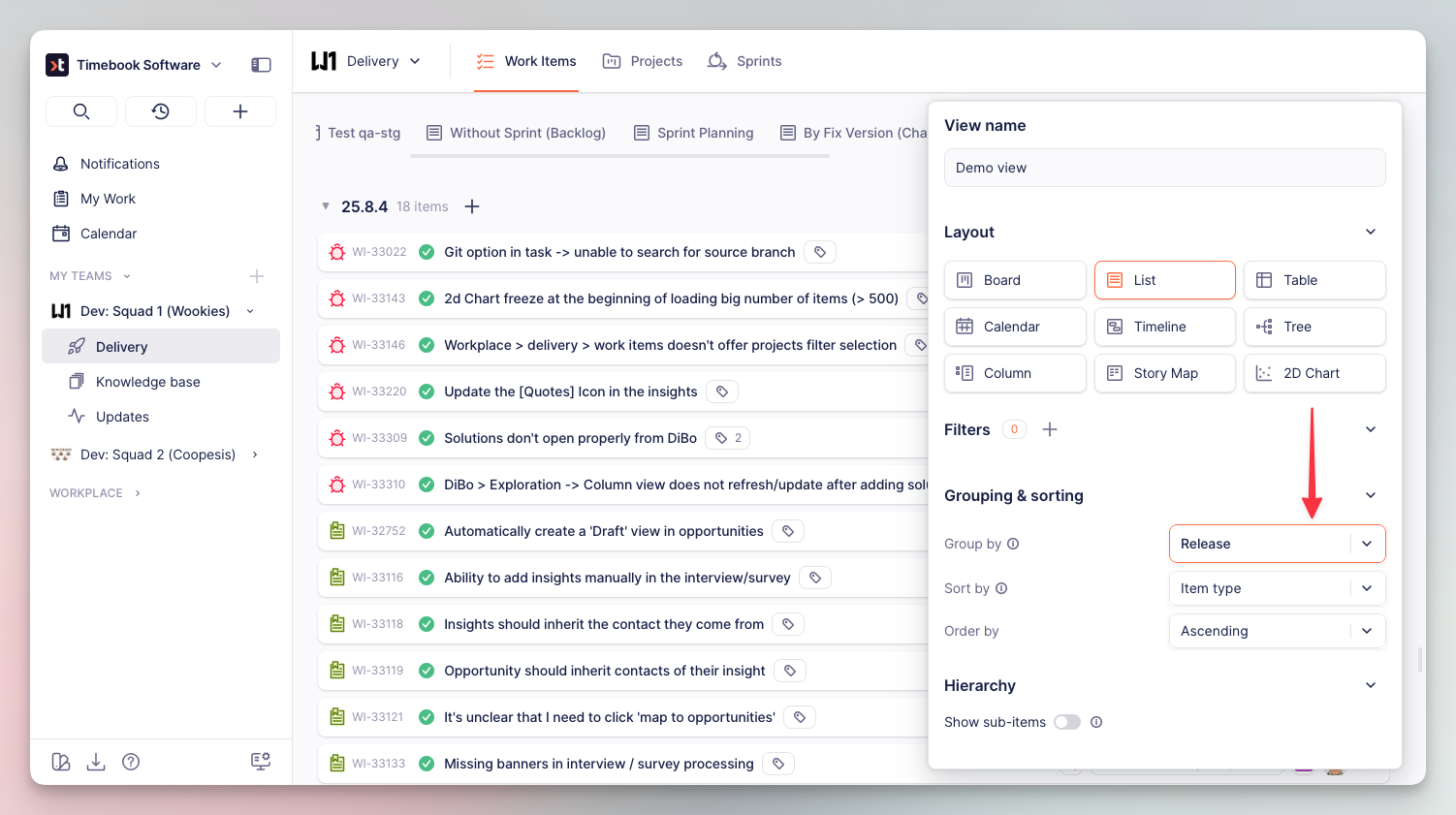
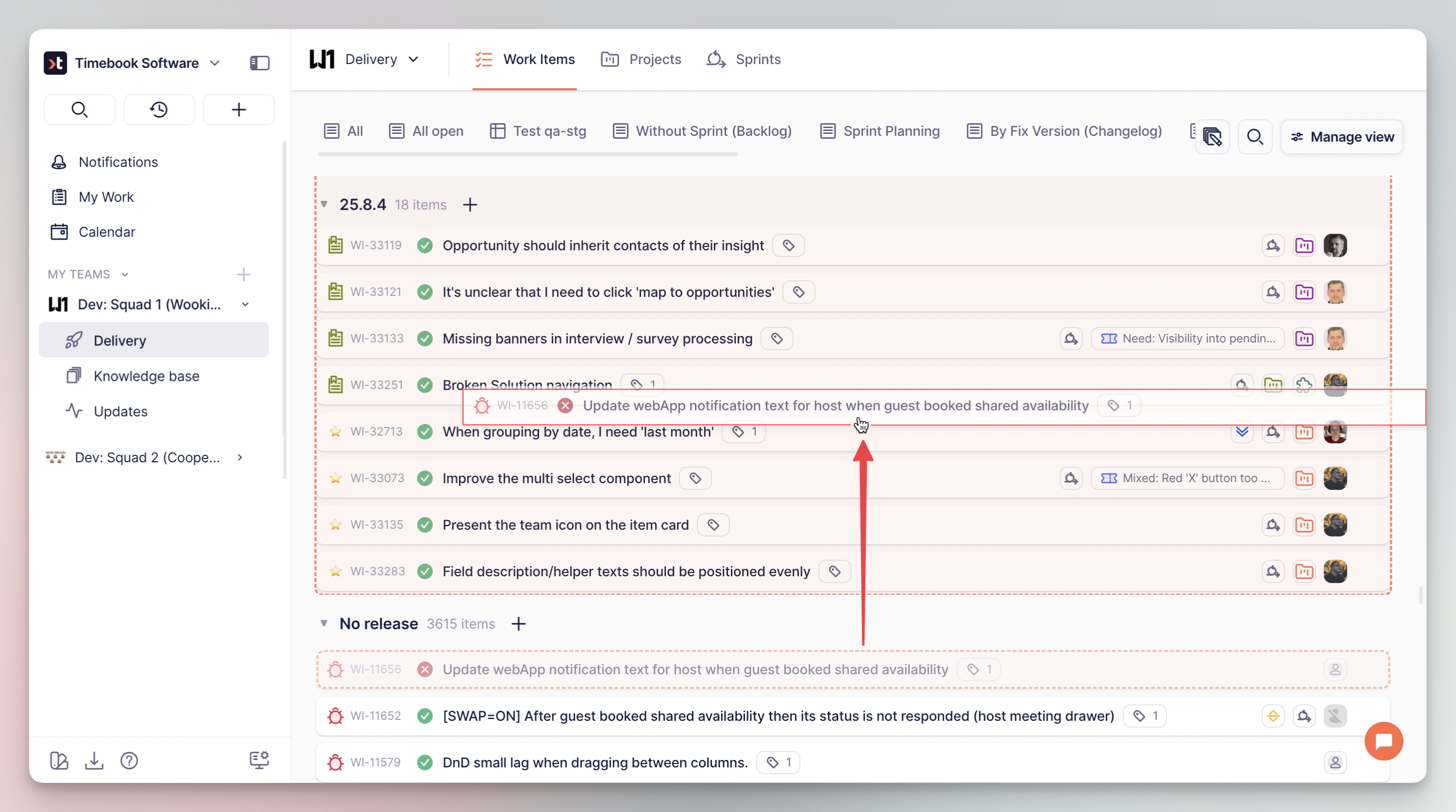
Set grouping to **Release** and apply filtering and sorting as desired. On the example below, you can see items sorted by [item type](/hc/get-started/delivery/work-items#types-of-work-items) (bugs & user stories):

<div align="left"><figure><img src="https://3284049081-files.gitbook.io/~/files/v0/b/gitbook-x-prod.appspot.com/o/spaces%2FvCMXgzPoiE4UXP4jn6B8%2Fuploads%2Fgit-blob-e37384644cd78a29f6a9d4727188fbf7a323e4e5%2FCleanShot%202025-09-05%20at%2009.33.52.png?alt=media" alt="" width="563"><figcaption><p>Grouping work items by releases</p></figcaption></figure></div>
{% endstep %}

{% step %}
Now you can grab tasks and drag them over to the desired release:

<div align="left"><figure><img src="https://3284049081-files.gitbook.io/~/files/v0/b/gitbook-x-prod.appspot.com/o/spaces%2FvCMXgzPoiE4UXP4jn6B8%2Fuploads%2Fgit-blob-10270f2e8457d6f6344de1930f3d518877acc727%2FCleanShot%202025-09-05%20at%2010.15.25%402x.png?alt=media" alt="" width="563"><figcaption><p>Dragging items across releases</p></figcaption></figure></div>
{% endstep %}
{% endstepper %}

### Releases overview

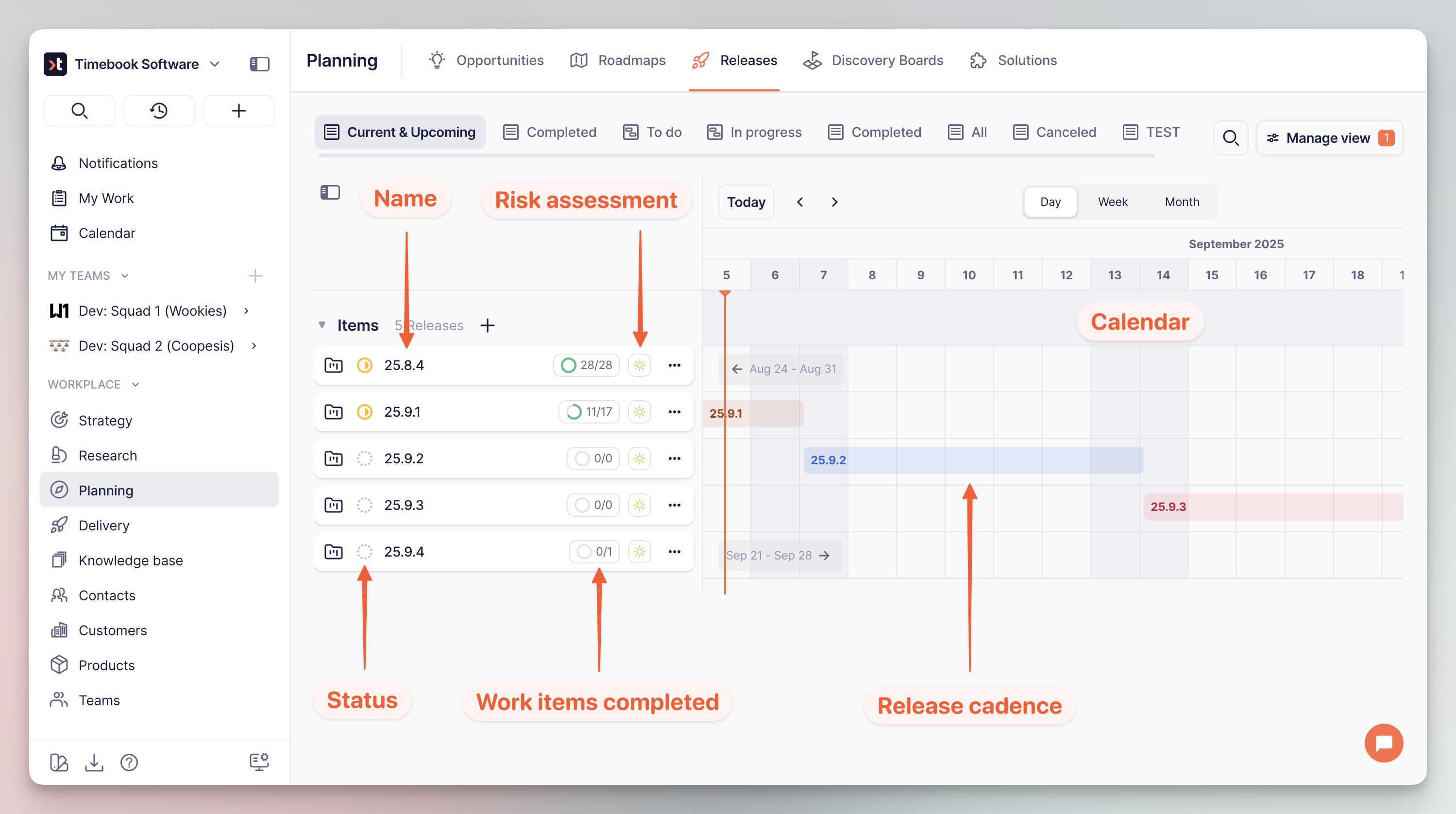
The default view of Releases is timeline. It provides key information on the progress and items contained, together with a visual representation of the release cadence in the selected time frame.

<div align="left"><figure><img src="https://3284049081-files.gitbook.io/~/files/v0/b/gitbook-x-prod.appspot.com/o/spaces%2FvCMXgzPoiE4UXP4jn6B8%2Fuploads%2Fgit-blob-70735ad22dea6ea2398c637dbc53e5fe3377939f%2FCleanShot%202025-09-05%20at%2010.34.46%402x.png?alt=media" alt="" width="563"><figcaption><p>Release details explains</p></figcaption></figure></div>


# Solutions

## Introduction to Solutions

{% hint style="success" %}
This article introduces the concept or solutions and explains their role in Timebook's ecosystem.
{% endhint %}

{% hint style="info" %}
Solutions are a component of the Delivery module which is not available in the low-tier plans. If you don't see the Solutions tab in the navigator, please contact your workplace owner to adjust the plan.
{% endhint %}

Solutions bridge the gap between opportunities and work delegation by providing product managers with evidence which facilitates decision making.

In Timebook, solutions are the result of the product discovery process:

* first, you collect [insights](/hc/get-started/discovery/insights) from customer data
* then you create [opportunities](/hc/get-started/discovery/opportunities) from selected insights, i.e. potential areas of development
* once you decide which opportunity to pursue, you can generate a solution: ideas and suggestions which can be broken down into actual work
* the last step is sending the solution to the selected delivery tool, such as [Linear](/hc/integrations/linear) or [Jira](/hc/integrations/jira)

## Creating solutions

Solutions can be created in two ways: manually or directly from the opportunity using Timebook's AI.

{% hint style="success" %}
To fully utilize capabilities of Timebook, we suggest using AI generation from the opportunity card.
{% endhint %}

### Creating manually

To create a solution manually:

* click the global `+` button from the sidebar navigator
* use the add button from the Solutions view
* or click the button on the opportunity card

{% tabs %}
{% tab title="Navigator" %}

<div align="left"><figure><img src="https://3284049081-files.gitbook.io/~/files/v0/b/gitbook-x-prod.appspot.com/o/spaces%2FvCMXgzPoiE4UXP4jn6B8%2Fuploads%2FFsVStvWeAHH09lrhnBad%2Fsolutions-1.png?alt=media&amp;token=ee05f1b0-188d-4bf4-bacd-e38dd971d6dd" alt="" width="563"><figcaption><p>Adding from sidebar navigator</p></figcaption></figure></div>
{% endtab %}

{% tab title="Solutions view" %}

<figure><img src="https://3284049081-files.gitbook.io/~/files/v0/b/gitbook-x-prod.appspot.com/o/spaces%2FvCMXgzPoiE4UXP4jn6B8%2Fuploads%2FsBBhL26YrhIT0fpxXBy6%2Fsolutions-2.png?alt=media&amp;token=b23c3579-8149-4e12-9f7f-7741f7df9733" alt=""><figcaption><p>Adding from Solutions view</p></figcaption></figure>
{% endtab %}

{% tab title="Opportunity view" %}

<div align="left"><figure><img src="https://3284049081-files.gitbook.io/~/files/v0/b/gitbook-x-prod.appspot.com/o/spaces%2FvCMXgzPoiE4UXP4jn6B8%2Fuploads%2F6V8gki6y6yuRKrlTBlHF%2Fsolutions-3.png?alt=media&amp;token=7831d263-ba0a-44b1-9223-322378cc8688" alt="" width="563"><figcaption><p>Adding from opportunity view</p></figcaption></figure></div>
{% endtab %}
{% endtabs %}

### Generating with Timebook AI

Once you have know which opportunity to escalate, you can use Timebook to analyze the data and propose a solution that will help you delegate the tasks for your team.

{% stepper %}
{% step %}
Go to the selected opportunity and change its status to different than 'Draft'.
{% endstep %}

{% step %}
A dedicated button will appear in the solutions placeholder. Click to generate the solution with Timebook's AI.

<div align="left"><figure><img src="https://3284049081-files.gitbook.io/~/files/v0/b/gitbook-x-prod.appspot.com/o/spaces%2FvCMXgzPoiE4UXP4jn6B8%2Fuploads%2FHiSfqxBCVy2qtE32Y5mS%2FCleanShot%202026-03-13%20at%2014.39.43%402x.png?alt=media&amp;token=e1d7003a-1b6b-4b95-8d2c-fcbd5e3f39e6" alt="" width="563"><figcaption><p>Generating solution with AI</p></figcaption></figure></div>
{% endstep %}

{% step %}
Timebook will generate 3 proposals of solutions to the problem stated in the opportunity. The next them is reviewing them and deciding which one to pursue.

<div align="left"><figure><img src="https://3284049081-files.gitbook.io/~/files/v0/b/gitbook-x-prod.appspot.com/o/spaces%2FvCMXgzPoiE4UXP4jn6B8%2Fuploads%2FahQIg7Ho9loRYGC7roiR%2FCleanShot%202026-03-13%20at%2016.16.22%402x.png?alt=media&amp;token=fbb30295-5ae9-4350-a375-2ddaf46350b3" alt="" width="563"><figcaption><p>Generated solutions on opportunity view</p></figcaption></figure></div>
{% endstep %}
{% endstepper %}

## Solution overiew

Each solution contains of several fully customizable sections.

### Section 1: RICE score

The RICE score lets you set **Reach**, **Impact**, **Confidence**, and **Effort**. These parameters help estimate the feasibility of the solution according to the following formula:

$$
\left( \frac{\text{Reach} \times \text{Impact} \times \text{Confidence}}{\text{Effort}} \right)\times 2
$$

<div align="center"><figure><img src="https://3284049081-files.gitbook.io/~/files/v0/b/gitbook-x-prod.appspot.com/o/spaces%2FvCMXgzPoiE4UXP4jn6B8%2Fuploads%2FfcmLUB4w1J5dQlAcZrzR%2FCleanShot%202026-03-13%20at%2018.37.37%402x.png?alt=media&amp;token=ef9470f9-55ff-4595-bff0-6df5f8966b69" alt="" width="375"><figcaption><p>RICE scoring system</p></figcaption></figure></div>

The table below explains how RICE estimation works:

| **Reach**      | Few (1), Some (2), Many (3), Most (4), All (5)               | How large a share of your users will this affect in the next quarter?                                                                                                   |
| -------------- | ------------------------------------------------------------ | ----------------------------------------------------------------------------------------------------------------------------------------------------------------------- |
| **Impact**     | Minimal (0.25), Low (0.5), Medium (1), High (3), Massive (5) | When someone encounters this, how much does it change their experience or move your goal? Medium means noticeable. High means significant. Massive means game-changing. |
| **Confidence** | Moonshot (25%), Low (50%), Medium (75%), High (100%)         | How much evidence do you have? High = backed by data or strong signals. Medium = informed assumption. Low = mostly intuition. Moonshot = pure bet.                      |
| **Effort**     | Small (1), Medium (2), Large (3), Massive (5)                | Total work across all people and disciplines. Small = a few days. Medium = a few weeks. Large = a month or more. Massive = a quarter-sized commitment.                  |

### Section 2: Linked opportunity

The opportunity linked to the solution by the user with the summary of the problem and desired outcome.

<figure><img src="https://3284049081-files.gitbook.io/~/files/v0/b/gitbook-x-prod.appspot.com/o/spaces%2FvCMXgzPoiE4UXP4jn6B8%2Fuploads%2FmioK3JutbALOOkfWS8Kh%2FCleanShot%202026-03-20%20at%2010.54.53%402x.png?alt=media&amp;token=2570cf4e-a445-4a96-aa6d-5718a2d502bd" alt="" width="563"><figcaption><p>Parent opportunity of solution</p></figcaption></figure>

### Section 3: Description

Description holds the results of problem analysis. If done via the AI it holds the following sections:

* **Overview & Alignment** – a summary of the problem with information how the proposed solution can help you solve it.
* **The Hypothesis** – the source of the problem statement derived from the opportunity's host insight.
* **Scope of Work (User stories)** – ideas of solutions profiled by personas whom the problem might concern.
* **Feasibility & Complexity** – technical and business considerations contributing to the overall complexity of the solution.
* **Strategic Trade-offs** – a list of direct pros and cons towards and against the proposed solution.

<figure><img src="https://3284049081-files.gitbook.io/~/files/v0/b/gitbook-x-prod.appspot.com/o/spaces%2FvCMXgzPoiE4UXP4jn6B8%2Fuploads%2FfMZNxCdVNTlU4RX4LX07%2Fimage.png?alt=media&amp;token=7f6b6590-3506-428c-9497-a79359acfdd3" alt="" width="563"><figcaption><p>Description with problem analysis</p></figcaption></figure>

### Section 4: Delivery

The delivery sections lets you create, manage and track work items for your team – the actual delivery phase based on the solution's details.

{% hint style="info" %}
Depending on your plan, the solution can be sent to a third-party delivery tool, or act as a container for tasks in Timebook, similar to [projects](/hc/get-started/delivery/solutions).
{% endhint %}

<figure><img src="https://3284049081-files.gitbook.io/~/files/v0/b/gitbook-x-prod.appspot.com/o/spaces%2FvCMXgzPoiE4UXP4jn6B8%2Fuploads%2F3hh1SbPGwuFpPju4M1rj%2FCleanShot%202026-03-20%20at%2015.14.31%402x.png?alt=media&amp;token=6b81e6a4-744f-404d-8264-9abcfebffd5f" alt="" width="563"><figcaption><p>Work items attached to solution</p></figcaption></figure>

### Section 5: Updates

The updates section lets you add comments and discuss the solution with your team. The latest update is displayed at the top of the solution page.

***

## Browsing solutions

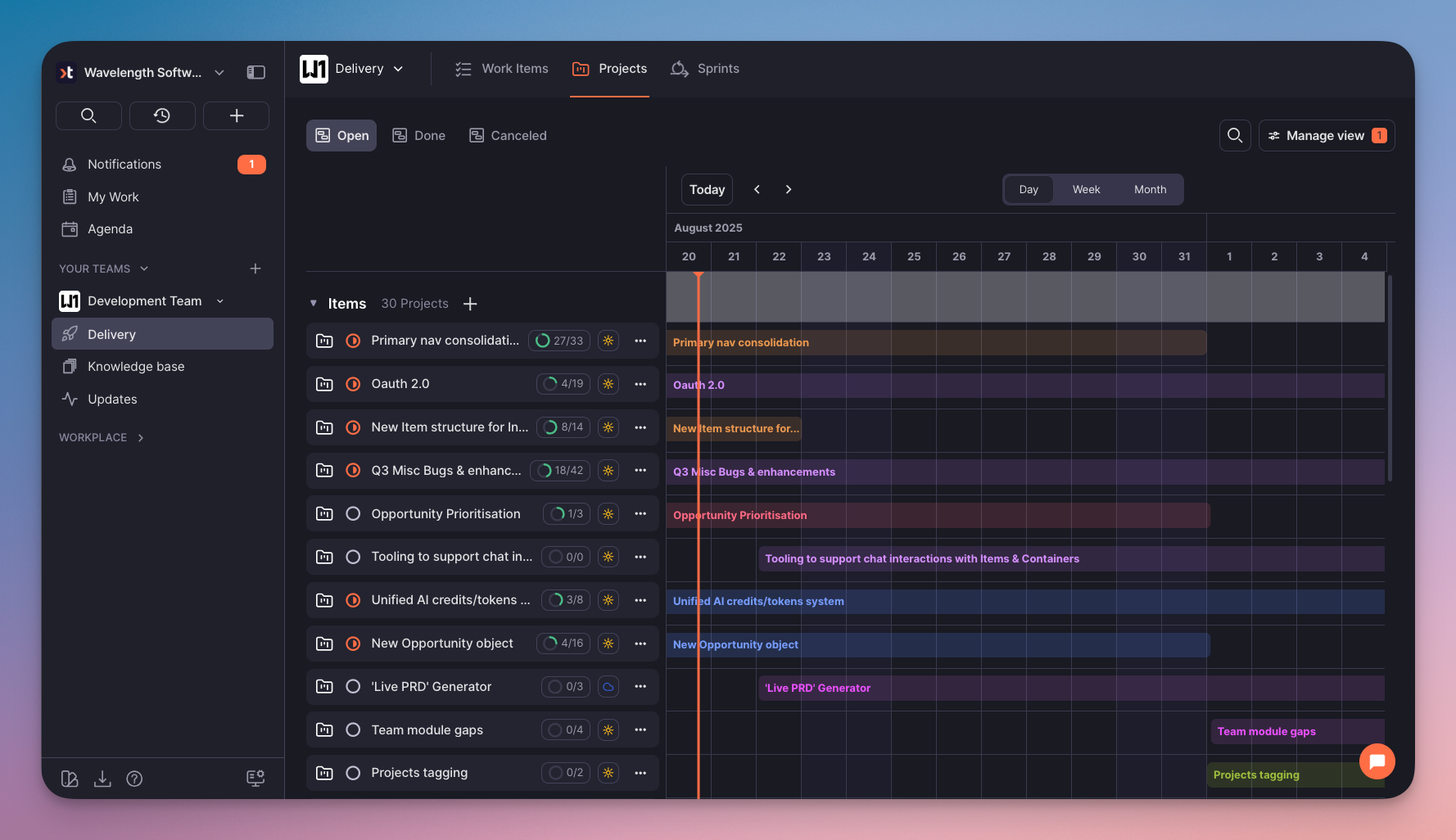
The **Solutions** tab lets you browse and manage all solutions in your product space. Depending on your preference, you can view them as a list, a timeline chart, or a Kanban board.

Below you can see the **timeline** which provides information on current status, number of assigned work items, risk, and calendar with marked time frames derived from the work items estimation settings.

{% hint style="info" %}
You can change the layout and apply grouping and filtering in the 'Manage view tab'.
{% endhint %}

Here's an example look for solutions in timeline mode:

{% tabs %}
{% tab title="Light Mode" %}

<figure><img src="https://3284049081-files.gitbook.io/~/files/v0/b/gitbook-x-prod.appspot.com/o/spaces%2FvCMXgzPoiE4UXP4jn6B8%2Fuploads%2F72LAdaj8ZCREDVGP8hQy%2FCleanShot%202026-03-13%20at%2018.02.01%402x.png?alt=media&amp;token=e41fb439-91fe-4587-8943-f82fd2653f51" alt=""><figcaption><p>Solutions: Timeline view (Light mode)</p></figcaption></figure>
{% endtab %}

{% tab title="Dark Mode" %}

<figure><img src="https://3284049081-files.gitbook.io/~/files/v0/b/gitbook-x-prod.appspot.com/o/spaces%2FvCMXgzPoiE4UXP4jn6B8%2Fuploads%2FrlvqqvwG66JxAgggIHDl%2Fsolution-proposal-dark.png?alt=media&amp;token=d1a48a5f-51d7-4bd1-8f53-40204207fe9c" alt=""><figcaption><p>Solutions: Timeline view (Dark mode)</p></figcaption></figure>
{% endtab %}
{% endtabs %}


# Work items

## Introduction to work items

{% hint style="info" %}
This feature is available in business plans only. Please contact our support if you're interested in using it.
{% endhint %}

{% hint style="success" %}
This article explains the types of work items and shows how to create and manage them in day-to-day work.
{% endhint %}

Work items are individual tasks, epics, and stories that contribute to achieving project goals. They can span from minor bug reports, to building new features from scratch, to large epics involving multiple teams and planned for months to come.

## Creating work items

Work items are stored in the **Delivery** module of the application. They can be created manually, or generated from feedback tickets.

### Creating manually

{% stepper %}
{% step %}
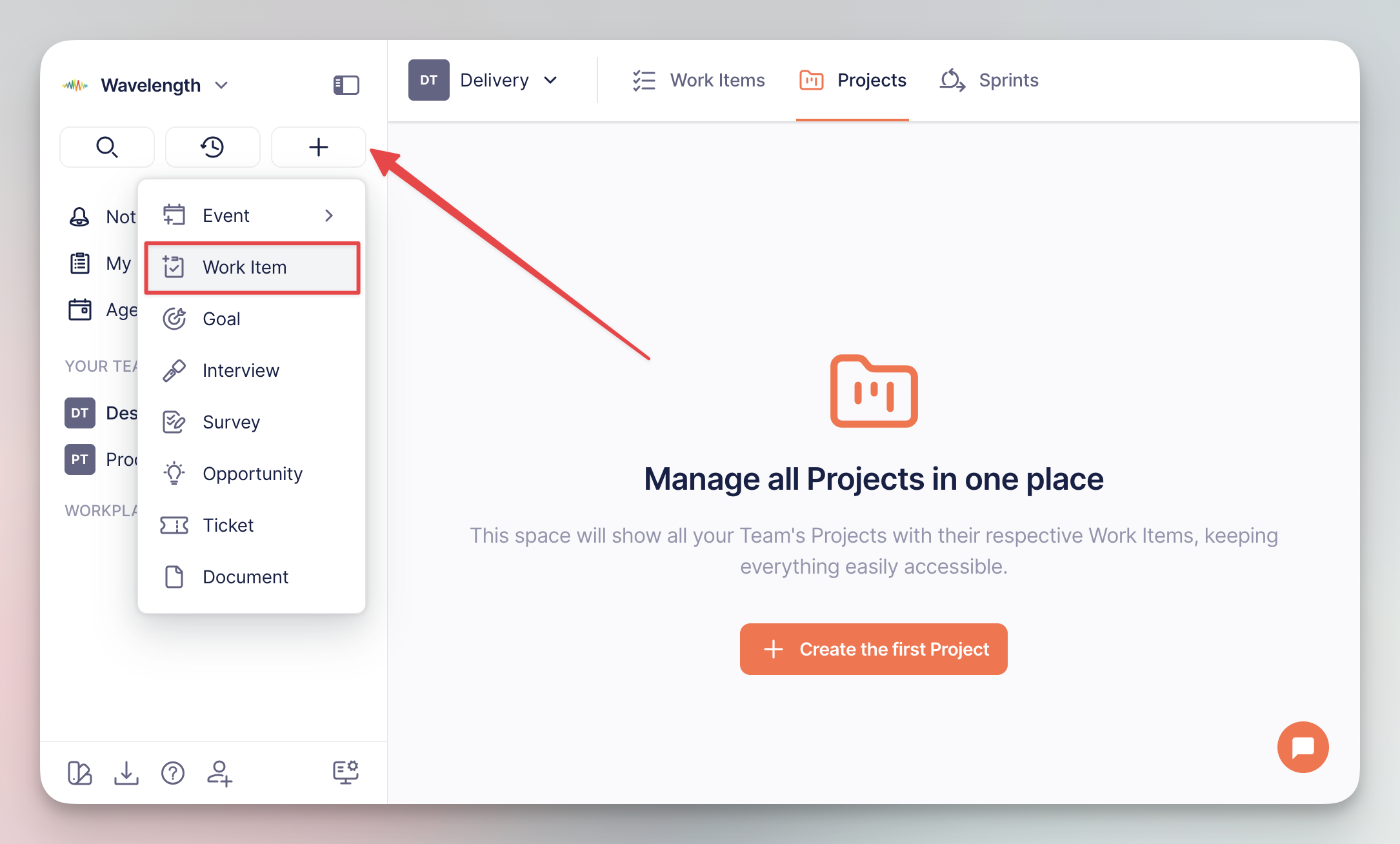
The easiest way to create a work item is from the global add button residing in the left navigation sidebar:

<div align="left"><figure><img src="https://3284049081-files.gitbook.io/~/files/v0/b/gitbook-x-prod.appspot.com/o/spaces%2FvCMXgzPoiE4UXP4jn6B8%2Fuploads%2Fgit-blob-742f2f3638ac0468f925188fb0643816dca27084%2FCleanShot%202025-09-01%20at%2012.51.39%402x.png?alt=media" alt="" width="563"><figcaption><p>Creating from <code>+</code> button</p></figcaption></figure></div>
{% endstep %}

{% step %}
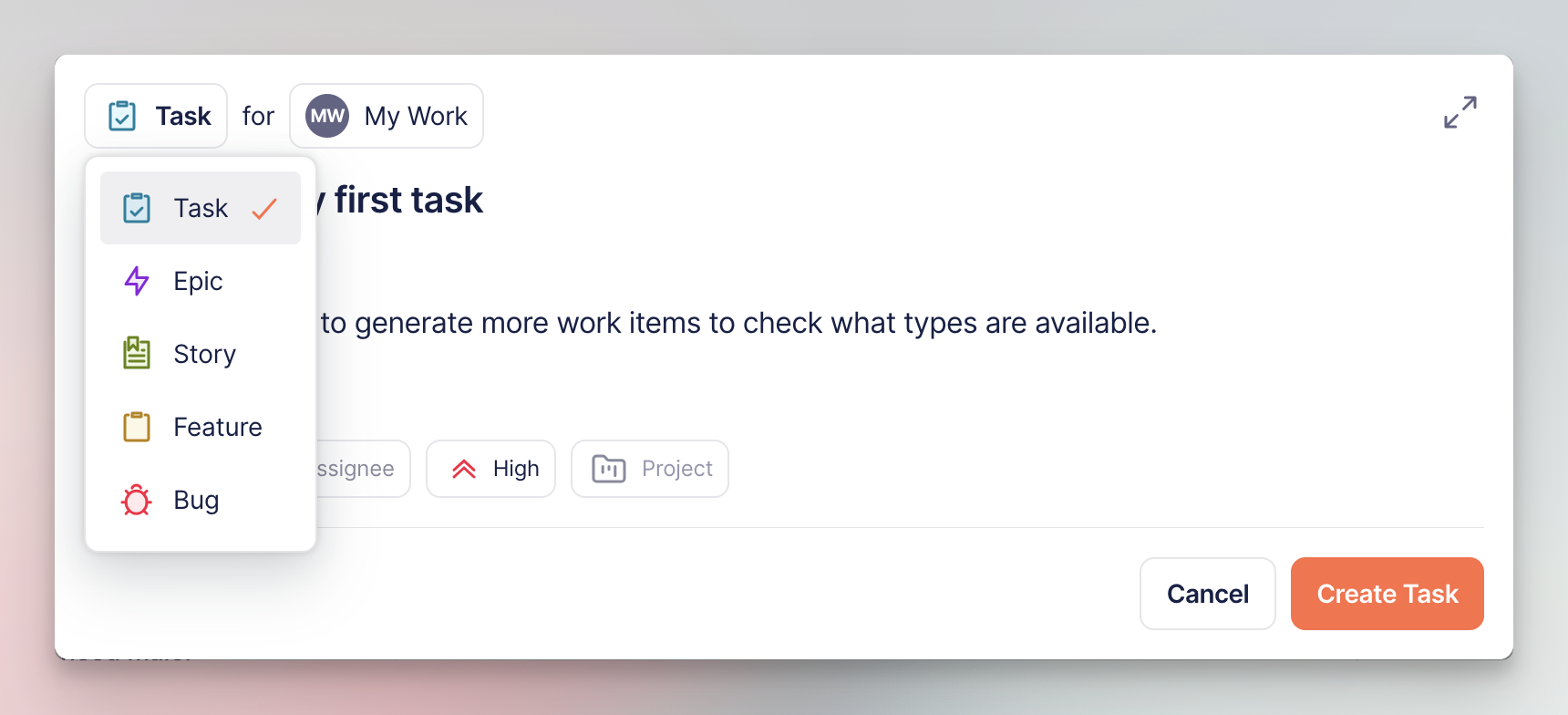
Select the work item type, add description, and configure other properties (status, assignee, priority, parent poject, etc.):

<div align="left"><figure><img src="https://3284049081-files.gitbook.io/~/files/v0/b/gitbook-x-prod.appspot.com/o/spaces%2FvCMXgzPoiE4UXP4jn6B8%2Fuploads%2Fgit-blob-f1e1e81c1eb61224303b541f5b41bac96a5ff40a%2FCleanShot%202025-09-01%20at%2012.43.40%402x.png?alt=media" alt="" width="563"><figcaption><p>Work item configuration screen</p></figcaption></figure></div>
{% endstep %}
{% endstepper %}

### Generating from tickets

[Feedback tickets](/hc/get-started/discovery/feedback) are the voice of your customers aimed at improving and your product and providing ideas for new features. Each ticket can be duplicated into a work item, which stays connected with the source.

{% stepper %}
{% step %}
Go to Research → Feedback and select the ticket that you want to create the item from.
{% endstep %}

{% step %}
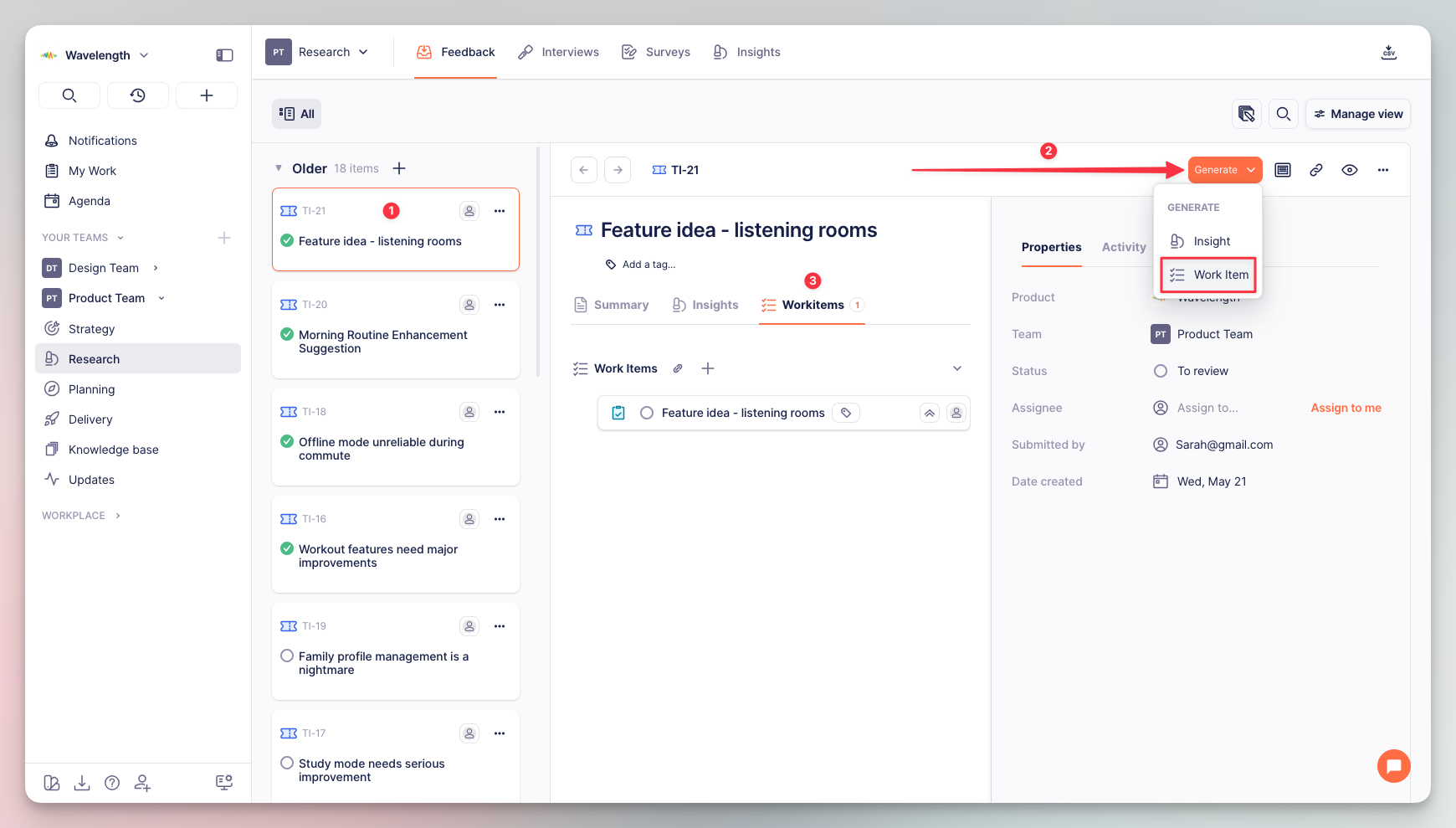
Click the 'Genarate' button and select 'Work item' from the list.
{% endstep %}

{% step %}
Timebook will create the task and attach it to the 'Work items' tab of the ticket.

<div align="left"><figure><img src="https://3284049081-files.gitbook.io/~/files/v0/b/gitbook-x-prod.appspot.com/o/spaces%2FvCMXgzPoiE4UXP4jn6B8%2Fuploads%2Fgit-blob-02ee1dd2fbf65475edefe1d203f82f77ab709549%2FCleanShot%202025-09-01%20at%2011.49.43.png?alt=media" alt="" width="563"><figcaption><p>Generating from feedback tickets</p></figcaption></figure></div>
{% endstep %}
{% endstepper %}

## Types of work items

{% hint style="info" %}
The examples below include use cases from a fictional company providing music streaming services.
{% endhint %}

<table><thead><tr><th width="119.34713745117188">Name</th><th>Description</th><th>Example</th></tr></thead><tbody><tr><td>☑️ <strong>Task</strong></td><td>The smallest manegeable piece of work. Used to break higher-level stories into actionable steps.</td><td><em>Update album artwork API endpoint to support 4K resolution</em></td></tr><tr><td>🐞 <strong>Bug</strong></td><td>Similar to taks, but related directly to resolving issues and errors.</td><td><em>Songs skip to next track when user adjusts volume during playback.</em></td></tr><tr><td>🔖 <strong>Story</strong></td><td>User stories and requirements collected during the <a href="/hc/get-started/discovery/feedback">feedback</a> phase.</td><td><em>As a user, I want to create collaborative playlists so that my friends and I can add songs together.</em></td></tr><tr><td>📋 <strong>Feature</strong></td><td>Groups user stories into a single deliverable functionality.</td><td><em>Social playlists: collaborative playlists, playlist sharing, friend activity feed.</em></td></tr><tr><td>⚡️ <strong>Epic</strong></td><td>Multiple features or initiatives organized into a long-term delivery plan.</td><td><em>High-level initiative encompassing social playlists, friend recommendations, and social discovery features.</em></td></tr></tbody></table>

## Statuses

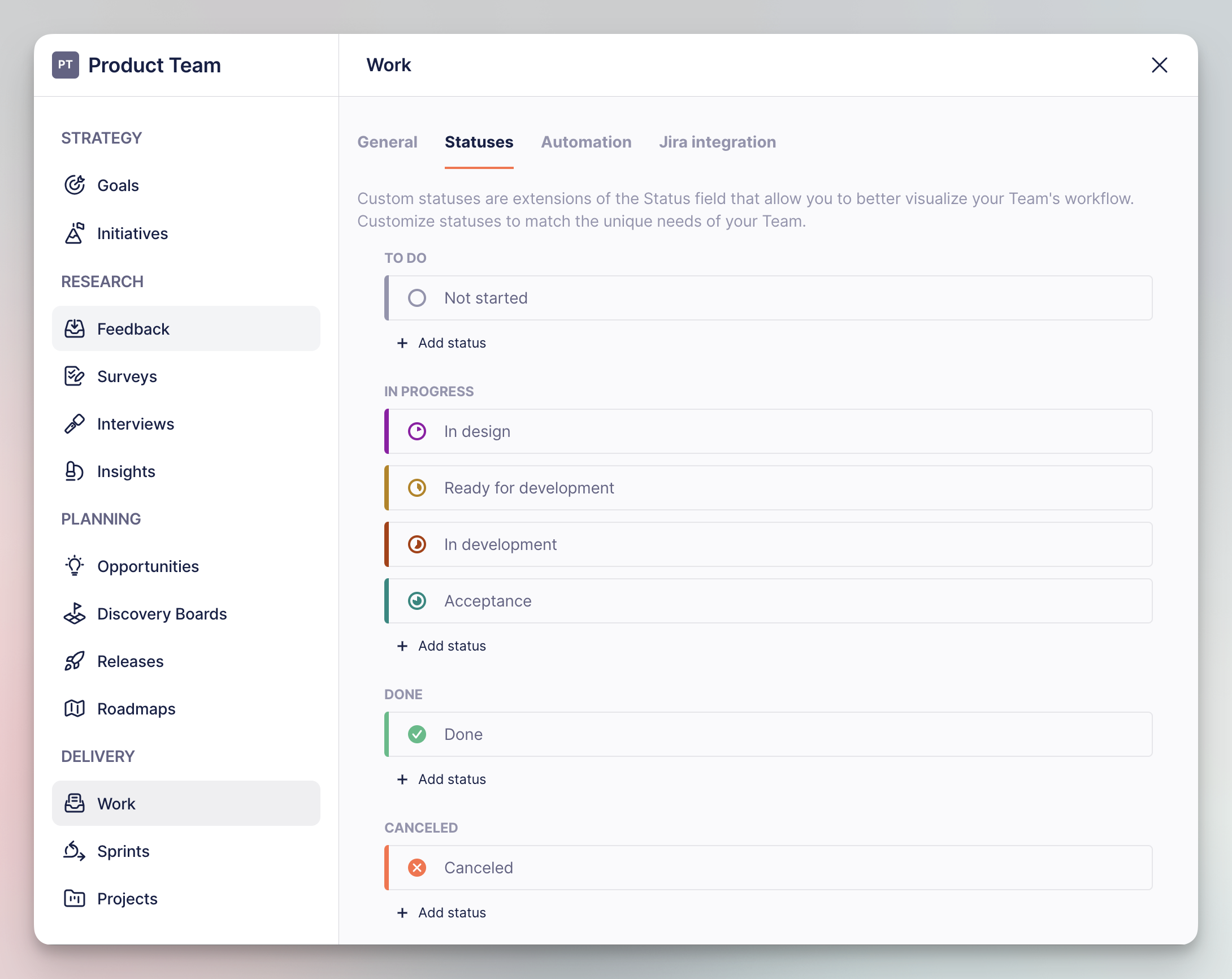
Work items come with a set of four default status types, recognizable to every user of project management software: **To do**, **In progress, Done** and **Canceled**.

You can and add your own statuses to customize the workflow in the **Work** section of your team settings:

<div align="left"><figure><img src="https://3284049081-files.gitbook.io/~/files/v0/b/gitbook-x-prod.appspot.com/o/spaces%2FvCMXgzPoiE4UXP4jn6B8%2Fuploads%2Fgit-blob-ff8cc5988bfbca509528f1203e289849590fee5c%2FCleanShot%202025-09-01%20at%2012.40.45%402x.png?alt=media" alt="" width="563"><figcaption><p>List of work items' statuses in team settings</p></figcaption></figure></div>

## Properties

Work items share a common set of properties used in day-to-day work and project management.

{% hint style="success" %}
You can also user these properties group, sort, and filter your tasks in the 'Manage view' menu.
{% endhint %}

<table><thead><tr><th width="149.66253662109375">Property</th><th>Description</th></tr></thead><tbody><tr><td><strong>Team</strong></td><td>The team assigned to the item.</td></tr><tr><td><strong>Sprint</strong></td><td>The sprint the item is currently assigned to.</td></tr><tr><td><strong>Release</strong></td><td>The release the item is planned to be delivered with.</td></tr><tr><td><strong>Project</strong></td><td>The project holding the item.</td></tr><tr><td><strong>Solution</strong></td><td>The solution to which the item belongs.</td></tr><tr><td><strong>Status</strong></td><td>The current status of the item (to do, in progress, done, etc.)</td></tr><tr><td><strong>Assignee</strong></td><td>The workplace member currently responsible for the progress in the item.</td></tr><tr><td><strong>Priority</strong></td><td>Defines how important the work item is.</td></tr><tr><td><strong>Start date</strong></td><td>The date the team should start working on the item.</td></tr><tr><td><strong>Due date</strong></td><td>The date the team should finish working on the item.</td></tr><tr><td><strong>Estimated time</strong></td><td>Total time assumed for the team to finish working on the item.</td></tr><tr><td><strong>Color</strong></td><td>The color of the item on the calendar and timeline views.</td></tr><tr><td><strong>Git</strong></td><td>Git commits, merge requests, and branches assigned to the item (requires configuring <strong>Automation</strong> in the team settings).</td></tr><tr><td><strong>Story points</strong><br>(story type only)</td><td>The effort required to resolve the story, with scoring similar to the Fibonacci sequence. Also known as task complexity.</td></tr><tr><td><strong>Created by</strong></td><td>The member of the workplace that created the item.</td></tr><tr><td><strong>Date created</strong></td><td>The date the item was created.</td></tr></tbody></table>


# Projects

## Introduction to Projects

{% hint style="info" %}
This feature is available in business plans only. Please contact our support if you're interested in using it.
{% endhint %}

{% hint style="success" %}
This article introduces the concept or projects and shows how to create and work with projects in the Timebook's ecosystem.
{% endhint %}

In Timebook terminology, projects are containers for work items (epics, stories, tasks, etc.) required to achieve a specific outcome. They can be created either manually, or directly from an [opportunity](/hc/get-started/discovery/opportunities) that you chose to pursue.

Projects can be linked to Goals through Key Results, ensuring that all work aligns with the organization’s strategic objectives.

## Creating projects

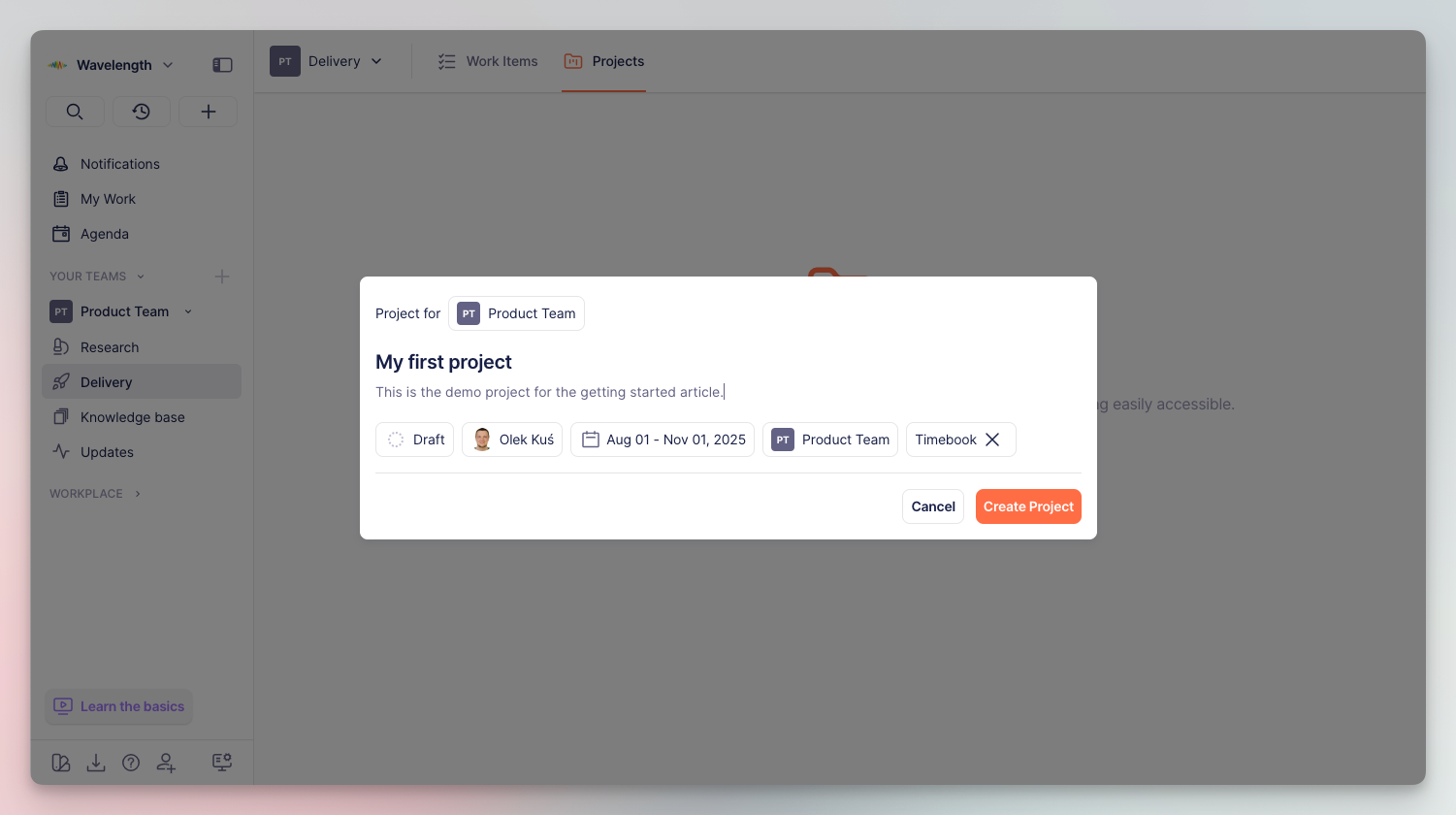
Projects can be created in two ways: manually or by escalating an opportunity to the project form.

### Creating manually

{% hint style="info" %}
Projects are a component of the Delivery module which is activated by default in new workplaces. If you don't see this tab in the navigator, go to your team settings and check if it's activated.
{% endhint %}

{% stepper %}
{% step %}
Go to the **Delivery** tab and click 'Create first project'.
{% endstep %}

{% step %}
Enter the details of the project: name, description, date range for which the project is planned, team responsible, and the product it refers to:

<div align="left"><figure><img src="https://3284049081-files.gitbook.io/~/files/v0/b/gitbook-x-prod.appspot.com/o/spaces%2FvCMXgzPoiE4UXP4jn6B8%2Fuploads%2Fgit-blob-4798bc47830cc8ab6396769fb3d37f49b45af3fc%2FCleanShot%202025-08-20%20at%2014.46.56.png?alt=media" alt="" width="563"><figcaption><p>New project configuration</p></figcaption></figure></div>
{% endstep %}
{% endstepper %}

### Generating from opportunity

Once you indicate which opportunity you want to pursue, you can start preparing grounds for development by escalating it into a project.

{% stepper %}
{% step %}
Go to **Planning** → **Opportunities** and look up the opportunity on the list.

<div align="left"><figure><img src="https://3284049081-files.gitbook.io/~/files/v0/b/gitbook-x-prod.appspot.com/o/spaces%2FvCMXgzPoiE4UXP4jn6B8%2Fuploads%2Fgit-blob-664fa6f6c5c22eb90227314e354183e217e2e56c%2FCleanShot%202025-08-20%20at%2015.06.51.png?alt=media" alt="" width="563"><figcaption><p>Opportunity list overview</p></figcaption></figure></div>
{% endstep %}

{% step %}
Click the 'Generate' button at the top, select 'Project', and enter the details: name, description, date range for which the project is planned, team responsible, and the parent product.

<div align="left"><figure><img src="https://3284049081-files.gitbook.io/~/files/v0/b/gitbook-x-prod.appspot.com/o/spaces%2FvCMXgzPoiE4UXP4jn6B8%2Fuploads%2Fgit-blob-407f95777eac2e02faa6512e4cfa9a15d5554e0a%2FCleanShot%202025-08-20%20at%2015.14.16.png?alt=media" alt="" width="563"><figcaption><p>Creating project from opportunity</p></figcaption></figure></div>
{% endstep %}
{% endstepper %}

### Projects overview

The **Projects** tab lets you browse and manage all projects in your team. The default **timeline** view provides you with essential progress information, such as current status and the number of work items, together with a calendar with marked time frames.

{% hint style="info" %}
You can change the layout and apply grouping and filtering in the 'Manage view tab'.
{% endhint %}

Here's how the timeline view looks like when fully populated.

{% tabs %}
{% tab title="Light Mode" %}

<div align="left"><figure><img src="https://3284049081-files.gitbook.io/~/files/v0/b/gitbook-x-prod.appspot.com/o/spaces%2FvCMXgzPoiE4UXP4jn6B8%2Fuploads%2Fgit-blob-3412f0f1b93f0cb3b44ee86868e89aa0246c0bb4%2FCleanShot%202025-08-20%20at%2016.22.51.png?alt=media" alt="" width="563"><figcaption><p>Projects overview: Timeline view (Light Mode)</p></figcaption></figure></div>
{% endtab %}

{% tab title="Dark Mode" %}

<div align="left"><figure><img src="https://3284049081-files.gitbook.io/~/files/v0/b/gitbook-x-prod.appspot.com/o/spaces%2FvCMXgzPoiE4UXP4jn6B8%2Fuploads%2Fgit-blob-2de089ab8a8c025c23454993cffe017d7740bb5c%2FCleanShot%202025-08-20%20at%2016.23.11.png?alt=media" alt="" width="563"><figcaption><p>Projects overview: Timeline view (Dark Mode)</p></figcaption></figure></div>
{% endtab %}
{% endtabs %}

The **list** view, on the other hand, provides more details, such as linked [opportunities](/hc/get-started/discovery/opportunities) and initiatives:

<div align="left"><figure><img src="https://3284049081-files.gitbook.io/~/files/v0/b/gitbook-x-prod.appspot.com/o/spaces%2FvCMXgzPoiE4UXP4jn6B8%2Fuploads%2Fgit-blob-9745913971c9744daabbafc032eed1ee174ba59f%2Fprojects-5.png?alt=media" alt="" width="563"><figcaption><p>Project details explained</p></figcaption></figure></div>

{% hint style="success" %}
There is also the **board** view if you're used to working with Kanban boards.
{% endhint %}


# Display

Display settings let choose between light and dark themes of Timebook, and customize what should be displayed in the sidebar navigator.

{% hint style="info" %}
The options are applied per user, which means every user can have separate settings.
{% endhint %}

## Appearance

The Appearance settings are available from the dropdown menu in the top-left corner. Here you can choose between light and dark themes, or a white theme with a dark navigator. You can also jump directly sidebar customization options (see below).

<div align="left"><figure><img src="https://3284049081-files.gitbook.io/~/files/v0/b/gitbook-x-prod.appspot.com/o/spaces%2FvCMXgzPoiE4UXP4jn6B8%2Fuploads%2FmKLplRzngBeprLTtD256%2Fappearance-1.png?alt=media&amp;token=f17b0c67-cf0b-4db7-a6e4-267d8b7a285d" alt="" width="563"><figcaption><p>Appearance settings</p></figcaption></figure></div>

## Sidebar customization

To customize how your sidebar looks like, click the 'Navigator Settings' button at the bottom of the left sidebar.

Here you can:

* drag and drop items within their parent section
* hide and show items on the list, or move them to an expandable 'More' section

<div align="left"><figure><img src="https://3284049081-files.gitbook.io/~/files/v0/b/gitbook-x-prod.appspot.com/o/spaces%2FvCMXgzPoiE4UXP4jn6B8%2Fuploads%2FRb5PaEAbCkYH6oxdzLjv%2FCleanShot%202026-09-21%20at%2016.35.04%402x.png?alt=media&amp;token=c9068e7e-c5c2-4f04-9739-94b5acba011b" alt="" width="563"><figcaption><p>Sidebar customization settings</p></figcaption></figure></div>


# User settings

User settings let you configure your personal details, including timezone, calendar availability, OAuth integrations, and external connectors. All settings are connected to your personal ID, as opposed to [workplace settings](/hc/product-guide/workplace-settings).

The settings are available at the top of the navigator:

<div align="left"><figure><img src="https://3284049081-files.gitbook.io/~/files/v0/b/gitbook-x-prod.appspot.com/o/spaces%2FvCMXgzPoiE4UXP4jn6B8%2Fuploads%2FbVxKeuOoywNlKI4miHIQ%2Fuser-settings-location.png?alt=media&amp;token=9a33c76b-eba3-42b2-80b5-5982f16bd45b" alt="" width="563"><figcaption><p>User settings location</p></figcaption></figure></div>

## My profile

The first tab lets you update personal details, such as first and last name, display name (the name others see in the app), email (which also acts as unique user ID), phone, and location.

<div align="left"><figure><img src="https://3284049081-files.gitbook.io/~/files/v0/b/gitbook-x-prod.appspot.com/o/spaces%2FvCMXgzPoiE4UXP4jn6B8%2Fuploads%2FZstZAZCq2hLYr8CWvcTz%2FCleanShot%202026-04-21%20at%2014.35.03%402x.png?alt=media&amp;token=fcf46de2-7136-461d-b764-8c0ba9666cf1" alt="" width="563"><figcaption><p>My profile</p></figcaption></figure></div>

{% hint style="info" %}
Email address is a fixed value which acts as unique ID and cannot be modified. Please [contact support](mailto:support@timebook.net) if you need to change it.
{% endhint %}

## Notifications

Here you decide whether you want to receive system notifications and/or emails on updates to Timebook from our team.

<div align="left"><figure><img src="https://3284049081-files.gitbook.io/~/files/v0/b/gitbook-x-prod.appspot.com/o/spaces%2FvCMXgzPoiE4UXP4jn6B8%2Fuploads%2FIzlP6wIjQKjRNN83SCcW%2FCleanShot%202026-04-21%20at%2015.34.13%402x.png?alt=media&amp;token=8e93453e-2918-42c0-9a15-da02dd603ca7" alt="" width="563"><figcaption><p>Notifications</p></figcaption></figure></div>

## Calendar

The **Preferences** tab lets you prepare your calendar for day-to-day activities by selecting work days, time format, and availability.

<div align="left"><figure><img src="https://3284049081-files.gitbook.io/~/files/v0/b/gitbook-x-prod.appspot.com/o/spaces%2FvCMXgzPoiE4UXP4jn6B8%2Fuploads%2FXfaVJmgdcCbM31zbKs3V%2Fuser-settings-3.png?alt=media&amp;token=bf88e7f5-ab90-40c4-9703-7b2b5e2079a6" alt="" width="563"><figcaption><p>Calendar preferences</p></figcaption></figure></div>

**Calendar sharing** options allow you to define the visibility of your calendar in Timebook for other users, as well as restrict it to selected workplace members.

<div align="left"><figure><img src="https://3284049081-files.gitbook.io/~/files/v0/b/gitbook-x-prod.appspot.com/o/spaces%2FvCMXgzPoiE4UXP4jn6B8%2Fuploads%2FiVzk2BgDRXEZPCaiPtCY%2Fuser-settings-4.png?alt=media&amp;token=63cdf909-a33b-47ab-8572-5a205afed41d" alt="" width="563"><figcaption><p>Calendar sharing</p></figcaption></figure></div>

The **Meetings** tab lets you define when you want to receive reminders about upcoming mettings, and set the default meeing duration for your calendar.

<div align="left"><figure><img src="https://3284049081-files.gitbook.io/~/files/v0/b/gitbook-x-prod.appspot.com/o/spaces%2FvCMXgzPoiE4UXP4jn6B8%2Fuploads%2FWbyv2QfjJYbNvW2ev3nk%2Fuser-settings-5.png?alt=media&amp;token=4b036b1e-6738-4339-91a4-1d3235ad1aa1" alt="" width="563"><figcaption><p>Meetings preferences</p></figcaption></figure></div>

## **S**ecurity & access

This section displays all OAuth apps authorized with your user account (MCP clients, feedback sources, etc.).

<div align="left"><figure><img src="https://3284049081-files.gitbook.io/~/files/v0/b/gitbook-x-prod.appspot.com/o/spaces%2FvCMXgzPoiE4UXP4jn6B8%2Fuploads%2FKflKzKthRPChlXjRAXaO%2FCleanShot%202026-04-22%20at%2013.50.44%402x.png?alt=media&amp;token=831918ea-1056-40ac-ad00-199a4e023a48" alt="" width="563"><figcaption><p>Security &#x26; access</p></figcaption></figure></div>

## Date & time

Here you set the time zone which is used in calendar operations. You can view the timezone of other users in the **Members** tab of the [workplace settings](/hc/product-guide/workplace-settings).

<div align="left"><figure><img src="https://3284049081-files.gitbook.io/~/files/v0/b/gitbook-x-prod.appspot.com/o/spaces%2FvCMXgzPoiE4UXP4jn6B8%2Fuploads%2FfqSchVUAfD0Nfj3DjV7F%2FCleanShot%202026-09-16%20at%2015.50.21.png?alt=media&amp;token=65bb8395-f039-4f7f-9387-c445e014b813" alt="" width="563"><figcaption><p>Date &#x26; time</p></figcaption></figure></div>

## Integrations

This place collects integration triggers with [3rd-party services](/hc/integrations/about). Note that some of them (e.g. Slack) may require activation on the workplace level first.

<div align="left"><figure><img src="https://3284049081-files.gitbook.io/~/files/v0/b/gitbook-x-prod.appspot.com/o/spaces%2FvCMXgzPoiE4UXP4jn6B8%2Fuploads%2FxLTVMgcDtrpDPdivkHdK%2Fuser-settings-8.png?alt=media&amp;token=aceb7d4e-7f0d-4034-8034-26b03c837111" alt="" width="563"><figcaption><p>Integrations</p></figcaption></figure></div>

## Connectors

The last tab lists tools such as MCP servers to which Timebook connects to broaden its context for AI processing.

<div align="left"><figure><img src="https://3284049081-files.gitbook.io/~/files/v0/b/gitbook-x-prod.appspot.com/o/spaces%2FvCMXgzPoiE4UXP4jn6B8%2Fuploads%2FyB3cLjyPuT2Dkd8QOoAb%2Fuser-settings-9.png?alt=media&amp;token=2c463a30-6549-4d11-9f56-c49a1b83071c" alt="" width="563"><figcaption><p>Connectors</p></figcaption></figure></div>


# Workplace settings

Workplace settings let you configure how your organization's account is structured and managed within Timebook – including account details, user permissions, billing, and integrations.

The settings are available from the dropdown at the top of the navigator:

<div align="left"><figure><img src="https://3284049081-files.gitbook.io/~/files/v0/b/gitbook-x-prod.appspot.com/o/spaces%2FvCMXgzPoiE4UXP4jn6B8%2Fuploads%2F5IN7aZauowOHwgy3rznq%2Fwp-settings-location.png?alt=media&amp;token=631a0a5e-2d36-4f74-b0b9-82efb975c27e" alt="" width="563"><figcaption><p>Workplace settings location</p></figcaption></figure></div>

## Workplace profile

The main tab is the workplace profile. Here you can change the name of the account, upload avatar (your company logo), transfer workplace ownership (owners only), and define workplace invitation restrictions.

{% hint style="info" %}
Depending whether you have admin rights, the options available are different.

* Admins have full R/W rights to all settings with exclusive access to [Integrations](/hc/integrations/about) and [Billing](/hc/product-guide/billing) tabs.&#x20;
* Members have read acess to settings and can view current usage. They can also invite new members by default, unless the option is disabled.
  {% endhint %}

{% hint style="warning" %}
Changing the name *does not* change the workplace URL. The URL is set during workplace creation and is permanent.
{% endhint %}

{% tabs %}
{% tab title="Admin view" %}

<div align="left"><figure><img src="https://3284049081-files.gitbook.io/~/files/v0/b/gitbook-x-prod.appspot.com/o/spaces%2FvCMXgzPoiE4UXP4jn6B8%2Fuploads%2FBSjp1F3Y877TrJFhaK97%2FCleanShot%202026-09-15%20at%2017.31.36%402x.png?alt=media&amp;token=ee734119-7c5e-4b10-8f5c-3adc30476d8f" alt="" width="563"><figcaption><p>Workplace settings as viewed by admin</p></figcaption></figure></div>
{% endtab %}

{% tab title="Member view" %}

<div align="left"><figure><img src="https://3284049081-files.gitbook.io/~/files/v0/b/gitbook-x-prod.appspot.com/o/spaces%2FvCMXgzPoiE4UXP4jn6B8%2Fuploads%2Fz09SHdQPAfIsygcAp1WI%2FCleanShot%202026-09-15%20at%2017.29.14%402x.png?alt=media&amp;token=460b8d4c-5f23-4e2e-9fd1-c0d1b4aa288f" alt="" width="563"><figcaption><p>Workplace settings as viewed by member</p></figcaption></figure></div>
{% endtab %}
{% endtabs %}

## **Members**

The members tab is a place where you can browse, add, and manage workplace members.

The members are listed with the following details

* **Timezone**: the timezone set by the member in their [profile settings](/hc/product-guide/profile-settings#date-and-time)
* **Spaces**:  the spaces to which the member belongs to
* **Role**: admin, member, finance (member with access to billing)
* **Seat**: editor (full R/W access to workplace), reviewer (read-only access to workplace)

<div align="left"><figure><img src="https://3284049081-files.gitbook.io/~/files/v0/b/gitbook-x-prod.appspot.com/o/spaces%2FvCMXgzPoiE4UXP4jn6B8%2Fuploads%2F4aHVkZEzcm6EZoRyPqYd%2FCleanShot%202026-09-16%20at%2016.58.20.png?alt=media&amp;token=73deec4f-c8e0-4c76-9327-72d815575cd0" alt="" width="563"><figcaption><p>Members tab</p></figcaption></figure></div>

### Inviting new members

To invite new people to the workplace click the '+Invite' button. Add the email addresses to which the invitation wil be sent and set the type of role and seat.

{% hint style="info" %}
Members with no admin rights can only invite people as members-editors.
{% endhint %}

<div align="left"><figure><img src="https://3284049081-files.gitbook.io/~/files/v0/b/gitbook-x-prod.appspot.com/o/spaces%2FvCMXgzPoiE4UXP4jn6B8%2Fuploads%2Fykvd7CfiN4ZtuEIIB5s2%2FCleanShot%202026-09-16%20at%2016.42.23.png?alt=media&amp;token=53459a81-a4fa-4e30-8b69-3bb5657f2513" alt="" width="563"><figcaption><p>Example invitation modal</p></figcaption></figure></div>

## Integrations

\[Admins only] This tab collects all 3-rd party tools that must be integrated on the workplace level to operate. Check our [integration configuration guides](/hc/integrations/about) for details.

{% hint style="info" %}
Depending on the [plan selected](https://timebook.net/pricing), the list of integrations available may vary.
{% endhint %}

<div align="left"><figure><img src="https://3284049081-files.gitbook.io/~/files/v0/b/gitbook-x-prod.appspot.com/o/spaces%2FvCMXgzPoiE4UXP4jn6B8%2Fuploads%2FSf5DBbsNPawgzDMJbTl1%2Fwp-settings-integrations.png?alt=media&amp;token=62d005ab-c79c-4eb8-93c0-5c8555d9b2dc" alt="" width="563"><figcaption><p>Workplace-level integrations</p></figcaption></figure></div>

## Usage

The usage tab and provides a quick overview on the amount of resources consumed in the workplace:

* pages in documents
* work items and objects (insights, opportunities, etc.)
* uploaded files and attachments

<div align="left"><figure><img src="https://3284049081-files.gitbook.io/~/files/v0/b/gitbook-x-prod.appspot.com/o/spaces%2FvCMXgzPoiE4UXP4jn6B8%2Fuploads%2FOIao37aHApJr4f57W9AA%2FCleanShot%202026-09-17%20at%2014.53.46.png?alt=media&amp;token=fa79e5d9-9131-4444-8e82-3e3215710ecd" alt="" width="563"><figcaption><p>Resource usage overview</p></figcaption></figure></div>

## AI usage

This section lets you check how much AI credits you've consumed so far in your monthly allowance, with further breakdown into specific actions.

{% tabs %}
{% tab title="Overview tab" %}

<div align="left"><figure><img src="https://3284049081-files.gitbook.io/~/files/v0/b/gitbook-x-prod.appspot.com/o/spaces%2FvCMXgzPoiE4UXP4jn6B8%2Fuploads%2FCDwGd33bU5HgZxNGOMzD%2Fwp-settings-ai-usage.png?alt=media&amp;token=6e2751b1-8be8-4faf-8668-3dcd4aa857eb" alt="" width="563"><figcaption><p>AI usage overview</p></figcaption></figure></div>

{% endtab %}

{% tab title="Breakdown tab" %}

<div align="left"><figure><img src="https://3284049081-files.gitbook.io/~/files/v0/b/gitbook-x-prod.appspot.com/o/spaces%2FvCMXgzPoiE4UXP4jn6B8%2Fuploads%2FbXPfH48cOweEuyPc1nC3%2Fwp-settings-ai-usage-breakdown.png?alt=media&amp;token=dc05ea47-1bb1-48c2-8e49-6c1331ff9b16" alt="" width="563"><figcaption><p>AI usage breakdown</p></figcaption></figure></div>
{% endtab %}
{% endtabs %}

## Billing

{% hint style="info" %}
\[Admins/Finance only] The billing tab lets you manage your plan and download invoices. Check out our [billing documentation](/hc/product-guide/billing) for details.
{% endhint %}

## Tags

The last section collects all tags added and used by workplace members.

* browse tags in left column
* change name and color in right column

<div align="left"><figure><img src="https://3284049081-files.gitbook.io/~/files/v0/b/gitbook-x-prod.appspot.com/o/spaces%2FvCMXgzPoiE4UXP4jn6B8%2Fuploads%2FbQLaEss4XgnKost2owXc%2Fwp-settings-tags.png?alt=media&amp;token=42907957-0dda-4ea4-8e63-6078ad194828" alt="" width="563"><figcaption><p>Tags management tab</p></figcaption></figure></div>


# Billing

Billing settings are available in the **workplace settings** to administrators only.

{% hint style="info" %}
**What you need to know**

* Timebook uses Stripe as the billing provider.
* Your billing details are safely stored within Stripe's vault.
* If you're getting errors about your payment method, check [Stripe decline codes](https://docs.stripe.com/declines/codes) website.
  {% endhint %}

## Overview

The overview provides a summary of crucial billing details:

* next charge date
* number of seats
* number of AI credits
* payment method attached

<div align="left"><figure><img src="https://3284049081-files.gitbook.io/~/files/v0/b/gitbook-x-prod.appspot.com/o/spaces%2FvCMXgzPoiE4UXP4jn6B8%2Fuploads%2FMt9Ss3mHeVnAI40ZDD5a%2Fbilling-1.png?alt=media&amp;token=8c7d20b0-8378-434e-9c3c-2a8f7b7c8c2a" alt="" width="375"><figcaption><p>Overview tab</p></figcaption></figure></div>

## Invoices

The invoices tab collects all invoices issued so far together with their payment status.

<div align="left"><figure><img src="https://3284049081-files.gitbook.io/~/files/v0/b/gitbook-x-prod.appspot.com/o/spaces%2FvCMXgzPoiE4UXP4jn6B8%2Fuploads%2FPN0KPzOtSiuyxCIu8fVu%2Fbilling-2.png?alt=media&amp;token=75d43f40-d698-437a-a6d0-9d9ea29110cc" alt="" width="375"><figcaption><p>Invoices tab</p></figcaption></figure></div>

### Downloading invoices

To download an invoice, click it to open its details and use the dedicated button:

<div align="left"><figure><img src="https://3284049081-files.gitbook.io/~/files/v0/b/gitbook-x-prod.appspot.com/o/spaces%2FvCMXgzPoiE4UXP4jn6B8%2Fuploads%2Fx3C8DrDvNSMGnoWSm7At%2Fbilling-2-invoice.png?alt=media&amp;token=cd53ca90-03f9-4fd2-8bc2-ce8c1284444b" alt="" width="375"><figcaption><p>Example invoice details</p></figcaption></figure></div>

## Plans & Pricing

The last tab provides an overview of available plans and their details. Please mind that plan details are prone to change but will always be reflected in the application.

<div align="left"><figure><img src="https://3284049081-files.gitbook.io/~/files/v0/b/gitbook-x-prod.appspot.com/o/spaces%2FvCMXgzPoiE4UXP4jn6B8%2Fuploads%2Fv6WzW8V2bdkGhaSnW4v4%2Fbilling-3.png?alt=media&amp;token=ad41d956-ef58-496e-8c9f-03437265fec4" alt="" width="563"><figcaption><p>Plans &#x26; Pricing tab</p></figcaption></figure></div>


# Contacts

## About

Being a platform built around customer feedback, Timebook offers a set of CRM features designed to help researchers and account executives manage user data and provide a quick way to access associated work items and objects.

{% hint style="info" %}
**Contacts** are workplace-level module, which means they're available for all members of the account.
{% endhint %}

## People

The People tab is a registry of contacts with whom you have a business and/or product-related relationship.

A contact can be:

1. A participant of [survey](/hc/get-started/discovery/surveys) or [interview](/hc/get-started/discovery/interviews).
2. Linked to [insights](/hc/get-started/discovery/insights) and [opportunities](/hc/get-started/discovery/opportunities).
3. Set as customer in [feedback tickets](/hc/get-started/discovery/feedback).

To add a new contact, click the button in the top-right corner:

<div align="left"><figure><img src="https://3284049081-files.gitbook.io/~/files/v0/b/gitbook-x-prod.appspot.com/o/spaces%2FvCMXgzPoiE4UXP4jn6B8%2Fuploads%2Fgit-blob-afd174ab19a41ca327b3afa5476982b348c95f68%2Fcontact-list.png?alt=media" alt="" width="563"><figcaption></figcaption></figure></div>

### Contact card

The contact card offers a standardized set of properties recognizable to anybody working on a customer-facing position. It also hosts tab with all items to which the contact has been connected to.

{% hint style="info" %}
The card will automatically collect interviews, surveys, insights, opportunities, and feedback tickets to which the contact is connected.
{% endhint %}

A contact can be added to a company or a persona during contact creation, or by editing the properties by clicking the button in the top-right corner:

<div align="left"><figure><img src="https://3284049081-files.gitbook.io/~/files/v0/b/gitbook-x-prod.appspot.com/o/spaces%2FvCMXgzPoiE4UXP4jn6B8%2Fuploads%2Fgit-blob-a3a15a5b4e74e522393dfe512a8de3e8540dd4c8%2Fcontact-card.png?alt=media" alt="" width="563"><figcaption></figcaption></figure></div>

## Companies

In their structure, companies are built in the same way as contacts, the main view being the list of existing companies. You can add companies with the button in the top-right corner, and adjust the way companies are listed with the 'Manage view' buton:

<div align="left"><figure><img src="https://3284049081-files.gitbook.io/~/files/v0/b/gitbook-x-prod.appspot.com/o/spaces%2FvCMXgzPoiE4UXP4jn6B8%2Fuploads%2Fgit-blob-98bc0636cf151f2eb03fee10dfd01153acdfa57d%2FCleanShot%202025-11-19%20at%2016.41.59%402x.png?alt=media" alt="" width="563"><figcaption></figcaption></figure></div>

### Company card

Similar to contacts, the company tab also hosts a series of tabs: from the overview with the company details, to tabs holding items assigned to any user in the company.

To assign a contact to a company, click the edit button and select them from the list.

<div align="left"><figure><img src="https://3284049081-files.gitbook.io/~/files/v0/b/gitbook-x-prod.appspot.com/o/spaces%2FvCMXgzPoiE4UXP4jn6B8%2Fuploads%2Fgit-blob-66bf55e71a3a8a4b03adb825806617565e7fec3b%2FCleanShot%202025-11-19%20at%2017.19.32%402x.png?alt=media" alt="" width="563"><figcaption></figcaption></figure></div>

## Personas

Personas are semi-fictional, research-based profiles that represent a typical or target customer or user of a product or service. In terms of Timebook mechanics, personas act like a superset for job positions, just like projects are containers for work items.

<figure><img src="https://3284049081-files.gitbook.io/~/files/v0/b/gitbook-x-prod.appspot.com/o/spaces%2FvCMXgzPoiE4UXP4jn6B8%2Fuploads%2Fgit-blob-fda800a27e8811394397f5d02e4e1b38cf9c7598%2FCleanShot%202025-11-21%20at%2015.38.34.png?alt=media" alt=""><figcaption></figcaption></figure>

### Persona card

The persona card follows the same pattern, collecting the list of the assigned people together with every item and object to which they were connected. Here we can see the tab with the interviews conducted with all people labeled Product Managers:

<div align="left"><figure><img src="https://3284049081-files.gitbook.io/~/files/v0/b/gitbook-x-prod.appspot.com/o/spaces%2FvCMXgzPoiE4UXP4jn6B8%2Fuploads%2Fgit-blob-687f9b8bf97c1b74501ba052eb0621f5136eb1bb%2FCleanShot%202025-11-21%20at%2014.36.05.png?alt=media" alt="" width="563"><figcaption></figcaption></figure></div>

To add people to an existing persona, click the button in the top-right corner:

<div align="left"><figure><img src="https://3284049081-files.gitbook.io/~/files/v0/b/gitbook-x-prod.appspot.com/o/spaces%2FvCMXgzPoiE4UXP4jn6B8%2Fuploads%2Fgit-blob-a73d12df100aabdf0c8acf2a2425942c1f436a24%2FCleanShot%202025-11-21%20at%2014.19.59.png?alt=media" alt="" width="563"><figcaption></figcaption></figure></div>


# Knowledge Base

Reading time: 9 minutes

> **In short:**\
> Documents in Timebook support collaborative work for teams and personal use. They allow you to create multi-page content and organize information efficiently. Documents can be shared internally or externally with specific access controls to ensure proper collaboration. Additionally, you can pin important Documents for quick access and bookmark frequently used ones for easy navigation.

## Documents in Timebook

Documents are essential for managing reports, plans, white papers, and other key resources that support your team’s workflow. They serve as collaborative spaces where teams can organize and share information, ensuring that everyone remains aligned and processes are well documented.

While Documents provide the structure for organizing and grouping content, the actual editing and creation happen within individual [pages](broken://pages/mfp1lx1cvXiVAgjVuuZQ). Each Document can consist of one or multiple pages, allowing flexibility in how you manage your information. You can also organize Documents into folders, grouping related resources together for more streamlined documentation.

<div align="left"><figure><img src="https://3284049081-files.gitbook.io/~/files/v0/b/gitbook-x-prod.appspot.com/o/spaces%2FvCMXgzPoiE4UXP4jn6B8%2Fuploads%2Fgit-blob-712ec2ff86fed09a23cc6f2dc4e8893d515f1cde%2FA%20sample%20Document%20in%20Timebook.png?alt=media" alt="" width="563"><figcaption><p>A typical Timebook Document consisting of multiple pages.</p></figcaption></figure></div>

{% hint style="info" %}
Each Team in Timebook has a module dedicated to managing Documents (more on that below) to provide a centralized location for all Team-specific content.

However, Team Owners or Admins have the option to hide the \[**Documents**] module through the dedicated tab in the \[**Team settings**]. If needed, this tab can also be used to restore the module.

For more information, see [Broken mention](broken://pages/UXFMVFEGOtBGt00nQRlI)
{% endhint %}

***

## Managing Documents in dedicated modules

The \[**Documents**] module provides a comprehensive and easy-to-manage view of all your documentation. You can access it in the following places:

* [**My Work**](broken://pages/FIlK6hUm5Q5piwqjkgPw)**:** Manage documentation that isn’t ready to be shared or has been shared specifically with you.
* [**Team**](broken://pages/QbXiEeUhBL6iBL35OuIB) **level:** Each Team has its own dedicated \[Documents] module, making collaboration and shared content management simple and effective.
* **\[Resources] section in the** [**Navigator**](broken://pages/16ZPs3OIz1VRWyy1bUJJ#the-navigator)**:** Get a roll-up view of all Documents across your entire Timebook [Workplace](broken://pages/LRObg8cSKObrO7FYXCb4).

{% embed url="<https://go.screenpal.com/watch/cTnTlVn1Vzm>" %}
Access your personal, Team, or Workplace-wide documentation.
{% endembed %}

Main features of the \[**Documents**] module:

* You can select any Document to access its contents. Once inside, you can edit its pages, ensuring that all information remains up-to-date.
* You can create new Documents or folders to organize related content.
* You can also drag and drop Documents to rearrange them in the list or move them into specific folders as needed.
* Each Document displays an indicator of the number of pages it contains, while each folder shows the number of Documents it holds.

> As a **Technical Writer**, you can use the \[**Documents**] module to create reports, guides, and white papers, collaborating with team members to keep documentation up-to-date.
>
> As a **Product Owner,** you can use the \[**Documents**] module to prepare and publish product plans, roadmaps, and strategies, helping you communicate priorities and align others with the vision.

If you want to keep a particular Document accessible, open it in the \[**Documents**] module and use the **options in the top-right corner**:

* \[**Add to Bookmarks**] saves the Document for future reference. You can find it by opening the \[**Bookmarks**] module in the Navigator.
* \[**Pin to Navigator**] adds the Document to the \[**Pinned items**] area of the Navigator. You can quickly jump to the pinned Document using the menu on the left, no matter where you are in Timebook.

{% hint style="info" %}
We have a dedicated article on how to use pins and bookmarks to keep your important objects always within easy reach.

For more information, see [Broken mention](broken://pages/2hHRc02HxSpbhUi8MaA3)
{% endhint %}

{% embed url="<https://go.screenpal.com/watch/cTnTl6n1Vg1>" %}
You can pin or bookmark a Document for future reference and easier navigation.
{% endembed %}

The \[**Documents**] module also includes the **\[Manage view]** section that lets you customize how Documents are displayed. You can choose different [layouts](broken://pages/mRSuiz6phQ5J6IaJ7vX3), such as List or Table, to best suit your needs. Filters are also available to narrow down the Documents shown, for example, by tags or owner. Additionally, you can save these customized views either as public, for all members to access, or as private, for your personal use.

{% hint style="info" %}
Use the breadcrumbs in the top-left corner for quick navigation inside a Document. Breadcrumbs let you jump back to the \[**Documents**] module to access all your Team’s documentation in one place.
{% endhint %}

### Creating a Document or a folder

You can create Documents and folders in various places within Timebook. No matter where you start, the process is nearly identical:

* [**Team**](broken://pages/QbXiEeUhBL6iBL35OuIB) **level:** Use the dedicated module to create a Document or folder specifically for this Team.
* [**My Work**](broken://pages/FIlK6hUm5Q5piwqjkgPw)**:** Quickly create a Document or folder for your private content in the dedicated module.
* **\[Resources] section in the** [**Navigator**](broken://pages/16ZPs3OIz1VRWyy1bUJJ#the-navigator)**:** When creating a Document here, you’ll need to select which Team it will be assigned to.

{% hint style="info" %}
You can also create pre-configured Documents using Timebook templates. Our Template Center offers several ready-to-use Documents that you can create in an instant and modify later on.

For more information on templates in Timebook, see [Broken mention](broken://pages/znubaBqwFTlRoboBeStG)
{% endhint %}

To create a Document:

{% embed url="<https://go.screenpal.com/watch/cZ6ZjxnchRc>" %}
This is how you create a new Document in the dedicated module.
{% endembed %}

> 1. Click the \[**+**] button at the top of the Document list.
> 2. Select \[**Document**].
> 3. Give your new Document a meaningful name. Both the Document and its main page will use this name. You can now start adding content to the main page. You can also add more pages to build a more complex structure. For more information, see [Broken mention](broken://pages/mfp1lx1cvXiVAgjVuuZQ)

{% hint style="info" %}
In this module, you can also create folders to organize your content.

Follow the instructions above, but select \[**Folder**] instead of \[**Document**] when creating a new item.
{% endhint %}

***

## Sharing Documents

One key aspect of collaboration in Timebook is the ability to share work and content with a selected audience.

Documents are no different; you can choose to share them with other Timebook users and set specific access rights. Alternatively, you can publish a read-only version of your Document, allowing anyone with a link to view it.

{% hint style="info" %}
When a Document you share contains multiple pages, they will all be shared with the selected people.
{% endhint %}

### Sharing Documents within your Workplace

Sharing Documents within your Timebook [Workplace](broken://pages/LRObg8cSKObrO7FYXCb4) offers practical benefits for content collaboration. For example, it enables you to share personal Documents from \[**My Work**], which would otherwise remain private, allowing you to collaborate with others selectively.

Additionally, when a Document is shared with your [Team](broken://pages/QbXiEeUhBL6iBL35OuIB), it is clearly marked with the \[**Shared**] icon in your Team’s \[**Documents**] module, making it easy to access valuable information without having to switch Teams.

To share a Document in Timebook:

{% embed url="<https://go.screenpal.com/watch/cZ6ZjEnchWa>" %}
You can share a Document with selected Workplace members or entire Teams.
{% endembed %}

> 1. Click \[**Share**] in the top-right corner of your Document.
> 2. In the \[**Share in Timebook**] tab, use the dropdown to select who you want to share the Document with. You can choose specific members of your [Workplace](broken://pages/LRObg8cSKObrO7FYXCb4) or all members of a different [Team](broken://pages/QbXiEeUhBL6iBL35OuIB).
> 3. Define access rights for each person (or group) you want to share the Document with. By default, they \[**Can view**] the content of the Document. But you may also give them \[**Can edit**] or \[**Can edit & share**] permissions.
> 4. Click \[**Save**] to confirm your choices. Based on the permissions you set, the selected people now have access to your Document.

{% hint style="info" %}
If you only need a link to a specific Timebook Document, use the \[**Copy link**] button at the bottom of the **\[Share in Timebook**] tab.
{% endhint %}

### Publishing Documents outside your Workplace

Use this feature if you want anyone with the link to be able to access your Document, even if they are not Timebook users. There are no editing permissions here as we publish such Documents in the view-only mode.

To publish a Document online:

{% embed url="<https://go.screenpal.com/watch/cZ6ZjMnc1Vr>" %}
You can make a Document available in read-only mode to anyone with a link.
{% endembed %}

> 1. Click \[**Share**] in the top-right corner of your Document.
> 2. Go to the \[**Publish online**] tab.
> 3. Click the \[**Publish**] button to confirm.
> 4. Your Document is now publicly available. You can share it with anyone using the \[**Copy link**] button.

{% hint style="warning" %}
To revoke someone’s access to a Document, click \[**Share**] and then click the \[**X**] button next to the person or group whose access you want to revoke.

To unpublish a Document, click \[**Share**], go to the \[**Publish online**] tab, and turn off the \[**Public link**] toggle. The Document links you shared with others will not work anymore.
{% endhint %}

***

## Articles in this section

<table data-view="cards"><thead><tr><th></th><th></th><th data-hidden></th><th data-hidden data-card-target data-type="content-ref"></th></tr></thead><tbody><tr><td><mark style="color:blue;"><strong>Pages</strong></mark></td><td>Create meaningful content with powerful editor and reusable Timebook elements.</td><td></td><td><a href="broken://pages/mfp1lx1cvXiVAgjVuuZQ">Broken link</a></td></tr><tr><td><mark style="color:blue;"><strong>Blocks</strong></mark></td><td>Start building content in Timebook with customizable blocks.</td><td></td><td><a href="broken://pages/xX1EetXOaAdSuSwqgp8c">Broken link</a></td></tr><tr><td><mark style="color:blue;"><strong>Comments</strong></mark></td><td>Review page content and submit feedback in a dedicated section.</td><td></td><td><a href="broken://pages/CNhq0JZm8t5d5YmzD4ev">Broken link</a></td></tr><tr><td><mark style="color:blue;"><strong>Wiki</strong></mark></td><td>Publish guidelines and best practices for all Workplace members.</td><td></td><td><a href="broken://pages/6yvV3NBRb5IYJeZpPz6e">Broken link</a></td></tr><tr><td><mark style="color:blue;"><strong>Template Center</strong></mark></td><td>Create and reuse templates to manage documentation with less effort.</td><td></td><td><a href="broken://pages/znubaBqwFTlRoboBeStG">Broken link</a></td></tr></tbody></table>


# Product context

## About product

In the last decade, there's been a visible shift from "shipping the roadmap" approach towards building a habit of testing assumptions against real customer evidence before committing engineering time. A product isn't just the software artifact anymore – it's the vehicle for solving a validated customer problem in service of a business outcome.

{% hint style="success" %}
In other words, a product is defined less by its features than by a chain of evidence that justifies them: customer signal → insight → opportunity → solution → delivered outcome.
{% endhint %}

## Product context

Product context is a single source of truth for your product's core identity, mission, and operating model.

{% hint style="info" %}
In technical terms, product context allows Timebook's AI tools to properly allocate your product on the market against the competitors yielding more accurate operation results.
{% endhint %}

The context holds a structured knowledge base describing:

* what the product is
* the problem it solves
* related objects
* operating model

## Setting product context

The context is created automatically during product space creation upon adding the URL to your website:

<div align="left"><figure><img src="https://3284049081-files.gitbook.io/~/files/v0/b/gitbook-x-prod.appspot.com/o/spaces%2FvCMXgzPoiE4UXP4jn6B8%2Fuploads%2FB2Q9iw2fdxLPqKzvUaND%2Fproduct-context-1.png?alt=media&amp;token=5e98fdca-6e5b-4ff1-b79a-b260d76dafe3" alt="" width="563"><figcaption><p>Product space creation screen with website URL input</p></figcaption></figure></div>

Once you do it, Timebook will fetch the corresponding data, suggest competitors, and create an entry in the **Product** **context** section of the Knowledge Base:

<figure><img src="https://3284049081-files.gitbook.io/~/files/v0/b/gitbook-x-prod.appspot.com/o/spaces%2FvCMXgzPoiE4UXP4jn6B8%2Fuploads%2FCUIo1nJC46QzJyE6HCZg%2Fproduct-context-2.png?alt=media&amp;token=a7db0b9c-176b-405a-a54e-8d4320e0e80e" alt=""><figcaption><p>Example product context page</p></figcaption></figure>

{% hint style="info" %}
**What you need to know**

* The document is fully editable.
* Every change you make is automatically considered by AI-based operations.
* Headers cover essential product-management topics
* Headers can vary depending on the product type.
  {% endhint %}


# Competitors

## About

**Competitors** act as a hub collecting market information about products and companies that you perceive as contestants to the market you operate on. Adding competitors provides more context for AI-based operation and allows everybody on the team to stay up-to-date with the current market state.

{% hint style="warning" icon="circle-info" %}
Please mind the Competitors feature is still in beta mode as its a part of bigger Market Signals project currently under development.
{% endhint %}

## Adding competitors

Competitors are suggested automatically during the product space creation upon adding the URL to your website:

<div align="left"><figure><img src="https://3284049081-files.gitbook.io/~/files/v0/b/gitbook-x-prod.appspot.com/o/spaces%2FvCMXgzPoiE4UXP4jn6B8%2Fuploads%2FOT3l7Gk63Rww665kta2O%2Fcompetitors-1.png?alt=media&amp;token=8eda5960-82a7-4ea3-b42f-181b462865cd" alt="" width="563"><figcaption><p>Suggested competitors during product space creation</p></figcaption></figure></div>

The companies are then available from the **Competitors** tab in the Knowledge Base:

<div align="left"><figure><img src="https://3284049081-files.gitbook.io/~/files/v0/b/gitbook-x-prod.appspot.com/o/spaces%2FvCMXgzPoiE4UXP4jn6B8%2Fuploads%2FDIWD83ZtbHHcMSINEDug%2Fcompetitors-2.png?alt=media&amp;token=bd766868-b893-4880-a4df-95f57ec1c10e" alt="" width="563"><figcaption><p>List of competitors added to Timebook</p></figcaption></figure></div>

Clicking a competitor will open its details. There you can update their current state with the 'Run scan' button and/or add any missing detail by hand:

<div align="left"><figure><img src="https://3284049081-files.gitbook.io/~/files/v0/b/gitbook-x-prod.appspot.com/o/spaces%2FvCMXgzPoiE4UXP4jn6B8%2Fuploads%2FqF10U4OD3X9iHhogTnHu%2Fcompetitors-3.png?alt=media&amp;token=163160ad-e439-44bc-9f47-2ef777c62a3c" alt="" width="563"><figcaption><p>Competitor's edit screen</p></figcaption></figure></div>


# Importing data

Reading time: 4 minutes

## About

{% hint style="success" %}
The following guide will explain how to format input data to import it to Timebook.
{% endhint %}

{% hint style="warning" %}
Fatures marked with `*` are restricted to higher plans.
{% endhint %}

Timebook provides several entry points for data via integrations, including [Intercom](/hc/integrations/intercom) tickets, [Slack](/hc/integrations/slack) messages, and transcripts from [Zoom](/hc/integrations/zoom) meetings.

If you already have data in structured form, you can import it to the following modules:

* [Interviews](/hc/get-started/discovery/interviews)
* [Opportunities](/hc/get-started/discovery/opportunities)
* [Feedback tickets](/hc/get-started/discovery/feedback)
* [Surveys](/hc/get-started/discovery/surveys)\*

## Interviews

{% hint style="info" %}
Interviews require a conversation transcript in `.vtt` or `.txt` format.
{% endhint %}

To import your file, click '+New interview' and select the transcript option:

<div align="left"><figure><img src="https://3284049081-files.gitbook.io/~/files/v0/b/gitbook-x-prod.appspot.com/o/spaces%2FvCMXgzPoiE4UXP4jn6B8%2Fuploads%2FO76jC0RUgfiNmLIEvcmy%2FCleanShot%202026-09-01%20at%2016.18.26%402x.png?alt=media&amp;token=d4600f79-fc8a-4fff-8c53-34061f2ff9e3" alt="" width="563"><figcaption></figcaption></figure></div>

Timebook will analyze the file, parse the formatting to make it easier to read, and ask you map the speakers as interviewers and participants:

<div align="left"><figure><img src="https://3284049081-files.gitbook.io/~/files/v0/b/gitbook-x-prod.appspot.com/o/spaces%2FvCMXgzPoiE4UXP4jn6B8%2Fuploads%2F2m4V1XoXpmtUmWsenrK0%2Fimport-interviews-mapping.png?alt=media&amp;token=b2e078ef-4d06-4ebc-b871-445e89eb8f8a" alt="" width="563"><figcaption></figcaption></figure></div>

## Opportunities

{% hint style="info" %}
Opportunities require data in `.csv` format.
{% endhint %}

The import option is available in the top-right corner of the Opportunities page:

<figure><img src="https://3284049081-files.gitbook.io/~/files/v0/b/gitbook-x-prod.appspot.com/o/spaces%2FvCMXgzPoiE4UXP4jn6B8%2Fuploads%2FY1PlW95SRXH1Porre3PH%2FCleanShot%202026-09-04%20at%2015.41.10%402x.png?alt=media&amp;token=79d9db32-3fd7-46e1-9012-dc85a7f89e8e" alt=""><figcaption></figcaption></figure>

### Example

<table><thead><tr><th width="155.52001953125">Field</th><th>Description</th><th>Example</th></tr></thead><tbody><tr><td><strong>Title</strong></td><td></td><td>Faster onboarding</td></tr><tr><td><strong>Problem</strong></td><td></td><td>New users get lost in the first session</td></tr><tr><td><strong>Notes</strong></td><td></td><td></td></tr><tr><td><strong>Desired outcome</strong></td><td></td><td>Users complete setup in under 10 minutes</td></tr><tr><td><strong>Importance</strong></td><td></td><td><code>–</code> / <code>Very low</code> / <code>Low</code> / <code>Moderate</code> / <code>High</code> / <code>Critical</code></td></tr><tr><td> <strong>Current satisfaction</strong></td><td></td><td><code>–</code> / <code>Very dissatisfied</code>/ <code>Dissatisfied</code> / <code>Neutral</code> / <code>Satisfied</code> / <code>Very satisfied</code></td></tr><tr><td><strong>Status</strong></td><td></td><td><code>Draft</code> / <code>Backlog</code> / <code>In Discovery</code> /  <code>In Delivery</code> / <code>Addressed</code> / <code>Declined</code></td></tr></tbody></table>

```
Title,Problem,Desired outcome,Importance,Current satisfaction,Status
Faster onboarding,New users get lost in the first session,Users complete setup in under 10 minutes,5,2,To do
Better search,People cannot find old interviews,Search returns relevant interviews quickly,4,3,In Progress
Mobile notifications,Users miss comments on mobile,Users get notified about mentions on their phone,3,1,To do
```

## Feedback tickets

{% hint style="info" %}
Tickets require data in `.csv` format.
{% endhint %}

The import option is availabie in the top-right corner of the Feedback inbox:

<div align="left"><figure><img src="https://3284049081-files.gitbook.io/~/files/v0/b/gitbook-x-prod.appspot.com/o/spaces%2FvCMXgzPoiE4UXP4jn6B8%2Fuploads%2FQ0aSTniWYQISnLwIXO5p%2Fimport-feedback.png?alt=media&amp;token=095e5237-fefb-4fda-8181-4d780103a604" alt="" width="563"><figcaption></figcaption></figure></div>

### Example

Here's a schema of how feedback ticket data is parsed:

<table><thead><tr><th width="155.52001953125">Field</th><th>Description</th><th>Example</th></tr></thead><tbody><tr><td><strong>Title</strong></td><td>The title of the ticket.</td><td>Login fails on Safari</td></tr><tr><td><strong>Description</strong></td><td>The contents of the feedback ticket.</td><td>"Customer cannot sign in on Safari 18.<br>Session expires after a few seconds."</td></tr><tr><td><strong>Assignee</strong></td><td>The workplace member to whom the ticket is assigned.</td><td>joe_doe@company.com</td></tr><tr><td><strong>Status</strong></td><td>The system status of the ticket.</td><td><code>In review</code> / <code>In progress</code> / <code>Done</code> / <code>Declined</code></td></tr><tr><td> <strong>Severity</strong></td><td>The severity (priority) of the ticket.</td><td><code>Low</code> / <code>Normal</code> / <code>High</code> / <code>Critical</code> </td></tr></tbody></table>

And this is how your `.csv` should be formatted:

```csv
Title,Description,Assignee,Status,Severity
Login fails on Safari,"Customer cannot sign in on Safari 18. Session expires after a few seconds.",joe_doe@company.com,In review,High
CSV export is empty,Export from reports returns 0 rows for last month.,joe_doe@company.com,In progress,Normal
Mobile push missing,User does not get notified about new comments on iPhone.,joe_doe@company.com,Done,Critical
Dark mode contrast,Text in the sidebar is hard to read in dark mode.,joe_doe@company.com,Declined,Low
```

## **Surveys**

{% hint style="info" %}
Surveys require data in `.csv` format.
{% endhint %}

To import your file, click the '+New survey' button. Select the file to upload, or paste the data directly:

<figure><img src="https://3284049081-files.gitbook.io/~/files/v0/b/gitbook-x-prod.appspot.com/o/spaces%2FvCMXgzPoiE4UXP4jn6B8%2Fuploads%2FDk23efoHSLlIbT8fQ5wh%2FCleanShot%202026-09-04%20at%2013.57.44.png?alt=media&amp;token=527dd847-046a-462f-b156-763ebb647014" alt=""><figcaption></figcaption></figure>

### Example

Here's an example of customer satisfaction survey that can be saved to `.csv` as it is:

<table><thead><tr><th width="155.52001953125">Respondent</th><th>Date submitted</th><th>Q1: Overall  satisfaction</th><th>Q2: Most used area</th><th>Q3: Suggested improvement</th></tr></thead><tbody><tr><td>Anna Smith</td><td>2026-08-12</td><td>4</td><td>Insights</td><td>Search could surface older interviews faster</td></tr><tr><td>Mark Tayler</td><td>2026-08-14</td><td>5</td><td>Opportunities</td><td>Would like bulk-editing for tags</td></tr><tr><td>Julia Brown</td><td>2026-08-15</td><td>3</td><td>Reports</td><td>Report exports take too long</td></tr><tr><td>Thomas Wilson</td><td>2026-08-19</td><td><code>4</code></td><td>Interviews</td><td>Nothing major, transcript search works well</td></tr></tbody></table>

And here's the questionnaire reproduced into a `.csv` file. Make sure that:

* first row contain the questions
* remaining rows contain the answers

```
Respondent,Date submitted,Q1: Overall satisfaction,Q2: Most used area,Q3: Suggested improvement
Anna Smith,2026-08-12,4,Insights,Search could surface older interviews faster
Mark Taylor,2026-08-14,5,Opportunities,Would like bulk-editing for tags
Julia Brown,2026-08-15,3,Reporting,Report exports take too long to load
Thomas Wilson,2026-08-19,4,Interviews,Nothing major, transcript search works well
```

## **Troubleshooting**

If your report requires manual field mapping, you will receive a report once the parsing is done. Fields that could not be mapped will be listed alongise their parent item:

<div align="left"><figure><img src="https://3284049081-files.gitbook.io/~/files/v0/b/gitbook-x-prod.appspot.com/o/spaces%2FvCMXgzPoiE4UXP4jn6B8%2Fuploads%2Fgit-blob-19ca464cc0d83ec7c7da8fa840ec9caf707a9b4b%2Fimage.png?alt=media" alt=""><figcaption><p>The import report highlights items that need your attention, showing which fields couldn’t be mapped.</p></figcaption></figure></div>


# Keywords & Glossary

Reading time: 5 minutes

## Understanding Timebook concepts

This article explains the key terms you’ll encounter in Timebook. Understanding these keywords will help you navigate the platform more easily and use its features with confidence.

<table><thead><tr><th width="196">Keyword</th><th>How we understand it</th></tr></thead><tbody><tr><td><strong>Appointment</strong></td><td><p>An <strong>Appointment</strong> is a feature that allows you to define recurring time slots in your weekly schedule, making them available for others to book. This is particularly useful for professionals with regular availability slots, such as free time every Monday and Wednesday from 1 to 4 PM.</p><p>After setting up an Appointment, you can share a booking link with others, enabling them to reserve time with you on a first-come, first-served basis.</p></td></tr><tr><td><strong>Block</strong></td><td><p>A b<strong>lock</strong> is a customizable element to structure and present content within <strong>pages</strong>. Blocks enable you to format text, insert images, embed videos, and integrate other media, enhancing the clarity and engagement of your <strong>Documents</strong>.</p><p>By organizing information into distinct blocks, you can create well-structured, interactive pages that facilitate effective collaboration.</p></td></tr><tr><td><strong>Document</strong></td><td><p>A <strong>Document</strong> is a collaborative space where you and your team can create, organize, and share information such as reports, plans, and white papers. Each Document consists of one or more <strong>pages</strong>, allowing for detailed and structured content creation.</p><p>You can group related Documents into folders for better organization. Documents can be shared internally with specific access controls or published externally as read-only links.</p></td></tr><tr><td><strong>Event</strong></td><td><p>An event is any scheduled activity displayed in your calendar, helping you organize your time effectively. Events can include Meetings, <strong>Appointments</strong>, scheduled <strong>Work Items</strong>, or <strong>Shared Availability</strong>.</p><p>Each event is displayed as a card on the calendar grid, giving you a clear overview of your commitments. You can easily create, modify, and reschedule events by interacting with these cards, ensuring your calendar remains up-to-date.</p></td></tr><tr><td><strong>Goal</strong></td><td><p>A <strong>Goal</strong> is a measurable objective that guides your team or organization toward success. Goals can be supported with <strong>Key Results</strong>, which break down the Goal into smaller, trackable outcomes. Key Results help connect the Goal to other Timebook objects, ensuring progress is visible and aligned with your priorities.</p><p>By focusing on Goals and their Key Results, teams can stay on track and achieve meaningful outcomes.</p></td></tr><tr><td><strong>Initiative</strong></td><td><p>Timebook Initiatives are strategic efforts that help bridge the gap between high-level <strong>Goals</strong> and the smaller, more actionable tasks grouped in <strong>Projects</strong>.</p><p>Initiatives represent key areas of focus or themes that align with your organization’s objectives and are broader in scope than individual Projects but narrower than long-term Goals.</p></td></tr><tr><td><strong>Insight</strong></td><td>An I<strong>nsight</strong> is a structured finding derived from user feedback, interviews, or surveys that identifies a product improvement opportunity or pain point. Each insight includes six key components: (1) a clear problem statement, (2) a detailed explanation of the issue, (3) supporting user quotes, (4) relevant context, (5) potential business value, and (6) recommended actions. Insights serve as actionable intelligence to guide product development and enhancement decisions.</td></tr><tr><td><strong>Interview</strong></td><td>The most powerful way to generate insights is through structured conversations between researchers/product teams and customers. These discovery-focused discussions use open-ended questions and active listening to uncover user needs and pain points.</td></tr><tr><td><strong>Key Result</strong></td><td><p>A <strong>Key Result</strong> is a measurable milestone that tracks progress toward achieving a <strong>Goal</strong>. By defining specific metrics, such as "Increase sales by 20%" or "Open 10 new accounts," Key Results provide clear targets and actionable insights.</p><p>You can link <strong>Projects</strong> to Key Results, ensuring alignment and visibility across your strategic objectives. Progress on Key Results can be updated in real-time, helping you focus on outcomes.</p></td></tr><tr><td><strong>Layout</strong></td><td><p>A <strong>Layout</strong> is a customizable way to present your data, allowing you to view and manage information in a format that best suits your workflow. Timebook offers various layouts, including Board, List, Timeline, Tree, and 2D Chart.</p><p>Each layout highlights different aspects of your work, helping you focus on specific project needs or workflows. You can switch layouts to find the one that best visualises and manages data.</p></td></tr><tr><td><strong>Opportunity</strong></td><td><p>An <strong>Opportunity</strong> is a key element of the discovery process, representing a potential area for growth, innovation, or problem-solving. Opportunities help teams identify and focus on high-impact areas when developing products.</p><p>Within an Opportunity Solution Tree (<strong>OST</strong>), Opportunities serve as the foundation for exploring and testing potential <strong>Solutions</strong>. By clearly defining and prioritizing Opportunities, you ensure that your discovery is purpose-driven.</p></td></tr><tr><td><strong>Page</strong></td><td><p>A <strong>page</strong> is a fundamental unit within a <strong>Document</strong>, serving as a canvas for creating and organizing content. Pages can contain various <strong>blocks</strong>, such as text, images, and embedded media, allowing you to structure information effectively.</p><p>You can create subpages to build a hierarchical structure for detailed documentation and easy navigation. Pages support collaborative editing, enabling team members to contribute and refine content in real-time.</p></td></tr><tr><td><strong>Poll</strong></td><td><p>A <strong>Poll</strong> is a scheduling tool that allows you to propose multiple time options for a Meeting and invite participants to vote on their preferred times.</p><p>Once participants have submitted their preferences, you can review the votes and confirm the final date and time for the Meeting. Polls enhance collaboration by ensuring that meetings are set at times that work best for everyone involved.</p></td></tr><tr><td><strong>Project</strong></td><td><p>A <strong>Project</strong> is a container for managing a defined scope of work, serving as a bridge between strategic objectives and delivery. Projects can be populated with <strong>Work Items</strong> and linked to high-level elements like <strong>Goals</strong> and <strong>Roadmaps</strong>, ensuring alignment with broader company objectives.</p><p>Projects also facilitate cross-team collaboration by allowing multiple <strong>Teams</strong> to contribute. The Project card includes a drawer for defining properties, linking to other objects, and analyzing metrics.</p></td></tr><tr><td><strong>Roadmap</strong></td><td><p>A <strong>Roadmap</strong> is a high-level planning tool that visualizes <strong>Projects</strong> and their timelines, helping teams align their efforts. It offers a clear overview of key Projects, milestones, and dependencies, making it easy to track progress and prioritize work.</p><p>By organizing and presenting Projects in one place, the Roadmap fosters collaboration and transparency across teams.</p></td></tr><tr><td><strong>Shared Availability</strong></td><td><p><strong>Shared Availability</strong> lets you define and share your available time slots, enabling others to book meetings with you. Specify your free time and send a direct link to a colleague or client, allowing them to schedule a meeting based on your availability.</p><p>Shared Availability links are designed for one-time use. Once someone books a slot, the link expires, and any remaining unbooked slots are no longer available for reservation.</p></td></tr><tr><td><strong>Solution</strong></td><td><p>A <strong>Solution</strong> is a proposed method or approach to address an identified <strong>Opportunity</strong> within the Opportunity Solution Tree (<strong>OST</strong>). Each Solution is linked to underlying <strong>Assumptions</strong>, which outline the hypotheses that need to be tested to validate their effectiveness.</p><p>By systematically evaluating Solutions and their Assumptions, you ensure that your efforts are grounded in evidence and lead to meaningful, impactful outcomes.</p></td></tr><tr><td><strong>Sprint</strong></td><td><p>A <strong>Sprint</strong> is a time-boxed work period, typically lasting one to four weeks, designed to help teams plan, track, and complete tasks. Timebook automates Sprint creation based on your specified cadence and start day, streamlining the planning process.</p><p>Within each Sprint, you can assign <strong>Work Items</strong>, monitor progress, and adjust plans as needed. Unfinished work is automatically moved to the next Sprint, maintaining continuity and keeping projects on track.</p></td></tr><tr><td><strong>Survey</strong></td><td><strong>Surveys</strong> use standardised questions to gather both quantitative data (ratings, multiple choice) and qualitative insights (open-ended responses) from larger user groups. In product discovery, measure user preferences, and identify patterns across broader audiences to inform product decisions.</td></tr><tr><td><strong>Team</strong></td><td><p>A <strong>Team</strong> is a dedicated space with shared resources where members collaborate on projects, track goals, and manage work. Each Team can be configured with its own set of modules, enabling members to work in their preferred way.</p><p>In Timebook, you can join multiple Teams within a single <strong>Workplace</strong>, allowing you to contribute wherever your skills are needed.</p></td></tr><tr><td><strong>View</strong></td><td><p>A <strong>view</strong> is a customizable configuration that defines how your data is presented within various modules in Timebook. By adjusting layouts, filters, and grouping options, you can tailor views to display information in a way that best suits your workflow and preferences.</p><p>Timebook allows you to save views, which can be set as private for personal use or made public to enhance team collaboration.</p></td></tr><tr><td><strong>Wiki</strong></td><td><p>The <strong>Wiki</strong> module serves as a centralized repository for organization-wide knowledge.</p><p>Unlike the <strong>Documents</strong> module, which is tailored for team-specific documentation, the Wiki is accessible to all Workplace members. It is ideal for maintaining company-wide resources such as policies, procedures, and knowledge bases.</p></td></tr><tr><td><strong>Workplace</strong></td><td><p>A <strong>Workplace</strong> is a centralized platform that mirrors your organization, bringing together all members, teams, and resources. It serves as the foundation for collaboration, strategic planning, and project management.</p><p>Within a Workplace, you can create and manage <strong>Teams</strong>, set organization-wide <strong>Goals</strong>, and access shared resources. This structure ensures that all efforts are aligned with your organization’s objectives, providing a stable environment for efficient product development.</p></td></tr><tr><td><strong>Work Item</strong></td><td><p>A <strong>Work Item</strong> represents a unit of work, including Tasks, Stories, Bugs, or any other activity that contributes to a larger process. They can vary in scope, providing flexibility in managing different levels of work.</p><p>Each Work Item can be customized with various properties and linked to other Timebook objects, such as <strong>Projects</strong> or <strong>Sprints</strong>. Work Items help you effectively track progress, assign responsibilities, and maintain clarity across your <strong>Team</strong>’s efforts.</p></td></tr></tbody></table>


# About

Integrations lets you connect Timebook to 3rd-party tools to collect market signals and customer feedback, and send generated solutions to the selected delivery tool.

## Data sources

<table data-view="cards"><thead><tr><th></th><th></th><th data-hidden data-card-cover data-type="image">Cover image</th><th data-hidden data-type="content-ref"></th><th data-hidden data-card-target data-type="content-ref"></th></tr></thead><tbody><tr><td><strong>Slack</strong></td><td>Create feedback tickets from Slack messages and forward notifications with Timebook companion app.</td><td><a href="https://3284049081-files.gitbook.io/~/files/v0/b/gitbook-x-prod.appspot.com/o/spaces%2FvCMXgzPoiE4UXP4jn6B8%2Fuploads%2FYCOaHnuvngfYAAmzDckV%2Fslack-cover-transparent.png?alt=media&amp;token=9e4035ef-8ea3-448b-9327-aeabf43d0bfa">slack-cover-transparent.png</a></td><td><a href="/hc/integrations/slack">Slack</a></td><td><a href="/hc/integrations/slack">Slack</a></td></tr><tr><td><strong>Zoom</strong></td><td>Schedule customer interviews in Timebook and turn conversation transcripts into insights and opportunities.</td><td><a href="https://3284049081-files.gitbook.io/~/files/v0/b/gitbook-x-prod.appspot.com/o/spaces%2FvCMXgzPoiE4UXP4jn6B8%2Fuploads%2FwVpI9D4C95cKiJBqqI5u%2Fzoom-cover-transparent.png?alt=media&amp;token=fd860706-cd1d-46ab-8918-47eb70216810">zoom-cover-transparent.png</a></td><td><a href="/hc/integrations/zoom">Zoom</a></td><td><a href="/hc/integrations/zoom">Zoom</a></td></tr><tr><td><strong>Intercom</strong></td><td>Synchronize feedback items with Intercom so your teams can analyse feedback received from your customers.</td><td><a href="https://3284049081-files.gitbook.io/~/files/v0/b/gitbook-x-prod.appspot.com/o/spaces%2FvCMXgzPoiE4UXP4jn6B8%2Fuploads%2Fr0Q8Oi3Ct1uk1kk8i2sz%2Fintercom-cover-transparent.png?alt=media&amp;token=40d06c64-c525-4d2c-b7db-87d5d2b843fe">intercom-cover-transparent.png</a></td><td><a href="/hc/integrations/intercom">Intercom</a></td><td><a href="/hc/integrations/intercom">Intercom</a></td></tr><tr><td><strong>Zapier</strong></td><td>Create interviews, surveys, and feedback tickets on custom events defined in Zapier.</td><td><a href="https://3284049081-files.gitbook.io/~/files/v0/b/gitbook-x-prod.appspot.com/o/spaces%2FvCMXgzPoiE4UXP4jn6B8%2Fuploads%2FP2NdPvUPnOsFcJIofLJG%2Fzapier-cover-transparent.png?alt=media&amp;token=238372d2-496e-418e-9ee0-de7df94fdacb">zapier-cover-transparent.png</a></td><td><a href="/hc/integrations/zapier">Zapier</a></td><td><a href="/hc/integrations/zapier">Zapier</a></td></tr><tr><td></td><td></td><td></td><td></td><td></td></tr></tbody></table>

## Development & Delivery

<table data-view="cards"><thead><tr><th></th><th></th><th data-hidden data-card-cover data-type="image">Cover image</th><th data-hidden data-card-target data-type="content-ref"></th></tr></thead><tbody><tr><td><strong>Jira &#x26; Jira PD</strong></td><td>Bridge the gap between strategu and delivery by mapping work items and solutions to Jira ussues and epics.</td><td><a href="https://3284049081-files.gitbook.io/~/files/v0/b/gitbook-x-prod.appspot.com/o/spaces%2FvCMXgzPoiE4UXP4jn6B8%2Fuploads%2Fg5ioPzvYF8WUgOs0yalP%2Fjira-cover-transparent.png?alt=media&amp;token=489fe1c0-5485-4ff9-ae05-b7ff561bc698">jira-cover-transparent.png</a></td><td><a href="/hc/integrations/jira">Jira | Jira PD</a></td></tr><tr><td><strong>Linear</strong></td><td>Synchronize work items and solutions with Linear tasks and projects so your teams can work in either tool without losing context.</td><td><a href="https://3284049081-files.gitbook.io/~/files/v0/b/gitbook-x-prod.appspot.com/o/spaces%2FvCMXgzPoiE4UXP4jn6B8%2Fuploads%2FeGN8efgWlXrc9QbnQab1%2Flinear-cover-transparent.png?alt=media&amp;token=6eed9c94-ed47-4e3c-bef7-9042b06514cd">linear-cover-transparent.png</a></td><td><a href="/hc/integrations/linear">Linear</a></td></tr><tr><td><strong>Version Control</strong></td><td>Automatically update the status of work items on selected Git events.</td><td><a href="https://3284049081-files.gitbook.io/~/files/v0/b/gitbook-x-prod.appspot.com/o/spaces%2FvCMXgzPoiE4UXP4jn6B8%2Fuploads%2FZrKSDNAk47nII8euDRPo%2Fgit-cover-transparent.png?alt=media&amp;token=3a181b67-c383-4e9c-bed8-fcec8d176af9">git-cover-transparent.png</a></td><td><a href="/hc/integrations/version-control">Version control</a></td></tr></tbody></table>

## MCP

<table data-view="cards"><thead><tr><th></th><th></th><th data-hidden data-card-target data-type="content-ref"></th><th data-hidden data-card-cover data-type="image">Cover image</th></tr></thead><tbody><tr><td><strong>Timebook MCP</strong></td><td>Connect your favorite AI assistant and use it to perform series of tasks driven by Timebook data.</td><td><a href="/hc/integrations/mcp">MCP</a></td><td><a href="https://3284049081-files.gitbook.io/~/files/v0/b/gitbook-x-prod.appspot.com/o/spaces%2FvCMXgzPoiE4UXP4jn6B8%2Fuploads%2FLil3BIWvHh0QFNGzBKp8%2Fmcp-cover-transparent.png?alt=media&amp;token=ec3d5e61-c298-4d7c-b21c-f979233d1e00">mcp-cover-transparent.png</a></td></tr></tbody></table>


# Jira | Jira PD

## About Jira integration

Currently, Timebook integrates with two Atlassian products:

* **Jira** – allows simultaneous creation, editing, and updating solutions and projects between Timebook and the selected Jira epic/project
* **Jira Product Discovery** – similar to Jira basic, but focuses on synchronizing opportunities and insights

{% hint style="info" icon="lightbulb-gear" %}
Technical-wise, the integration process is the same for both services and requires the same scopes and permissions. Follow below for detailed installation instructions.
{% endhint %}

<div align="left"><figure><img src="https://3284049081-files.gitbook.io/~/files/v0/b/gitbook-x-prod.appspot.com/o/spaces%2FvCMXgzPoiE4UXP4jn6B8%2Fuploads%2FKdHK8sxuGvoRY7S1fAwB%2Fjira-jirapd.png?alt=media&amp;token=7e5baea0-ba52-458d-83b4-010d1b89d94e" alt="" width="563"><figcaption><p>Jira services in workspace settings</p></figcaption></figure></div>

The integration allows for two types of synchronization:

1. **One-directional synchronization** – updating an object in Timebook also does it in Jira, but not the other way around. Requires authentication with OAuth or an API token.
2. **Bidirectional synchronization** – objects are fully synchronized between both services. Requires authentication with OAuth or an API token and configuring a webhook.

## Requirements

{% hint style="warning" %}
To add the integration, you must:

* create a dedicated service account in Jira with R/W access to the projects that you want to synchronize
* use the account to configure the API token and webhook (for biderectional sync)
* once configured, log out from the service account and use your regular Jira account for work
  {% endhint %}

{% hint style="info" %}
The account's name will be used as the username in Timebook in notifications for synchronization events.
{% endhint %}

### Service account scopes

This is the list of scopes required for the service account to work.

```
Jira
Manage: jira-webhook
View: jira-user, jira-work
Update: jira-work

User
View: account
```

## One-directional synchronization

### Method 1: OAuth

{% stepper %}
{% step %}
Go to **Workplace settings** → **Integrations** and select either **Jira** or **Jira PD**. Select **OAuth** as the access method.
{% endstep %}

{% step %}
Next, accept the request in Atlassian.

{% hint style="warning" %}
Make sure you're logged in to Jira as the dedicated service account.
{% endhint %}

<div align="left"><figure><img src="https://3284049081-files.gitbook.io/~/files/v0/b/gitbook-x-prod.appspot.com/o/spaces%2FvCMXgzPoiE4UXP4jn6B8%2Fuploads%2Fgit-blob-5c66b35435ed0d1581f26a438d724eb1599861c7%2Fjira-1.png?alt=media" alt="" width="563"><figcaption><p>OAuth access request screen in Atlassian</p></figcaption></figure></div>
{% endstep %}

{% step %}
Once authenticated, paste the URL to your Jira workspace, e.g. `https://company.atlassian.net`
{% endstep %}
{% endstepper %}

### Method 2: Access token

{% stepper %}
{% step %}
Go to **Workplace settings** → **Integrations** and select either **Jira** or **Jira PD**. Select **Access token** as the access method.
{% endstep %}

{% step %}
Fill in the authentication details:

* The URL to your Jira workspace, e.g. `https://company.atlassian.net`
* The email address your Jira account, e.g. `timebook_service@company.com`
* The API token generated in the [Jira user security settings](https://id.atlassian.com/manage-profile/security/api-tokens)

<div align="left"><figure><img src="https://3284049081-files.gitbook.io/~/files/v0/b/gitbook-x-prod.appspot.com/o/spaces%2FvCMXgzPoiE4UXP4jn6B8%2Fuploads%2Fgit-blob-e5d45213174dd2f506dfce93c686b39f153f7949%2Fjira-2.png?alt=media" alt="" width="563"><figcaption><p>Location of API token creation in Jira</p></figcaption></figure></div>
{% endstep %}
{% endstepper %}

## Bidirectional synchronization

Once you authenticate in Jira, you can add a webhook that will allow you to synchronize work items in both ways.

{% stepper %}
{% step %}
Go to the system settings in your Jira workspace and create a webhook with the following scopes:

```
Issue: created, updated, deleted
Comment: created, updated, deleted
Attachment: created, deleted
Issue link: created, deleted
```

{% endstep %}

{% step %}
Generate the secret for the webhook in Jira and paste it back to Timebook.
{% endstep %}

{% step %}
Generate the **webhook URL** in Timebook and paste it back to Jira.

{% hint style="info" %}
Webhook URL syntax: `https://WORKPLACE.timebook.ai/api/pms/webhook/jira/HASH_NUMBER`
{% endhint %}

<div align="left"><figure><img src="https://3284049081-files.gitbook.io/~/files/v0/b/gitbook-x-prod.appspot.com/o/spaces%2FvCMXgzPoiE4UXP4jn6B8%2Fuploads%2Fgit-blob-0636dd5f475ee339791ee1124af608526678ddff%2Fjira-3.png?alt=media" alt="" width="563"><figcaption><p>Webhook configuration details in Jira</p></figcaption></figure></div>
{% endstep %}
{% endstepper %}

In the end, your configuration settings in Timebook should look like this:

<div align="left"><figure><img src="https://3284049081-files.gitbook.io/~/files/v0/b/gitbook-x-prod.appspot.com/o/spaces%2FvCMXgzPoiE4UXP4jn6B8%2Fuploads%2FkrG2sjI7ZWV9kUOmvwv6%2Fjira-configured.png?alt=media&amp;token=7ba1e226-9e5a-4618-9b30-70467b230be7" alt="" width="375"><figcaption><p>Example of configured Jira integration settings (OAuth)</p></figcaption></figure></div>

## Syncing objects

### Jira

Integrating with Jira allows you to recreate solutions and projects as epics in the selected Jira space together with their child work items.

{% hint style="warning" %}
Please mind you must have admin rights to configure synchronization between services.
{% endhint %}

Instructions:

{% stepper %}
{% step %}
Go to the solution or project that you want to sync.
{% endstep %}

{% step %}
Click the 'Send to delivery' button at the top navi-bar.
{% endstep %}

{% step %}
Select **Jira** as the target software and the team (space) to which you want to deliver your object.
{% endstep %}

{% step %}
Click 'Send' to sync the items.

<figure><img src="https://3284049081-files.gitbook.io/~/files/v0/b/gitbook-x-prod.appspot.com/o/spaces%2FvCMXgzPoiE4UXP4jn6B8%2Fuploads%2F28n38wMnbuBQSmdDqZSy%2FCleanShot%202026-06-02%20at%2019.40.58%402x.png?alt=media&amp;token=e075097c-f504-4109-adef-76a1fea44b71" alt=""><figcaption><p>Example: sending Timebook solution to Jira</p></figcaption></figure>
{% endstep %}
{% endstepper %}

Once synced, you will notice the Jira icon at the top of the screen together with the URL to the target object. All existing and newly created child items of the object will be automatically recreated in Jira.

{% tabs %}
{% tab title="Timebook" %}

<div align="left"><figure><img src="https://3284049081-files.gitbook.io/~/files/v0/b/gitbook-x-prod.appspot.com/o/spaces%2FvCMXgzPoiE4UXP4jn6B8%2Fuploads%2FStrsAUc8x4sf8U9RoWL8%2Fjira-jirapd-solution-synced.png?alt=media&amp;token=31299b42-2ec5-4694-9c31-2016f5673c03" alt="" width="563"><figcaption><p>Synced solution in Timebook</p></figcaption></figure></div>
{% endtab %}

{% tab title="Jira" %}

<div align="left"><figure><img src="https://3284049081-files.gitbook.io/~/files/v0/b/gitbook-x-prod.appspot.com/o/spaces%2FvCMXgzPoiE4UXP4jn6B8%2Fuploads%2F3hSITK9s2djADnfBGyJp%2Fjira-solution-synced.png?alt=media&amp;token=f3e911ce-bad8-4b21-8c6b-4e45c09ce905" alt="" width="563"><figcaption><p>Solution recreated as epic in Jira</p></figcaption></figure></div>
{% endtab %}
{% endtabs %}

### Jira Product Discovery

This integration will let you map Timebook opportunities and insights to Jira PD.

{% hint style="warning" %}
Please mind you must have admin rights to configure synchronization between services.
{% endhint %}

Instructions:

{% stepper %}
{% step %}
Go to the insight or opportunity that you want to sync.
{% endstep %}

{% step %}
Click the 'Sync...' button at the top navi-bar.
{% endstep %}

{% step %}
Select **Jira PD** as the target software and the team (space) with which you want to synchronize your opportunity or insight.
{% endstep %}

{% step %}
Click 'Push' to sync the items.

<figure><img src="https://3284049081-files.gitbook.io/~/files/v0/b/gitbook-x-prod.appspot.com/o/spaces%2FvCMXgzPoiE4UXP4jn6B8%2Fuploads%2FGU8CyOlDI5PFFBf20mbv%2FCleanShot%202026-06-02%20at%2020.01.27%402x.png?alt=media&amp;token=1cf2ef7e-65cd-4404-b3af-bde6329aeb8d" alt=""><figcaption><p>Example: sending Timebook opportunity to Jira PD</p></figcaption></figure>
{% endstep %}
{% endstepper %}

Once synced, you will notice the Jira PD icon at the top of the screen together with the URL to the target object. All insights belonging to the opportunity – existing or new – will be automatically recreated in Jira.

{% tabs %}
{% tab title="Timebook" %}

<div align="left"><figure><img src="https://3284049081-files.gitbook.io/~/files/v0/b/gitbook-x-prod.appspot.com/o/spaces%2FvCMXgzPoiE4UXP4jn6B8%2Fuploads%2F1TTYsCAfwAECL6NpL5T4%2FCleanShot%202026-06-02%20at%2020.20.23%402x.png?alt=media&amp;token=b0950c32-8cb4-4a80-8065-bb4b831ff52e" alt="" width="563"><figcaption><p>Synced opportunity in Timebook</p></figcaption></figure></div>
{% endtab %}

{% tab title="Jira PD" %}

<div align="left"><figure><img src="https://3284049081-files.gitbook.io/~/files/v0/b/gitbook-x-prod.appspot.com/o/spaces%2FvCMXgzPoiE4UXP4jn6B8%2Fuploads%2Feia5qVd85KwNN79if5M7%2FCleanShot%202026-06-02%20at%2020.17.49%402x.png?alt=media&amp;token=51b930f3-3861-464a-b1f3-ab699fb67ee7" alt="" width="563"><figcaption><p>Opportunity recreated as idea in Jira</p></figcaption></figure></div>
{% endtab %}
{% endtabs %}


# Sync details

Reading time: 5 minutes

## How Timebook syncs with Jira

You can configure integration with Jira for your entire Timebook [Workplace.](broken://pages/LRObg8cSKObrO7FYXCb4) Once enabled, your [Teams](broken://pages/QbXiEeUhBL6iBL35OuIB) in Timebook can synchronize [Work Items](broken://pages/6RUP8zJsu6qz8kT2UTWz) with Jira issues. This article explains which Work Item attributes can be mapped between the two systems.

Mapping, in this context, means connecting specific fields in Timebook Work Items with their counterparts in Jira issues. Once synced, any changes made to these fields in one of the apps are reflected in the other.

{% hint style="warning" %}
Some solutions that exist in Jira aren’t used in Timebook because the two tools are built with different philosophies. This means not everything can sync perfectly.

Continue reading to see how the Timebook-Jira integration handles these differences.
{% endhint %}

***

## What gets synced

Synchronization between Timebook and Jira is enabled by linking a specific [Team](broken://pages/QbXiEeUhBL6iBL35OuIB) in Timebook with a specific Jira project. This allows [Work Items](broken://pages/6RUP8zJsu6qz8kT2UTWz) in the Team to sync with Jira issues. The synchronization is two-way, meaning changes made in one tool can be reflected in the other.

The following Timebook Work Item attributes are mapped to Jira issue attributes:

* Title (Summary in Jira)
* Description
* Item type (Issue type in Jira)
* Parent/child relationships
* Status
* Priority

{% hint style="info" %}
Attributes based on type selection—such as Status, Issue Type, and Priority—are generally mapped by name and are case-insensitive. This means that as long as the names match, capitalization doesn’t matter.
{% endhint %}

### Syncing details

Below are the details of how individual attributes are synced:

{% hint style="info" %}
If you’re not looking for the full context or technical details about how Jira and Timebook handle item attributes, feel free to skip ahead to the **Configuration Recommendations** at the end of each section.

These callouts highlight best practices that can help you avoid common issues when setting up your Timebook–Jira integration.
{% endhint %}

#### Title

* The **Title** in Timebook is synced directly with the **Summary** in Jira.

***

#### Description

* Timebook uses a JSON-based format called 'plate.js' for rich text descriptions. Jira uses the Atlassian Document Format for its descriptions.

{% hint style="warning" %}
Due to the difference explained above, limited mapping is supported between these formats.

This means that some formatting may be lost or displayed incorrectly when syncing descriptions.
{% endhint %}

***

#### Priority

* Priority fields are **mapped by name**.
* **Jira allows customization of priority fields**, enabling teams to define their own sets of values. **In Timebook, the priority set is predefined** and not customizable.
* **Jira does not allow an empty priority value, while Timebook does.** If a Work Item in Timebook is set to "No priority", the change won’t be reflected in Jira.

{% hint style="info" %}
Configuration recommendations:

* Define priorities in Jira as Low, Medium, High, and Urgent so that Timebook values can be synced properly.
* Ensure that the Priority field is enabled for the relevant issue types in Jira.
  {% endhint %}

***

#### Status

* The Status field is **mapped by name**.
* **Both Timebook and Jira allow customizable status configurations**. In Timebook, statuses are defined at the Team level.
* **Jira supports workflows that control allowed transitions between statuses**. For example, you might not be able to move directly from "To do" to "Done" unless a workflow allows it. **Timebook, on the other hand, imposes no restrictions on changing statuses.** As a result, a status change in Timebook may not sync with Jira if there is no valid transition defined in the Jira workflow.
* **Consider this example of a potential limitation**: Suppose the Jira workflow allows the following transitions: To do → In progress → In test → Done. If you change a Work Item in Timebook directly from "To do" to "In test", the corresponding Jira issue will remain in "To do" because the transition is not permitted.

{% hint style="info" %}
Configuration recommendations:

* Use the same set of statuses in both Jira and the connected Timebook Team.
* Apply the same status set across all Jira issue types.
* Avoid configuring Jira workflows that block status transitions.
  {% endhint %}

***

#### Item types

* Item type (issue type in Jira) is **mapped by name**.
* However, when syncing hierarchical relationships, **Jira may override issue types to preserve its hierarchy rules**, even if an exact name match exists.
* If an item type cannot be matched (considering Jira’s hierarchy constraints), the first applicable issue type will be used instead.
* **Consider the following examples**:
  * In Timebook, you can create an Epic that has another Epic as its parent. In Jira, this isn’t allowed; child items of Epics must be Stories, Bugs, or Tasks. Jira will therefore assign one of these types.
  * In Timebook, you can create a Bug with another Bug as its parent. In Jira, Bugs can only have Subtasks as children. Jira will automatically assign the Subtask type.

{% hint style="info" %}
Configuration recommendations:

* Define identical sets of item types in Jira and Timebook.
* Avoid using item types that cannot be matched in the other system.
* To maintain the importance and structure of Epics, use only Stories, Bugs, and Tasks as their child items.
* Note: Any item type used as a child of another [Work Item](broken://pages/6RUP8zJsu6qz8kT2UTWz) in Timebook will be synced to Jira as a Subtask. This is a known limitation due to how Jira handles item hierarchies.
  {% endhint %}

***

#### Parent/child relationships

* Timebook does its best to maintain parent-child relationships when syncing with Jira. If both parent and child items can be synced, the relationship is preserved.
* **Jira defines issue hierarchies with these levels**:
  * Level 1: Epics
  * Level 0: Stories, Bugs, Tasks
  * Level -1: Subtasks
* **As a result, in Jira:**
  * Epics can only have Stories, Bugs, or Tasks as their child items.
  * Stories, Bugs, and Tasks can only have Subtasks as their child items.
  * Subtasks must always have a parent and cannot have their own child items.
* **Timebook does not support these structural constraints. In Timebook:**
  * You can create [Work Items](broken://pages/6RUP8zJsu6qz8kT2UTWz) of any type as parents or children.
  * You cannot define that a Work Item type must have a parent.
  * You cannot prevent a Work Item from having sub-items.
* **Considering all the above, these are the supported relationships in Timebook-Jira integration:**
  * Epics can have child items of the Story, Bug, or Task type; these relationships sync correctly.
  * Stories, Bugs, and Tasks can have Subtasks; these relationships will also sync.
  * The type of the parent of a Subtask can be changed between Story, Bug, or Task.
  * Issue types can be changed as long as hierarchy rules are followed. For instance, we can’t sync changing of the issue type to Epic if its parent is also an Epic. But if the issue is detached from the parent Epic, it can be converted to Epic without any issues.

{% hint style="info" %}
Configuration recommendations:

There is no configurable setting for parent/child synchronization. Instead, keep the limitations in mind and design your hierarchies accordingly.
{% endhint %}

***

## Related articles

[https://github.com/TimebookDev/gitbook-prod/blob/master/integrations/README.md](https://github.com/TimebookDev/gitbook-prod/blob/master/integrations/README.md "mention")

[Broken mention](broken://pages/OcgnO10Lh8bqZkJFReLW)

[Broken mention](broken://pages/6RUP8zJsu6qz8kT2UTWz)


# Intercom

## About Intercom integration

This integration allows you to [create feedback tickets](#syncing-feedback) in Timebook from messages in Intercom, and [synchronize contacts](#syncing-contacts) between both services.

## Configuration

{% stepper %}
{% step %}
Go to **Workplace settings** → **Integrations** and switch to the **Intercom** tab.

<div align="left"><figure><img src="https://3284049081-files.gitbook.io/~/files/v0/b/gitbook-x-prod.appspot.com/o/spaces%2FvCMXgzPoiE4UXP4jn6B8%2Fuploads%2Fw9c7pDyfbXHMddBqUgOg%2Fintercom-integrations.png?alt=media&amp;token=1b0d828b-bd27-4671-acbb-2bde57f65494" alt="" width="563"><figcaption><p>Interom integration in Timebook's workspace settings</p></figcaption></figure></div>
{% endstep %}

{% step %}
OAuth comes only with permissions necessary to perform the integration. Click 'Authorize' access to finish configuration.

<div align="left"><figure><img src="https://3284049081-files.gitbook.io/~/files/v0/b/gitbook-x-prod.appspot.com/o/spaces%2FvCMXgzPoiE4UXP4jn6B8%2Fuploads%2FsuThNmz99XX0r0j7ShD2%2Fimage.png?alt=media&amp;token=5f33365a-aa71-43e6-9669-02cdc7936c44" alt="" width="563"><figcaption><p>Intercom OAuth integration screen</p></figcaption></figure></div>
{% endstep %}
{% endstepper %}

## Synchronization

Once integrated, you can select whether you want to synchronize feedback, contacts, or both.

{% hint style="info" %}
**What you need to know**

* Messages marked for sync will appear in the feedback inbox of the selected Timebook product
* Syncing contacts will reproduce all entries from Intercom's 'Contact' tab as contacts in Timebook
  {% endhint %}

The options are available in **Workspace settings** → **Integrations** → **Intercom**:

<div align="left"><figure><img src="https://3284049081-files.gitbook.io/~/files/v0/b/gitbook-x-prod.appspot.com/o/spaces%2FvCMXgzPoiE4UXP4jn6B8%2Fuploads%2FvZDkGXX2Go6pS3dy3CMu%2Fintercom-settings.png?alt=media&amp;token=d36fd43e-9401-4e31-b587-521ce881a167" alt="" width="375"><figcaption><p>Intercom integration options in workspace settings</p></figcaption></figure></div>

### Syncing feedback

Synchronization is triggered by adding a predefined tag to a conversation in Intercom.

#### Defining tags

{% stepper %}
{% step %}
In the Intercom settings, go to **Data** → **Tags** and add the triggering tag or tags.

<div align="left"><figure><img src="https://3284049081-files.gitbook.io/~/files/v0/b/gitbook-x-prod.appspot.com/o/spaces%2FvCMXgzPoiE4UXP4jn6B8%2Fuploads%2FHc7Wl1BGoRruWLw48mO0%2FCleanShot%202026-05-12%20at%2015.35.01%402x.png?alt=media&amp;token=6af590a9-5d4a-4a64-ad68-8d1c9879e2ce" alt="" width="563"><figcaption><p>Tag list in Intercom settings</p></figcaption></figure></div>
{% endstep %}

{% step %}
Next, go to product settings in Timebook and look up Intercom in the **Feedback** tab.
{% endstep %}

{% step %}
Flip the switch to activate the integration and fetch the tags from your Intercom account. Next, select the tags that you want to use from the dropdown menu.

<div align="left"><figure><img src="https://3284049081-files.gitbook.io/~/files/v0/b/gitbook-x-prod.appspot.com/o/spaces%2FvCMXgzPoiE4UXP4jn6B8%2Fuploads%2FyrRMmBwS1Mvq4yiT1qsJ%2FCleanShot%202026-05-12%20at%2015.20.02%402x.png?alt=media&amp;token=671dd2ef-eeef-4e76-95aa-49b139d5208f" alt="" width="563"><figcaption><p>Trigger tags in Intercom integration settings</p></figcaption></figure></div>
{% endstep %}
{% endstepper %}

#### Escalating messages

{% stepper %}
{% step %}
To create a feedback ticket from a message, apply the selected tag in the conversation details menu:

<div align="left"><figure><img src="https://3284049081-files.gitbook.io/~/files/v0/b/gitbook-x-prod.appspot.com/o/spaces%2FvCMXgzPoiE4UXP4jn6B8%2Fuploads%2FXSwnmmJ6K49EVpufG0x3%2Fintercom-conversation-tags.png?alt=media&amp;token=887fed51-bee0-4bb0-bcd5-be4a1a9640af" alt="" width="563"><figcaption><p>Applying tag to conversation in Intercom</p></figcaption></figure></div>

{% hint style="info" %}
The feature does not work retroactively, i.e. it will only work for tags applied *after* setting up the integration in Timebook.
{% endhint %}
{% endstep %}

{% step %}
Once the tag is applied, a new ticket will appear in the feedback inbox:

<div align="left"><figure><img src="https://3284049081-files.gitbook.io/~/files/v0/b/gitbook-x-prod.appspot.com/o/spaces%2FvCMXgzPoiE4UXP4jn6B8%2Fuploads%2FRObUQge2JGnqkbtZbufB%2FCleanShot%202026-05-12%20at%2016.28.15%402x.png?alt=media&amp;token=3da42e42-1461-4e98-b7af-55a9905582cc" alt="" width="563"><figcaption><p>Example Intercom conversation escalated to feedback ticket in Timebook</p></figcaption></figure></div>
{% endstep %}
{% endstepper %}

### Syncing contacts

Contrary to messages, contacts are synchronized at the moment you flip the designated switch in the [integration settings](#synchronization).

{% hint style="info" %}
**What you need to know**

* Timebook will fetch all entries from the 'Contacts' tab in Intercom and reproduce them to [Contacts](/hc/product-guide/contacts).
* Every time a new entry appears in Intercom, it will be automatically added to Timebook.
* No other manual action is required from the user to synchronize contacts.
  {% endhint %}


# Intercom (legacy)

## About Intercom integration

This integration allows you to [create feedback tickets](#syncing-feedback) in Timebook from messages in Intercom, and [synchronize contacts](#syncing-contacts) between both services.

## Configuration

### Method 1: OAuth

{% stepper %}
{% step %}
Go to **Workplace settings** → **Integrations** and switch to the **Intercom** tab. Select **OAuth** as the method and click the button to proceed.
{% endstep %}

{% step %}
OAuth comes only with permissions necessary to perform the integration. Click 'Authorize' access to finish configuration.

<div align="left"><figure><img src="https://3284049081-files.gitbook.io/~/files/v0/b/gitbook-x-prod.appspot.com/o/spaces%2FvCMXgzPoiE4UXP4jn6B8%2Fuploads%2FsuThNmz99XX0r0j7ShD2%2Fimage.png?alt=media&amp;token=5f33365a-aa71-43e6-9669-02cdc7936c44" alt="" width="563"><figcaption><p>Intercom OAuth integration screen</p></figcaption></figure></div>
{% endstep %}
{% endstepper %}

### Method 2: Access token

{% stepper %}
{% step %}
Go to **Workplace settings** → **Integrations** and switch to the **Intercom** tab. Select **Access token** as the method and click the button to begin configuration.
{% endstep %}

{% step %}
In your Intercom account, go to **Settings** → **Integrations** and open the **Developer Hub**:

<div align="left"><figure><img src="https://3284049081-files.gitbook.io/~/files/v0/b/gitbook-x-prod.appspot.com/o/spaces%2FvCMXgzPoiE4UXP4jn6B8%2Fuploads%2FWg6Cz4YpqpeGSqs9N2hV%2FCleanShot%202026-03-24%20at%2012.52.36%402x.png?alt=media&amp;token=c5d79077-d46e-455d-bf8e-7b0a5dba8356" alt="" width="563"><figcaption><p>Developer Hub location in Intercom settings</p></figcaption></figure></div>
{% endstep %}

{% step %}
Next, create a new app for your Intercom workspace:

<div align="left"><figure><img src="https://3284049081-files.gitbook.io/~/files/v0/b/gitbook-x-prod.appspot.com/o/spaces%2FvCMXgzPoiE4UXP4jn6B8%2Fuploads%2FR1ehM7nLEyQXvVJYL06p%2FCleanShot%202026-03-24%20at%2013.01.25%402x.png?alt=media&amp;token=ee776163-6e7f-43b0-b747-adeaf2d17ad3" alt="" width="563"><figcaption><p>Creating new app in Intercom Developer Hub</p></figcaption></figure></div>
{% endstep %}

{% step %}
The app comes with an authentication token. Timebook requires the following permissions to work:

```
People and conversation data:
Read and list users and companies
Read and write users
Read one user and one company
Read conversations
Read tags

Workspace data:
Read admins
```

<div align="left"><figure><img src="https://3284049081-files.gitbook.io/~/files/v0/b/gitbook-x-prod.appspot.com/o/spaces%2FvCMXgzPoiE4UXP4jn6B8%2Fuploads%2F4jMOrt7vb8l3ixzXrIKa%2FCleanShot%202026-04-17%20at%2013.23.46%402x.png?alt=media&amp;token=f9af3e30-8325-49a6-8f61-b5bcabd418e1" alt="" width="563"><figcaption><p>Required permissions for authentication token</p></figcaption></figure></div>
{% endstep %}

{% step %}
When ready, go to the **Authentication** and copy the access token:

<div align="left"><figure><img src="https://3284049081-files.gitbook.io/~/files/v0/b/gitbook-x-prod.appspot.com/o/spaces%2FvCMXgzPoiE4UXP4jn6B8%2Fuploads%2FTWl3gpRDb1ECCdDGEYtJ%2FCleanShot%202026-03-24%20at%2015.39.55%402x.png?alt=media&amp;token=5cb2c633-9e62-4cc6-8978-93a02b7f2547" alt="" width="563"><figcaption><p>Access token location in Intercom app settings</p></figcaption></figure></div>

Then, paste the token back to Timebook and click 'Connect' to authenticate Intercom:

<div align="left"><figure><img src="https://3284049081-files.gitbook.io/~/files/v0/b/gitbook-x-prod.appspot.com/o/spaces%2FvCMXgzPoiE4UXP4jn6B8%2Fuploads%2FKXi1gOufUzCZRjaCxQxH%2Fintercom-token-tb-1.png?alt=media&amp;token=24a5c790-7535-44ca-9b12-fd3f7bdd622e" alt="" width="563"><figcaption><p>Integration details in Timebook</p></figcaption></figure></div>
{% endstep %}

{% step %}
The next step is configuring the webhook that will allow us to track events in real-time. For this, we need the webhook URL.

Go back to your application in Intercom, switch to the **Basic information** tab, and copy the client secret:

<div align="left"><figure><img src="https://3284049081-files.gitbook.io/~/files/v0/b/gitbook-x-prod.appspot.com/o/spaces%2FvCMXgzPoiE4UXP4jn6B8%2Fuploads%2F3XWX6KMDU5Tmt2asjWgU%2FCleanShot%202026-03-24%20at%2015.26.23%402x.png?alt=media&amp;token=93ad8809-78eb-4eb0-8249-378af2a87629" alt="" width="563"><figcaption><p>Clien secret location in Intercom app settings</p></figcaption></figure></div>

Paste the secret in Timebook and click 'Generate webhook URL':

<div align="left"><figure><img src="https://3284049081-files.gitbook.io/~/files/v0/b/gitbook-x-prod.appspot.com/o/spaces%2FvCMXgzPoiE4UXP4jn6B8%2Fuploads%2FuoswLalGbCPzVbcgSgdJ%2Fintercom-timebook-webhook.png?alt=media&amp;token=f076b75c-f825-453d-a361-ed39fbb4645e" alt="" width="563"><figcaption><p>Webook configuration in Timebook</p></figcaption></figure></div>
{% endstep %}

{% step %}
Copy the URL and switch back to the **Webhooks** tab in your Intercom app. Generate a new webhook with the topics listed below ⬇️. When ready, paste the copied URL in the **Endpoint URL** input to finish configuration.

```
Company
company.contact.attached
company.contact.detached
company.created
company.updated

Contact
contact.lead.created
contact.lead.updated
contact.user.created
contact.used.updated

Conversation
conversation.admin.noted
conversation.admin.replied
conversation.operator.replied
conversation.user.replied

ConversationPart
conversation_part.redacted
conversation_part.tag.created
```

<div align="left"><figure><img src="https://3284049081-files.gitbook.io/~/files/v0/b/gitbook-x-prod.appspot.com/o/spaces%2FvCMXgzPoiE4UXP4jn6B8%2Fuploads%2FNIRABQglBDaljohl6GeF%2Fintercom-webhooks-topics.png?alt=media&amp;token=6aa1d608-e3ce-42f0-9bf0-58f089db9d0d" alt="" width="563"><figcaption><p>Required topics in Intercom webhook</p></figcaption></figure></div>
{% endstep %}
{% endstepper %}

## Synchronization

Once integrated, you can select whether you want to synchronize feedback, contacts, or both.

{% hint style="info" %}
**What you need to know**

* Messages marked for sync will appear in the feedback inbox of the selected Timebook product
* Syncing contacts will reproduce all entries from Intercom's 'Contact' tab as contacts in Timebook
  {% endhint %}

The options are available in **Workspace settings** → **Integrations** → **Intercom**:

<div align="left"><figure><img src="https://3284049081-files.gitbook.io/~/files/v0/b/gitbook-x-prod.appspot.com/o/spaces%2FvCMXgzPoiE4UXP4jn6B8%2Fuploads%2FvZDkGXX2Go6pS3dy3CMu%2Fintercom-settings.png?alt=media&amp;token=d36fd43e-9401-4e31-b587-521ce881a167" alt="" width="375"><figcaption><p>Intercom integration options in workspace settings</p></figcaption></figure></div>

### Syncing feedback

Synchronization is triggered by adding a predefined tag to a conversation in Intercom.

#### Defining tags

{% stepper %}
{% step %}
In the Intercom settings, go to **Data** → **Tags** and add the triggering tag or tags.

<div align="left"><figure><img src="https://3284049081-files.gitbook.io/~/files/v0/b/gitbook-x-prod.appspot.com/o/spaces%2FvCMXgzPoiE4UXP4jn6B8%2Fuploads%2FHc7Wl1BGoRruWLw48mO0%2FCleanShot%202026-05-12%20at%2015.35.01%402x.png?alt=media&amp;token=6af590a9-5d4a-4a64-ad68-8d1c9879e2ce" alt="" width="563"><figcaption><p>Tag list in Intercom settings</p></figcaption></figure></div>
{% endstep %}

{% step %}
Next, go to product settings in Timebook and look up Intercom in the **Feedback** tab.
{% endstep %}

{% step %}
Flip the switch to activate the integration and fetch the tags from your Intercom account. Next, select the tags that you want to use from the dropdown menu.

<div align="left"><figure><img src="https://3284049081-files.gitbook.io/~/files/v0/b/gitbook-x-prod.appspot.com/o/spaces%2FvCMXgzPoiE4UXP4jn6B8%2Fuploads%2FyrRMmBwS1Mvq4yiT1qsJ%2FCleanShot%202026-05-12%20at%2015.20.02%402x.png?alt=media&amp;token=671dd2ef-eeef-4e76-95aa-49b139d5208f" alt="" width="563"><figcaption><p>Trigger tags in Intercom integration settings</p></figcaption></figure></div>
{% endstep %}
{% endstepper %}

#### Escalating messages

{% stepper %}
{% step %}
To create a feedback ticket from a message, apply the selected tag in the conversation details menu:

<div align="left"><figure><img src="https://3284049081-files.gitbook.io/~/files/v0/b/gitbook-x-prod.appspot.com/o/spaces%2FvCMXgzPoiE4UXP4jn6B8%2Fuploads%2FXSwnmmJ6K49EVpufG0x3%2Fintercom-conversation-tags.png?alt=media&amp;token=887fed51-bee0-4bb0-bcd5-be4a1a9640af" alt="" width="563"><figcaption><p>Applying tag to conversation in Intercom</p></figcaption></figure></div>

{% hint style="info" %}
The feature does not work retroactively, i.e. it will only work for tags applied *after* setting up the integration in Timebook.
{% endhint %}
{% endstep %}

{% step %}
Once the tag is applied, a new ticket will appear in the feedback inbox:

<div align="left"><figure><img src="https://3284049081-files.gitbook.io/~/files/v0/b/gitbook-x-prod.appspot.com/o/spaces%2FvCMXgzPoiE4UXP4jn6B8%2Fuploads%2FRObUQge2JGnqkbtZbufB%2FCleanShot%202026-05-12%20at%2016.28.15%402x.png?alt=media&amp;token=3da42e42-1461-4e98-b7af-55a9905582cc" alt="" width="563"><figcaption><p>Example Intercom conversation escalated to feedback ticket in Timebook</p></figcaption></figure></div>
{% endstep %}
{% endstepper %}

### Syncing contacts

Contrary to messages, contacts are synchronized at the moment you flip the designated switch in the [integration settings](#synchronization).

{% hint style="info" %}
**What you need to know**

* Timebook will fetch all entries from the 'Contacts' tab in Intercom and reproduce them to [Contacts](/hc/product-guide/contacts).
* Every time a new entry appears in Intercom, it will be automatically added to Timebook.
* No other manual action is required from the user to synchronize contacts.
  {% endhint %}


# Linear

## About Linear integration

Adding the integration will let you simultaneously create, edit, and update items in Timebook and the selected Linear workspace.

The integration allows for two types of synchronization:

1. **One-directional synchronization** – only updates to Timebook items are reflected in Linear, not the other way around. Requires authentication over an API key.
2. **Bidirectional synchronization** – work items are fully synchronized between both Timebook and Linear. Requires authentication over an API key and configuring a webhook.

## Requirements

{% hint style="warning" %}
To add the integration, you must:

* create a dedicated service account in Linear with R/W access to the teams that you want to synchronize
* use the account to configure the API token and webhook
* once configured, log out from the service account and use your regular Linear account for work
  {% endhint %}

{% hint style="info" %}
The account's name will be used as the username in Timebook in notifications for synchronization events.
{% endhint %}

## One-directional synchronization

### Method 1: OAuth

{% stepper %}
{% step %}
Go to **Workplace settings** → **Integrations** and click Lineaar. Select **OAuth** as the access method.
{% endstep %}

{% step %}
Next, select the teams that you want to sync and accept the request in Linear.

{% hint style="warning" %}
Make sure you're logged in to Linear as the dedicated service account.
{% endhint %}

<div align="left"><figure><img src="https://3284049081-files.gitbook.io/~/files/v0/b/gitbook-x-prod.appspot.com/o/spaces%2FvCMXgzPoiE4UXP4jn6B8%2Fuploads%2FBGbfyxGKOfTm52sN8378%2Flinear-oauth.png?alt=media&amp;token=edcdcc0b-91b5-4313-b552-b383705a5969" alt="" width="375"><figcaption><p>OAuth access request screen in Linear</p></figcaption></figure></div>
{% endstep %}
{% endstepper %}

### Method 2: Access token

{% stepper %}
{% step %}
Go to **Workplace settings** → **Integrations** and switch to the **Linear** tab. Select **Access token** as the method and click the button to begin configuration.
{% endstep %}

{% step %}
In your Linear account, go to to **Settings** → **Security & Access** and create a new Personal **API key** with the following permissions:

{% hint style="info" %}
**Read**: Read all workspace data available to you\
**Write**: Read and write all workspace data available to you
{% endhint %}

{% hint style="success" %}
You can also restrict access to selected Linear teams.
{% endhint %}

<div align="left"><figure><img src="https://3284049081-files.gitbook.io/~/files/v0/b/gitbook-x-prod.appspot.com/o/spaces%2FvCMXgzPoiE4UXP4jn6B8%2Fuploads%2Fgit-blob-6f0477ffd911df8ef7d5ff59ba246d06ee2fcacc%2FCleanShot%202025-10-27%20at%2011.44.41%402x.png?alt=media" alt="" width="563"><figcaption><p>API key configuration settings in Linear</p></figcaption></figure></div>
{% endstep %}

{% step %}
Copy the API key and paste it back to Timebook.
{% endstep %}
{% endstepper %}

## Bidirectional synchronization

{% stepper %}
{% step %}
In the Linear settings, go to **Administration** → **API** and configure a webhook with these scopes:

{% hint style="info" %}
**Data change events**: Issues, Projects
{% endhint %}

{% hint style="success" %}
If restricting to specific teams, make sure that they match those selected in the API key.
{% endhint %}
{% endstep %}

{% step %}
Copy the **signing secret** and use it generate the webhook URL in Timebook. Paste it back to Linear to finish the webhook creation.
{% endstep %}
{% endstepper %}

In the end, your Linear settings in Timebook should look like this:

<div align="left"><figure><img src="https://3284049081-files.gitbook.io/~/files/v0/b/gitbook-x-prod.appspot.com/o/spaces%2FvCMXgzPoiE4UXP4jn6B8%2Fuploads%2F4A5oMWlSngo10xb8cSXm%2Flinear-configured.png?alt=media&amp;token=2dde347b-8a26-469b-948c-77596a9b4a78" alt="" width="375"><figcaption><p>Example of configured Linear integration settings (OAuth)</p></figcaption></figure></div>

## Syncing with Linear team

The last part is selecting the team in Linear that will be synchronized with Timebook. Depending on whether you have Teams activated, you can synchronize Linear in two ways:

1. **Team**: all work items in the selected Timebook team
2. **Project**: all work items in the selected Timebook project

{% hint style="warning" %}
Please mind you must have admin rights to configure synchronization between services.
{% endhint %}

### Project-level synchronization

{% hint style="info" %}
Synchronizing on this level will create a new project in Linear with all work items from the selected Timebook project.
{% endhint %}

{% hint style="success" %}
This method also applies to Timebook solutions.
{% endhint %}

{% stepper %}
{% step %}
Go to the project with the work items you want to sync.
{% endstep %}

{% step %}
Expand project options with `...` , top-right, and click 'Send to Linear'.

<div align="left"><figure><img src="https://3284049081-files.gitbook.io/~/files/v0/b/gitbook-x-prod.appspot.com/o/spaces%2FvCMXgzPoiE4UXP4jn6B8%2Fuploads%2FQICIV1zPLWwv8SP8gyKs%2FCleanShot%202025-12-15%20at%2010.48.41.png?alt=media&amp;token=dbf08a86-64fe-4567-a748-b5b7685c0558" alt="" width="563"><figcaption><p>Project settings with Linear synchronization option.</p></figcaption></figure></div>
{% endstep %}

{% step %}
Select the team in Linear and click the button to connect both services.
{% endstep %}
{% endstepper %}

### Team-level synchronization

{% hint style="info" %}
Synchronizing on the team level will send updated work items assigned to your Timebook team to the selected Linear team.
{% endhint %}

{% stepper %}
{% step %}
Go to the settings of the Timebook team you want to sync.
{% endstep %}

{% step %}
Switch to **Work Items** → **Linear integration** and select your Linear team.

<div align="left"><figure><img src="https://3284049081-files.gitbook.io/~/files/v0/b/gitbook-x-prod.appspot.com/o/spaces%2FvCMXgzPoiE4UXP4jn6B8%2Fuploads%2Fgit-blob-fd2f47be2bd512920b08009549fcf8f3cdfeea3c%2Flinear-4.png?alt=media" alt="" width="563"><figcaption><p>Selecting Linear team to synchronize in Timebook team settings</p></figcaption></figure></div>
{% endstep %}
{% endstepper %}


# MCP

## About MCP

MCP (Model Context Protocol) is a protocol that enables AI systems to connect and interact with external tools, software, and data sources in a standardized way, similar to the API in regular software.

In the context of Timebook, you can use it to connect the AI tool of your choice and use it to perform a series of tasks driven by Timebook data. In this article, we cover configuration for **Claude**, **Cursor**, and **Gemini CLI**.

{% tabs %}
{% tab title="Claude Desktop" %}

<figure><img src="https://3284049081-files.gitbook.io/~/files/v0/b/gitbook-x-prod.appspot.com/o/spaces%2FvCMXgzPoiE4UXP4jn6B8%2Fuploads%2FTQCGBvODREqK4rd20kkj%2FCleanShot%202025-11-27%20at%2015.31.42.png?alt=media&amp;token=48b35837-3cc4-43cf-b838-fe80a665947d" alt=""><figcaption><p>A conversation in Claude based on Timebook data</p></figcaption></figure>
{% endtab %}

{% tab title="Cursor" %}

<figure><img src="https://3284049081-files.gitbook.io/~/files/v0/b/gitbook-x-prod.appspot.com/o/spaces%2FvCMXgzPoiE4UXP4jn6B8%2Fuploads%2FgwAUHvD6j1FagWZQtCeR%2FCleanShot%202025-11-26%20at%2019.08.32%402x.png?alt=media&amp;token=c53da77f-1723-48fc-bf5c-8256159224cf" alt=""><figcaption><p>List of supported Timebook tools in the Cursor IDE</p></figcaption></figure>
{% endtab %}

{% tab title="Microsoft Copilot" %}

<figure><img src="https://3284049081-files.gitbook.io/~/files/v0/b/gitbook-x-prod.appspot.com/o/spaces%2FvCMXgzPoiE4UXP4jn6B8%2Fuploads%2F53LtJCCsSsiY4Nz6m4MZ%2Fmcp-copilot.png?alt=media&amp;token=d74cc487-45c8-4564-a6d9-23ee76f30a51" alt=""><figcaption><p>A Copilot agent test screen with connected Timebook.</p></figcaption></figure>
{% endtab %}

{% tab title="Gemini CLI" %}

<figure><img src="https://3284049081-files.gitbook.io/~/files/v0/b/gitbook-x-prod.appspot.com/o/spaces%2FvCMXgzPoiE4UXP4jn6B8%2Fuploads%2FEiNuVqQkhvDXjpen16wx%2FCleanShot%202025-11-27%20at%2015.29.09.png?alt=media&amp;token=474e69e6-ba85-486c-8eaf-5e9ac47ba385" alt=""><figcaption><p>A prompt from in the Gemini CLI regarding Timebook MCP server connection</p></figcaption></figure>
{% endtab %}
{% endtabs %}

{% hint style="info" %}
Please mind that, for now, all MCP integrations require Google as Timebook's authorization method.

<img src="https://3284049081-files.gitbook.io/~/files/v0/b/gitbook-x-prod.appspot.com/o/spaces%2FvCMXgzPoiE4UXP4jn6B8%2Fuploads%2F8iRfjOLLrkYuBV5mj4BB%2Fimage.png?alt=media&amp;token=f4fb6d0a-c2a6-4013-a52c-157448255dd9" alt="" data-size="original">
{% endhint %}

## Claude

{% hint style="info" %}
This method is available in **paid instances** of Claude only.
{% endhint %}

{% stepper %}
{% step %}
Go to Settings → Connectors and click 'Add custom connector':

<div align="left"><figure><img src="https://3284049081-files.gitbook.io/~/files/v0/b/gitbook-x-prod.appspot.com/o/spaces%2FvCMXgzPoiE4UXP4jn6B8%2Fuploads%2FWMl77D06sKcy0G1S3fNQ%2Fclaude-1-connector.png?alt=media&amp;token=436db0f3-57ce-4bbe-a636-3d272e6f897f" alt="" width="563"><figcaption><p>Location of custom connector button in Claude settings</p></figcaption></figure></div>
{% endstep %}

{% step %}
Enter the name and paste the URL to the Timebook MCP: `https://mcp.timebook.net/mcp`

<div align="left"><figure><img src="https://3284049081-files.gitbook.io/~/files/v0/b/gitbook-x-prod.appspot.com/o/spaces%2FvCMXgzPoiE4UXP4jn6B8%2Fuploads%2F9QZsnXbXyYw3tDDMToHK%2Fclaude-2-connector.png?alt=media&amp;token=ea4d73b4-8ede-40c0-965c-4b29232a7b62" alt="" width="563"><figcaption><p>Custom connector configuration in Claude</p></figcaption></figure></div>
{% endstep %}

{% step %}
Once you add the connector, Claude will ask you to authenticate in Timebook:

<div align="left"><figure><img src="https://3284049081-files.gitbook.io/~/files/v0/b/gitbook-x-prod.appspot.com/o/spaces%2FvCMXgzPoiE4UXP4jn6B8%2Fuploads%2FElglnc5lERUpCMZGzKFv%2Fclaude-3-connector.png?alt=media&amp;token=89c67146-8700-4339-8818-e154edc60695" alt="" width="563"><figcaption><p>Timebook OAuth access screen</p></figcaption></figure></div>
{% endstep %}

{% step %}
Upon successful authentication, Timebook will be listed on the connectors list:

<div align="left"><figure><img src="https://3284049081-files.gitbook.io/~/files/v0/b/gitbook-x-prod.appspot.com/o/spaces%2FvCMXgzPoiE4UXP4jn6B8%2Fuploads%2FH5M101PUJbcapUF3tnUY%2Fclaude-4-connector.png?alt=media&amp;token=4cb54778-ef4c-44e7-9514-783b587d6923" alt="" width="563"><figcaption><p>Claude connectors with configured Timebook MCP</p></figcaption></figure></div>
{% endstep %}
{% endstepper %}

***

## Cursor

{% stepper %}
{% step %}
Go to **Cursor settings** → **Tools & MCP** and click 'Add Custom MCP'.
{% endstep %}

{% step %}
This will take you to the Cursor's `mcp.json` file. Copy the following and paste it into the file:

```json
{
  "mcpServers": {
    "timebook-mcp": {
      "url": "https://mcp.timebook.net/mcp/",
      "description": "Timebook MCP server serving Insights and Opportunities",
      "transport": {
        "type": "http-streamable"
      }
    }
  }
}
```

{% endstep %}

{% step %}
The Timebook MCP server will appear on the list. Click 'Connect' to continue.

<figure><img src="https://3284049081-files.gitbook.io/~/files/v0/b/gitbook-x-prod.appspot.com/o/spaces%2FvCMXgzPoiE4UXP4jn6B8%2Fuploads%2FSioUAW2EV0K61czNbuSE%2FCleanShot%202025-11-26%20at%2016.08.53%402x.png?alt=media&amp;token=c3b5b5c0-c847-4cab-8acf-6f30e1494cee" alt=""><figcaption><p>A list of connected MCP servers in Cursor</p></figcaption></figure>
{% endstep %}

{% step %}
Proceed with the instructions on screen to authenticate Cursor in Timebook.

If you configured everything correctly, Timebook will appear as an enabled server on the list.

<div align="left"><figure><img src="https://3284049081-files.gitbook.io/~/files/v0/b/gitbook-x-prod.appspot.com/o/spaces%2FvCMXgzPoiE4UXP4jn6B8%2Fuploads%2FuIfonDUddcOxPweMLsJh%2FCleanShot%202025-11-26%20at%2017.04.04%402x.png?alt=media&amp;token=9e646013-3ce5-484e-86a8-6af70ca6f828" alt="" width="563"><figcaption><p>Timebook MCP enabled in Cursor</p></figcaption></figure></div>
{% endstep %}
{% endstepper %}

***

## Microsoft Copilot

{% hint style="success" %}
In this example, we'll show how to create a Copilot agent from scratch and connect it to Timebook MCP.
{% endhint %}

{% hint style="info" %}
Follow [Microsoft documentation](https://learn.microsoft.com/en-us/microsoft-copilot-studio/mcp-add-existing-server-to-agent) for the latest configuration changes on the Copilot's side.
{% endhint %}

{% stepper %}
{% step %}
Go to your Copilot Studio, switch to the **Agents** tab, and create a new blank agent.

<div align="left"><figure><img src="https://3284049081-files.gitbook.io/~/files/v0/b/gitbook-x-prod.appspot.com/o/spaces%2FvCMXgzPoiE4UXP4jn6B8%2Fuploads%2FD51aFTWXeczZVqTQDhbP%2Fmcp-copilot-1.png?alt=media&amp;token=7c7d4a52-8d74-48f6-bdbe-ebbf20fc11da" alt="" width="563"><figcaption><p>Copilot agent creation screen</p></figcaption></figure></div>
{% endstep %}

{% step %}
Wait a while until the agent is provisioned and configure the basic details: name, description, model you want to use, and other data.

<div align="left"><figure><img src="https://3284049081-files.gitbook.io/~/files/v0/b/gitbook-x-prod.appspot.com/o/spaces%2FvCMXgzPoiE4UXP4jn6B8%2Fuploads%2FoWBlGWQBO0YsnVJvlrSx%2Fmcp-copilot-2.png?alt=media&amp;token=29533290-7b60-4775-b9b8-36d5e3a837e3" alt="" width="563"><figcaption><p>Agent configuration details</p></figcaption></figure></div>
{% endstep %}

{% step %}
Next, switch to the **Tools** tab and add a new tool:

<div align="left"><figure><img src="https://3284049081-files.gitbook.io/~/files/v0/b/gitbook-x-prod.appspot.com/o/spaces%2FvCMXgzPoiE4UXP4jn6B8%2Fuploads%2F4z5o4njJGsQLE8DYb07G%2Fmcp-copilot-3.png?alt=media&amp;token=a0db777e-7c5b-4174-9c3e-ea1a502e3f7e" alt="" width="563"><figcaption><p>Copilot tool creation screen</p></figcaption></figure></div>
{% endstep %}

{% step %}
Select **Model Context Protocol** as the tool type and fill the details:

* Server name: e.g. Timebook MCP
* Server description: e.g. AI operations on Timebook data
* Server URL: `https://mcp.timebook.net/mcp/`
* Authentication: OAuth 2.0 → Dynamic discovery

When ready, click 'Create'.

<div align="left"><figure><img src="https://3284049081-files.gitbook.io/~/files/v0/b/gitbook-x-prod.appspot.com/o/spaces%2FvCMXgzPoiE4UXP4jn6B8%2Fuploads%2FZnBCDPTL1QFM9cQdT94f%2Fmcp-copilot-4.png?alt=media&amp;token=2ee90213-0957-47a3-ad88-0f3f2a0907e3" alt="" width="563"><figcaption><p>Timebook MCP configuration details</p></figcaption></figure></div>
{% endstep %}

{% step %}
Now we need to configure the link between the agent and the Timebook service. Expand the connection dropdown and click 'Create new connection':

<figure><img src="https://3284049081-files.gitbook.io/~/files/v0/b/gitbook-x-prod.appspot.com/o/spaces%2FvCMXgzPoiE4UXP4jn6B8%2Fuploads%2Fr5VARw4jmPZnJYHm1S2N%2Fmcp-copilot-5.png?alt=media&amp;token=ea824c9a-4615-4532-a55d-bf88c8788b81" alt=""><figcaption><p>Creating new connectoon to Timebook MCP</p></figcaption></figure>

The agent will request access in your Timebook account:

<div align="left"><figure><img src="https://3284049081-files.gitbook.io/~/files/v0/b/gitbook-x-prod.appspot.com/o/spaces%2FvCMXgzPoiE4UXP4jn6B8%2Fuploads%2FaI4Z1fRmXw7W9eG0gV0i%2Fmcp-copilot-oauth.png?alt=media&amp;token=dfa63481-db0b-428d-8e90-d3adbdd3b132" alt="" width="375"><figcaption><p>Copilot access request to Timebook</p></figcaption></figure></div>
{% endstep %}

{% step %}
Once authorized, click 'Add and configure' to save the changes. If everything was configured correctly, the MCP will appear on your tools list:

<div align="left"><figure><img src="https://3284049081-files.gitbook.io/~/files/v0/b/gitbook-x-prod.appspot.com/o/spaces%2FvCMXgzPoiE4UXP4jn6B8%2Fuploads%2FWfWIlHUFPqGxc89PNY0J%2Fmcp-copilot-6.png?alt=media&amp;token=080743b2-1fe5-472d-9d6f-b129172b9f0a" alt="" width="563"><figcaption><p>Timebook MCP on Copilot agent's tools list</p></figcaption></figure></div>
{% endstep %}
{% endstepper %}

***

## Gemini CLI

{% stepper %}
{% step %}
Go to `~/.gemini/settings.json` and add an MCP server object with the following configuration:

```json
  "mcpServers": {
    "timebook-mcp-server": {
      "httpUrl": "https://mcp.timebook.net/mcp/",
      "authProviderType": "dynamic_discovery"
    }
  }
```

{% endstep %}

{% step %}
Launch the CLI by running `gemini` in the terminal. On the first run, it will ask you to approve its authorization in Timebook. Proceed with the instructions to finish configuration.

<div align="left"><figure><img src="https://3284049081-files.gitbook.io/~/files/v0/b/gitbook-x-prod.appspot.com/o/spaces%2FvCMXgzPoiE4UXP4jn6B8%2Fuploads%2FxOQeR7mwHrIrVM1oRWwl%2FCleanShot%202025-11-27%20at%2011.11.38%402x.png?alt=media&amp;token=aa01061a-fbc1-4e05-b2aa-233dbaceb59a" alt="" width="375"><figcaption><p>Gemini CLI access request to Timebook</p></figcaption></figure></div>
{% endstep %}
{% endstepper %}

## MCP tools list

Timebook MCP supports the following tools (calls) that you can run within your AI service. The tools define the range of activities that you can perform using the Timebook data by asking the AI client of your choice.

{% hint style="info" %}
We advise to refer to the table in case of problems with getting the desired results. For example, you can ask the AI to use a specific tool `enter_name_here` for more precision.
{% endhint %}

<table><thead><tr><th width="45.744873046875" data-type="number">#</th><th width="234">Name</th><th>Friendly name</th><th>Description</th></tr></thead><tbody><tr><td>1</td><td><code>create_contact</code></td><td>Create contact</td><td>Creates a new contact with specified name, role, email address, and associated persona.</td></tr><tr><td>2</td><td><code>create_initiative</code></td><td>Create initiative</td><td>Creates a new initiative with specified ID, name, and status.</td></tr><tr><td>3</td><td><code>create_insight</code></td><td>Create insight</td><td>Creates a new insight with specified title, item type, learning, quotes, and contacts.</td></tr><tr><td>4</td><td><code>create_link_between_task_and_item</code></td><td>Link existing items</td><td>Creates a link between an existing work item and an object (opportunity, insight, goal or work item).</td></tr><tr><td>5</td><td><code>create_goal_key_result</code></td><td>Create key result on goal</td><td>Creates a key result and target value (optional) on the selected goal.</td></tr><tr><td>6</td><td><code>create_opportunity</code></td><td>Create opportunity</td><td>Creates a new opportunity with specified title and (optional) problem statement.</td></tr><tr><td>7</td><td><code>create_project</code></td><td>Create project</td><td>Creates a new project in the specified workplace.</td></tr><tr><td>8</td><td><code>create_solution</code></td><td>Create solution</td><td>Creates a new solution in the workplace with specified ID, name, description/theme, and status.</td></tr><tr><td>9</td><td><code>create_workitem</code></td><td>Create work item</td><td>Creates a new work item with specified title, item type (task, bug, story, feature), and optional fields in the selected workplace.</td></tr><tr><td>10</td><td><code>get_basic_insights_info</code></td><td>Get insights</td><td>Retrieves a list of insights with object ID, title, and description.</td></tr><tr><td>11</td><td><code>get_basic_opportunities_info</code></td><td>Get opportunities</td><td>Retrieves all active opportunities together with their ID, title, and description.</td></tr><tr><td>12</td><td><code>get_company_by_id</code></td><td>Get company info</td><td>Retrieves the company matching the selected company ID together with business details, contact information and description.</td></tr><tr><td>13</td><td><code>get_competitors_by_ids</code></td><td>Get competitors by ID</td><td>Retrieves the competitor matching the selected competitor ID together with steregnths, evidence, company facts, and description.</td></tr><tr><td>14</td><td><code>get_contact_by_id</code></td><td>Get contact info</td><td>Retrieves detailed information (personal details, company associations, personas, description) for the specified contact ID.</td></tr><tr><td>15</td><td><code>get_contacts_by_persona_id</code></td><td>Get contacts by persona ID</td><td>Retrieves all contacts associated with the specified persona ID.</td></tr><tr><td>16</td><td><code>get_current_goals</code></td><td>Get current goals</td><td>Retrieves all active goals with attached key results.</td></tr><tr><td>17</td><td><code>get_custom_fields</code></td><td>Get custom fields</td><td>Retrieves all custom fields for the specified workplace.</td></tr><tr><td>18</td><td><code>get_goal_key_results</code></td><td>Get key results for goal</td><td>Retrieves all key results for the specified goals together with their progress.</td></tr><tr><td>19</td><td><code>get_interview_transcript</code></td><td>Get interview transcript</td><td>Retrieves the contents of the transcript of the specified interview.</td></tr><tr><td>20</td><td><code>get_item_custom_statuses</code></td><td>Get custom statuses</td><td>Retrieves all custom statuses for the specified object (opportunity, work item, or goal).</td></tr><tr><td>21</td><td><code>get_item_projects</code></td><td>Get projects of item</td><td>Retrieves all projects associated with the specified object (opportunity, task, goal, or insight) together with project details (name, status, theme, and summary).</td></tr><tr><td>22</td><td><code>get_item_solutions</code></td><td>Get solutions of item</td><td>Retrieves all solutions associated with the specified object (opportunity, task, goal, or insight) together with solution details (name, status, theme, and theme).</td></tr><tr><td>23</td><td><code>get_item_types_for_application </code><sup><sub><code>NEW</code></sub></sup></td><td>Get item types for application</td><td>Retrieves all item types associated with the specified application (module).</td></tr><tr><td>24</td><td><code>get_linked_insights_to_opportunity_ids</code></td><td>Get insights linked to opportunity</td><td>Retrieves all insights linked to the provided opportunity ID.</td></tr><tr><td>25</td><td><code>get_linked_items</code></td><td>Get items linked to object</td><td>Retrieves all items linked to the selected object (opportunity, insight, goal, or work item).</td></tr><tr><td>26</td><td><code>get_linked_opportunities_to_insight</code></td><td>Get opportunities linked to insight</td><td>Retrieves all opportunities generated from or related to the given insight.</td></tr><tr><td>27</td><td><code>get_opportunities_in_initiative</code></td><td>Get opportunities linked to initiative</td><td>Retrieves all opportunities linked to the selected initiative.</td></tr><tr><td>28</td><td><code>get_persona_by_id</code></td><td>Get persona by ID</td><td>Finds the persona matching the provided persona ID together with name, description, and associated metadata.</td></tr><tr><td>29</td><td><code>get_products</code></td><td>Get products</td><td>Retrieves all products in the workplace together with details (name, description, context, owner, and creation/update dates).</td></tr><tr><td>30</td><td><code>get_solution_info</code></td><td>Get solution info</td><td>Retrieves the details of the selected solution,</td></tr><tr><td>31</td><td><code>get_project_info</code></td><td>Get project info</td><td>Retrieves the details of the selected project (name, status, theme, summary).</td></tr><tr><td>32</td><td><code>get_sprint_info</code></td><td>Get sprint info</td><td>Retrieve the details of the selected sprint (title, status, start and end dates, team ID, summary).</td></tr><tr><td>33</td><td><code>get_sprint_work_items</code></td><td>Get work items of sprint</td><td>Retrieves all work items assigned to the selected sprint together with full details for every item.</td></tr><tr><td>34</td><td><code>get_work_items_by_friendly_id</code></td><td>Get work item by ID</td><td>Retrieves the specified work item in the selected workplace by its ID (e.g. <code>TB-123</code>).</td></tr><tr><td>35</td><td><code>get_work_items_in_project_or_solution</code></td><td>Get work items of project or solution</td><td>Retrieves all work items belonging to the selected project or solution together with full details for every item.</td></tr><tr><td>36</td><td><code>link_insight_to_opportunity</code></td><td>Link insight with opportunity</td><td>Creates a link between the insight and the selected opportunity.</td></tr><tr><td>37</td><td><code>link_opportunity_to_goal</code></td><td>Link opportunity with goal</td><td>Creates a link between the opportunity and the selected key result of the goal.</td></tr><tr><td>38</td><td><code>manage_goals_to_initiative_link</code></td><td>Link or unlink key results of goal and initiative</td><td>Creates or removes a link between the specified key results of the goal and the initiative.</td></tr><tr><td>39</td><td><code>manage_opportunities_to_solution_links</code></td><td>Link or unlink opportunities and solution</td><td>Creates or removes a link between the specified opportunities and the solution.</td></tr><tr><td>40</td><td><code>manage_opps_to_initiative</code></td><td>Link or unlink opportunities to product initiative</td><td>Creates or removes a link between the selected opportunities and the product initiative.</td></tr><tr><td>41</td><td><code>manage_report</code></td><td>Approve, publish, or delete report</td><td>Approves, publishes, or deletes the specified report.</td></tr><tr><td>42</td><td><code>manage_report_edition</code></td><td>Create, update, duplicate, or delete report edition</td><td>Creates, updates, duplicates, or deletes the specified report editions.</td></tr><tr><td>43</td><td><code>manage_report_type</code></td><td>Create, update, or delete report type</td><td>Creates, updates, duplicates, or deletes the specified report type.</td></tr><tr><td>44</td><td><code>manage_workitems_to_solution_links</code></td><td>Link or unlink work items and solution</td><td>Creates or removes a link between the specified work items and the solution.</td></tr><tr><td>45</td><td><code>remove_link_between_items</code></td><td>Remove link between objects</td><td>Removes the link between the specified objects (opportunities, insights, goals, or work items).</td></tr><tr><td>46</td><td><code>retrieve_product_information</code></td><td>Get product info</td><td>Retrieves the details of the selected product (name, description, context, owner, and creation/update dates).</td></tr><tr><td>47</td><td><code>run_report</code></td><td>Generate or preview report</td><td>Generates or previews the selected report.</td></tr><tr><td>48</td><td><code>search_companies_by_workplace_and_name</code></td><td>Find companies</td><td>Finds the companies in the selected workplace filtered by company name.</td></tr><tr><td>49</td><td><code>search_competitors_by_product_ids</code></td><td>Find competitors by products</td><td>Find the competitors in the selected product space(s).</td></tr><tr><td>50</td><td><code>search_contacts_by_workplace_and_name</code></td><td>Find contacts</td><td>Finds the contacts in the selected workplace filtered by first or last name.</td></tr><tr><td>51</td><td><code>search_document_by_id</code></td><td>Find documents by ID</td><td>Finds the document matching the specified document ID together with all pages and content.</td></tr><tr><td>52</td><td><code>search_documents_by_workplace_and_name</code></td><td>Find documents by name</td><td>Finds the documents in the selected workplace filtered by name and retrieves all pages and content for each matching document.</td></tr><tr><td>53</td><td><code>search_items_by_application_type</code></td><td>Find items by type</td><td>Finds feedback tickets, work items, surveys, and insights.</td></tr><tr><td>54</td><td><code>search_insights</code></td><td>Find insights</td><td>Finds the insights matching, similar, or related to the concept of the query.</td></tr><tr><td>55</td><td><code>search_interviews_by_parameters</code></td><td>Find interviews by parameters</td><td>Finds the interviews filtered by date, product, contact, or company.</td></tr><tr><td>56</td><td><code>search_items_by_title</code></td><td>Find items by title</td><td>Finds all objects (opportunities, interviews, tasks, goals, and items) matching the provided name.</td></tr><tr><td>57</td><td><code>search_opportunities_by_ids</code></td><td>Find opportunities by ID</td><td>Finds all opportunities matching the provided opportunity ID.</td></tr><tr><td>58</td><td><code>search_opportunities_by_parameters</code></td><td>Find opportunities by parameters</td><td>Finds the opportunities filtered by contact ID, company ID, status, priority, assignee, or custom fields.</td></tr><tr><td>59</td><td><code>search_opportunities_by_query</code></td><td>Find opportunities by query</td><td>Finds the opportunities matching, similar, or related to the concept of the query.</td></tr><tr><td>60</td><td><code>search_reports</code></td><td>Find generated reports</td><td>Finds the generated reports matching the provided ID.</td></tr><tr><td>61</td><td><code>search_personas_by_workplace_and_name</code></td><td>Find personas by workplace and name</td><td>Finds all personas in the selected workplace filtered by the persona name.</td></tr><tr><td>62</td><td><code>search_report_catalog</code></td><td>Find report templates</td><td>Finds all report templates in the selected workplace.</td></tr><tr><td>63</td><td><code>search_report_types</code></td><td>Find report types</td><td>Finds all report types in the selected workplace.</td></tr><tr><td>64</td><td><code>search_sprints</code></td><td>Find sprints</td><td>Finds all sprints belonging to one or more teams together with sprint details (ID, title, status, start and end dates).</td></tr><tr><td>65</td><td><code>search_swimlanes</code></td><td>Find projects, releases, solutions, and initiatives</td><td>Finds solutions in the selected workplace filtered by chosen parameter together with their details (ID, name, status, and theme).</td></tr><tr><td>66</td><td><code>search_teams</code></td><td>Find active teams</td><td>Retrieves all active teams in the selected workplace.</td></tr><tr><td>67</td><td><code>set_item_parent</code></td><td>Add object to opportunity or goal</td><td>Adds an object to the selected opportunity or goal.</td></tr><tr><td>68</td><td><code>set_project_description</code></td><td>Add description to project</td><td>Adds a description in the Markdown format to the specified project. Does not overwrite existing descriptions.</td></tr><tr><td>69</td><td><code>set_solution_description</code></td><td>Add description to solution</td><td>Adds a description in the Markdown format to the specified solution. Does not overwrite existing descriptions.</td></tr><tr><td>70</td><td><code>set_sprint_description</code></td><td>Add description to sprint</td><td>Adds a description in the Markdown format to the specified sprint. Does not overwrite existing descriptions.</td></tr><tr><td>71</td><td><code>update_goal_key_result</code></td><td>Update key result of goal</td><td>Updates the key result of the specified goal. Can be restricted to specific fields.</td></tr><tr><td>72</td><td><code>update_initiative</code></td><td>Update initiative</td><td>Updates the name and/or overview of an initiative.</td></tr><tr><td>73</td><td><code>update_item</code></td><td>Update detail of item</td><td>Updates the title, description, priority, problem, and/or desired outcome of the specified object of any type in the workplace.</td></tr><tr><td>74</td><td><code>update_item_custom_field</code></td><td>Update custom field of item</td><td>Updates the specified custom field of an opportunity or a work item (e.g. importance, satisfaction, importance score).</td></tr><tr><td>75</td><td><code>update_item_custom_status</code></td><td>Update custom status of item</td><td>Updates the custom status of an object (opportunity, goal, or work item).</td></tr><tr><td>76</td><td><code>update_item_date_range</code></td><td>Update date range of item</td><td>Sets the start date and due date of an object (opportunity, goal, insight, or work item)</td></tr></tbody></table>


# Slack

Reading time: 6 minutes

Slack integration lets you collect user feedback from messages sent to the selected Slack channel.

{% hint style="info" %}
**What you need to know:**

* Slack integration is available from Pro plan onwards.
* In order to add the integration, you must have admin permissions.
* One Slack workspace can be connected to one Timebook workplace.
* The email address of the configuring person **must be the same** for Slack and Timebook.
  {% endhint %}

### Configuration

{% stepper %}
{% step %}
The first step is installing the Timebook app in your Slack workspace. Go to your **workplace settings**, switch to the **Integrations** tab and click **Slack**:

<figure><img src="https://3284049081-files.gitbook.io/~/files/v0/b/gitbook-x-prod.appspot.com/o/spaces%2FvCMXgzPoiE4UXP4jn6B8%2Fuploads%2FGd5mphkX2fK0sfcOV5pA%2Fslack-1.png?alt=media&amp;token=8d20d337-b3e6-4c25-a057-2582cc76bb39" alt=""><figcaption><p>Slack on integrations list in workplace settings</p></figcaption></figure>
{% endstep %}

{% step %}
Paste the URL to your Slack workspace and click 'Connect':

<div align="left"><figure><img src="https://3284049081-files.gitbook.io/~/files/v0/b/gitbook-x-prod.appspot.com/o/spaces%2FvCMXgzPoiE4UXP4jn6B8%2Fuploads%2Fgm4SHbm5plDSPfyGf9NF%2Fslack-2.png?alt=media&amp;token=5af45275-0721-46e7-8848-66729402b213" alt="" width="375"><figcaption><p>Slack workspace URL configuration</p></figcaption></figure></div>
{% endstep %}

{% step %}
Slack will list the permissions that our bot requires to operate in your workspace. Click 'Allow' to finish workspace configuration.

<div align="left"><figure><img src="https://3284049081-files.gitbook.io/~/files/v0/b/gitbook-x-prod.appspot.com/o/spaces%2FvCMXgzPoiE4UXP4jn6B8%2Fuploads%2FlLTHBTyF2eaAAAynTLDs%2FCleanShot%202026-06-26%20at%2014.57.53.png?alt=media&amp;token=c10613ac-c46e-4e94-99eb-2e751837bb21" alt="" width="375"><figcaption><p>Slack authorization consent screen</p></figcaption></figure></div>
{% endstep %}

{% step %}
The last step is enabling integration for your personal Slack user. Go to your **user settings**, switch to the **Integrations** tab, and flip the switch at Slack:

<figure><img src="https://3284049081-files.gitbook.io/~/files/v0/b/gitbook-x-prod.appspot.com/o/spaces%2FvCMXgzPoiE4UXP4jn6B8%2Fuploads%2F0eu1lYw0PxNOYc3ymuAi%2Fslack-4.png?alt=media&amp;token=035f7308-6462-4158-90a5-d8ce38a26301" alt=""><figcaption><p>Slack integration in user settings</p></figcaption></figure>
{% endstep %}

{% step %}
Review the permissions and click 'Allow' to finish configuration.
{% endstep %}
{% endstepper %}

### **Adding bot to your Slack channel**

{% hint style="info" %}
**What you need to know**

* Slack channels are assigned to products in Timebook.
* One product can be integrated with one Slack channel.
* Messages sent to the Slack channel are reproduced as tickets in the feedback inbox of the product.
* Messages added to the thread in Slack are reproduced as comments of the ticket in Timebook.
  {% endhint %}

With the integration configured, you can now map the channel that you want to listen to:

{% stepper %}
{% step %}
Go to the **product settings**, switch to the **Feedback** tab and click **Slack**:

<div align="left"><figure><img src="https://3284049081-files.gitbook.io/~/files/v0/b/gitbook-x-prod.appspot.com/o/spaces%2FvCMXgzPoiE4UXP4jn6B8%2Fuploads%2F3pFwG1CSNz21AlquIvu4%2Fslack-5.png?alt=media&amp;token=1e7f7270-c50a-4cd7-951a-a1969035e41a" alt="" width="563"><figcaption><p>Slack as feedback source in product settings</p></figcaption></figure></div>
{% endstep %}

{% step %}
Flip the switch to enable Slack integration in your product. Next, select the **source channel** whose messages you want to reproduce to tickets:

<figure><img src="https://3284049081-files.gitbook.io/~/files/v0/b/gitbook-x-prod.appspot.com/o/spaces%2FvCMXgzPoiE4UXP4jn6B8%2Fuploads%2FExNKODXWP7MV5GLxhYGX%2Fslack-6.png?alt=media&amp;token=f23ef80c-c8d6-4568-afc3-bc6bdb7f357b" alt=""><figcaption><p>Source channel selector</p></figcaption></figure>
{% endstep %}
{% endstepper %}


# Version control

Reading time: 6 minutes

Version control systems are tools to track changes, maintain a history of modifications, and enable project collaboration. They help manage project files, ensure consistency across versions, and streamline teamwork by organizing contributions from multiple users.

Timebook supports integration with version control systems by connecting with Git, one of the most popular and widely used options. Once you integrate Timebook with Git using one of the methods below, you will notice that:

* We will automatically turn on Bitbucket or GitHub webhooks for Git commits and pull requests. You can turn them off with the dedicated toggle.
* Cards of several Timebook objects will show the dedicated \[**Git**] field where you can find all the Git information relevant to a given object.

{% hint style="info" %}
You can integrate with Git using different services.

When you open the \[**Git**] tab in the \[**Integrations**] section, you must first select the provider you want to integrate with.
{% endhint %}

<details>

<summary>Integrating Timebook with Bitbucket</summary>

1. Click the dropdown next to your Workplace's name in the top-left corner.
2. From the resulting menu, select \[**Workplace settings**] and open the \[**Integrations**] tab from the menu on the left.
3. In the \[**Version control**] tab, select the \[**Bitbucket**] option and click \[**Integrate**].
4. Use the toggle at the top to \[**Enable Bitbucket branch creation**]. You must now provide the following:
   * Your \[**User name**] in Bitbucket.
   * The \[**App password**] you generated in Bitbucket. For more information on app password creation, see [this Bitbucket help page](https://support.atlassian.com/bitbucket-cloud/docs/app-passwords/).
   * Your Bitbucket \[**Namespace**]. For more information on namespaces, see [this GitLab help page](https://docs.gitlab.com/ee/user/namespace/).
5. Once we verify these credentials, you can start adding Bitbucket repositories. To do so, select a repository from the dropdown list and provide your access token. For more information on repository access tokens, see [this Bitbucket help page](https://support.atlassian.com/bitbucket-cloud/docs/repository-access-tokens/).

</details>

<details>

<summary>Integrating Timebook with GitHub</summary>

1. Click the dropdown next to your Workplace's name in the top-left corner.
2. From the resulting menu, select \[**Workplace settings**] and open the \[**Integrations**] section from the menu on the left.
3. In the \[**Version control**] tab, select the \[**GitHub**] option and click \[**Integrate**].
4. Use the toggle at the top to \[**Enable GitHub branch creation**]. You must now provide your GitHub organization and access token. For more information on access tokens, see [this GitHub help page](https://docs.github.com/en/authentication/keeping-your-account-and-data-secure/managing-your-personal-access-tokens). Remember to select appropriate scopes for your token. Scopes define the accessibility of GitHub repositories in Timebook.
5. Once we verify your access token, you will see additional options:
   * The \[**Enable GitHub integration**] toggle to turn the integration on and off.
   * The \[**Trash**] icon to remove this integration from your Timebook Workplace.
   * The \[**GitHub repository list**] to connect additional repositories.

</details>

<details>

<summary>Integrating Timebook with GitLab</summary>

1. Click the dropdown next to your Workplace's name in the top-left corner.
2. From the resulting menu, select \[**Workplace settings**] and open the \[**Integrations**] section from the menu on the left.
3. In the \[**Version control**] tab, select the \[**GitLab**] option and click \[**Integrate**].
4. Use the toggle at the top to \[**Enable GitLab branch creation**]. You must now provide the following:
   * Your \[**GitLab group**]. For more information on groups, see [this GitLab help page](https://docs.gitlab.com/ee/user/group/).
   * The GitLab \[**Access token**]. For more information on tokens, see [this GitLab help page.](https://docs.gitlab.com/ee/security/token_overview.html)
   * Optionally, you can provide the URL address of your server.
5. Once we verify these credentials, you can start adding GitLab repositories.
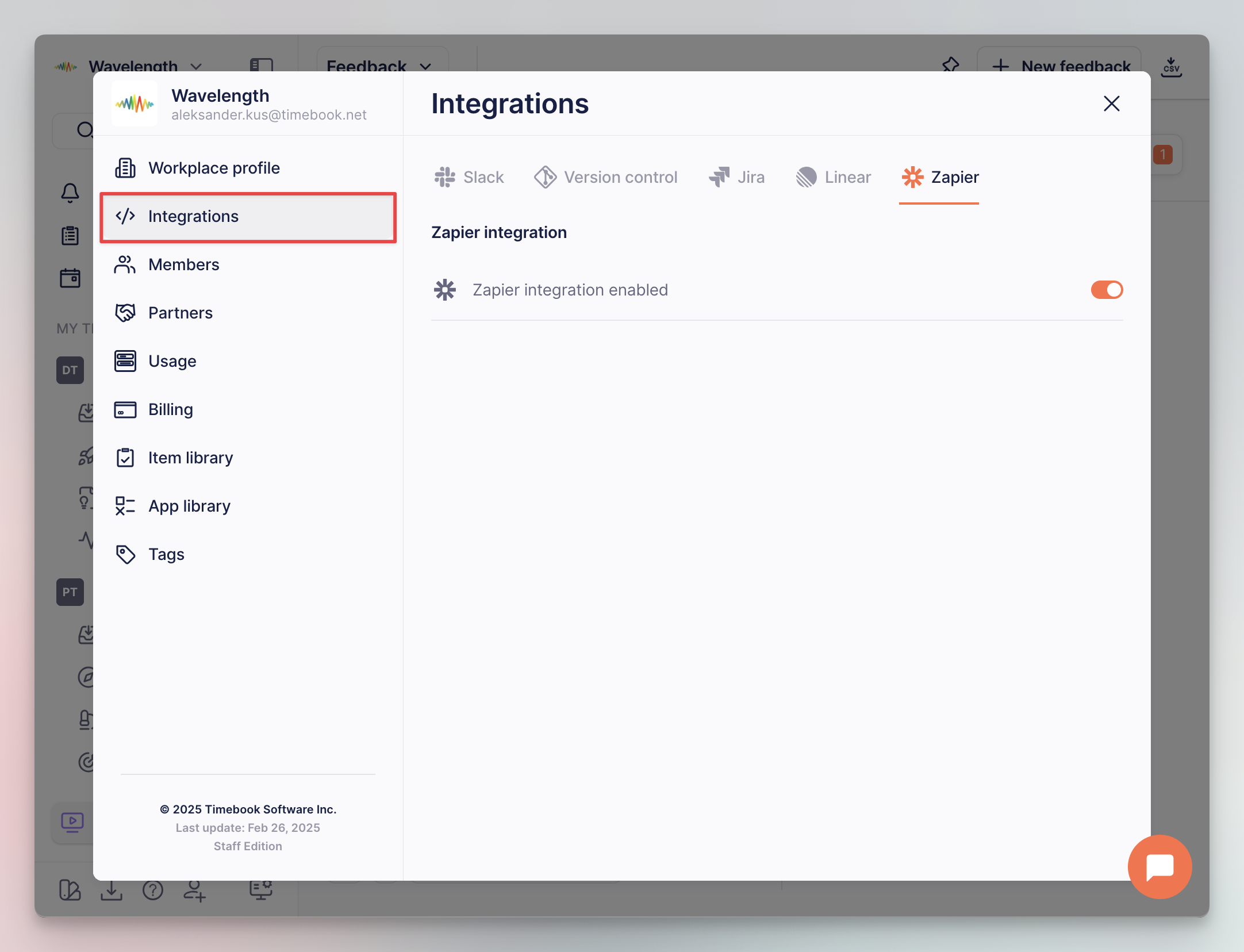
</details>

{% hint style="info" %}
Some object types in Timebook include the \[**Git**] property that links them to corresponding items in Bitbucket, GitHub, or GitLab. You can configure these objects to update their statuses automatically based on specific events in Git, like opening or merging a pull request.

For more information, see [Broken mention](broken://pages/pPQkI9wxsudlEiYHn0nr), and check which features include the dedicated \[**Automation**] tab that allows you to set up this automated configuration.
{% endhint %}

## Related articles

[Broken mention](broken://pages/KjngUpkraXyIaEQMtKkv)

[Broken mention](broken://pages/pPQkI9wxsudlEiYHn0nr)


# Zapier

## About Zapier integration

{% hint style="info" %}
This feature is available in business plans only. Please contact our support if you're interested in using it.
{% endhint %}

Zapier is a tool that allows users to connect different web applications and run tasks between them by defining triggers and actions.

As for now, the integration can perform the following actions in Timebook.

* create an [interview](/hc/get-started/discovery/interviews) or [survey](/hc/get-started/discovery/surveys) object (see [example #1](#example-1-create-interviews-from-google-meet-transcripts))
* create a [feedback](/hc/get-started/discovery/feedback) ticket (see [example #2](#example-2-create-tickets-from-customer-support-tool))

{% hint style="info" %}
Official Timebook listing on Zapier is avalable [here](https://zapier.com/apps/timebook/integrations).
{% endhint %}

## Configuration

First, you need to connect your Timebook and Zapier accounts.

{% stepper %}
{% step %}
Go to **Workspace settings**, switch to the **Integrations** tab, and enable Zapier on the workplace level:

<div align="left"><figure><img src="https://3284049081-files.gitbook.io/~/files/v0/b/gitbook-x-prod.appspot.com/o/spaces%2FvCMXgzPoiE4UXP4jn6B8%2Fuploads%2Fgit-blob-063585fba9b56072db7b584a6f27d9d93efeeb34%2Fzapier-1.png?alt=media" alt="" width="563"><figcaption><p>Zapier integration in workspace settings</p></figcaption></figure></div>
{% endstep %}

{% step %}
Next, go to your user **Preferences**, switch to the integrations tab, and flip the Zapier switch. The action will generate an API key required by Zapier:

<div align="left"><figure><img src="https://3284049081-files.gitbook.io/~/files/v0/b/gitbook-x-prod.appspot.com/o/spaces%2FvCMXgzPoiE4UXP4jn6B8%2Fuploads%2Fgit-blob-6e3145c764c640ce2a3a23c8dcaecab369c030bc%2Fzapier-2.png?alt=media" alt="" width="563"><figcaption><p>Zapier integration in user preferences</p></figcaption></figure></div>
{% endstep %}

{% step %}
Now, go to Zapier, add Timebook as a step, and paste the API key from the previous step once prompted:

<div align="left"><figure><img src="https://3284049081-files.gitbook.io/~/files/v0/b/gitbook-x-prod.appspot.com/o/spaces%2FvCMXgzPoiE4UXP4jn6B8%2Fuploads%2Fgit-blob-1792827b1d827aa359cdf597e118ef4a4d9504b1%2Fzapier-3.png?alt=media" alt="" width="375"><figcaption><p>API key prompt screen in Zapier</p></figcaption></figure></div>
{% endstep %}
{% endstepper %}

## Zap configuration

{% hint style="warning" %}
At the moment the integration does not support Timebook as a trigger source. If you're interested in such feature, please contact our team.
{% endhint %}

### Example 1: Create interviews from Google Meet transcripts

{% hint style="success" %}
In this example we shall create a zap which creates an interview object in Timebook whenever a new transcript file is uploaded to the selected Google Drive folder.
{% endhint %}

{% hint style="info" %}
The following guide works just as well for surveys – just change the last action to **Create survey** instead of interview.
{% endhint %}

{% stepper %}
{% step %}
Add the first step to define the trigger action. Select **Google Drive** as the triggering app, and **New File in Folder** as the event:

<div align="left"><figure><img src="https://3284049081-files.gitbook.io/~/files/v0/b/gitbook-x-prod.appspot.com/o/spaces%2FvCMXgzPoiE4UXP4jn6B8%2Fuploads%2FbgEPtCpX2slttEErb4vK%2FCleanShot%202026-01-19%20at%2016.40.41%402x.png?alt=media&amp;token=49a2fe63-6ad5-4fbc-be4c-83653ccfe370" alt="" width="563"><figcaption><p>Google Drive trigger configuration</p></figcaption></figure></div>

The 'Configure' tab in the trigger actions lets you select the actual drive and folder to track. In this example, we narrow it down the `Meet Recordings` folder where the transcripts are stored:

<div align="left"><figure><img src="https://3284049081-files.gitbook.io/~/files/v0/b/gitbook-x-prod.appspot.com/o/spaces%2FvCMXgzPoiE4UXP4jn6B8%2Fuploads%2FaghglA3x1PEo5iRGi94X%2FCleanShot%202026-01-20%20at%2016.08.18%402x.png?alt=media&amp;token=8e89240c-1f71-42df-bd71-b061df2ec085" alt="" width="563"><figcaption><p>Selecting folder with Google Meet recordings</p></figcaption></figure></div>
{% endstep %}

{% step %}
Once we know which files to pick and when, we need to transform the formatted data into plaintext that can be digested by Timebook.

For this we'll use Zapier's own **Files** action with the event **Text From File**.

{% hint style="warning" %}
To ensure compatibility with Google Meet files, set the file type to `.docx`.
{% endhint %}

<div align="left"><figure><img src="https://3284049081-files.gitbook.io/~/files/v0/b/gitbook-x-prod.appspot.com/o/spaces%2FvCMXgzPoiE4UXP4jn6B8%2Fuploads%2FcJ3oGqQF8jKUBoKwMzNj%2Fzapier-google-drive-3.png?alt=media&amp;token=665d93fe-543d-44a0-b640-2b3c8fc46ece" alt="" width="563"><figcaption><p>Files by Zapier configuration</p></figcaption></figure></div>

Once tested, the action should transform the input into plaintext:

<div align="left"><figure><img src="https://3284049081-files.gitbook.io/~/files/v0/b/gitbook-x-prod.appspot.com/o/spaces%2FvCMXgzPoiE4UXP4jn6B8%2Fuploads%2F0tBOczTLf6yaCerYQ3w4%2FCleanShot%202026-01-20%20at%2016.28.26%402x.png?alt=media&amp;token=565d8d8f-cc33-44a8-9acf-bc58f55d1e20" alt="" width="563"><figcaption><p>Example comparison of input vs output from Zapier's Files action</p></figcaption></figure></div>
{% endstep %}

{% step %}
The last step before sending to Timebook is cleaning unnecessary HTML tags using Zapier's **Formatter** action.

Set the action event to **Text** and configure the 'Input' field to inject the text from the previous step:

<div align="left"><figure><img src="https://3284049081-files.gitbook.io/~/files/v0/b/gitbook-x-prod.appspot.com/o/spaces%2FvCMXgzPoiE4UXP4jn6B8%2Fuploads%2FRCIhubkqxAvqTKFU4ETP%2Fzapier-google-drive-5.png?alt=media&amp;token=6b8bc489-22a0-418f-b098-fc848877dc50" alt="" width="563"><figcaption><p>Formatter by Zapier configuration</p></figcaption></figure></div>

The result is text in clear form with minimum to no impact on further AI processing:

<div align="left"><figure><img src="https://3284049081-files.gitbook.io/~/files/v0/b/gitbook-x-prod.appspot.com/o/spaces%2FvCMXgzPoiE4UXP4jn6B8%2Fuploads%2F24C0tY0M3Ab5x8smwOTA%2Fzapier-google-drive-6.png?alt=media&amp;token=da95e40c-15a2-4a5a-b488-84d222faeddf" alt="" width="228"><figcaption><p>Example data with removed tags</p></figcaption></figure></div>
{% endstep %}

{% step %}
Finally, we can add the step that creates the interview object in Timebook. For this, look up the **Timebook** app and set the action event to **Create interview**.

<div align="left"><figure><img src="https://3284049081-files.gitbook.io/~/files/v0/b/gitbook-x-prod.appspot.com/o/spaces%2FvCMXgzPoiE4UXP4jn6B8%2Fuploads%2FWvMbTU9L0CMQp3NBompJ%2Fzapier-google-drive-7.png?alt=media&amp;token=808edb1d-fc01-4779-88f6-add869dbecd4" alt="" width="563"><figcaption><p>Timebook interview creation event</p></figcaption></figure></div>

The configuration tab has three inputs which are mirrored in Timebook.

* **Transcript**: the actual transcript in the Recoding tab. Map the field to **Step 3** → **Output** to fetch the output of the previous formatting action.
* **Product**: the product in Timebook to which the interview will be assigned.
* **Contact email**: the email of the interview participant.

<div align="left"><figure><img src="https://3284049081-files.gitbook.io/~/files/v0/b/gitbook-x-prod.appspot.com/o/spaces%2FvCMXgzPoiE4UXP4jn6B8%2Fuploads%2FphrZMShPiQnxGMMGoj87%2FCleanShot%202026-01-21%20at%2013.07.26%402x.png?alt=media&amp;token=7909b525-0506-49ce-b4b1-385c35632697" alt="" width="563"><figcaption><p>Interview creation configuration</p></figcaption></figure></div>
{% endstep %}
{% endstepper %}

### Example 2: Create tickets from Customer Support tool

{% hint style="success" %}
This use case describes how to automatically forward emails from a CS software to Timebook upon applying a specific tag to the conversation.
{% endhint %}

{% stepper %}
{% step %}
Add the first step to define the trigger action. Here we use **Crisp** as the source app, and updating conversation segment (tag) as the trigger event.

We also apply a filter which restricts the trigger segment to 'timebook'. In other words, the message will be forwarded to Timebook upon applying this tag to a user in Crisp.

<div align="left"><figure><img src="https://3284049081-files.gitbook.io/~/files/v0/b/gitbook-x-prod.appspot.com/o/spaces%2FvCMXgzPoiE4UXP4jn6B8%2Fuploads%2Fgit-blob-eb85c4392b1f9920b05b8d210a18024697619d75%2Fzapier-4.png?alt=media" alt="" width="563"><figcaption><p>Zap with Crisp and filtering actions</p></figcaption></figure></div>
{% endstep %}

{% step %}
With the trigger configured, we can now add Timebook and the action event to perform:

<div align="left"><figure><img src="https://3284049081-files.gitbook.io/~/files/v0/b/gitbook-x-prod.appspot.com/o/spaces%2FvCMXgzPoiE4UXP4jn6B8%2Fuploads%2Fgit-blob-e2173435b73e98ed6d39e36d8af36f5349c94ca2%2Fzapier-5.png?alt=media" alt="" width="563"><figcaption><p>Timebook ticket creation action</p></figcaption></figure></div>
{% endstep %}

{% step %}
The last step is mapping the sources from Crisp to to Timebook. Here we populate 5 properties:

* **Title** (dynamic) – the subject of the ticket
* **Ticket description** (dynamic) – the contents of the ticket (e.g. the last message from the user)
* **Team** (static) – the team to which the ticket will be assigned
* **Contact email** (dynamic) – the email of the user whose message is forwarded
* **Severity** (static) – the priority of the ticket: `low`, `medium`, `high`, `urgent`

<div align="left"><figure><img src="https://3284049081-files.gitbook.io/~/files/v0/b/gitbook-x-prod.appspot.com/o/spaces%2FvCMXgzPoiE4UXP4jn6B8%2Fuploads%2Fgit-blob-f636b6141f64b4af00ec95d83620b9d2eb1d8bbb%2Fzapier-6.png?alt=media" alt="" width="563"><figcaption><p>Field mapping in Timebook ticket action</p></figcaption></figure></div>
{% endstep %}
{% endstepper %}


# Zoom

## About Zoom integration

Integration with Zoom allows you to schedule customer interviews in Timebook and automatically download the conversation transcript, which can be further turned to [insights](/hc/get-started/discovery/insights) and [opportunities](/hc/get-started/discovery/opportunities).

## Configuration

{% hint style="danger" %}
Please make sure your Zoom plan includes cloud recording. Otherwise, you will not be able to use post-recording [discovery features](/hc/get-started/discovery).
{% endhint %}

### Zoom

To allow Timebook to download and process audio transcripts, you must first enable audio transcription in your Zoom account.

{% hint style="warning" %}
Zoom is currently [updating the way](https://support.zoom.com/hc/en/article?id=zm_kb\&sysparm_article=KB0085668) transcrips and captions are working. This means you can have different UI of the related settings (both exemplified below).
{% endhint %}

{% stepper %}
{% step %}
Log in to your [Zoom account](https://zoom.us/signin) and go to the **Settings** tab.
{% endstep %}

{% step %}
Depending on the UI, make sure the following options are selected:<br>

{% tabs %}
{% tab title="New" %}

* Enable automatic transcriptions for all meetings

<figure><img src="https://3284049081-files.gitbook.io/~/files/v0/b/gitbook-x-prod.appspot.com/o/spaces%2FvCMXgzPoiE4UXP4jn6B8%2Fuploads%2FJe44OTX09jmLpeUPBt41%2Fzoom-settings-new.png?alt=media&amp;token=3630a5ff-6a45-409e-af9f-a324f7277f17" alt=""><figcaption><p>Automatic transcription settings in Zoom</p></figcaption></figure>
{% endtab %}

{% tab title="Legacy" %}

* Cloud recording
* Create audio transcript

<div align="left"><figure><img src="https://3284049081-files.gitbook.io/~/files/v0/b/gitbook-x-prod.appspot.com/o/spaces%2FvCMXgzPoiE4UXP4jn6B8%2Fuploads%2Fgit-blob-6631141c333ab67e66c27325ad83ec4b49c86266%2Fzoom-1.png?alt=media" alt=""><figcaption><p>Cloud recording settings in Zoom (legacy)</p></figcaption></figure></div>
{% endtab %}
{% endtabs %}
{% endstep %}
{% endstepper %}

{% hint style="info" %}
Learn more about cloud recording in the [Zoom documentation](https://support.zoom.com/hc/en/article?id=zm_kb\&sysparm_article=KB0065911).
{% endhint %}

### Timebook

Zoom is a **user-level** integration, which means it needs to be enabled individually by each user who'd like to use it with Timebook.

{% stepper %}
{% step %}
Go to your user **Preferences** → **Integrations** and flip the Zoom switch.

<div align="left"><figure><img src="https://3284049081-files.gitbook.io/~/files/v0/b/gitbook-x-prod.appspot.com/o/spaces%2FvCMXgzPoiE4UXP4jn6B8%2Fuploads%2Fgit-blob-2c25fe18eb6fd2d9b548508b6e87b6a717b97622%2FCleanShot%202025-11-17%20at%2011.21.11%402x.png?alt=media" alt="" width="563"><figcaption><p>Zoom integration in user preferences</p></figcaption></figure></div>
{% endstep %}

{% step %}
Once prompted, log in to your Zoom account and allow access from Timebook.
{% endstep %}
{% endstepper %}

## Using Zoom with Timebook

Once configured, Timebook will produce a video conference link for Zoom whenever you schedule a new interview:

<div align="left"><figure><img src="https://3284049081-files.gitbook.io/~/files/v0/b/gitbook-x-prod.appspot.com/o/spaces%2FvCMXgzPoiE4UXP4jn6B8%2Fuploads%2Fgit-blob-0a4585a5e4006f6357a2f8963f2485e50ca855c7%2FCleanShot%202025-11-17%20at%2014.27.07%402x.png?alt=media" alt="" width="563"><figcaption><p>Interview setup with Zoom conference link</p></figcaption></figure></div>

Once you finish the interview, the transcript will be automatically downloaded to the [interview item](/hc/get-started/discovery/interviews). Here we can see an interview with attached transcript and recording:

<div align="left"><figure><img src="https://3284049081-files.gitbook.io/~/files/v0/b/gitbook-x-prod.appspot.com/o/spaces%2FvCMXgzPoiE4UXP4jn6B8%2Fuploads%2Fgit-blob-7ed95718c6797f4a70041b96f1a36934b88d3c9b%2FCleanShot%202025-11-18%20at%2010.19.14%402x.png?alt=media" alt="" width="563"><figcaption><p>Interview details: transcript and recording</p></figcaption></figure></div>

Using the transcript data, Timebook automatically generates insights (pain points and feature requests), from which you can generate achievable opportunities:

<div align="left"><figure><img src="https://3284049081-files.gitbook.io/~/files/v0/b/gitbook-x-prod.appspot.com/o/spaces%2FvCMXgzPoiE4UXP4jn6B8%2Fuploads%2Fgit-blob-79cba5a6d98f2c5ceda8c102153a22df0284be85%2FCleanShot%202025-11-18%20at%2011.58.46%402x.png?alt=media" alt="" width="563"><figcaption><p>Interview details: insights</p></figcaption></figure></div>

## Troubleshooting

**Problem #**&#x31;: I cannot see the options required for integration in my Zoom account.\
Solution: Make sure that your Zoom plan supports cloud recording features

**Problem #**&#x32;: Transcripts are not being download to Timebook after the meeting.\
Solution: Please answer the following questions.

1. Did you activate the [required options](#zoom) in Zoom settings?
2. Did you capture the recording *in cloud*? The feature does not work for local recordings.
3. Did you wait long enough? Zoom usually takes a while to process the transcript, which is only fetched when ready.


# Your guide to Timebook policies

Reading time: 2 minutes

Welcome to the **Terms & Policies** chapter of our Knowledge Base. Here, you'll find important information about how we operate, protect your privacy, and manage interactions with third-party services. This section provides a quick overview of our policies and terms, so you know exactly what to expect when using Timebook.

* Our [**Terms of Service**](/hc/terms-and-policies/your-guide-to-timebook-policies/terms-of-service) outline the rules and guidelines for using Timebook. This article covers the essentials of your rights and responsibilities as a user, as well as what you can expect from us.
* Protecting your privacy is a priority for us. In the [**Privacy Policy**](/hc/terms-and-policies/your-guide-to-timebook-policies/privacy-policy) article, we detail how we collect, use, and safeguard your personal information, ensuring transparency every step of the way.
* Timebook interacts with a few third-party services to provide a seamless experience. The [**Third-party Services**](/hc/terms-and-policies/your-guide-to-timebook-policies/third-party-services) article explains these integrations and what they mean for your data and experience.
* Cookies help us improve your experience on Timebook, and our [**Cookie Policy**](/hc/terms-and-policies/your-guide-to-timebook-policies/cookie-policy) breaks down how and why we use them. This article explains what cookies are, the types we use, and how you can manage your cookie preferences.
* We’ve included an [**AI Disclaimer**](/hc/terms-and-policies/your-guide-to-timebook-policies/ai-disclaimer) to explain where AI-generated content may appear and encourage you to verify information when necessary. We’re committed to transparency and want to remind you that while AI enhances the user experience, it can sometimes generate content that may require human review.
* The [**Data Regions**](/hc/terms-and-policies/your-guide-to-timebook-policies/data-regions) article explains the concept of data residency and how it is used in Timebook. Data regions let you choose where your data is stored and processed—either in the US or EU—ensuring compliance with regional laws like GDPR and optimizing user performance.

***

## Main articles in this chapter

<table data-view="cards"><thead><tr><th></th><th></th><th data-hidden></th><th data-hidden data-card-target data-type="content-ref"></th></tr></thead><tbody><tr><td><mark style="color:blue;"><strong>Terms of Service</strong></mark></td><td>Understand the rules and guidelines for using Timebook effectively.</td><td></td><td></td></tr><tr><td><mark style="color:blue;"><strong>Privacy Policy</strong></mark></td><td>Learn how we handle, protect, and respect your personal data.</td><td></td><td><a href="/hc/terms-and-policies/your-guide-to-timebook-policies/privacy-policy">Privacy Policy</a></td></tr><tr><td><mark style="color:blue;"><strong>Third-party Services</strong></mark></td><td>Discover how our integrations with external services impact your experience.</td><td></td><td><a href="/hc/terms-and-policies/your-guide-to-timebook-policies/third-party-services">Third-party Services</a></td></tr><tr><td><mark style="color:blue;"><strong>Cookie Policy</strong></mark></td><td>Find out how we use cookies to enhance your interaction with Timebook.</td><td></td><td><a href="/hc/terms-and-policies/your-guide-to-timebook-policies/cookie-policy">Cookie Policy</a></td></tr><tr><td><mark style="color:blue;"><strong>AI Disclaimer</strong></mark></td><td>Be aware of AI-generated content and the importance of verifying information.</td><td></td><td><a href="/hc/terms-and-policies/your-guide-to-timebook-policies/ai-disclaimer">AI Disclaimer</a></td></tr><tr><td><mark style="color:blue;"><strong>Data Regions</strong></mark></td><td>Learn about the concept of data residency and how it is used in Timebook.</td><td></td><td><a href="/hc/terms-and-policies/your-guide-to-timebook-policies/data-regions">Data Regions</a></td></tr></tbody></table>


# Terms of Service

This article was last updated on Dec 21, 2023

These Terms of Service (the “**Terms**”) constitute a binding agreement between you and Timebook Software Inc. (“**Timebook**,” “**we**,” or “**us**”) with respect to your access to or use of the Service (as defined herein). The Service is offered subject to your acceptance, without modification, of all terms and conditions set forth herein.

***

PLEASE READ THESE TERMS CAREFULLY. BY CLICKING “I ACCEPT”, BY ACCESSING OR USING THE SERVICE OR ANY PORTION THEREOF IN ANY MANNER, OR BY PLACING ANY ORDER, YOU: (A) ACKNOWLEDGE THAT YOU HAVE READ, UNDERSTAND, AND AGREE TO BE BOUND BY THESE TERMS AND BY SUCH OTHER TERMS, CONDITIONS, POLICIES, AND DOCUMENTS THAT MAY BE INCORPORATED HEREIN BY REFERENCE, INCLUDING, WITHOUT LIMITATION, THE TIMEBOOK [Privacy Policy](/hc/terms-and-policies/your-guide-to-timebook-policies/privacy-policy) (COLLECTIVELY, THE “**AGREEMENT**”); (B) AFFIRM THAT YOU ARE AT LEAST 18 YEARS OF AGE (OR HAVE REACHED THE AGE OF MAJORITY IN THE JURISDICTION WHERE YOU RESIDE); AND (C) IF YOU ARE ACCEPTING THIS AGREEMENT ON BEHALF OF A COMPANY OR OTHER ORGANIZATION, REPRESENT AND WARRANT THAT YOU HAVE THE ORGANIZATIONAL AND LEGAL AUTHORITY TO ACCEPT THIS AGREEMENT ON SUCH COMPANY’S OR OTHER ORGANIZATION’S BEHALF AND TO BIND SUCH COMPANY OR ORGANIZATION. IF YOU DO NOT AGREE TO THIS AGREEMENT, DO NOT ACCESS, USE, INSTALL, OR ORDER THE SERVICE (AS DEFINED BELOW).

THIS AGREEMENT REQUIRES THE USE OF BINDING ARBITRATION ON AN INDIVIDUAL BASIS TO RESOLVE DISPUTES RATHER THAN JURY TRIALS OR CLASS ACTIONS, IN ACCORDANCE WITH THE TERMS OF SECTION 23 (ARBITRATION; JURY WAIVER; CLASS ACTION WAIVER) BELOW.

TIMEBOOK MAY REFUSE ACCESS TO OR USE OF THE SERVICE FOR NONCOMPLIANCE WITH ANY PART OF THIS AGREEMENT. THIS AGREEMENT IS VOID WHERE PROHIBITED BY LAW, AND ANY RIGHTS TO ACCESS OR USE THE SERVICE ARE REVOKED IN SUCH JURISDICTIONS.

***

“You” as used herein means the natural person or entity that has agreed to be bound by this Agreement, including, without limitation, (i) an entity that subscribes to use the Service on a subscription or other basis (a “**Subscriber**”); (ii) an individual employee or representative of a Subscriber who accesses or uses the Service as an authorized user of a Subscriber (an “**Authorized User**”); or (iii) an individual user that registers for access to the Services for personal use (an “**Individual User**”).

***

## 1. The Service

Timebook operates an online service through its website with a homepage at [https://www.timebook.net](https://www.timebook.net/), any subdomains and/or other websites, and any associated mobile or desktop applications (the “**Site**”), including all features, content, tools, applications, application program interfaces, widgets and other tools and services included thereby (collectively, the “**Service**”).

The Service provides a calendar-driven management center for a user’s work tasks, which enables a user to pull email, notes, or other actionable objects from a wide variety of sources and use them to create tasks, streamline the tasks a user needs to complete on a given day, and collaborate and communicate with others on those tasks.

## 2. Scope of Access

The scope of your access to the Service may be determined or otherwise limited by the terms of the applicable Subscription Plan (as defined below) selected by or attributed to you, which Subscription Plan will be identified and described on an order form that incorporates this Agreement, or through such other ordering process (including via a separate agreement and order form) as may be permitted by Timebook from time to time (an “**Order**”).

Timebook may choose not to accept Orders at its sole and absolute discretion. For the avoidance of doubt, all Orders accepted by Timebook shall be subject to the terms and conditions of this Agreement unless otherwise specified in a separate written agreement executed between you and Timebook.

## 3. Changes to the Agreement

Timebook reserves the right to modify or change this Agreement and its terms, as well as the fees and other amounts charged for the Service, at any time and in its sole discretion. Any modifications or changes will be effective immediately upon posting at the Site unless otherwise specified in the updated Agreement. You waive any right you may have to receive specific notice of any modifications or changes, except as otherwise required by law. Your continued access to and use of the Site and Service confirms your acceptance of this Agreement and any changes or modifications made to the Agreement.

You should review this Agreement frequently and ensure you understand all terms, conditions, and policies applicable to your access to and use of the Service.

## 4. Access to the Service

**a) Service Subscriptions**

If you are a Subscriber, Authorized User, or Individual User, the Service is offered on a subscription basis and in accordance with the service plan selected by Subscriber or Individual User and identified in the Order (a “**Subscription Plan**”). We may modify, terminate, or replace the Service or any Subscription Plan from time to time in our sole discretion and without prior notice. If you are a Subscriber or Individual User, you should carefully review the scope and limitations of any Subscription Plan prior to placing an Order.

***

**b) Subscribers, Authorized Users, and Individual Users**

Subject to and conditioned upon Subscriber’s or Individual User’s compliance with the terms and conditions of this Agreement, Timebook will provide to Subscriber’s Authorized Users or an Individual User access to and use of the Service, in accordance with Subscriber’s or Individual User’s Subscription Plan and during Subscriber’s or Individual User’s paid-up subscription period, as set forth in the Order.

***

**c) Limitations**

The rights granted under Section 4 hereof are non-exclusive, non-transferable (except in accordance with Section 24(c) hereof), non-sublicensable, and revocable (in accordance with the terms hereof). Timebook may suspend or terminate Subscriber’s, any Authorized User’s, or Individual User’s access to the Service or any component thereof if Timebook reasonably determines that Subscriber, Authorized User, or Individual User has violated any term or condition of this Agreement. Subscriber will be liable to Timebook for any violation of the terms and conditions of this Agreement by Subscriber or any Authorized User. Individual User shall be liable to Timebook for any violation of the terms and conditions of this Agreement by such Individual User.

***

**d) Rights of Subscriber**

As between Timebook and Subscriber, Subscriber shall be responsible for determining the scope and level of each Authorized User’s access to the Service; subject, however, to the scope and limitations of the rights granted under Section 4(b). Subscriber may, at any time and in its sole discretion, revoke or limit the access of any Authorized User to the Service. If, at any time, Subscriber ceases to classify an individual as an Authorized User hereunder, all rights of such person to access or use the Service shall immediately cease.

## 5. User Accounts

In order to access and use the Service or certain features thereof, you may be required to establish a Timebook user account (a “**User Account**”). You must provide true, accurate, current, and complete information as prompted by the applicable registration or login form, and you are responsible for keeping such information up to date. You are responsible and liable for all activities conducted through your User Account, regardless of who conducts those activities. You are responsible for maintaining the confidentiality of any user IDs, passwords and other credentials associated with your User Account, and shall immediately notify Timebook of any actual or suspected unauthorized access to or use of your User Account or any associated user IDs, passwords, and other credentials. You will cooperate fully with Timebook and take all actions that Timebook reasonably deems necessary to maintain or enhance the security of the Service, Timebook’s computing systems and networks, and your access to the Service. Timebook is not and shall not be deemed liable for any loss or damage to you arising from your (or, if you are a Subscriber, your Authorized Users’) failure to comply with this Section 5.

## 6. Restrictions

You shall not and shall not attempt to (and, if you are a Subscriber, you shall ensure that your Authorized Users do not and do not attempt to): (i) copy, reproduce, modify, decompile, disassemble, or reverse engineer the Service or any associated software or materials (except to the extent that applicable law prohibits or restricts reverse engineering restrictions); (ii) provide any third parties with access to any of the Service, or use any of the Service for time sharing or similar purposes for the benefit of any third party; (iii) remove any copyright or proprietary notices contained in the Service or any output thereof; (iv) breach, disable or tamper with, or develop or use any workaround for, any security measure provided or used by the Service; (v) access the Service via any bot, web crawler, non-human user, or unpublished or undocumented application programming interfaces (APIs); (vi) use any published Timebook APIs in a manner inconsistent with their intended purpose, documentation, and policies (vii) misrepresent your identity; (viii) stalk or harass any other user of the Service; (ix) access or use (or permit a third party to access or use) the Service for any unlawful purpose or for purposes of monitoring the availability, performance or functionality of the Service or for any other benchmarking or competitive purposes; or (x) make any use of, or take any other action with respect to, the Site or Service or any component thereof in a manner that violates applicable law, any provision of this Agreement, or, if you are a Subscriber or Authorized User, any professional or ethical rules or guidelines applicable to you.

## 7. Content from Users

**a) User Content**

As between you and Timebook, you are solely responsible for the accuracy, quality, integrity, legality, reliability, and appropriateness of all User Content and other information, materials, or content that you (or, if you are a Subscriber, that any of your Authorized Users) upload, import, input, or post, or authorize for upload, importation, input, or posting, to or otherwise in connection with the Service. Without limiting the generality of the foregoing, you shall not (nor, if you are a Subscriber, shall you permit any Authorized User to) upload, import, input, or post (or authorize the upload, importation, input, or posting of) any User Content or other information, materials or content that (i) infringes the intellectual property rights, rights of privacy or publicity, or other proprietary rights of any third party, (ii) violates any applicable law, (iii) is, or is likely to be considered, immoral, libelous, tortuous, defamatory, threatening, vulgar, or obscene or harmful to minors, or (iv) contains any malware, viruses, Trojan horses, spyware, worms, or other malicious or harmful code. You acknowledge and agree that Timebook does not, nor is it obligated to, monitor or police any communications or data, information, materials, or content (including User Content) integrated or imported into, transmitted through, or posted to the Site or the Service and Timebook will not be responsible for such data, information, materials, or content (including User Content). Notwithstanding the foregoing, however, Timebook may, at its option and in its sole discretion, remove or delete from the Site or Service any data, information, materials, or content (including any User Content) that Timebook determines violates the terms of this Agreement. For purposes of this Agreement, “**User Content**” shall mean any data, materials, trademarks, logos, tradenames, or information that you upload, import, input or post (or if you are a Subscriber, that any Authorized User uploads, imports, inputs, or posts), including verbally or in audio or visual format, into, through, or in connection with the Site or Service.

***

**b) Content Transmitted Through the Service**

The Service includes certain features that enable users to message one another, including in real time (collectively, “**User Messaging**”). Any opinions, recommendations, offers, advice, or other information disseminated through User Messaging or verbally through the Service are those of the respective user, and Timebook shall have no responsibility or liability with respect to the same. All User Messaging and other communication accomplished through the Service shall constitute User Content hereunder and is subject to the requirements and restrictions set forth in Section 7(a) hereof. If you believe that another user has violated this Agreement, including, without limitation, with respect to User Messaging or User Content, please promptly report the violation to Timebook via email at [support@timebook.net.](mailto:support@timebook.net)

***

**c) Limited License to User Content**

Timebook respects the ownership rights you may have in your User Content and User Messaging. You do, however, hereby agree to grant Timebook a non-exclusive, perpetual, irrevocable, worldwide, royalty-free, fully paid-up, and fully sublicensable right (including any moral rights) and license to use, store, copy, distribute, publicly perform, communicate to the public, host, stream, publicly display, modify, and create derivative works of any User Content to operate, secure, and improve the Service and to make the Service available to Subscribers, Authorized Users, and Individual Users. You represent and warrant to Timebook that you have all rights necessary to grant the rights and licenses granted to Timebook under this Agreement.

## 8. User Obligations

You are responsible for your (or in the case of a Subscriber, your Authorized Users’) use of the Service and compliance with this Agreement, and for all User Content (including, without limitation, User Messaging).

You agree to (i) obtain all third-party consents or approvals that may be necessary for the collection, use, transmission, and uploading of User Content or other content sent to or by means of the Service by you or on your behalf (or, in the case of a Subscriber, by or on behalf of your Authorized Users), and (ii) comply with all applicable laws and regulations with respect to your access to or use of the Service, including without limitation those pertaining to privacy, data security, and publicity.

## 9. Technical Requirements

You acknowledge and agree that the access to and use of the Service by you (and, if you are a Subscriber, by any Authorized User) is dependent upon access to telecommunications and Internet services.

You acknowledge that Timebook is not responsible for acquiring or maintaining any telecommunications or Internet services or other hardware or software that you (or, if you are a Subscriber, that any Authorized User) may need to access and use the Service, or for any costs, fees, expenses, or taxes of any kind related to the foregoing.

## 10. Term and Termination

This Agreement shall remain in full force and effect while you use the Service. Timebook may terminate or restrict your access to any or all of the Service or your User Account, for any reason, and without warning, and Timebook reserves the right to discontinue or modify any aspect of the Service at any time. Any termination of this Agreement is without prejudice to any rights and obligations of the parties accrued up to and including the date of termination. Upon termination of this Agreement, you will remain liable for any accrued charges and amounts which become due for payment before or after termination and immediately cease to use the Service.

## 11. Service Fees and Other Charges

**a) Payment Method**

In order to acquire a Subscription Plan, you must have a current valid credit card or other payment method acceptable to Timebook (a "**Payment Method**"). By providing a Payment Method to Timebook, you are expressly authorizing Timebook to charge you for any purchases you make through the Service and for all service fees, subscription fees, or other amounts applicable to your access to and use of the Service, at the applicable frequency and at the then-current rate. Except as otherwise set forth herein, Timebook will bill all applicable subscription fees, service fees, and other fees and amounts in advance and to the Payment Method you listed in your User Account, or to a different Payment Method if you provide us with a different Payment Method in connection with the applicable purchase.

***

**b) Free Trials**

Should your Subscription Plan may include a free trial (a “**Trial**”), we reserve the right, in our sole discretion, to determine your eligibility for a Trial and to modify the scope and availability of any Trial at any time. If you receive a Trial, you may only use those portions of the Service included in your Trial and only for the duration of that Trial. Upon the expiration of any Trial period, your access to the Service will cease or transition to a paid subscription according to the Subscription Plan to which you subscribed in accordance with the terms and conditions of this Agreement.

***

**c) Subscription Fees**

As consideration for Timebook’s provision of the Service hereunder to an Individual User or a Subscriber/its Authorized Users, the Individual User or Subscriber, as the case may be, will pay to Timebook all subscription fees and other amounts in the manner set forth hereunder or in the Order. Unless otherwise expressly established in the Order, the subscription fees and payment terms applicable to the Subscription Plan are displayed at the point of purchase. EXCEPT AS SPECIFICALLY SET FORTH IN SECTION 11(e), ALL SUBSCRIPTION FEES ARE NON-REFUNDABLE.

***

**d) Renewal Terms**

If you are a Subscriber or Individual User, your Subscription Plan will automatically renew for additional subscription terms of the same length upon expiration of your initial subscription term unless and until you cancel your Subscription Plan or we terminate it. YOU MUST CANCEL YOUR SUBSCRIPTION PLAN WITHIN 15 CALENDAR DAYS OF ANY RENEWAL IN ORDER TO BE ELIGIBLE FOR ANY RETURN OF SUBSCRIPTION FEES FOR THE THEN-CURRENT RENEWAL SUBSCRIPTION. ANY SUBSCRIPTIONS NOT CANCELED WITHIN SUCH 15-DAY GRACE PERIOD SHALL NOT BE ELIGIBLE FOR ANY RETURN OF FEES.

***

**e) Cancelation**

Subject to Section 11(d), you may cancel your Subscription Plan at any time; provided, however, that any such cancellation shall not become effective until the expiration of your then-current subscription term. If you cancel your Subscription Plan, you will continue to have access to the Service in accordance with the terms of your applicable Subscription Plan for the remainder of the then-current subscription term. EXCEPT AS EXPRESSLY SET FORTH IN SECTION 11(D) HEREOF, TIMEBOOK DOES NOT PROVIDE REFUNDS OR CREDITS WITH RESPECT TO THE SERVICE OR ANY SUBSCRIPTION PLAN, INCLUDING FOR ANY PARTIALLY-USED SUBSCRIPTION TERMS. To cancel a Subscription Plan, please send a written cancelation request via email to Timebook at <support@timebook.net>, and include the phrase “CANCEL SUBSCRIPTION” in the subject line. For additional information or for assistance, please contact Timebook’s customer support team at <support@timebook.net>. Cancelations of Subscription Plans will only be effective when submitted in compliance with the requirements of, and as set forth in, this Section 11(e).

***

**f) Taxes**

The fees and other payment amounts specified in this Agreement are exclusive of taxes, duties, levies, tariffs, and other governmental charges (including, without limitation, VAT) (collectively, “**Taxes**”). You shall be responsible for payment of all Taxes and any related interest and/or penalties resulting from any payments made hereunder, other than any taxes based on Timebook’s net income.

***

**g) Promotions**

Timebook may offer from time-to-time promotions on the Site or with respect to the Service that may affect pricing and that are governed by terms and conditions separate from this Agreement. If there is a conflict between the terms for a promotion and the terms and conditions of this Agreement, the promotion terms will govern.

## 12. Document Retention & Data Use

**a) Timebook Obligations**

You agree and acknowledge that Timebook is not a provider of data back-up, archiving, or data retention services. As between you and Timebook, you are solely and exclusively responsible for the backing up, archiving, and retaining of all User Content or any other of your information, data, or materials, including, without limitation, all emails, calendar entries, tasks, messages, posts, and the like. While Timebook adheres to reasonable policies and procedures intended to prevent the loss of User Content, including a daily system back-up regime, Timebook does not make any representations, warranties or guarantees that the User Content or other of your information, data or materials will not be lost, altered, destroyed, damaged, or corrupted. TIMEBOOK HAS NO OBLIGATION OR LIABILITY FOR ANY LOSS, ALTERATION, DESTRUCTION, DAMAGE, CORRUPTION, OR RECOVERY OF ANY USER CONTENT.

***

**b) Integrations**

If your Subscription Plan includes the option to integrate with third-party applications, including without limitation, a calendar, email, task management, messaging, or other application, (a “**Third Party App**”), data from that Third Party App (“App Data”) may be ingested by Timebook’s platform in association with your User Account. By accepting this Agreement, including by accessing or using the Site or Service in any manner, you consent to Timebook’s receipt, storage, processing, and sharing of App Data as part of our provision of the Services. Any Third Party App integrations will continue until you revoke access via the Service to the applicable Third Party App. For purposes of this Agreement, all data, records, information, or other materials made available or accessible through the Service by means of a Third Party App integration, including App Data, shall be considered User Content hereunder. You agree and acknowledge that any Third Party App with which the Service is integrated is a Third Party Service (as defined below), and Timebook shall have no responsibility, obligation, or liability with respect to the same.

***

**c) Data Use Rights**

You acknowledge that, in order for Timebook to deliver the Service at a high level of quality, Timebook requires the ability to apply its algorithms, know-how and methodology. Accordingly, and notwithstanding anything herein to the contrary and in addition to all other rights granted hereunder, you hereby grant to Timebook permission to use, on an aggregated and de-identified basis, any User Content or other information that Timebook learns, acquires, or obtains in connection with this Agreement, for the purposes of providing and improving the Service. You also grant to Timebook permission to share or publish summary results relating to anonymized research data, market trends, and the like, and to distribute or license such data to third parties.

***

**d) Use of Name and Logo**

If you are a Subscriber, you hereby grant to Timebook the right to use or reference your name, trade name, trademark, service mark, logo, trade device, sales collateral, promotional material, or simulation thereof (“**Marketing Materials**”) to advertise, promote and/or market Timebook and/or the Services to third parties in advertising, publicity, articles, websites, social media, marketing, promotional or sales collateral materials. Timebook’s use of the Marketing Materials hereunder does not create any ownership right therein and all rights not granted to Timebook are reserved by you.

## 13. Electronic Communication

By accepting this Agreement, on behalf of an entity, your behalf, and on behalf of any other persons that you are responsible for:

a) You consent that Timebook can communicate with you by phone or electronically via in-app messages, texts, e-mails or any other suitable form of electronic communication (“**Messages**”).

b) You consent to receiving Messages from Timebook related to the Service such as but not limited to Messages about access, tasks, events, appointments, quality of service, and availability, as well as Messages that are ancillary to the Service, such as but not limited to Messages about new product announcements, product recommendations, and other promotions.

c) You agree that Timebook can contact you at any time regarding the Service.

d) You agree that Timebook can employ and use automated means and/or a third-party messaging service to send Messages or contact you regarding the Service.

e) You understand that you can revoke your consent to receiving promotional Messages at any time by updating your notification preferences in the account settings of the Service.

f) You accept that you are responsible for keeping your contact information up-to-date in the account settings of the Service.

## 14. Privacy

You acknowledge and agree that all information collected by Timebook is subject to our [Privacy Policy](https://help.timebook.io/hc/terms-and-policies/privacy-policy). By accessing or using the Service, you consent to all actions we take with respect to your information in compliance with our Privacy Policy.

## 15. Intellectual Property

**a) Timebook Intellectual Property**

As between you and Timebook, the Service, Site, and all software and other technologies embodied in or used to provide the same, and all intellectual property rights therein or relating thereto, are and shall remain the exclusive property of Timebook or its licensors.

***

**b) Feedback**

To the extent you provide Timebook with any suggestions, feature requests, evaluation results, feedback, or other input in relation to any aspect of the Site or Service (collectively, “**Feedback**”), you hereby assign and agree to assign to Timebook all right, title and interest in and to such Feedback, including any intellectual property rights therein, and agree that Timebook will be free to use such Feedback in any manner, including by implementing such Feedback in the Service and/or Timebook’s other technologies, products and services, without compensation or other obligation to you.

## 16. Third-Party Applications

The Service may contain links to or otherwise allow you to access third-party applications and services (“**Third Party Services**”) that are not owned or controlled by Timebook. When you access third-party websites or Third Party Services, you do so at your own risk. If you enable Third Party Services for use in conjunction with the Service, you acknowledge that Timebook may allow the providers of those Third Party Services to access or provide User Content as required for the interoperation of such Third Party Services with the Service. Timebook is not responsible for any disclosure, loss, alteration, destruction, damage, corruption, or deletion of any User Content resulting from any such access by Third Party Service providers. Timebook encourages you to be aware when you leave the Service and to read the terms and conditions and privacy policy of each third-party website or Third Party Service (“**Third Party Terms**”) that you visit or from which you access any product or service. Timebook has no control over, and assumes no responsibility for, the content, accuracy, Third Party Terms, or practices of any third-party website or Third Party Service. In addition, Timebook will not and cannot monitor, verify, censor, or edit the content of any third-party website or Third Party Service. When you visit or use a third party’s website or Third Party Service, you acknowledge that such website or Third Party Service is subject to the applicable Third Party Terms, and you release us from any liability directly arising from your use of such websites or Third Party Service. You acknowledge that we are not responsible for such third parties or their products or services. Any such activities, and any Third Party Terms associated with such activities, are solely between you and the applicable third party.

## 17 Representations and Warranties; Other Terms

**a) Representations and Warranties**

You represent, warrant, and covenant that:

1. You are authorized to use the Service and to access all information and data (including all User Content) that you input or import into the Service, and including any such information or data inputted or imported into the Service by any person you have authorized to use the Service (including, without limitation, any Third Party Apps);
2. You own or otherwise have any and all necessary rights in and third party consents relating to such information and data, so that Timebook’s receipt, possession, and processing of such information and data (including any User Content) does not and will not infringe, misappropriate, or otherwise violate the intellectual property rights or any privacy or other rights of any third party or violate any applicable law, rule, or regulation;
3. You are authorized to access the processed information and data (including User Content) that is made available to you through your access to and use of the Service (whether that information and data is your own or that of anyone else); and
4. If you are a Subscriber or Authorized User, you are acquiring the right to access and use the Service for the purposes of a business and that, to the maximum extent permitted by law, any statutory consumer guarantees or legislation intended to protect non-business consumers in any jurisdiction does not apply to this Agreement, the Service, or the provision thereof.

***

**b) Other Terms**

You also agree and acknowledge that:

1. It is solely your responsibility to determine that the Service meets your needs and/or the needs of your business, as applicable, and is suitable for the purposes for which it is used; and
2. The Service is intended only for use within the United States. Timebook makes no representations or warranties that the Service is appropriate for use or access in other locations. If you access or use the Service from any other location, you do so on your own initiative and at your own risk, and you alone are responsible for complying with all applicable law with respect to the same. We reserve the right to limit the availability of the Service and/or the provision of any content, program, product, service or other feature to any person, geographic area, or jurisdiction, at any time and in our sole discretion, and to limit the quantities of any such content, program, product, service or other feature that we provide.

## 18. Disclaimer of Warranties

THE SERVICE IS PROVIDED TO YOU ON AN “AS IS” AND “AS AVAILABLE” BASIS, WITHOUT WARRANTIES OF ANY KIND, AND TIMEBOOK HEREBY DISCLAIMS ALL WARRANTIES, WHETHER EXPRESS, IMPLIED, STATUTORY, OR OTHERWISE, INCLUDING BUT NOT LIMITED TO ANY IMPLIED WARRANTIES OF MERCHANTABILITY, FITNESS FOR A PARTICULAR PURPOSE, QUALITY, TITLE, AND NON-INFRINGEMENT. NEITHER TIMEBOOK NOR ANY PERSON ASSOCIATED WITH TIMEBOOK MAKES ANY REPRESENTATION OR WARRANTY WITH RESPECT TO THE COMPLETENESS, SECURITY, RELIABILITY, QUALITY, ACCURACY, OR AVAILABILITY OF THE SERVICE. WITHOUT LIMITING THE FOREGOING, NEITHER TIMEBOOK NOR ANYONE ASSOCIATED WITH TIMEBOOK REPRESENTS OR WARRANTS THAT THE SERVICE OR ANY RESULTS GENERATED FROM THE USE OF THE SAME, WILL BE ACCURATE, RELIABLE, ERROR-FREE, OR UNINTERRUPTED, THAT DEFECTS WILL BE CORRECTED, THAT THE SERVICE OR THE SERVERS THAT MAKE THE FOREGOING AVAILABLE ARE FREE OF VIRUSES OR OTHER HARMFUL COMPONENTS, OR THAT THE SERVICE WILL OTHERWISE MEET YOUR NEEDS OR EXPECTATIONS. AS BETWEEN YOU AND TIMEBOOK, YOU ASSUME ALL RISK IN CONNECTION WITH YOUR USE OF, INTERPRETATION OF, AND RELIANCE ON THE SERVICE AND ALL CONTENT AND RESULTS GENERATED THEREBY.

TIMEBOOK CANNOT AND DOES NOT CONTROL ACTIONS OF ANY USER. YOU AGREE AND ACKNOWLEDGE THAT TIMEBOOK IS NOT RESPONSIBLE FOR, AND SHALL NOT BE LIABLE IN ANY WAY FOR, ANY ACTS OR OMISSIONS OF ANY THIRD PARTY SERVICE PROVIDER (INCLUDING, WITHOUT LIMITATION, A PROVIDER OF ANY THIRD PARTY APPS OR SERVICES, OR ANY USER OF THE SITE OR SERVICE.

***

Some jurisdictions do not allow the exclusion or limitation of certain warranties, so some of the exclusions and/or limitations in this Section 18 may not apply to you.

## 19. Indemnity

You agree to indemnify, defend, and hold Timebook and its officers, directors, employees, agents, licensors, and service providers harmless from and against any claims, liabilities, losses, damages, judgments, awards, costs, and expenses (including reasonable attorneys’ fees) arising out of or resulting from (a) your access to and use of (and with respect to a Subscriber, your Authorized Users’ access to and use of) the Service and Site, or any violation of this Agreement or applicable law; (b) any use of or integrations with Third Party Apps; and (c) any User Content posted or uploaded to, or otherwise made available through, the Service. We reserve the right, at our own expense, to assume the exclusive defense and control of any action subject to indemnification by you, and in such event you agree to cooperate with us in defending such action.

## 20. Limitation of Liability

TO THE MAXIMUM EXTENT PERMITTED BY LAW, IN NO EVENT WILL TIMEBOOK OR ITS OFFICERS, DIRECTORS, EMPLOYEES, AGENTS, LICENSORS, OR SERVICE PROVIDERS BE LIABLE FOR ANY DIRECT, INDIRECT, INCIDENTAL, CONSEQUENTIAL, SPECIAL, PUNITIVE, OR EXEMPLARY DAMAGES ARISING FROM OR RELATED TO YOUR ACCESS TO, USE OF, OR INABILITY TO ACCESS OR USE THE SERVICE OR SITE, INCLUDING, BUT NOT LIMITED TO, LOSS OF REVENUE, LOSS OF PROFITS, LOSS OF BUSINESS, LOSS OF USE, OR LOSS OF DATA, WHETHER CAUSED BY TORT (INCLUDING NEGLIGENCE), BREACH OF CONTRACT, OR OTHERWISE, EVEN IF FORESEEABLE. IF, NOTWITHSTANDING THE PROVISIONS OF THIS SECTION, TIMEBOOK IS FOUND LIABLE FOR ANY LOSS OR DAMAGE UNDER ANY LEGAL THEORY RELATING IN ANY WAY TO THE SUBJECT MATTER OF THIS AGREEMENT, IN NO EVENT WILL TIMEBOOK’S AGGREGATE LIABILITY TO YOU OR ANY THIRD PARTY EXCEED THE TOTAL AMOUNT OF FEES, IF ANY, PAID BY YOU TO TIMEBOOK IN THE SIX (6) MONTH PERIOD PRECEDING THE EVENT FIRST GIVING RISE TO ANY CLAIM.

***

If you are not satisfied with the Service, your sole and exclusive remedy is to cancel your subscription (if applicable) and cease all use of the Service. Some jurisdictions do not allow the exclusion or limitation of certain consequential damages, so some of the exclusions and/or limitations in this Section 20 may not apply to you.

You and Timebook each understand and agree that the disclaimers, exclusions, and limitations in this Section 20 and in Section 18 are essential elements of this Agreement and that they represent a reasonable allocation of risk. In particular, you understand that Timebook would be unable to make the Site or Service available to you except on these terms and agree that this Agreement will survive and apply even if any limited remedy specified in this Agreement is found to have failed of its essential purpose.

## 21. Digital Millenium Copyright Act

Timebook is committed to respecting and protecting the legal rights of copyright owners in accordance with the Digital Millennium Copyright Act (Section 512(c)(3) of the DMCA (17 U.S.C. § 512 et seq.)). If you believe any content infringes your intellectual property rights, please submit a notice to us describing such infringement (a “**DMCA Takedown Notice**”) with the following information:

* A physical or electronic signature of a person authorized to act on behalf of the owner of an exclusive right that is allegedly infringed;
* Identification of the copyrighted work claimed to have been infringed, or, if multiple copyrighted works at a single online site are covered by a single notification, a representative list of such works;
* Identification of the material claimed to be infringing or to be the subject of infringing activity and that is to be removed or access disabled and information reasonably sufficient to permit the service provider to locate the material;
* Information reasonably sufficient to permit the service provider to contact you, such as an address, telephone number, and, if available, email address;
* A statement that you have a good faith belief that use of the material in the manner complained of is not authorized by the copyright owner, its agent, or the law; and
* A statement that, under penalty of perjury, the information in the notification is accurate and you are authorized to act on behalf of the owner of the exclusive right that is allegedly infringed.

Any DMCA Takedown Notice should be sent to: <support@timebook.net>. You acknowledge that for Timebook to be authorized to takedown any content, your DMCA Takedown Notice must comply with all of the requirements of this Section.

## 22. Help Desk

If you encounter technical problems when using the Service, please email <support@timebook.net>.

## 23. Arbitration; Jury Waiver; Class Action Waiver

Please read this Section carefully. It impacts the rights that you may otherwise have. It provides for resolution of most disputes through individual arbitration instead of trial courts and class actions. This “Arbitration; Jury Waiver; Class Action Waiver” section survives any expiration or earlier termination of these Terms.

***

**Informal Dispute Resolution**

As a condition precedent which must be satisfied prior to initiating any arbitration or other action against the other party, both you and Timebook agree to the following dispute resolution procedure: In the event of any controversy, claim, action or dispute arising out of or related to the Site or the Service, or the breach, enforcement, interpretation, or validity of this Agreement ("Claim"), the party asserting the Claim must first try in good faith to settle such Claim by providing written notice, by first class or registered mail, to the other party describing the facts and circumstances (including any supporting documentation) of the Claim. The party asserting the Claim must allow the receiving party 30 days in which to respond to or settle the Claim.

For purposes of this Section, notices must be sent as follows:

If to Timebook: to 2195 PARADISE DRIVE, TIBURON, CA 94920 with a copy emailed to <legal@timebook.net>.

If to you: to your last-used billing address or the billing and/or delivery address listed in your User Account or the email address listed in your User Account.

***

**Arbitration**

To the extent you cannot resolve any Claim through the informal dispute resolution procedure set forth above, and except as otherwise set forth herein, a Claim must be resolved through binding individual arbitration. You agree to give up your right to go to court to assert or defend your rights under this Agreement and with respect to any Claim. You and Timebook each expressly delegate to the arbitrator the authority to determine the arbitrability of any Claim, including the scope, applicability, validity, and enforceability of this arbitration provision.

To begin an arbitration proceeding, you must send a written notice as provided above. You agree that the arbitration will be conducted by the American Arbitration Association (“**AAA**”) pursuant to its Consumer Arbitration Rules (“**AAA Rules**”), as modified by this Arbitration Agreement. The AAA Rules are available on the AAA’s website [www.adr.org](http://www.adr.org/), or by calling the AAA at (800) 778-7879. In accordance with the AAA Rules, you must also send a copy of your written demand for arbitration to AAA when submitting your request to Timebook. In the event that the AAA is unable or unwilling to initiate arbitration within fourteen (14) days of receiving a demand for arbitration, arbitration may be conducted by JAMS, Inc. (in accordance with its Streamlined Arbitration Rules & Procedures) or by any other mutually agreeable arbitration administration service. You and Timebook each agree that this Agreement evidences a transaction in interstate commerce and that this arbitration provision will be interpreted and enforced in accordance with the U.S. Federal Arbitration Act and federal arbitration law and will not be governed by state law. You may choose to have the arbitration conducted by telephone, based on written submissions, or in person in the county where you live or at another mutually agreed location. The arbitration will be conducted in the English language. An arbitrator may award on an individual basis any relief that would be available in a court, including injunctive or declaratory relief to the extent required to satisfy your individual claim, and must follow and enforce this Agreement as a court would. Any arbitration shall be confidential, and neither you nor Timebook may disclose the existence, content or results of any arbitration, except as may be required by law or for purposes of enforcement of the arbitration award. Judgment on any arbitration award may be entered in any court having proper jurisdiction.

In lieu of arbitration, and notwithstanding anything in this Section to the contrary, either you or Timebook may bring any individual claim in small claims court consistent with the jurisdictional and dollar limits that may apply, but only if it is brought and maintained as an individual claim. Additionally, and notwithstanding anything herein to the contrary, nothing in this Section shall prohibit you or Timebook from seeking temporary injunctive relief in a court of competent jurisdiction to prevent an imminent or stop an actual breach of this Agreement.

***

**Class Action and Jury Waiver**

You and Timebook each agree that any proceeding, whether in arbitration or in court, will be conducted only on an individual basis and not in a class, consolidated or representative action. If a court or arbitrator determines in an action between you and Timebook that this class action waiver is unenforceable, the arbitration agreement set forth above will be void as to you. If for any reason a Claim proceeds in court rather than through arbitration, you and we each waive any right to a jury trial. ANY CAUSE OF ACTION OR CLAIM YOU MAY HAVE ARISING OUT OF OR RELATING TO THIS AGREEMENT OR THE SERVICE MUST BE COMMENCED WITHIN ONE (1) YEAR AFTER THE CAUSE OF ACTION OR CLAIM ACCRUES, OTHERWISE SUCH CAUSE OF ACTION OR CLAIM IS PERMANENTLY BARRED.

## 24. Miscellaneous

**a) Service Availability**

You agree and acknowledge that the Site and/or Service may be temporarily unavailable due to maintenance or other development activities. Timebook will use commercially reasonable efforts to provide you with advance notice of any such unavailability but shall not have any liability to you for any planned or unplanned unavailability or downtime.

***

**b) Force Majeure**

We will not be liable for any delay or failure in the performance of our obligations under this Agreement if the delay or failure is due to any cause outside of our reasonable control.

***

**c) Assignment**

You may not assign or transfer any rights to any other person without Timebook’s prior written consent. Any purported assignment in violation of this paragraph is void and of no effect. Timebook may freely assign this Agreement without your consent. This Agreement shall be binding on the parties and their permitted successors and assigns. A person who is not a party to this Agreement has no right to benefit under or to enforce any term or condition of this Agreement.

***

**d) Governing Law and Venue**

This Agreement and any dispute or claim arising out of or related to the terms and conditions of this Agreement, their subject matter, or their formation (in each case, including non-contractual disputes or claims) shall be governed by and construed in accordance with the laws of the State of California, other than such laws and case law that would result in the application of the laws of a jurisdiction other than the State of California. The United Nations Convention on Contracts for the International Sale of Goods shall have no applicability. Any dispute between the parties that is not subject to arbitration or cannot be heard in small claims court will be resolved in the state or federal courts located in San Mateo County, Santa Clara County, or the County of San Francisco.

***

**e) Notices**

Any notice given under this Agreement by any party to another party must be in writing and sent by email, and will be deemed to have been given upon transmission. Notices to Timebook must be sent to <legal@timebook.net>. Notices to you will be sent to any email address associated with your User Account. For contractual purposes, you consent to receive communications from us in electronic form, including via text message for purposes of our provision of the Service, and you agree that all terms and conditions, agreements, notices, disclosures, and other communications that we provide to you electronically satisfy any legal requirement that such communications be in writing.

***

**f) Severability and Waiver**

If any part or provision of this Agreement is held by a court of competent jurisdiction to be invalid, unenforceable, or in conflict with the law, that part or provision shall be replaced with a provision which, as far as possible, accomplishes the original purpose of that part or provision, and the remainder of this Agreement will continue in full force and effect. Our failure to exercise or enforce any right or provision of this Agreement will not constitute a waiver of such right or provision. If we waive any breach of this Agreement, such waiver will not constitute a waiver of any other breach. No waiver will be effective unless made in writing.

***

**g) Entire Agreement**

These Terms, together with any Order and the [Privacy Policy](/hc/terms-and-policies/your-guide-to-timebook-policies/privacy-policy), constitute the sole and entire agreement between you and Timebook with respect to the subject matter hereof, and supersede and extinguish all prior agreements, representations (whether oral or written), and understandings regarding such subject matter. The provisions of the following Sections of this Agreement will survive any termination of this Agreement: Sections 3, 5 (with respect to the final sentence thereof), 6-8, 10, 11(f), 12, 15-21, and 23-24.

{% hint style="info" %}
For more information or other questions, please contact our customer support team by email at <support@timebook.net>.

You may report a complaint, if you are a resident of California, to the Complaint Assistance Unit of the Division of Consumer Services at the California Department of Consumer Affairs by telephone at (800) 952-5210 or by mail at 400 R Street, Sacramento, CA 95814, United States.
{% endhint %}


# Privacy Policy

This article was last updated on Dec 21, 2023

At Timebook Software, Inc. (“Timebook,” “we,” or “us”), we recognize the importance of protecting your privacy and are committed to communicating transparently regarding our privacy practices.

Please read this privacy policy (“Privacy Policy”) carefully before you start to use the Services, as defined below. By accessing or using the Services in any manner, you accept and agree to be bound by this Privacy Policy. If you do not agree with any terms of this Privacy Policy, you may not access or use the Services for any purpose.

The following sections are covered in this Privacy Policy:

## Contact us

If you have any questions about this Privacy Policy or our information practices, please email us at:

[support@timebook.net](<mailto:support@timebook.net >)

Or write to us at:

Data Protection Officer Timebook Software, Inc.

800 W. El Camino Real, Suite 180 Mountain View, CA 94040

## Applicability

This Privacy Policy describes the types of information we may collect from you when you visit or use our “Services,” which is defined as our website at [www.timebook.net](http://www.timebook.net/) (or any subdomain thereof), mobile or desktop applications, our application programming interfaces, or any content, functionality, or online services offered on or through any of the foregoing.

This Privacy Policy does not apply to any third-party applications or software provided by third parties (“Third Parties”) that integrate with the Services (“Third-Party Services”), or any other third-party products, services, or businesses. A list of third-party services supported by Timebook [is available here](https://help.timebook.io/hc/terms-and-policies/third-party-services).

We advise you to review the privacy policies of the Third Parties but reiterate that we have no control over and assume no responsibility for the content, privacy policies, or practices of any such Third Parties, their sites, or services.

To use the Services, a separate “Service Agreement”, which is defined as our Terms of Service ([available here](https://help.timebook.io/hc/terms-and-policies/terms-of-service)) or a separate written master services agreement, must have been entered into with us by you or an organization with which you are associated (e.g., your employer or another entity or person) (“Related Entity”).

This Service Agreement governs delivery, access, and use of the Services, including the processing of any messages, files or other content submitted through Services accounts (collectively, “Entity Data”). Users granted access to the Services under a Service Agreement are referred to as “Authorized Users.”For any Related Entity that entered into the Service Agreement, it controls its instance of the Services (its “Workspace”) and any associated Entity Data.

In such a case, if you have any questions about specific Workspace settings and privacy practices, please contact the Related Entity whose Workspace you use. If you have received an invitation to join a Workspace but have not yet created an account, you should request assistance from the Related Entity that sent the invitation.

## Personal information we collect

When an Authorized User accesses the Services, that user or the Related Entity with which that Authorized User is associated, may routinely submit personal information to us (“Personal Information”), which includes the following:

1. **Account Information**. To create or update your account, you or your Related Entity (e.g., your employer) supplies us with an email address, name, phone number, password, and other similar account information.
2. **Payment Information**. You or Related Entities that subscribed to a paid version of the Services provide us (or its payment processors) with billing information such as a billing address, credit card, and/or banking information, etc.
3. **Usage Information**:
   * Interaction Data. When an Authorized User interacts with the Services, metadata is generated that provides additional context about the way Authorized Users work, including the Workspaces, channels, people, features, content and links you view or interact with, the types of files shared and what Third-Party Services are used (if any).
   * Log Data. As is common with online platforms, our servers automatically collect information when you access or use the Services and record it in log files. This log data may include the Internet Protocol (IP) address, the address of the web page visited before using the Services, browser type and settings, the date and time the Services were used, information about browser configuration and plugins, language preferences and cookie data.
   * Device Information. We collect information about the devices Authorized Users use to access the Services, including the device type, software (e.g., operating system, browser, or other applications that are used to access the Services), device settings, application identifiers (IDs), unique device IDs, crash data, etc. The amount and nature of the information we collect may be dependent on the type of device and the settings of the device being used.
   * Location Information. We may use information received from Authorized Users or Related Entities or other third-parties to help us determine or approximate your location, which can help us evaluate and optimize the provision of the Services.
4. **User Contributions**. You also may provide information, images, and other content to be published or displayed (hereinafter, "posted") on public areas of the Services or transmitted to other users of the Services or third parties (collectively, "User Contributions"). Your User Contributions are posted on and transmitted to others at your own risk. Although you may have the option to set certain permission settings through your account, please be aware that no security measures are perfect or impenetrable. Additionally, we cannot control the actions of other Authorized Users of the Services with whom you may choose to share your User Contributions. Therefore, we cannot and do not guarantee that your User Contributions will not be viewed by unauthorized persons.
5. **Cookies**. We may use cookies and similar technologies in our Services, as described in the Cookies and Other Tracking Technologies section of this Privacy Policy.
6. **Third-Party Services**. Our Services provide you with a management center for all your work items. Since many Authorized Users and Related Entities typically rely on several different Third-Party Services to perform their work, we provide the option for Authorized Users and/or Related Entities to integrate the Third-Party Services with our Services. Once connected, the provider of a Third-Party Service, such as an email provider, calendar provider, project management provider, file storage provider, etc., may share certain Personal Information with us. For example, to facilitate the connection, we may receive integration information, such as certain account information of Authorized Users, along with other information that the application makes available to us to enable and support the integration. Authorized Users and Related Entities are solely responsible for and should check the privacy settings and notices in these Third-Party Services to understand what Personal Information may be disclosed to us by the Third Parties. We have no control over and assume no responsibility for the content, privacy policies or practices of any Third Parties or their Third-Party Services. When a Third-Party Service is enabled, we are authorized to connect and access Personal Information made available us. [See here](https://help.timebook.io/hc/terms-and-policies/third-party-services) for more information on Third-Party Services.
7. **Contact Information**. Any contact information that an Authorized User chooses to import (such as an address book from a device or API) is collected when using the Services.
8. **Supplemental Data**. We may receive data about organizations, industries, lists of companies that are customers, site visitors, marketing campaigns and other matters related to our business from parent corporation(s), affiliates and subsidiaries, our partners, or others that we use to make our own information better or more useful, such as managing our customer base and determining the effectiveness of marketing campaigns. This data may be combined with Personal Information we collect.
9. **Other Information**. We also receive other information when submitted to Services or in other ways, such as if you contact us for customer support, participate in a survey, focus group, contest, activity or event, apply for a job, enroll in a certification program or other educational program hosted by us or a vendor, interact with our social media accounts or otherwise communicate with us.

## How we use personal information

We may use Personal Information we obtain about an Authorized User, or that an Authorized User or Related Entity provides to us:

* to provide, operate, evaluate, and improve the Services;
* for billing, account management, and other administrative purposes;
* to provide and support integrations with Third-Party Services;
* to analyze trends and statistics regarding use of the Services and transactions conducted using the Services;
* to develop new products and services;
* to send and receive electronic messages (e.g., emails, texts, webchat messages, instant messages, etc., “Electronic Messages”);
* to send you the information or materials you requested;
* to communicate with you about our products, services, offers, and promotions;
* to provide user support;
* to maintain records;
* to comply with applicable legal requirements and industry standards;
* to adhere to our terms of service, service agreements, and other agreements;
* to protect against and prevent fraud, unauthorized transactions, claims, and other liabilities, and manage risk exposure, including by identifying potential hackers and other unauthorized users;
* for any other purpose for which you provide your consent.

***

**Promotional Activities**

We may use your information to contact an Authorized User about our goods and services or third-party goods and services that may be of interest. For more information including information for opting out of any such communications, see the Your Choices section of this Privacy Policy.

***

**Non-Personal, Anonymized, and De-identified Information**

To the extent information not associated with an identified or identifiable natural person, or if Personal Information is anonymized, aggregated or de-identified (“Anonymized Information”) so that it is no longer reasonably associated with an identified or identifiable natural person, we may use it for any business purpose unless otherwise not permitted under the Service Agreement.

## How we share and disclose information

We may disclose Personal Information that we collect or you provide (as described in this Privacy Policy):

* to provide our Services to you;
* to provide the Services to other Authorized Users or Entities;
* to share a Workspace or information with other users invited to access and use the Workspace or information;
* to provide support;
* to fulfill instructions from Authorized Users or Entities;
* to enable Third-Party Service integrations;
* to our subsidiaries and affiliates;
* to contractors, service providers, and other third parties we use to support our business;
* to comply with any court order, law, or legal process, including to respond to any government or regulatory request;
* to enforce or apply our Service Agreement or other legal agreements and rights;
* if we believe disclosure is necessary or appropriate to protect the rights, property, or safety of Timebook, users of the Services, and/or others;
* for any other purpose which is incidental to the normal use of the Services; and
* for any other purpose for which we receive user consent.

We also reserve the right to transfer Personal Information and any other information to a buyer or other transferee in the event of a merger, divestiture, restructuring, reorganization, dissolution, sale, or other transfer of some or all of our assets. Should such a sale, merger, or transfer occur, we will use reasonable efforts to direct the transferee to use your information in a manner that is consistent with our Privacy Policy.

We may disclose Anonymized Information about Authorized Users, and information that does not identify any individual user, without restriction.

## Data transfers

The Services are administered by Timebook in the United States. When we obtain information about Authorized Users through their access to or use of the Services or when Authorized Users input or import information to the Services from somewhere other than the United States, we may transfer, process, and store such information in the United States.

If you access the Services from outside the United States, you do so on your own initiative, at your sole risk, and you are responsible for compliance with all applicable laws. If you are a non-United States resident and provide us with your Personal Information, or if you use the Services, you consent to the transfer to and processing of such information in the United States, which may have data protection laws less stringent than those in the country in which you reside.

Additionally, if any information you provide to us includes the Personal Information of other individuals (e.g., your customers or clients), you confirm that you have all necessary authority and consents to transfer such information to us.

## Timebook vendors

Timebook employs third-party companies and individuals to facilitate our Services, process data, perform Services-related services, and assist us in analyzing how the Services are used (“Third Party Vendors”).

These Third-Party Providers may have access to your Personal Information for purposes of performing these tasks on our behalf and may have the right to retain and use Personal Information or other information through performance of these tasks on an aggregated and de-identified basis in accordance with the terms of the applicable Third-Party Provider’s privacy policy.

We advise you to review the privacy policies of the Third Party Vendors but reiterate that we have no control over and assume no responsibility for the content, privacy policies, or practices of any such Third Parties Vendors, their sites, or services.

Third-Party Vendors include without limitation the following:

***

**Cloud Providers**

We use cloud services providers to host and secure our Services. These include:

* **Google Cloud Platform**: you can learn about Google’s privacy practices at <https://cloud.google.com/terms/cloud-privacy-notice>

***

**Analytics**

We may use Third Party Vendors to monitor and analyze the use of our Services.

* **Google Analytics**: Google Analytics is an independent web analytics service offered by Google that tracks and reports website traffic. Google uses the data collected to track and monitor the use of our Services.\
  \
  This data is shared with other Google services. Google may use the collected data to contextualize and personalize the ads of its own advertising network. You can learn about Google’s privacy practices at <https://www.google.com/intl/en/policies/privacy>.\
  \
  You may opt out of the aggregation and analysis of data collected about you on our Services by Google Analytics by downloading the Google Analytics opt-out browser add-on, available at [https://tools.google.com/dlpage/gaoptout.](https://tools.google.com/dlpage/gaoptout)\
  \
  Please note that if you opt out, analytics companies other than Google Analytics may continue to aggregate and analyze data collected about you on the Services.
* **Usersnap**: The referring web application or website is using Usersnap by including the web snippet of Usersnap. This web application or website uses Usersnap, a user feedback solution provided by Usersnap GmbH (“Usersnap”). Usersnap uses "cookies", which are text files placed on your computer, to help the solution to remember data already filled out and for handling your session.\
  \
  Some information about your use of the web application or website will be transmitted to and stored by Usersnap on servers in the European Union (EU). Usersnap will store information about your IP address, geo-location, operating system, browser version, (browser) screen size, URL visited, your email, and name (in case you provided it). Usersnap will use this information for the purpose of adding context information to manually submitted feedback by users, for analysis of feedback items, and generated reports in the dashboard of Usersnap.\
  \
  Usersnap may also transfer this information to third parties where required to do so by law, or where such third parties process the information on Usersnap's behalf. Usersnap will not associate your IP address with any other data held by Usersnap.\
  \
  You may refuse the use of cookies by selecting the appropriate settings on your browser, however, please note that if you do this you may not be able to use the full functionality of this website.\
  \
  By using this web application or website, you consent to the processing of data about you by Usersnap in the manner and for the purposes set out above.

***

**Payment Processing**

We use Third Party Providers to process payment transactions initiated via the Services. Your payment card details are not stored by the Services. If you purchase a subscription to the Services, your payment card details are encrypted and securely stored by our third-party payment processors to enable Timebook to automatically bill your payment card on a recurring basis. We currently use the following third-party payment processing services:

* **Stripe**: you can learn about Stripe’s privacy practices at <https://stripe.com/privacy>

***

**Other Vendors**

We also use Third Party Providers for technical, operational, and other services, including as follows:

* **Postmark**: you can learn about Postmarks’s privacy practices at <https://postmarkapp.com/privacy-policy>
* **Bitbucket**: you can learn about Bitbucket’s privacy practices at <https://www.atlassian.com/legal/privacy-policy>
* **Slack**: you can learn about Slack’s privacy practices at <https://slack.com/trust/privacy/privacy-policy>
* **Google Workspace**: you can learn about Google’s privacy practices at <https://cloud.google.com/terms/cloud-privacy-notice>
* **Zoom**: you can learn about Zoom’s privacy practices at <https://explore.zoom.us/en/privacy>

## Your choices

We strive to provide you with choices regarding the Personal Information you provide to us. We have created mechanisms to provide you with the following control over your information:

**Cookies**

You can set your browser to refuse all or some browser cookies, or to alert you when cookies are being sent. If you disable or refuse cookies, please note that some parts of the Services may then be inaccessible or not function properly.

***

**Electronic Messages from Timebook**

Timebook sends alerts, activity updates, billing information, information about products or services, support information, service updates, service notifications, and other items to you via Electronic Messages. Promotional Electronic Messages will contain instructions describing how you can opt out of receiving future promotional communications from us. If you opt out of promotional Electronic Messages, you may continue to receive non-promotional, transactional emails from us.

***

**Accessing and Correcting Personal Information**

Your account information and other Personal Information is accessible anytime through and may be reviewed and changed by logging in to your user account. You may also send us an email at <support@timebook.net> to request access to, correct, or delete any Personal Information that you have provided to us. We may not accommodate a request to change information if we believe the change would violate any law or legal requirement or cause the information to be incorrect. If you delete your User Contributions from the Services, copies of your User Contributions may remain viewable in cached and archived pages or might have been copied or stored by other users.

***

**Privacy Rights**

We honor user requests to access, delete, correct, etc., their Personal Information as afforded by various privacy laws and regulations. Please refer to the corresponding sections of this Privacy Policy if you wish to exercise any of those rights.

## Do not track signals

Your web browser may let you choose your preference as to whether you want to allow the collection of information about your online activities over time and across different websites or online services. At this time, the Services do not respond to the preferences you may have set in your web browser regarding such collection of your information, and we may continue to collect information in the manner described in this Privacy Policy.

## Your California privacy rights

Under the CCPA, California consumers have the right to:

* request that we disclose to you the Personal Information that we have collected, used, disclosed or sold (“Right to Know”);
* request that we delete your Personal Information that we have collected or maintained (“Right to Delete”);
* opt out of the sale of your Personal Information; and
* not receive discriminatory treatment for exercising your privacy rights.

**Right to Know**

You may request from us a list of (i) the Personal Information that we have collected about you, and (ii) the categories of third parties to whom we have disclosed your Personal Information. You have the right to up to two (2) access requests each twelve (12) months.

**Right to Delete**

You may request, at any time, that we delete your information and direct our service providers to delete your information from their records.

**Opt-out of sale**

Timebook does not sell any Personal Information, even under the broad CCPA definition of a “sale.”

**Non-discrimination**

We will never discriminate against any California resident who exercises these rights.

***

**Exercising your Privacy Rights**

If you would like to exercise any of the rights outlined in this Privacy Policy or if you have any questions or would like to provide feedback on this Privacy Policy or our privacy practices, please contact us using methods provided in the contact information section above and our privacy team will acknowledge your request within 10 days of receipt and will respond to you within 45 days of receipt.

If exercising any of your rights outlined in this Privacy Policy, please email your request from the email address that matches the email under which your account is registered and include your first and last name in the request. We will use this information to verify your identity and the validity of your request. We reserve the right to ask for additional information if needed to validate the request. We also reserve the right to reject requests that are unduly burdensome or repetitive in nature, or if there are legal obligations to maintain the data due to a dispute, compliance, audit, or other investigation.

***

**Categories of Personal Information Collected**

The Personal Information that we may collect, or may have collected from consumers in the preceding twelve months, fall into the following categories established by the CCPA, depending the type of user you are (e.g., buyer, seller, or affiliate) and how you engage with the Services:

* Identifiers such as your name, email, address, IP address, and IDs
* Other individual records such as phone number, billing address, credit or debit card information, financial account information, employment information, and physical characteristics. This category includes personal information protected under pre-existing California law (Cal. Civ. Code 1798.80(e)) and overlaps with other categories listed here.
* Demographics, such as your age range and gender. This category includes data that may qualify as protected classifications under other California or federal laws.
* Commercial information, including purchases made or considered and purchase histories and tendencies.
* Internet activity, including your interactions with our Services and what led you to our Services.
* Sensory visual data, such as pictures posted on Services.
* Geolocation data provided through your physical address, location enabled services or via your IP address.
* Professional or employment-related information about the sellers that sell items on the Services or affiliates.
* Inferences, including information about your interests, preferences, and characteristics.


# Third-party Services

This article was last updated on Dec 21, 2023

Timebook employs third-party companies and individuals to facilitate our services, process data, perform services-related services, and assist us in analyzing how the Services are used.

These third-party providers may access your personal information to perform these tasks on our behalf. Also, they may have the right to retain and use personal or other information through performing these tasks. This happens on an aggregated and de-identified basis per the terms of the applicable third-party provider’s privacy policy.

We advise you to review the privacy policies of these third-party vendors. We also reiterate that we have no control over and assume no responsibility for the content, privacy policies, or practices of any such third-party vendors, their sites, or services.

## **Google**

[Privacy Policy\
‍](https://policies.google.com/privacy?hl=en)[Opt out](https://adssettings.google.com/authenticated)

## **Google** **Analytics**

[Privacy Policy\
‍](https://policies.google.com/privacy?hl=en-US)[Opt out](https://tools.google.com/dlpage/gaoptout)

## **Usersnap**

[Privacy Policy](https://usersnap.com/privacy-policy)

## **Google Workspace**

[Privacy Policy](https://cloud.google.com/terms/cloud-privacy-notice)

## **Stripe**

[Privacy Policy](https://www.google.com/url?q=https%3A%2F%2Fstripe.com%2Fen-gb-pl%2Fprivacy\&sa=D\&sntz=1\&usg=AOvVaw2HAe6UW_p68fQzssVhH6Uk)

## **Postmark**

[Privacy Policy](https://www.google.com/url?q=https%3A%2F%2Fpostmarkapp.com%2Fprivacy-policy\&sa=D\&sntz=1\&usg=AOvVaw0JvFJ7zwIHy4s166rx9r5S)

## **Slack**

[Privacy Policy](https://www.google.com/url?q=https%3A%2F%2Fslack.com%2Ftrust%2Fprivacy%2Fprivacy-policy\&sa=D\&sntz=1\&usg=AOvVaw2ysHyu3bSZe8zvXVRVnw8Y)

## **Zoom**

[Privacy Policy](https://www.google.com/url?q=https%3A%2F%2Fexplore.zoom.us%2Fen%2Fprivacy%2F\&sa=D\&sntz=1\&usg=AOvVaw20WYhkMflkMTKiOwRGKSIh)

## **Bitbucket**

[Privacy Policy](https://www.google.com/url?q=https%3A%2F%2Fwww.atlassian.com%2Flegal%2Fprivacy-policy\&sa=D\&sntz=1\&usg=AOvVaw0Q2xOZOimJySnJPa5sbwfJ)


# Cookie Policy

This article was last updated on Dec 21, 2023

## What are cookies?

Cookies are small pieces of data saved in text files stored on your computer or other devices when websites are loaded in a browser.

Please read this privacy policy (“Privacy Policy”) carefully before you start to use the Services, as defined below. By accessing or using the Services in any manner, you accept and agree to be bound by this Privacy Policy. If you do not agree with any terms of this Privacy Policy, you may not access or use the Services for any purpose.

## Cookies set by Timebook

We use cookies for several purposes. Some are necessary for technical reasons; other cookies help us give you a personalized experience. Some may be set when you load a page or take a particular action.

The following sections list the cookies that we set, both required and optional. We highly recommend you allow both sets of cookies so that you can enjoy a smooth and personalized experience with Timebook.

### Required cookies

The following cookies are required and cannot be disabled. We use them to make sure Timebook works in a stable way.

| Cookie name                         | Purpose                                                                  |
| ----------------------------------- | ------------------------------------------------------------------------ |
| **tb-{userId}-access-token**        | User's session token (access), set by Backend service after logging in.  |
| **tb-{userId}-refresh-token**       | User's session token (refresh), set by Backend service after logging in. |
| **device-id**                       | Identify the user's current device instance.                             |
| **subdomainName**                   | Map workplace ID with its subdomain name (Workplace switching).          |
| **active-workplace-id:${userId}**   | Identify current Workplace + user application context.                   |
| **active-user-id**                  | Identify the current user's ID.                                          |
| **onboardingError**                 | Protect the onboarding flow if an error occurred.                        |
| **new-workplace-for-another-email** | Workplace switching - create a new Workplace flow.                       |
| **WORKPLACE\_INVITATION**           | Protect the Workplace invitation flow.                                   |

### Functional cookies (optional)

The following cookies are optional, but we recommend enabling them. We use these cookies to store information about your choices and preferences in Timebook.

| Cookie name                   | Purpose                                                                                            |
| ----------------------------- | -------------------------------------------------------------------------------------------------- |
| **previousPage**              | Navigation - redirect the user to the last opened page (after re-login or refreshing the session). |
| **tb-{userId}-refresh-token** | Navigation - switch to the last logged-in user account.                                            |
| **previousRoute**             | Navigation - redirect the user to a page from the full URL link if it was provided.                |

## Managing cookies

You may wish to restrict the use of cookies (or even prevent them from being set). Most browsers provide tools to control cookie behavior through built-in features or third-party plugins.

For more details on how to manage and delete cookies, visit [aboutcookies.org](http://aboutcookies.org/).

For more details on advertising cookies and how to manage them, visit [youronlinechoices.eu](http://youronlinechoices.eu/) (EU-based) or [aboutads.info](http://aboutads.info/) (US-based).

{% hint style="info" %}
Restricting or turning off cookies can limit Timebook functionality or prevent it from working correctly at all.
{% endhint %}


# AI Disclaimer

Timebook embraces the power of Artificial Intelligence so that you can take your content to another level. But remember that with great power comes great responsibility.

## AI hallucinations

Artificial Intelligence (AI) has made remarkable progress in generating human-like content. **However, recent concerns surrounding "AI hallucinations" show the importance of double-checking AI-generated information.** As we embrace AI's potential, we need to understand the responsibility humans bear when using this powerful technology.

**"AI hallucinations" refer to AI-generated content, such as text or images, that may seem believable but lacks accuracy.** These hallucinations can occur due to model limitations or incomplete information. Relying on AI-generated content without verification can lead to misinformation and harmful consequences.

***

## Review AI-generated content

In an era where information spreads rapidly, it is vital to be skeptical and critical. **Reviewing AI-generated content through fact-checking, cross-referencing reliable sources, or consulting human experts can help you evaluate the accuracy of the information.**

While AI systems can produce impressive results, they are tools shaped by human creators. As such, it is the responsibility of individuals and organizations to proceed with caution. **By putting effort into verification processes, you can limit the risks associated with AI hallucinations.**

***

## Use AI responsibly

In this age, the importance of double-checking AI-generated content cannot be overstated. **A skeptical mindset and regular verification of information will help us harness AI's potential in the right way.**

{% hint style="warning" %}
Most of this article was generated by AI to illustrate how compelling and believable this kind of content may be. But we then reviewed the whole article to make sure we got the message right. We urge you to do the same with the AI-boosted content you create.
{% endhint %}


# Data Regions

This article was last updated on November 29, 2024

## Data regions and why they matter

Data regions refer to the physical locations where your organization’s data, such as files and database entries, is stored and processed. Choosing a data region can be important for meeting legal and regulatory requirements, optimizing performance, and ensuring your data is stored securely.

When setting up your Timebook Workplace, you can choose where your data will be hosted—for example, in the United States or the European Union. This choice ensures compliance with specific laws and regulations, like the GDPR (General Data Protection Regulation) in the EU.

### Reasons to choose a data region

1. **Compliance with regulations**\
   Different countries and regions have specific rules about where data can be stored and processed. For instance:
   * The [**GDPR**](https://gdpr-info.eu/) requires personal data of EU residents to be stored in the EU or countries with equivalent data protection standards.
   * Certain industries in the US, like healthcare, have strict guidelines ([**HIPAA**](https://www.hhs.gov/hipaa/index.html), for example) for where sensitive data must reside.
2. **Performance optimization**\
   Hosting your data closer to your users reduces latency, ensuring faster access and a better user experience.
3. **Privacy and security**\
   Some organizations or users prefer their data to be hosted in regions with specific privacy protections.

### Selecting a data region

When you set up your Workplace in Timebook, you’ll see these options:

* **United States**\
  Ideal for organizations with a majority of users in the US or operating under US-specific laws.
* **European Union**\
  A great choice for companies serving EU customers or needing to comply with GDPR.

{% hint style="danger" %}
Once you select a data region in Timebook, it **cannot be changed** later.

Be sure to review your organization’s legal and operational requirements before making your choice.
{% endhint %}

***

## Need help?

If you’re unsure which data region to choose or need assistance understanding the regulations, consult your legal or IT team. Alternatively, explore these helpful resources:

* [InCountry’s overview of data residency laws](https://incountry.com/blog/data-residency-laws-by-country-overview/)
* [Persona's guide to data residency](https://withpersona.com/blog/data-residency-laws-international-guide)

Choosing the right data region ensures your organization stays compliant, secure, and optimized for performance!